Workbench - infinite canvas view
Workbench is a collaborative, infinite whiteboard experience where you can work in real-time with your team members. Use Workbench to create multiple drawings at once, present to your team, and annotate design decisions. This is a unique space to create alongside others and make sure important design details are not lost during the process.
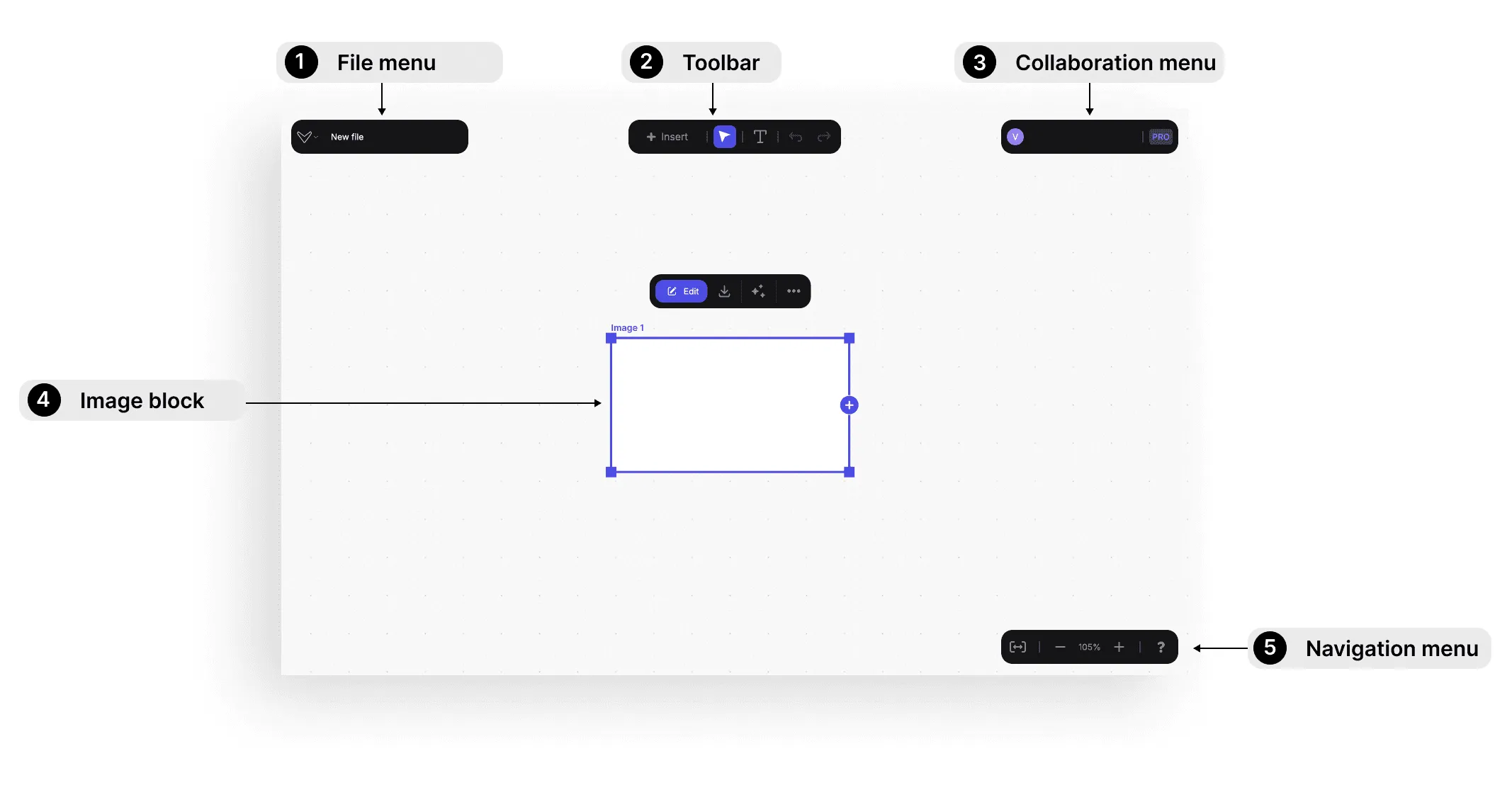
Navigating the Canvas
- Move Around: Press the space bar and drag.
- Zoom In/Out: Use pinch gestures on trackpads/touch devices, hold
Ctrland scroll, or use the zoom controls in the lower right corner.
Image Interaction
- Click Image Options: Edit, download HD copy, or begin creation.
- Three Dots Menu: Arrange or delete images.
Creating and Refining Images
- Add Prompt Box: Click 'Create' to add a prompt box linked to an image.
- Select Mode: Choose between Render or Refine.
- Set Options: Select render style, drawing influence, and type the prompt.
- Generate Images: Click 'Generate' to create images. Multiple clicks generate multiple images.
- Explore Variations: Add multiple prompt boxes for different styles or prompts.
- Duplicate/Delete: Use the three dots on the create panel to manage prompt boxes.
Managing Images on the Canvas
- Move Images: Click and drag.
- Scale Images: Adjust by dragging the bounding box.
- Insert Other Images: Click 'Insert' at the top to place a placeholder. Drag the icon to specify location.
Linking and Sketching
- Insert Prompt Box: Link to an image by clicking the plus button and dragging a line.
- Double Click to Edit: Enter Brush Studio for advanced functions.
- Return to Workbench: Click the Workbench icon.
Annotation and Collaboration
- Text Tool: Annotate projects for labels and collaboration.
- Team Collaboration: Work on projects simultaneously with team members. Follow their viewpoint by clicking initials in the top right.
Tutorial video
Have a question for our team?
Frequently asked questions
Explore all features in Vizcom or book a tailored demo for you and your
Yes of course! Our starter plan is completely free, no credit card required. This is a great plan to explore vizcom with.
We accept all major credit and debit cards.
Admins (paid) – can edit files, manage workspace settings, billing, teams, and invite members. Editors (paid) – can edit files but not manage settings, billing, or teams. Viewers (free) – can only view files in read-only mode.
Team billing is handled centrally by the Admin. All paid seats, whether Admins or Editors, are included in a single invoice under the same billing cycle, while Viewers remain free and do not affect the cost.
Yes, you can. An Admin can update the plan in the billing settings, and the switch will take effect on the next billing cycle at the annual rate.
Yes, you own everything you create in Vizcom. For free users, while Vizcom may use generated images to improve its services, it does not claim ownership of your designs, concepts, or original ideas—you keep full rights to them. For paid users, your images and designs remain entirely private and are only used to deliver the service. Every design, concept, and image you create or upload is fully yours and kept confidential.
Vizcom does not use your data to train AI models if you’re on a paid plan. Everything you create stays private and is only used to provide the service. Free users may have their generated images included to help improve Vizcom’s services, but even then, Vizcom does not claim ownership of your designs, concepts, or original ideas—you retain full rights.