Modify
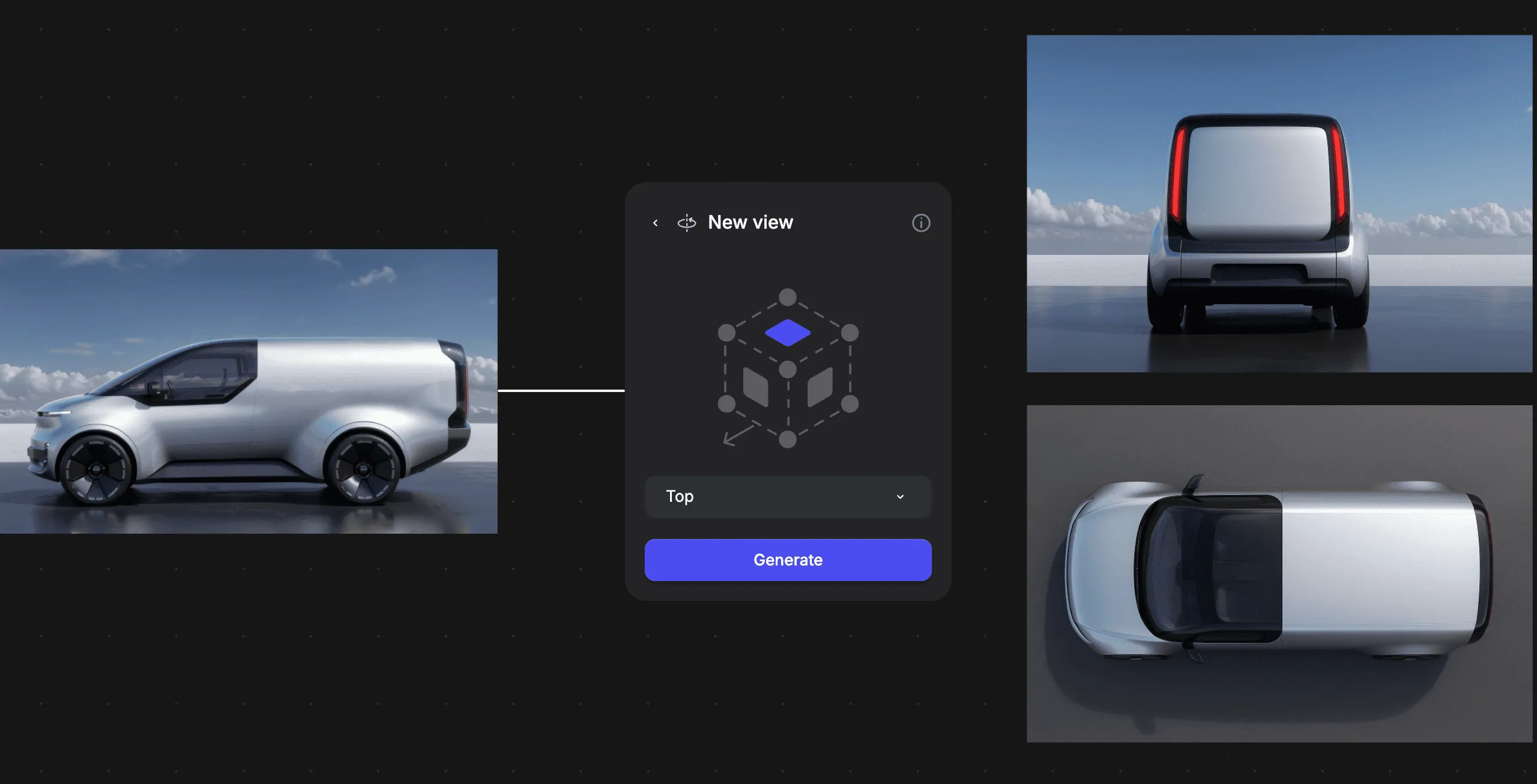
Modify lets you generate variations with control and extract valuable assets like materials, or different views from an already visualized base idea.
How to Use
- Upload an image to the Workbench view
- Find the "Modify" block, either by dragging on the plus icon from the starting image, or alternatively you can also find it in the main Workbench Toolbar
- Select which type of modification you want to go with
- Adjust the visual interface and click on generate with different settings
Different blocks
- New viewsNew views allows you to generate the product from multiple angles seamlessly.
- The cubical interface let's you choose the right angle you want to go for
- alternatively you can also choose the standard views from the dropdown menu
- You can always find the settings used at the name of the generated images (by clicking on the image, on the left top corner it will display the settings)
- Change expressionChange Expression allows you to change characters fascial expression with ease.
- Use the expression twist interface to determine the generated character's mood
- At the very last setting you can also input arbitrary expressions by describing
- You can always find the settings used at the name of the generated images (by clicking on the image, on the left top corner it will display the settings)
- Extract materialExtract material allows you to generate flat material images from any design so you can use them in your production workflow
- Set a rough area with the cutout section, adjust the zoom with the +, - icons
- Make sure to describe the expected material - this helps Vizcom to achieve the desired finish
- You can always find the settings used at the name of the generated images (by clicking on the image, on the left top corner it will display the settings)
- Form variation
Form variation allows you to generate different form language alternatives according to your chosen visual direction.- Adjust the form variation diagram, between the 4 axises, of Geometric / Organic and Simple / Complex to get the desired aesthetic
- You can always find the settings used at the name of the generated images (by clicking on the image, on the left top corner it will display the settings)
Have a question for our team?
Frequently asked questions
Explore all features in Vizcom or book a tailored demo for you and your
Yes of course! Our starter plan is completely free, no credit card required. This is a great plan to explore vizcom with.
We accept all major credit and debit cards.
Admins (paid) – can edit files, manage workspace settings, billing, teams, and invite members. Editors (paid) – can edit files but not manage settings, billing, or teams. Viewers (free) – can only view files in read-only mode.
Team billing is handled centrally by the Admin. All paid seats, whether Admins or Editors, are included in a single invoice under the same billing cycle, while Viewers remain free and do not affect the cost.
Yes, you can. An Admin can update the plan in the billing settings, and the switch will take effect on the next billing cycle at the annual rate.
Yes, you own everything you create in Vizcom. For free users, while Vizcom may use generated images to improve its services, it does not claim ownership of your designs, concepts, or original ideas—you keep full rights to them. For paid users, your images and designs remain entirely private and are only used to deliver the service. Every design, concept, and image you create or upload is fully yours and kept confidential.
Vizcom does not use your data to train AI models if you’re on a paid plan. Everything you create stays private and is only used to provide the service. Free users may have their generated images included to help improve Vizcom’s services, but even then, Vizcom does not claim ownership of your designs, concepts, or original ideas—you retain full rights.