Drawing in Vizcom
- To better improve the control of the renderings, you can draw inside the application and see your results come to life.
- This allows you to make changes on the fly and have a collaborative experience with Vizcom AI.
- Use your favourite drawing device! (iPad, graphic tablet, display tablet…)
- To boost your workflow, check out the keyboard shortcuts
This documentation provides a comprehensive guide to the essential drawing tools available in the Brush Studio application. Whether you're using a stylus, drawing tablet, or iPad, this guide will help you navigate and utilise the application efficiently.
Tools

Brush [B]
For starting, the brush is set up for creating line drawings but you can always change the brush settings, according to your preference at the top toolbar, or by right clicking on the canvas.

Holding down [shift] on the keyboard will make the lines straight, (horizontal, vertical, or diagonal 45° )
Paint bucket - find this tool under the brush to fill in line work with a selected color
Eraser [E] works similarly, how the brush does.
Shape tools:
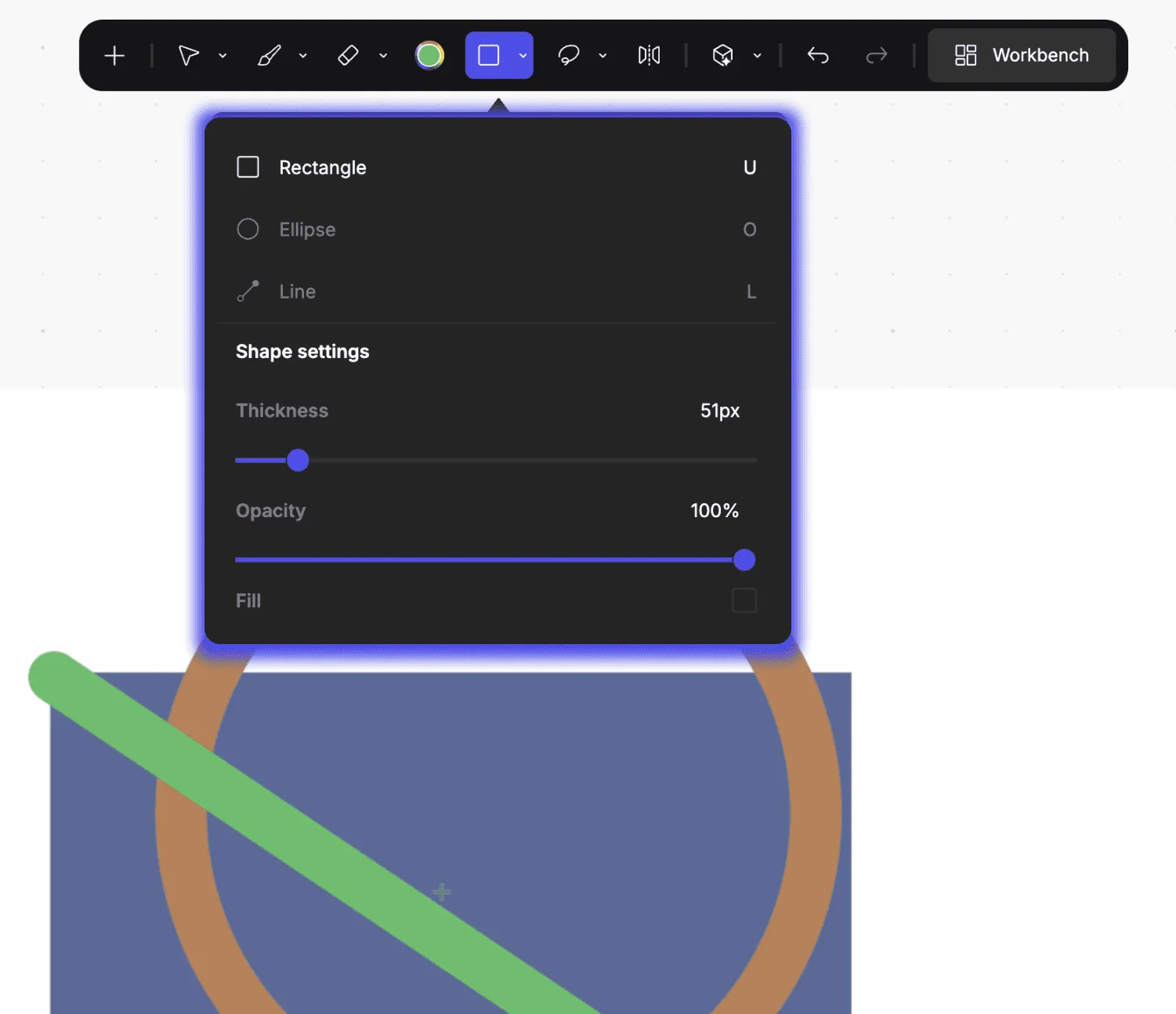
There are some shape tools for a more constructive approach (box [I], ellipse [O], line [L])
Move tool [M]
Use the Move tool to scale, adjust and rotate the selected layer.
You can select layers when the transform tool is active, by right-clicking.
Skew [T]
Use this tool to skew layers and adjust proportions.
Symmetry tool
Selection tools [G]:
Choose between:
Lasso,
Brush,
Bezier,
or Automatic selection tools.
Check out all the keyboard shortcuts for the most effective workflow possible
Future Updates
We aim to continuously add more sketching tools, to provide a comprehensive drawing experience within a single application.
Feedback
Your feedback is valuable to us. Let us know if you have any suggestions for new tools or improvements to existing features.
Have a question for our team?
Frequently asked questions
Explore all features in Vizcom or book a tailored demo for you and your
Yes of course! Our starter plan is completely free, no credit card required. This is a great plan to explore vizcom with.
We accept all major credit and debit cards.
Admins (paid) – can edit files, manage workspace settings, billing, teams, and invite members. Editors (paid) – can edit files but not manage settings, billing, or teams. Viewers (free) – can only view files in read-only mode.
Team billing is handled centrally by the Admin. All paid seats, whether Admins or Editors, are included in a single invoice under the same billing cycle, while Viewers remain free and do not affect the cost.
Yes, you can. An Admin can update the plan in the billing settings, and the switch will take effect on the next billing cycle at the annual rate.
Yes, you own everything you create in Vizcom. For free users, while Vizcom may use generated images to improve its services, it does not claim ownership of your designs, concepts, or original ideas—you keep full rights to them. For paid users, your images and designs remain entirely private and are only used to deliver the service. Every design, concept, and image you create or upload is fully yours and kept confidential.
Vizcom does not use your data to train AI models if you’re on a paid plan. Everything you create stays private and is only used to provide the service. Free users may have their generated images included to help improve Vizcom’s services, but even then, Vizcom does not claim ownership of your designs, concepts, or original ideas—you retain full rights.