File Sharing
Share and collaborate on files with others by quickly copying the file link. Feel secure with specific access and permissions settings.
Share files
Share files with others by sharing a link.
- Share a link: Each file has a unique URL. Copy this link and send it to collaborators.
Copy link
Click Copy link in the share modal to add the link to your clipboard.
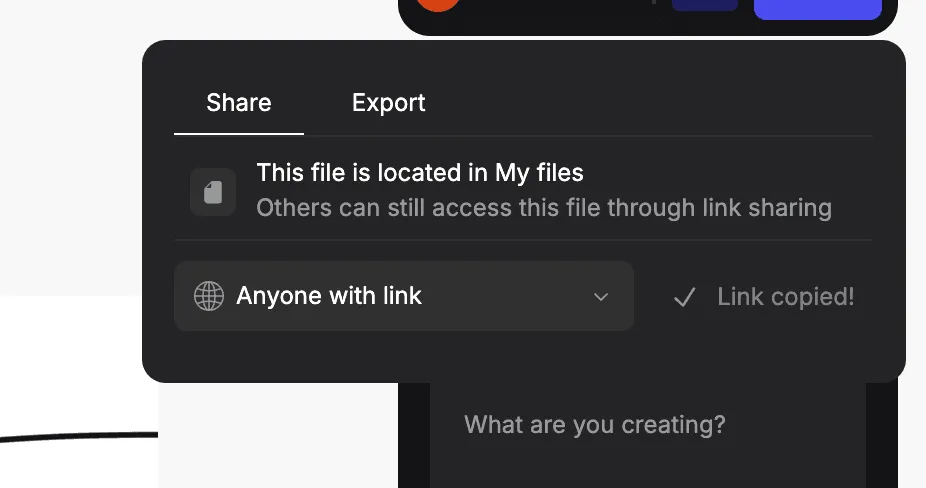
You can also link directly to a file from within the workspace by clicking the … menu on a file and navigating to Copy link

👋 Note: If you are editing a sketch block in 2D Studio and click Share, the link will take people directly to 2D Studio. If you are creating in Workbench and you click Share, the link will take people to Workbench.
Set file access
Files have access levels. Access determines who can access the file:
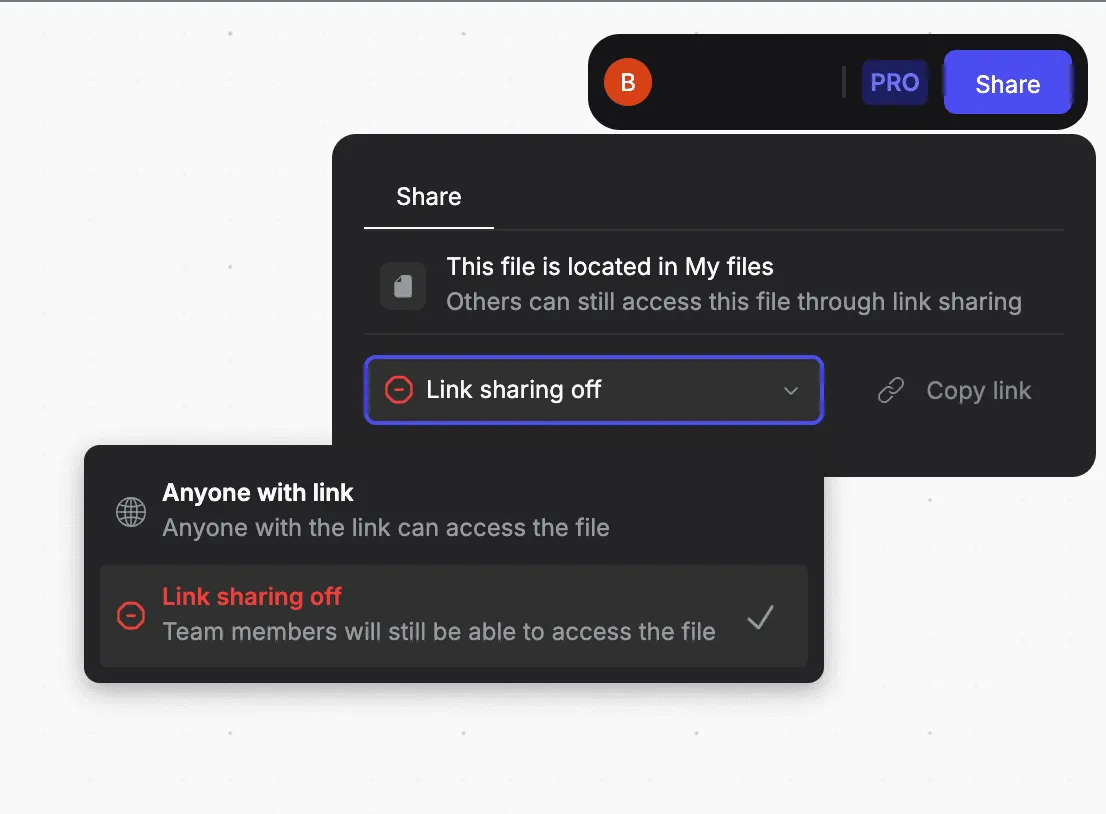
- Anyone with link: Anyone, even those outside of your workspace, will be able to access this file. A person’s role type in your workspace determines what level of permissions they have per file. Anyone who accesses the file from within your workspace will adopt the role permissions they have in the workspace. Anyone who accesses the file from outside of your workspace will have view-only access.
- Scenario 1: John is an editor in your workspace. You copy a file link with ‘anyone with link’ access settings. John uses this link to access your file. Because John is an editor in your workspace, he can edit your file.
- Scenario 2: Sarah is not in your workspace and has never used Vizcom before. You send her a link to your file with access set to ‘anyone with a link’. Sarah can only view your file. She cannot make any edits. If you would like Sarah to make edits, you can invite her to your workspace and set her role to ‘editor’.
Global access settings
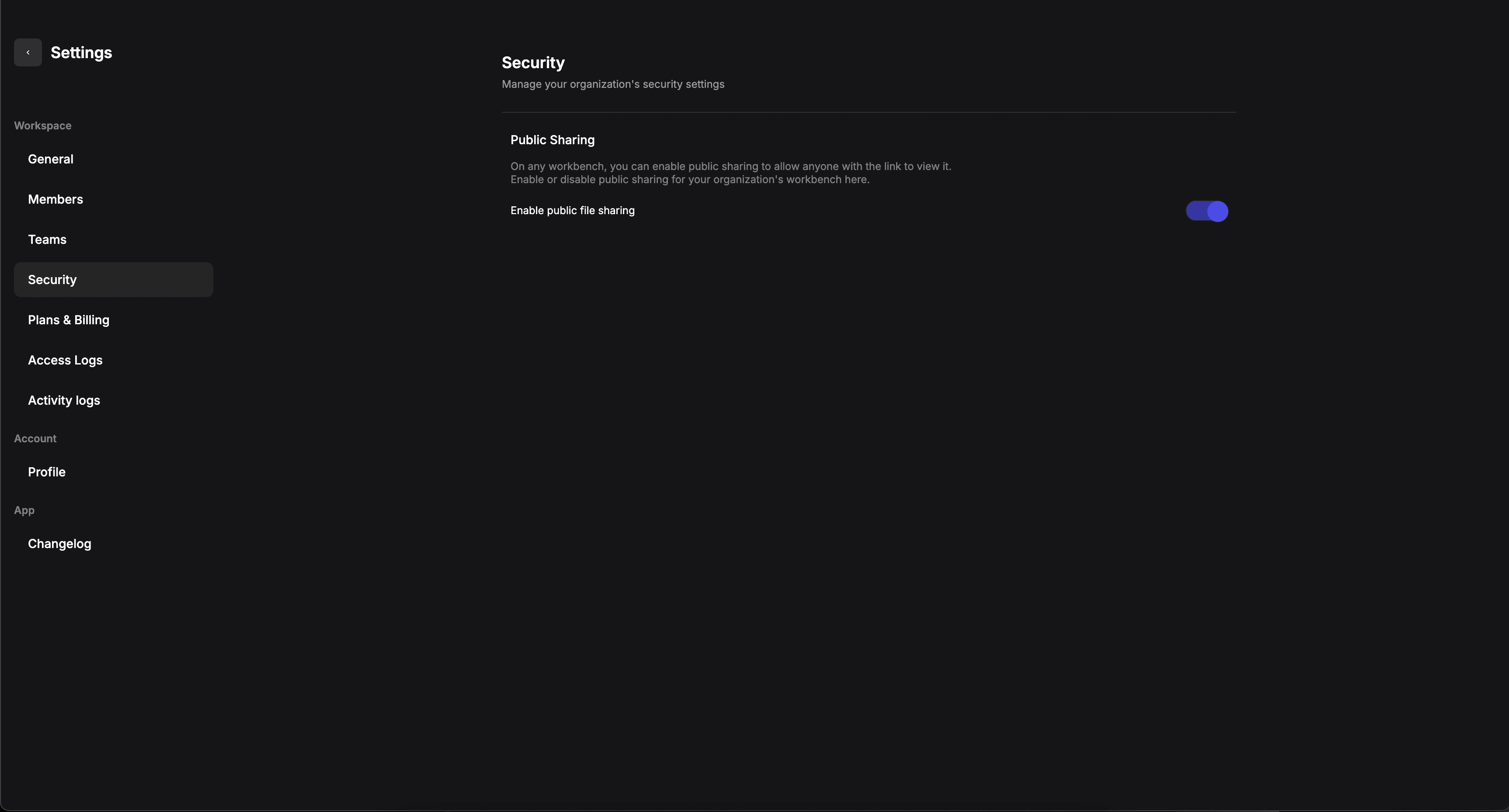
Admin in a workspace can toggle public sharing OFF for the entire workspace.
Have a question for our team?
Frequently asked questions
Explore all features in Vizcom or book a tailored demo for you and your
Yes of course! Our starter plan is completely free, no credit card required. This is a great plan to explore vizcom with.
We accept all major credit and debit cards.
Admins (paid) – can edit files, manage workspace settings, billing, teams, and invite members. Editors (paid) – can edit files but not manage settings, billing, or teams. Viewers (free) – can only view files in read-only mode.
Team billing is handled centrally by the Admin. All paid seats, whether Admins or Editors, are included in a single invoice under the same billing cycle, while Viewers remain free and do not affect the cost.
Yes, you can. An Admin can update the plan in the billing settings, and the switch will take effect on the next billing cycle at the annual rate.
Yes, you own everything you create in Vizcom. For free users, while Vizcom may use generated images to improve its services, it does not claim ownership of your designs, concepts, or original ideas—you keep full rights to them. For paid users, your images and designs remain entirely private and are only used to deliver the service. Every design, concept, and image you create or upload is fully yours and kept confidential.
Vizcom does not use your data to train AI models if you’re on a paid plan. Everything you create stays private and is only used to provide the service. Free users may have their generated images included to help improve Vizcom’s services, but even then, Vizcom does not claim ownership of your designs, concepts, or original ideas—you retain full rights.