Editing specific areas - Selection tools
👉 Visit our website to follow along: https://www.vizcom.ai/
When you’re developing a product, in the design process you will eventually reach a place where you have to fixate most of the design and start working on some specific details. This is exactly what Inpainting [G] is suitable for.
How to use Selection tools
Step 1
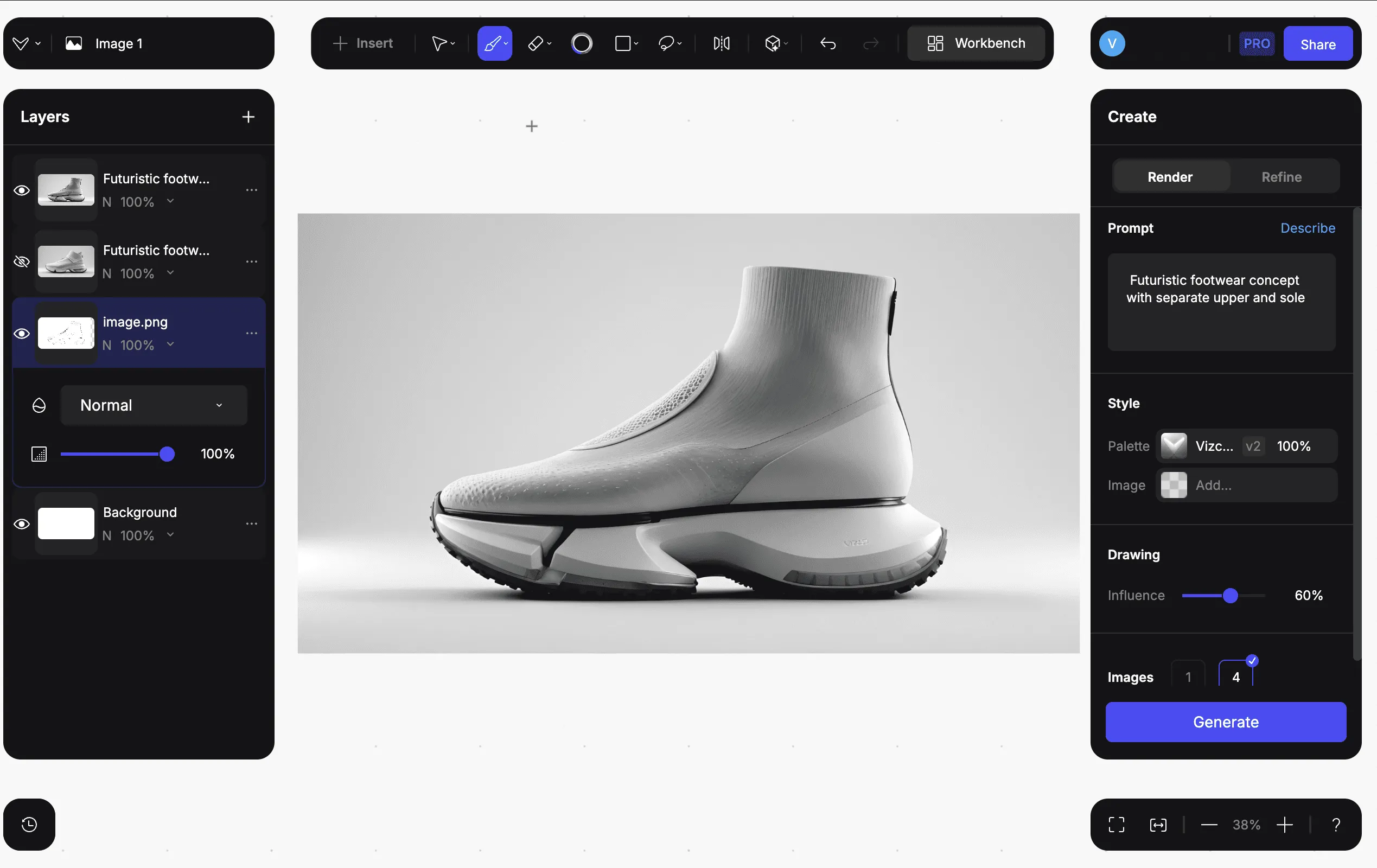
Have a rendering or any image on your canvas.
Step 2
Find the Selection tools at the top toolbar or hit [G] on the keyboard.
Select whichever selection method you want to use.
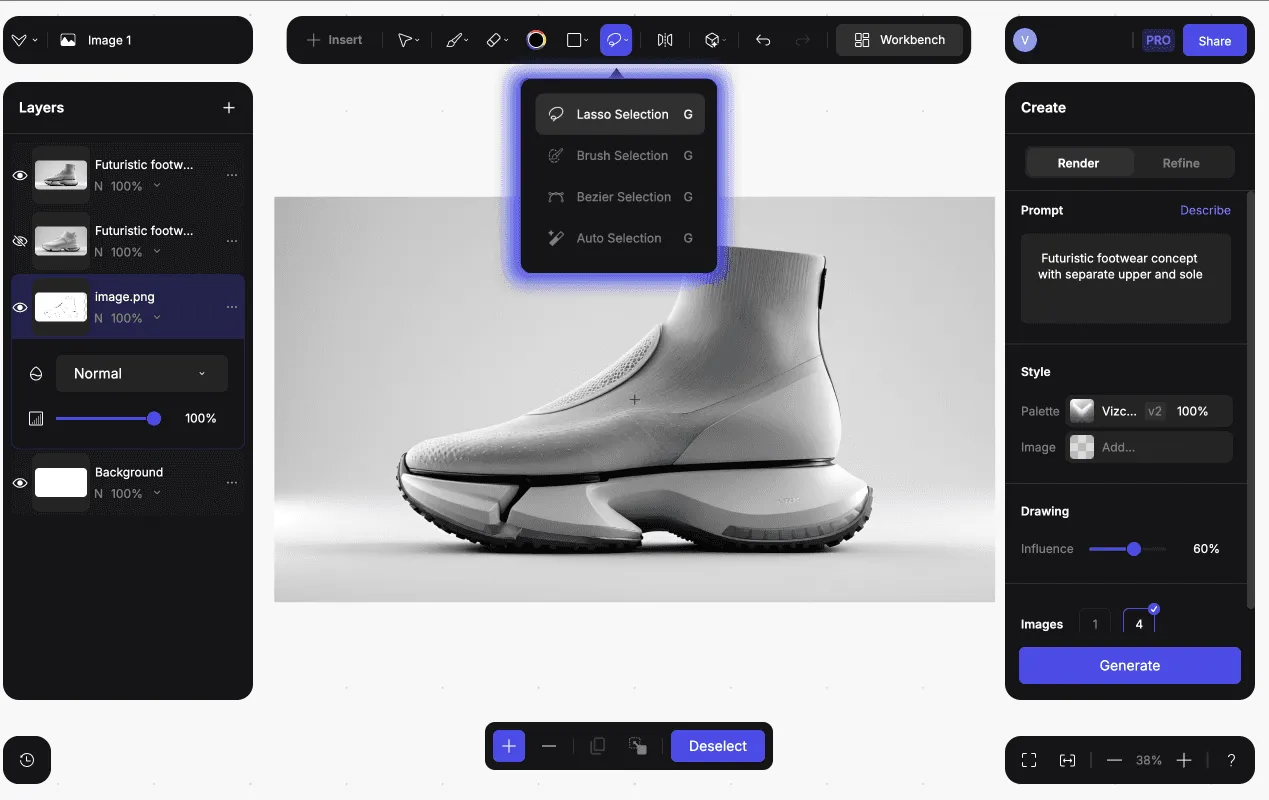
Different selection tools
- Lasso selection
- Brush selection
- Bezier selection
- Auto selection
Step 3
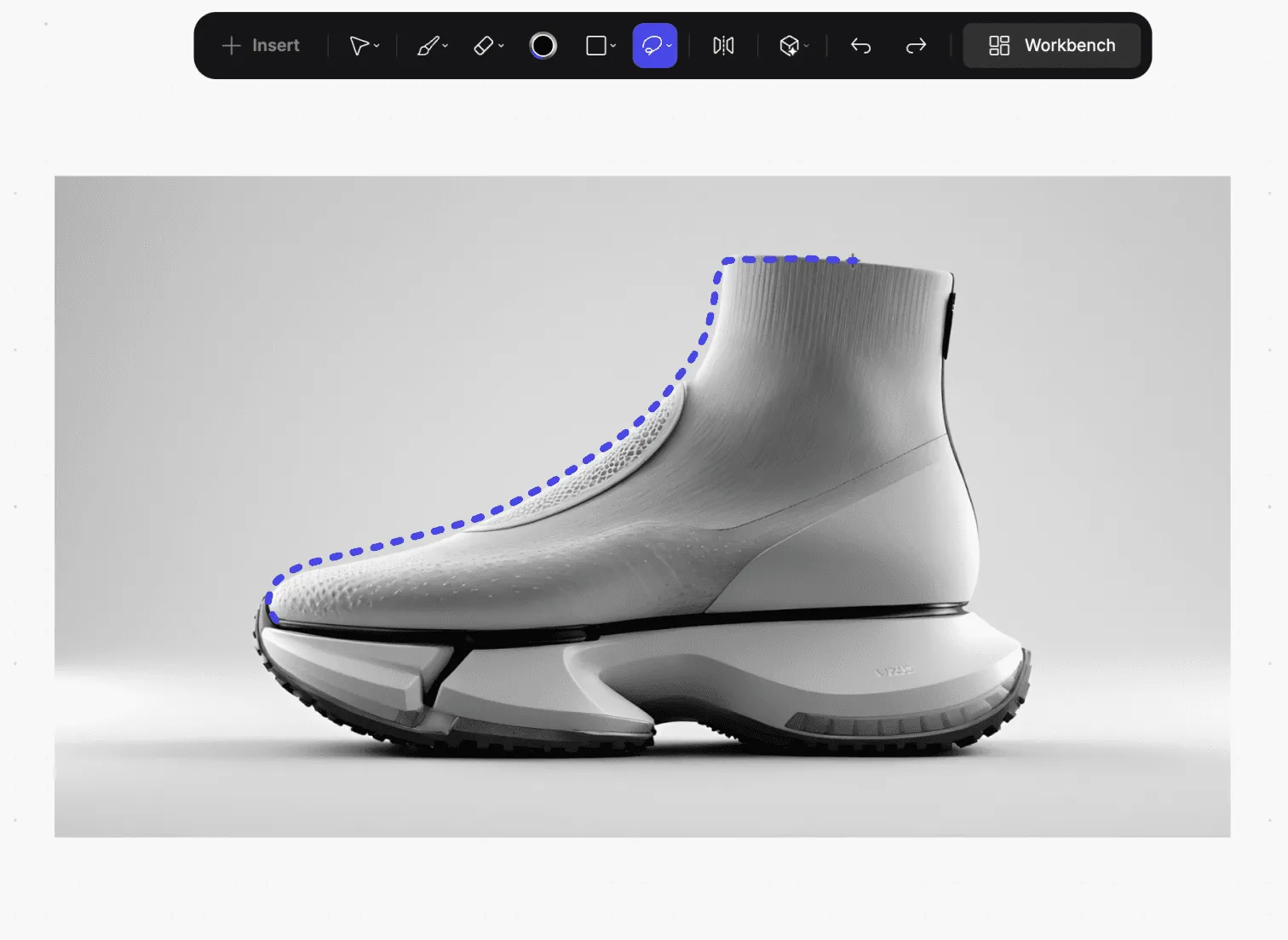
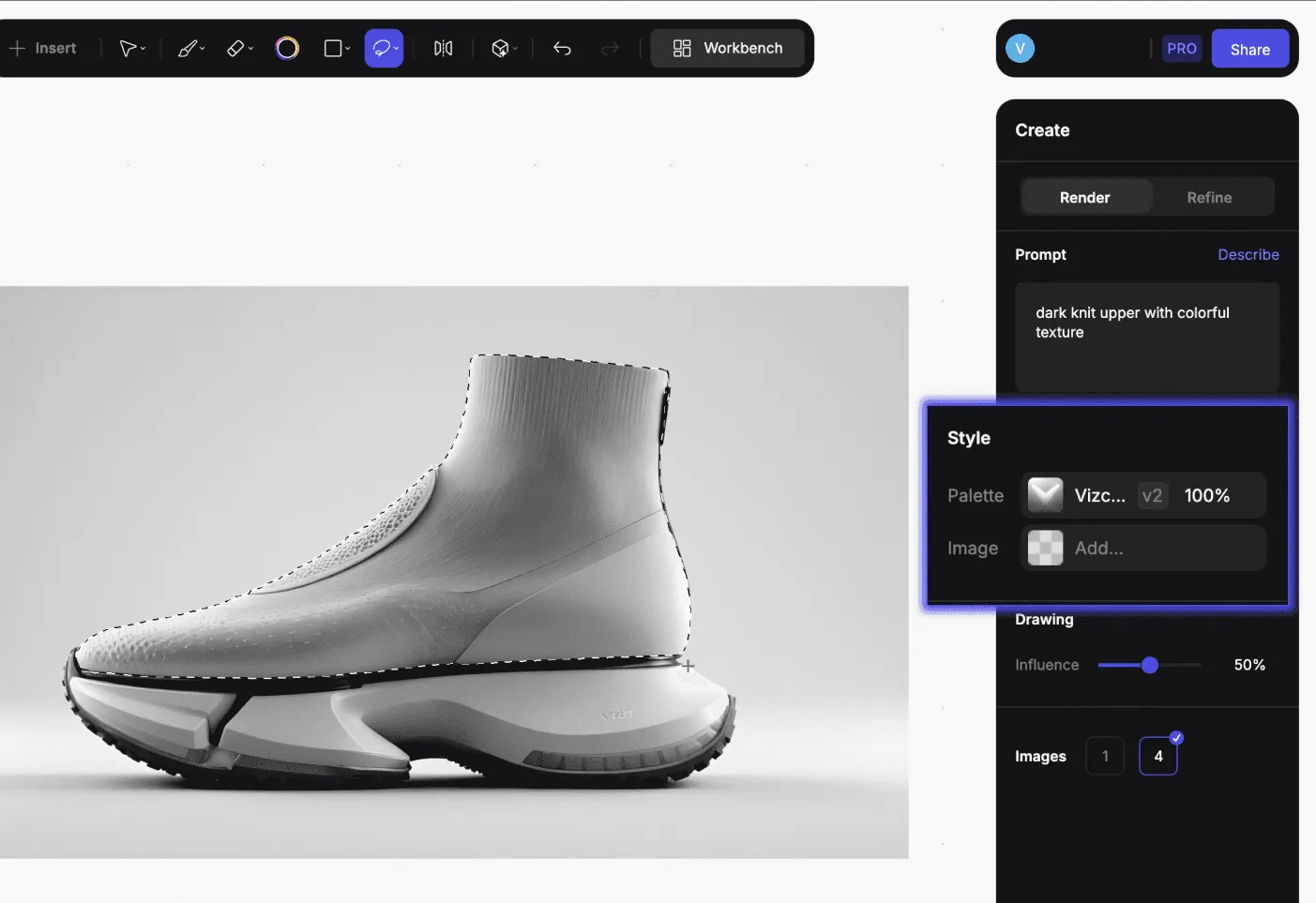
Make the selection on the canvas
Step 4
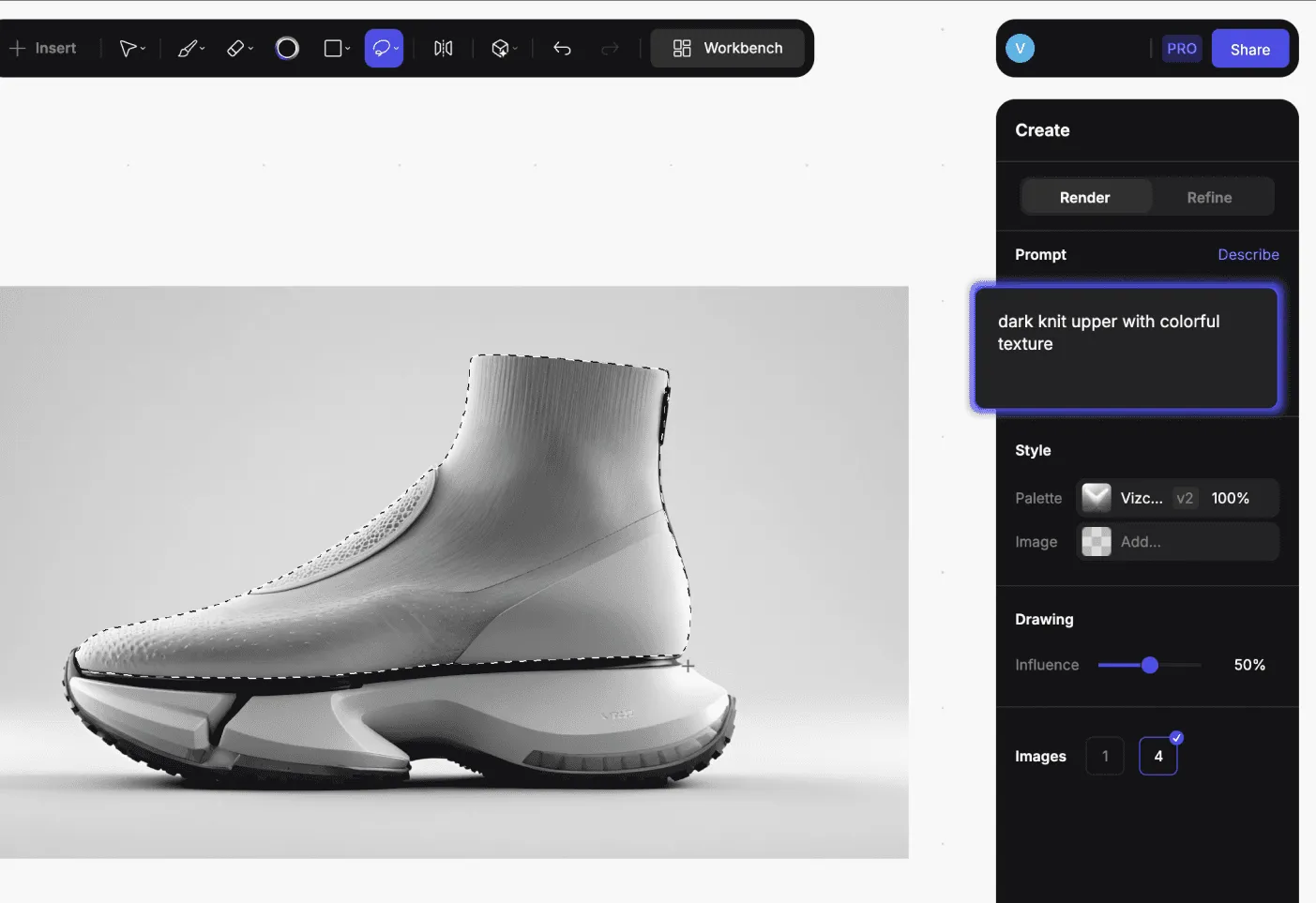
Write a prompt specifically for the selected area!
- Set the mode either to Render a new part, or Refine on the existing one
- Describe with the prompt only the selected area
Step 5
Set up the Style and Influence
- For making accurate and photorealistic changes , the Vizcom General is the recommended style to use the selection tools with.
- Keep the influence high if you want to re-render the selected area with closer to the current design or keep it low to give it more dependency on your prompt.
Step 6
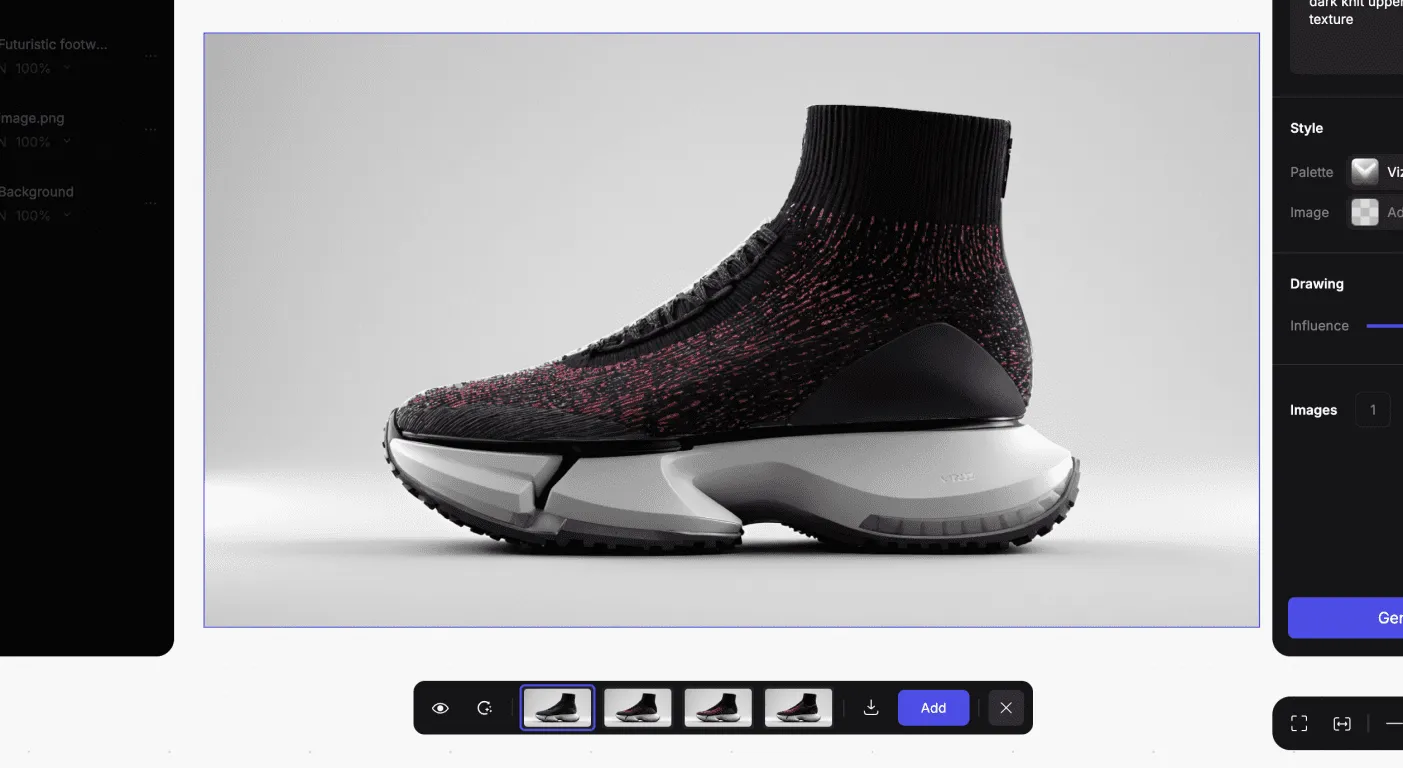
Hit Generate!
Keep generating and experiment with different settings until you satisfied with the results!
If you want to apply specific images or materials to specific places, check out the reference image page
Have a question for our team?
Frequently asked questions
Explore all features in Vizcom or book a tailored demo for you and your
Yes of course! Our starter plan is completely free, no credit card required. This is a great plan to explore vizcom with.
We accept all major credit and debit cards.
Admins (paid) – can edit files, manage workspace settings, billing, teams, and invite members. Editors (paid) – can edit files but not manage settings, billing, or teams. Viewers (free) – can only view files in read-only mode.
Team billing is handled centrally by the Admin. All paid seats, whether Admins or Editors, are included in a single invoice under the same billing cycle, while Viewers remain free and do not affect the cost.
Yes, you can. An Admin can update the plan in the billing settings, and the switch will take effect on the next billing cycle at the annual rate.
Yes, you own everything you create in Vizcom. For free users, while Vizcom may use generated images to improve its services, it does not claim ownership of your designs, concepts, or original ideas—you keep full rights to them. For paid users, your images and designs remain entirely private and are only used to deliver the service. Every design, concept, and image you create or upload is fully yours and kept confidential.
Vizcom does not use your data to train AI models if you’re on a paid plan. Everything you create stays private and is only used to provide the service. Free users may have their generated images included to help improve Vizcom’s services, but even then, Vizcom does not claim ownership of your designs, concepts, or original ideas—you retain full rights.