The New Vizcom Studio Experience
Our refresh to Vizcom Studio introduces a redesigned workspace built for flexibility, speed, and creative flow. With new customizable layouts, a centralized AI Workflow panel, and real-time background generation, you can now create and iterate more seamlessly than ever.
Customizing your space with Flexible Layouts
With Flexible Layouts, you can adjust your workspace to match your personal design flow.
Available Layout modes
- Default: Standard layout with all key panels visible
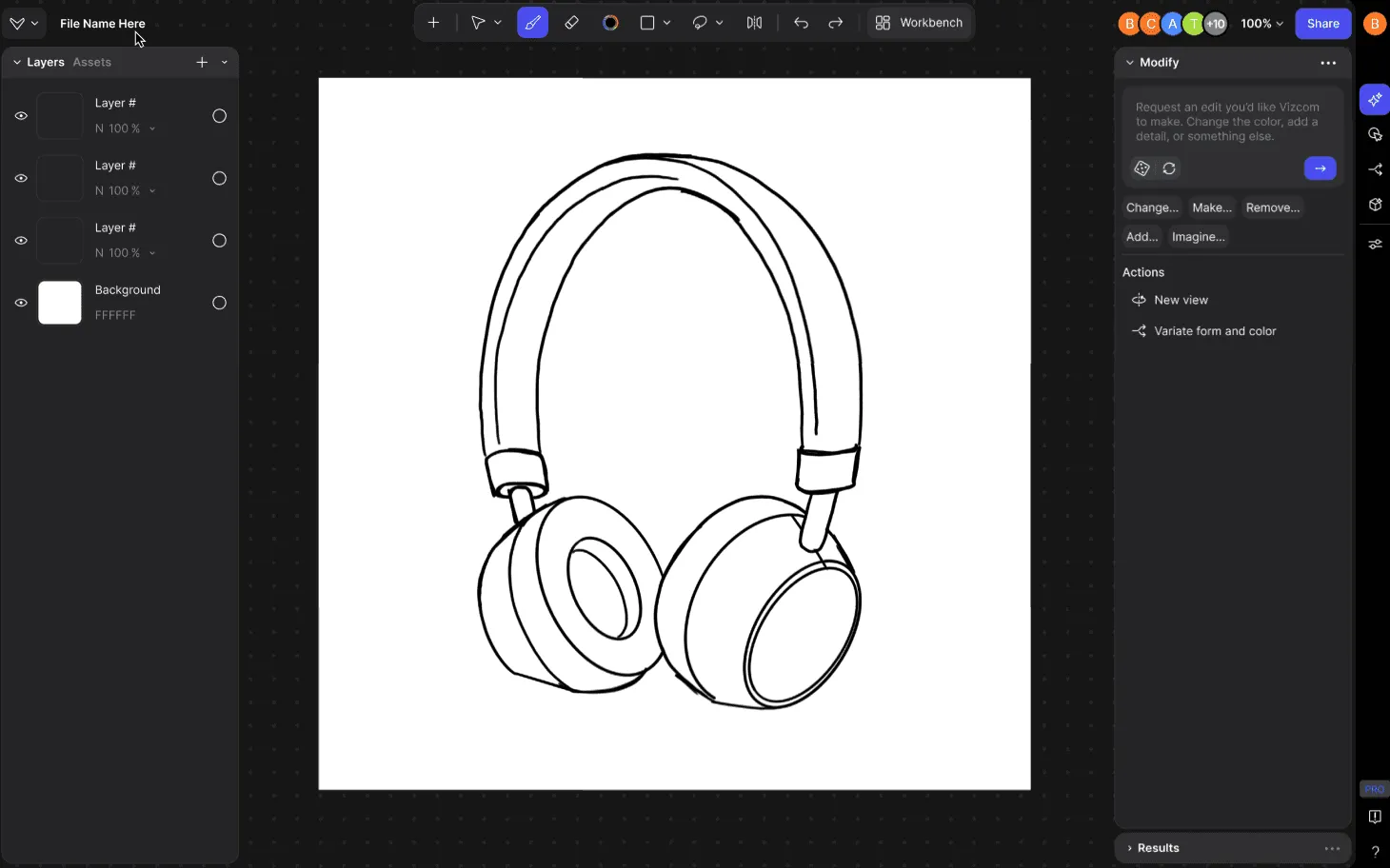
- Stacked: Panels are condensed into a single vertical stack — ideal for smaller screens or focused workflows. Panels can be collapsed if not in use.
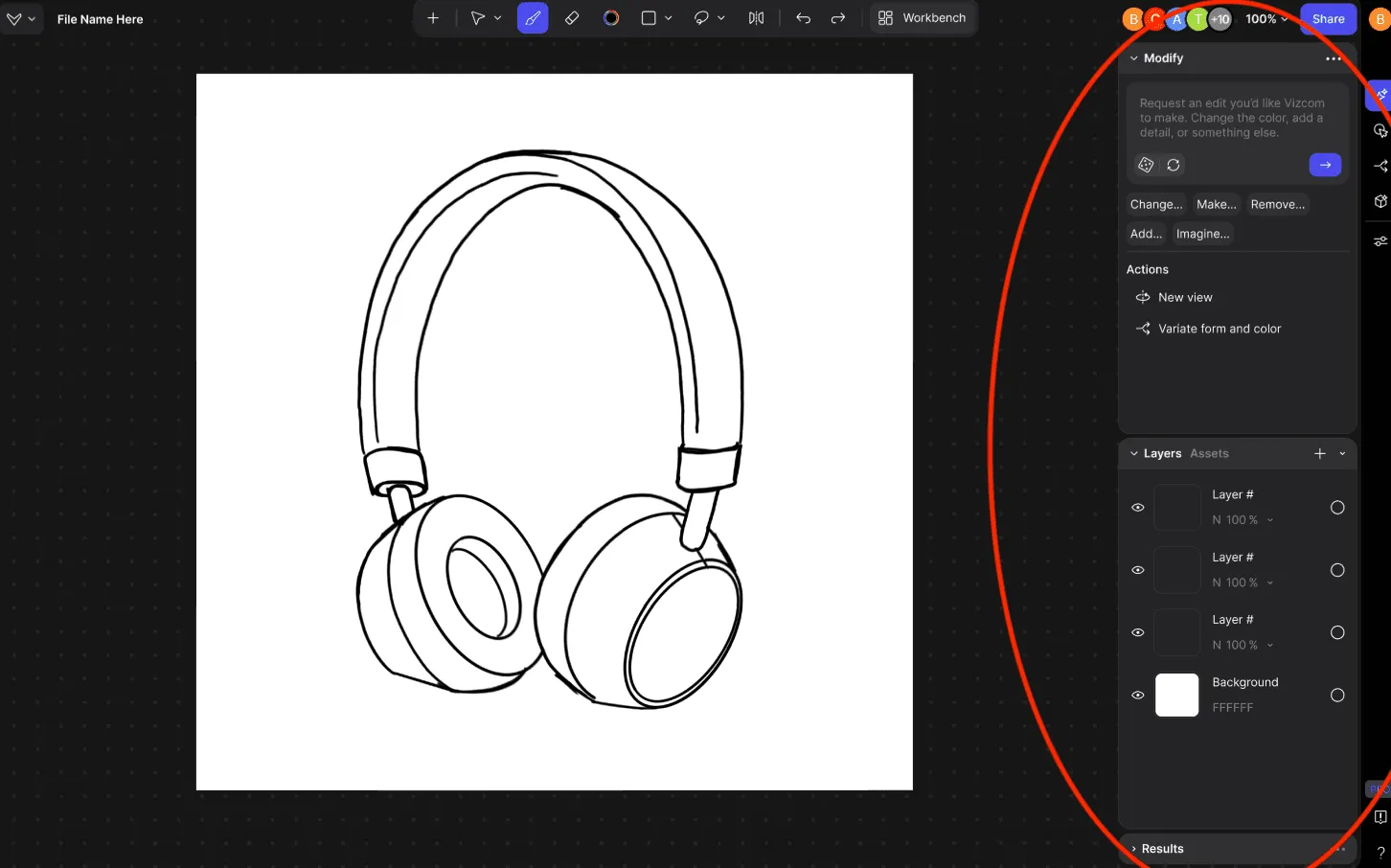
Custom: Fully personalize your setup by resizing, collapsing, or moving panels anywhere in Studio.
Accessing AI workflows
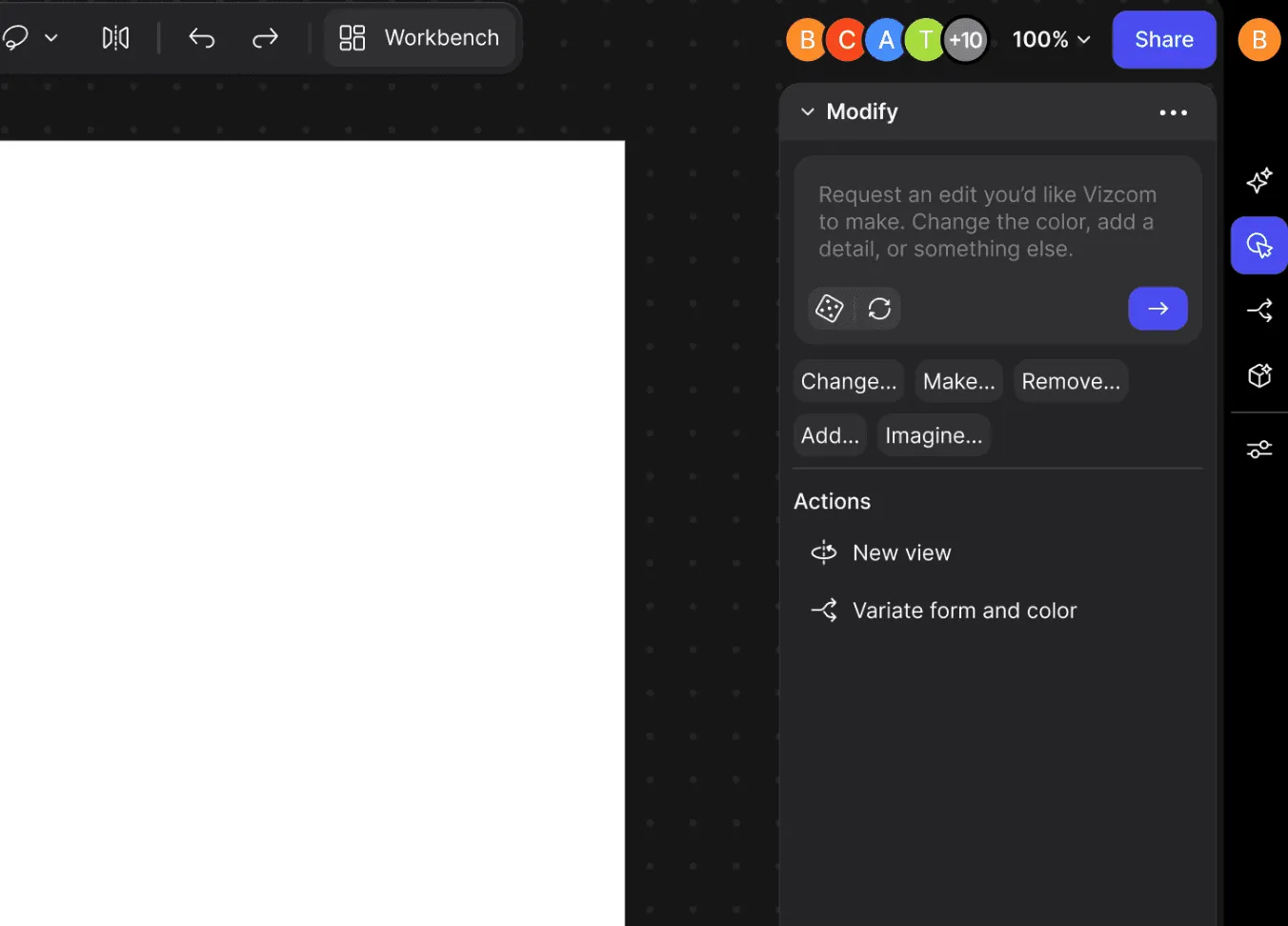
All AI workflows in Vizcom Studio are now located in a single, centralized sidebar for easier access and discovery.
How to Use the AI Workflow Panel:
1. Open the AI Workflow sidebar on the right-hand side of your Studio workspace.
2. You’ll start in the Modify workflow by default — this is where you can quickly refine, iterate, or build on your existing designs.
3. From there, you can switch to other available workflows at any time, such as
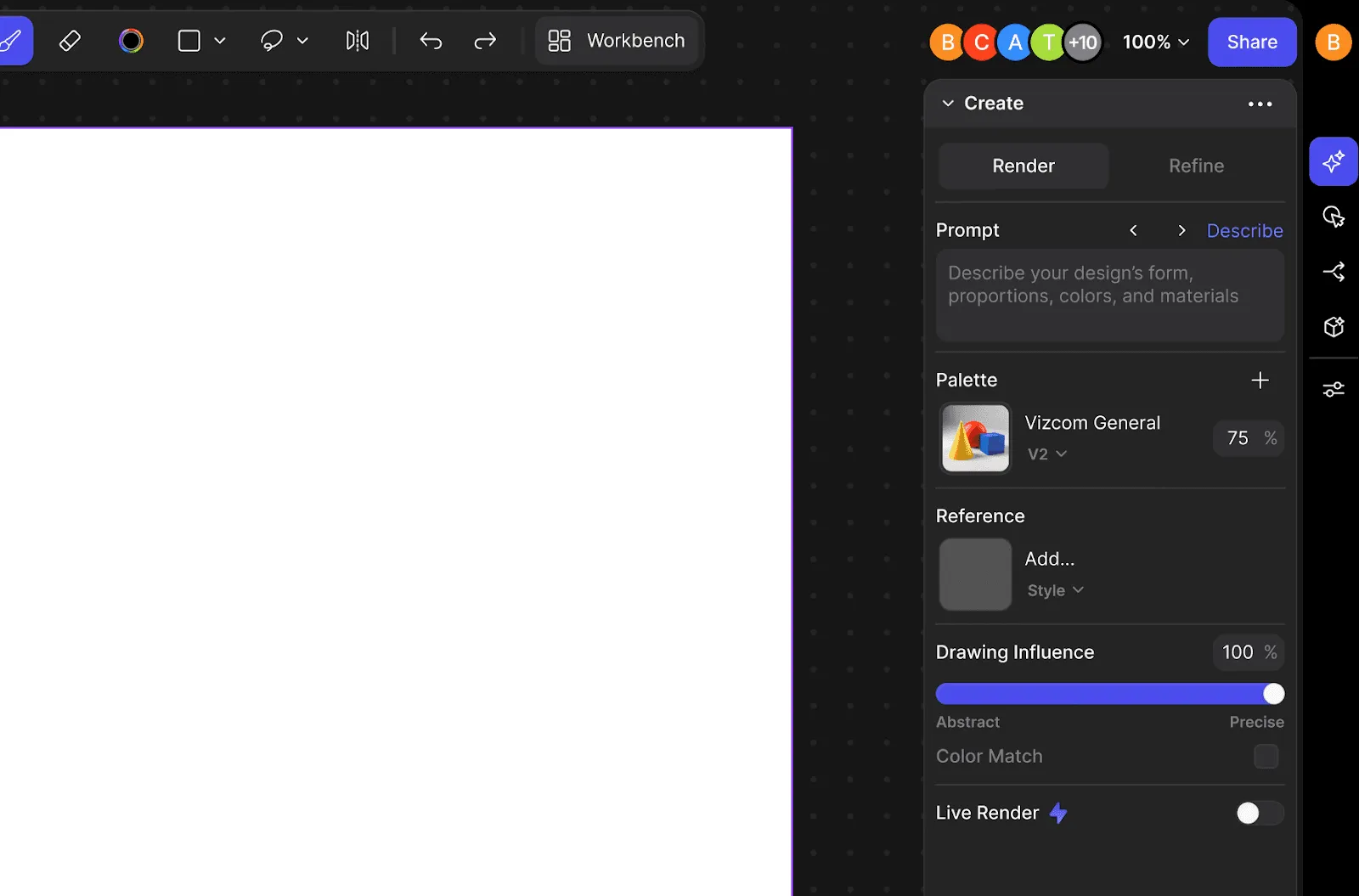
Create: Generate new visuals from sketches, text, or references.
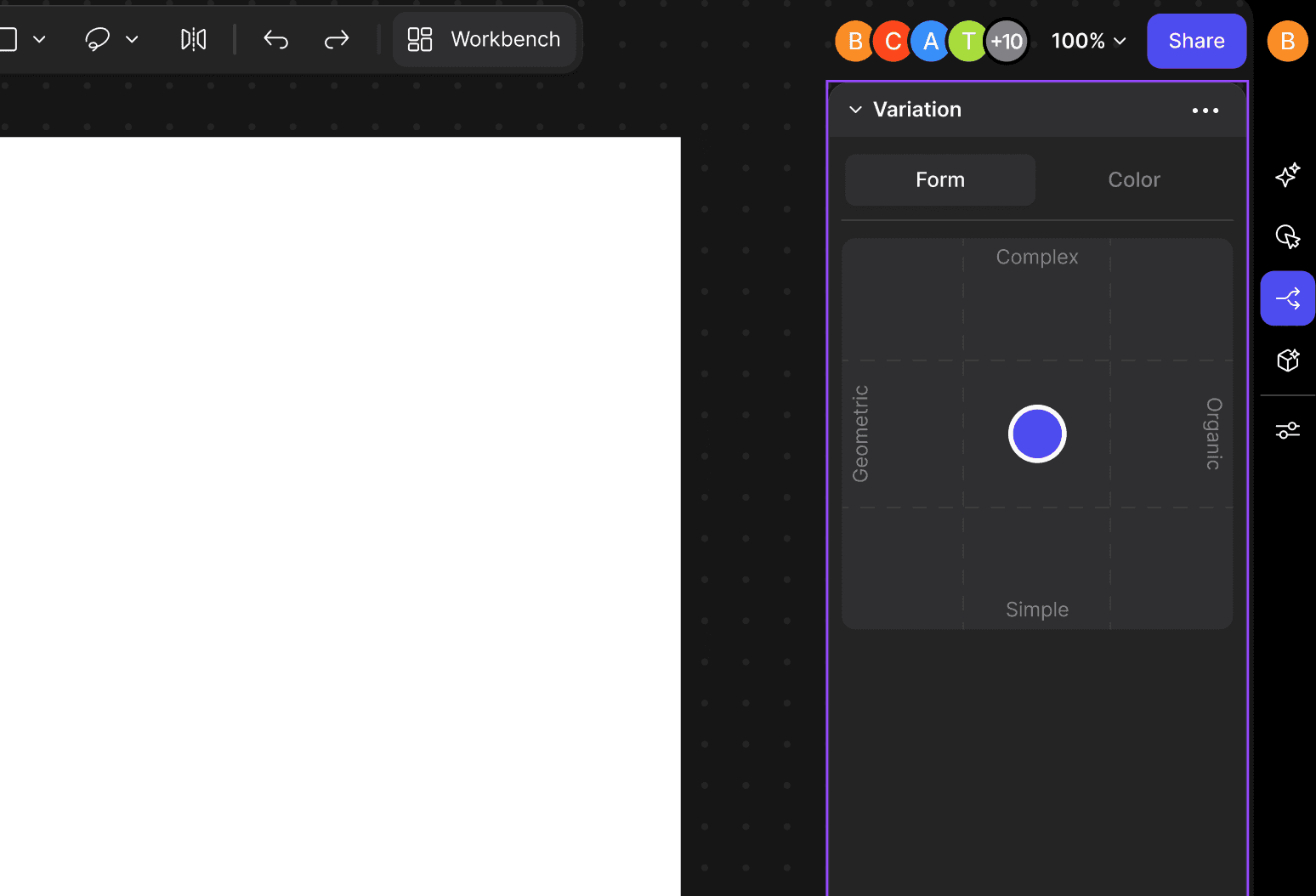
Variate: Quickly explore multiple design alternatives.
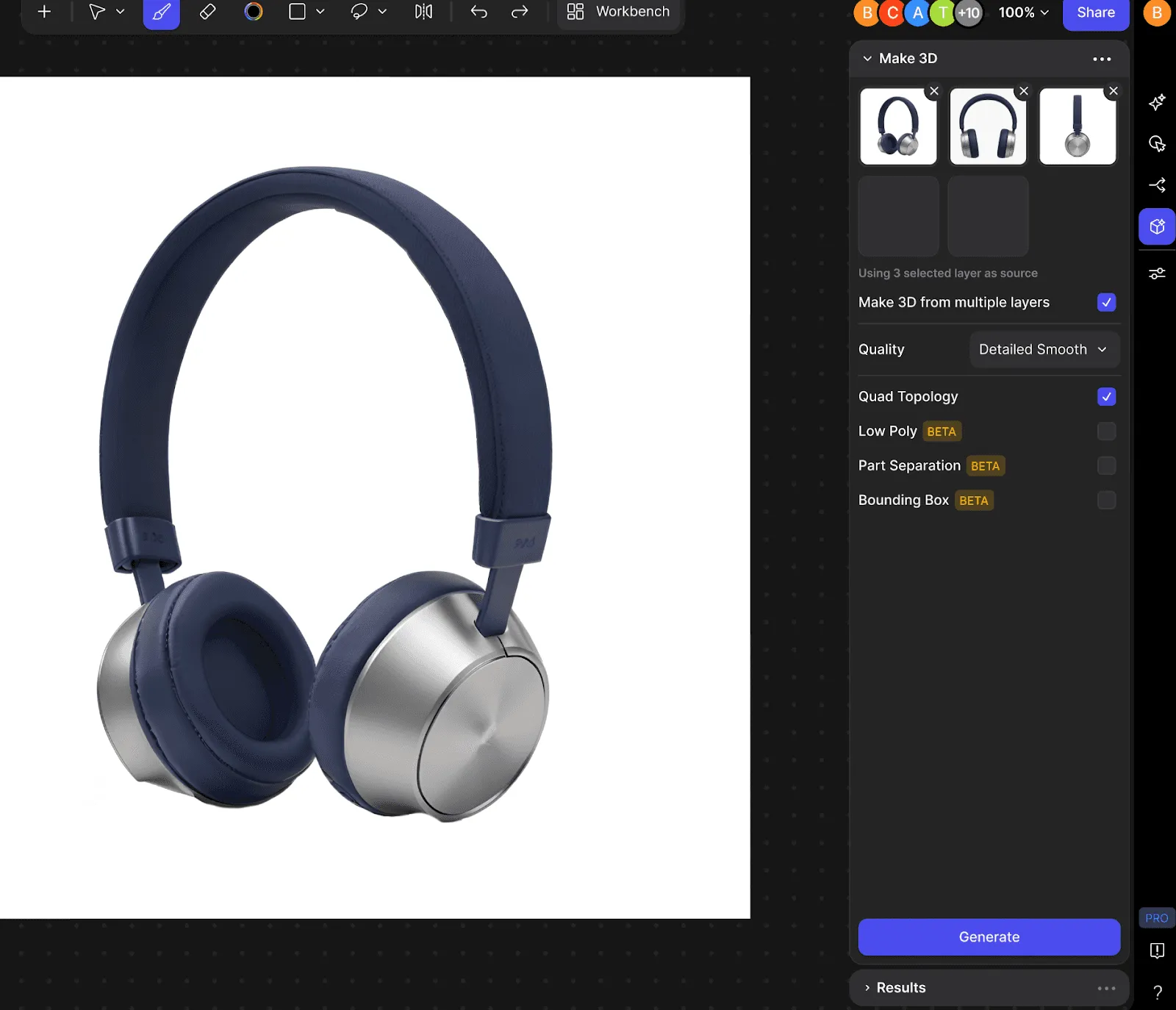
Make 3D: Transform your 2D sketches into 3D visualizations.
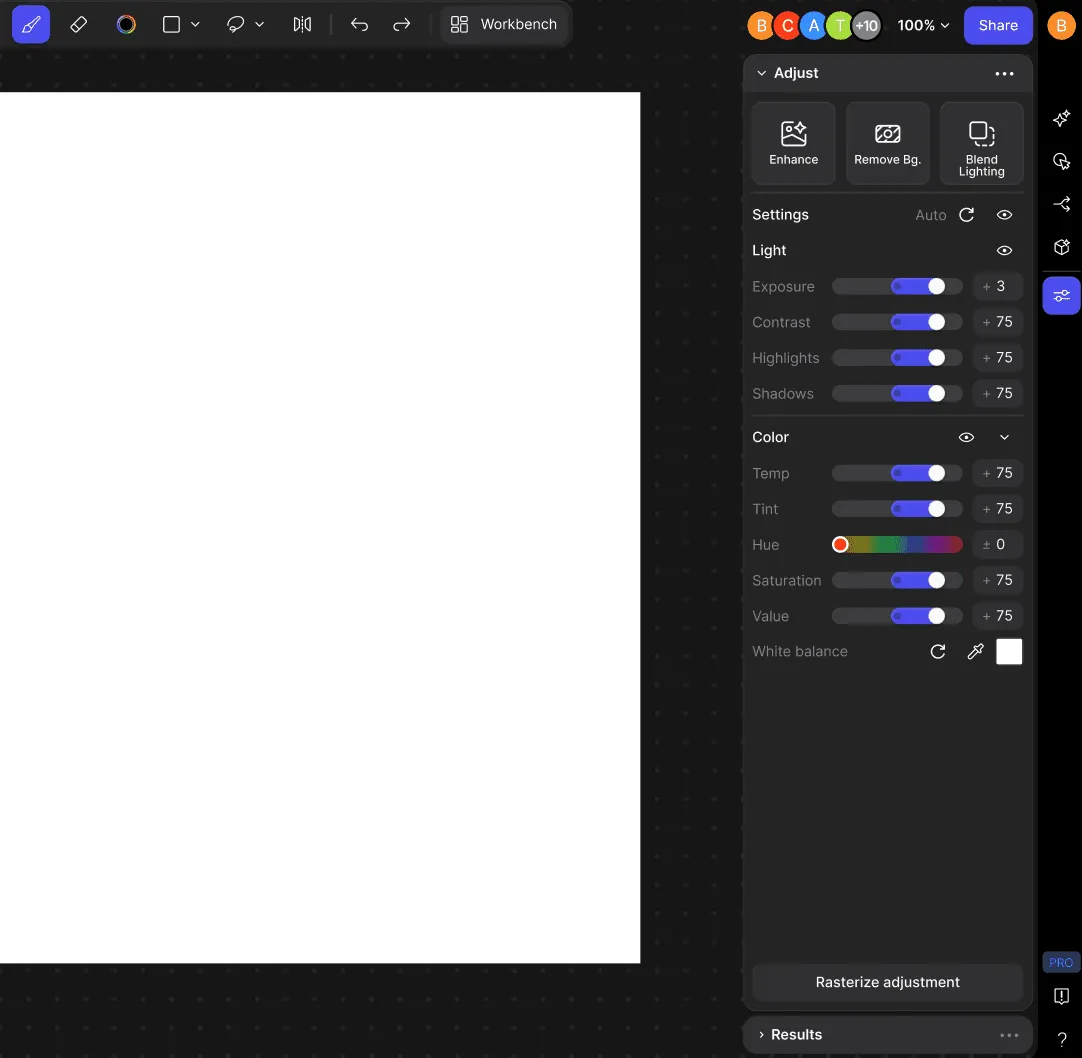
Adjust: Fine-tune material, lighting, or rendering properties.
4. Once selected, configure workflow options directly in the panel before running your generation.
Background generation & Viewing results with the Results Panel
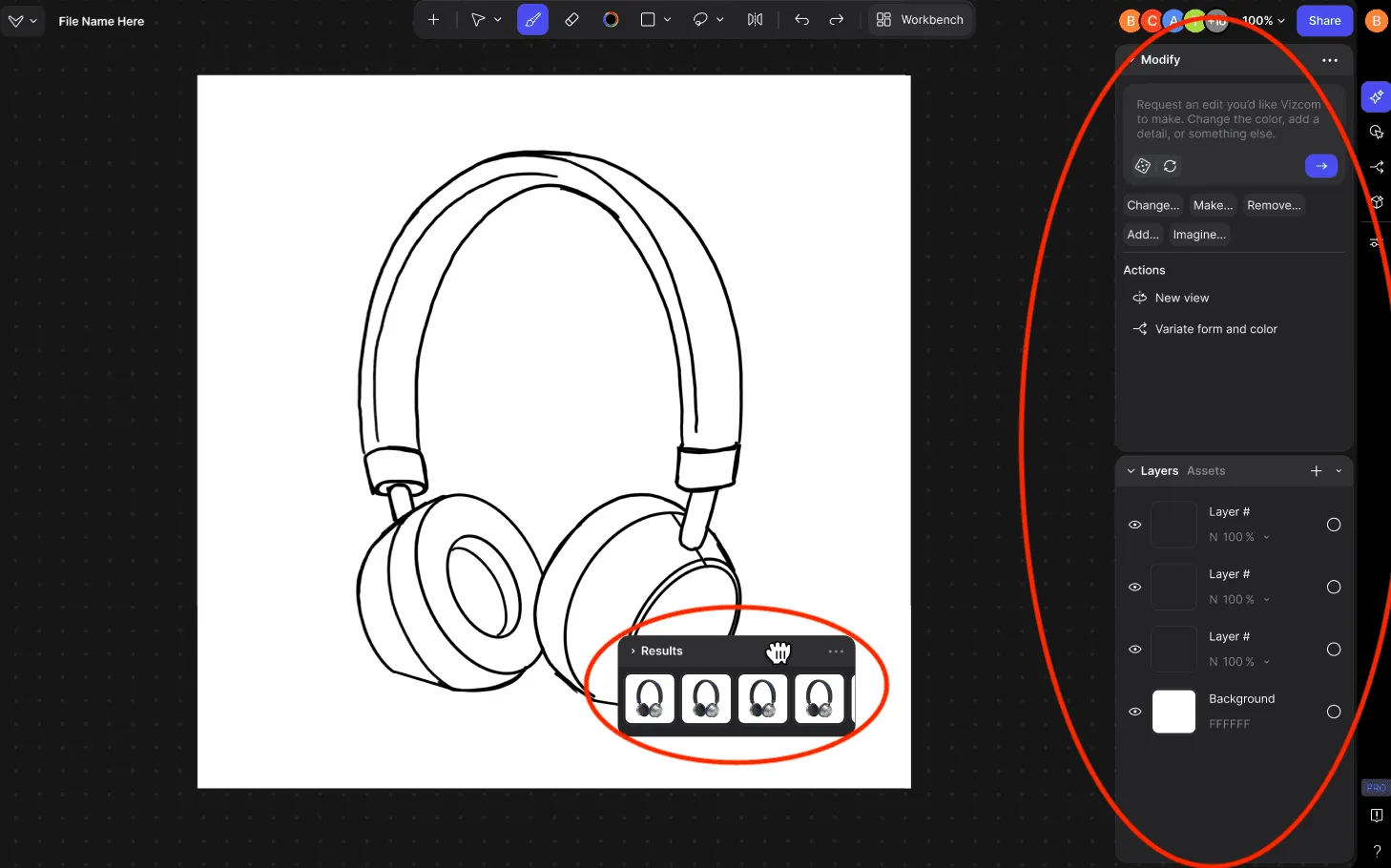
The Results Panel now allows you to view AI generations in real time without interrupting your design process.
How to Use the Results Panel:
- Run a generation using any supported workflow.
- While your generation runs, continue sketching or adjusting in the main canvas.
- View progress and results in the Results Panel
Where Results Appear
- Results Panel: Generations from Modify, Create, and Render workflows appear here for real-time viewing.
- Layers Panel: Generations from the Make 3D workflow appear as new 3D layers within your project.
Have a question for our team?
Frequently asked questions
Explore all features in Vizcom or book a tailored demo for you and your
Yes of course! Our starter plan is completely free, no credit card required. This is a great plan to explore vizcom with.
We accept all major credit and debit cards.
Admins (paid) – can edit files, manage workspace settings, billing, teams, and invite members. Editors (paid) – can edit files but not manage settings, billing, or teams. Viewers (free) – can only view files in read-only mode.
Team billing is handled centrally by the Admin. All paid seats, whether Admins or Editors, are included in a single invoice under the same billing cycle, while Viewers remain free and do not affect the cost.
Yes, you can. An Admin can update the plan in the billing settings, and the switch will take effect on the next billing cycle at the annual rate.
Yes, you own everything you create in Vizcom. For free users, while Vizcom may use generated images to improve its services, it does not claim ownership of your designs, concepts, or original ideas—you keep full rights to them. For paid users, your images and designs remain entirely private and are only used to deliver the service. Every design, concept, and image you create or upload is fully yours and kept confidential.
Vizcom does not use your data to train AI models if you’re on a paid plan. Everything you create stays private and is only used to provide the service. Free users may have their generated images included to help improve Vizcom’s services, but even then, Vizcom does not claim ownership of your designs, concepts, or original ideas—you retain full rights.