How to use Refine mode
Enhance the quality and details of a previously created rendering
Refining is an iterative process in Vizcom, feel free to make multiple refine passes to increase details even more!
Refine will keep the colors of your image, it will just make it more detailed and will offer variation at low drawing influences
How to use Refine
- Create a rendering
- render mode
- Focus on creating a rendering which carries your vision in the truest way but no problem if it's a bit rough around the edges.
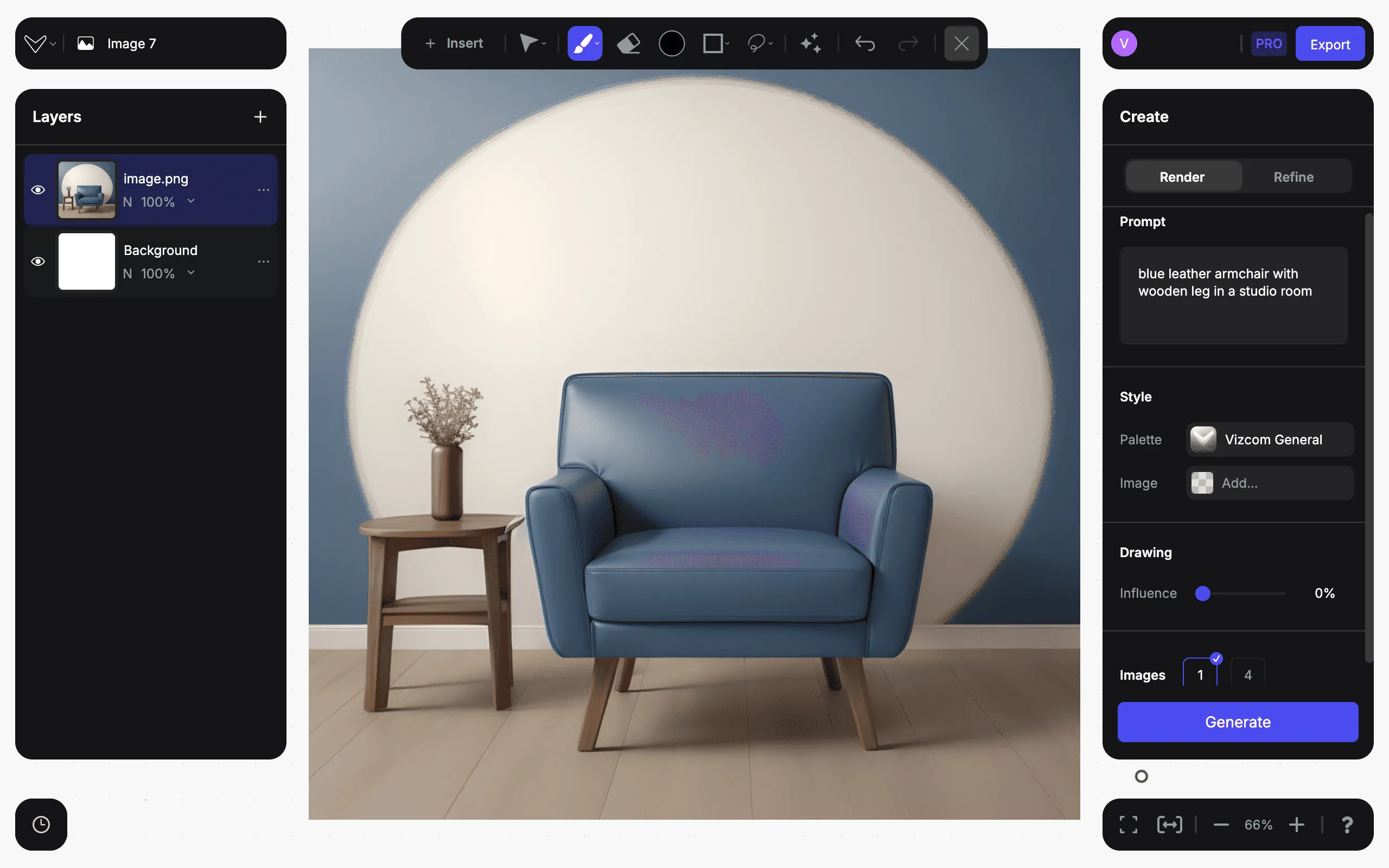
- Select Refine mode
- At the Create tab, select Refine mode, which is suitable for refining already existing renderings
- You can keep the original prompt description, but you can also modify it according to a desired direction you want to refine the image towards.
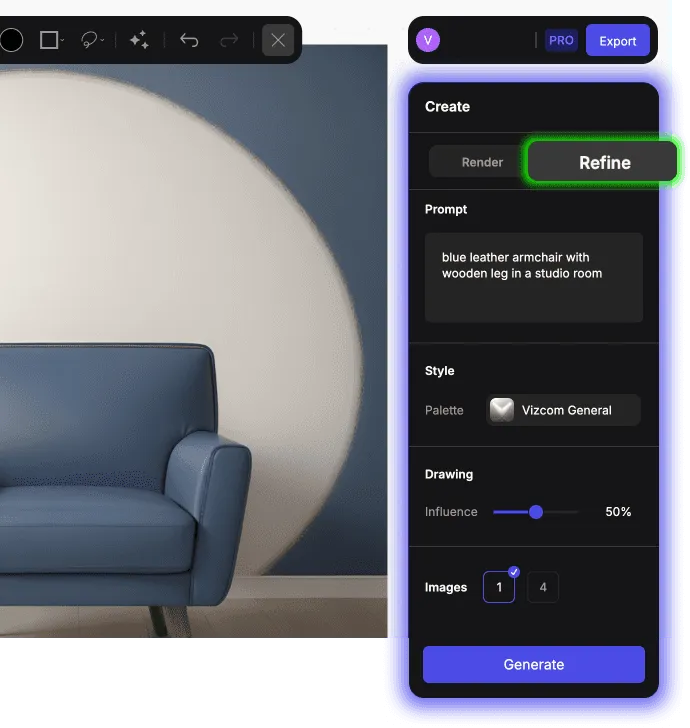
- Hit generate!
- you should have a rendering which is a bit more realistic and has more details
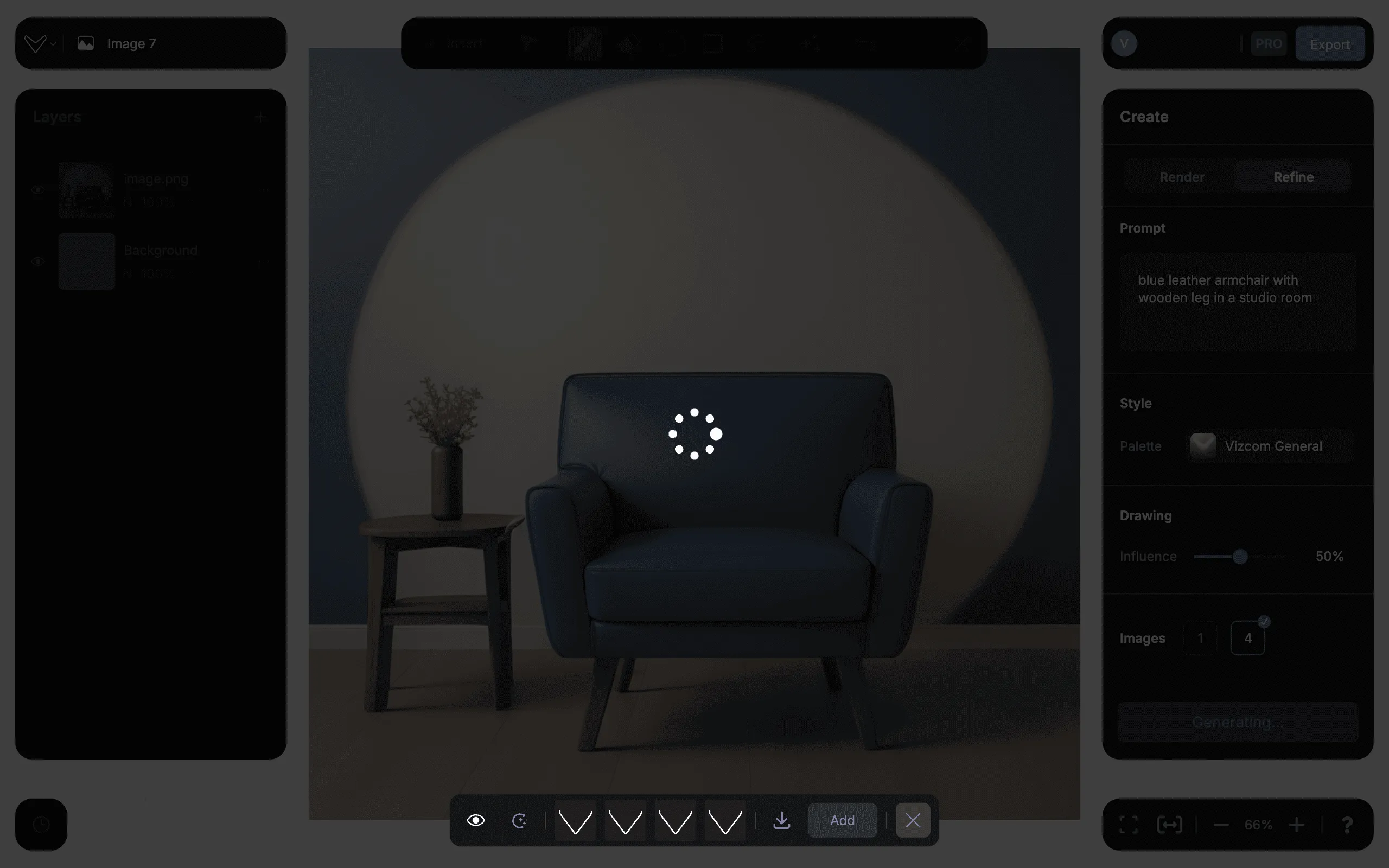
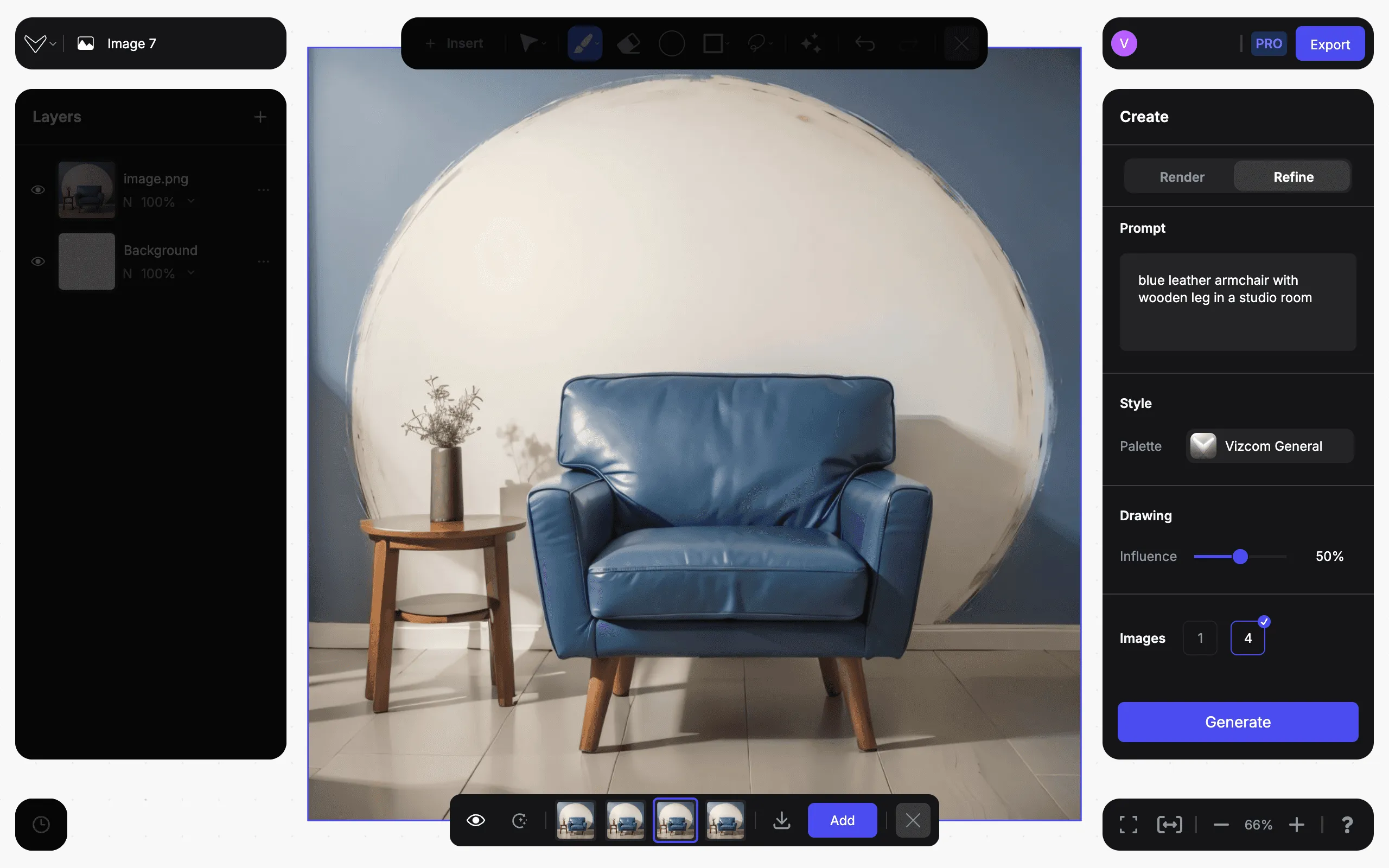
- Keep generating on top of the previous rendering until you're satisfied with the results
- Use the drawing tools
- …to modify the product in the refinement process. You can effectively make your rough changes that you did with the brush, by refining on the image, this will provide a cohesive easthetics.
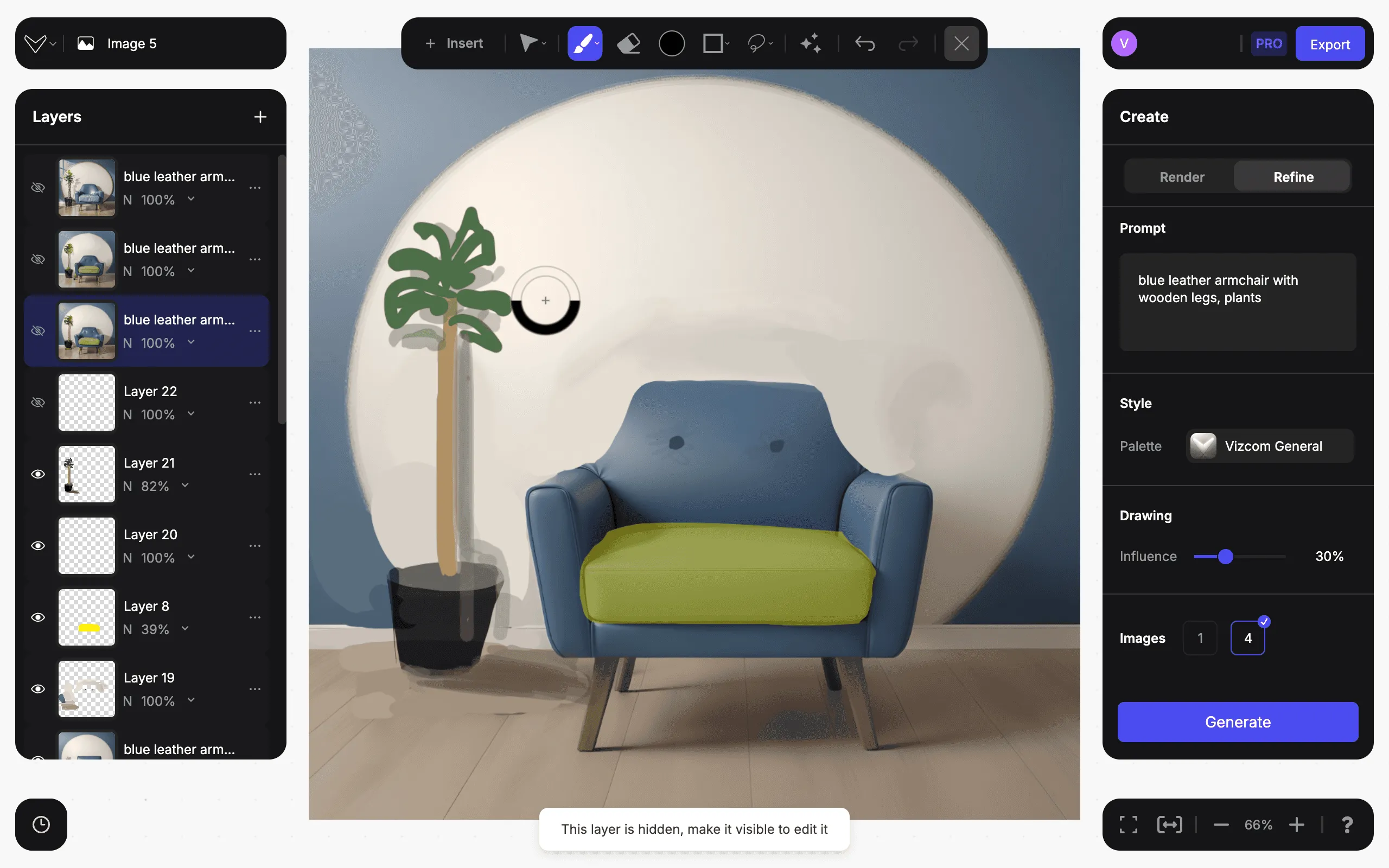
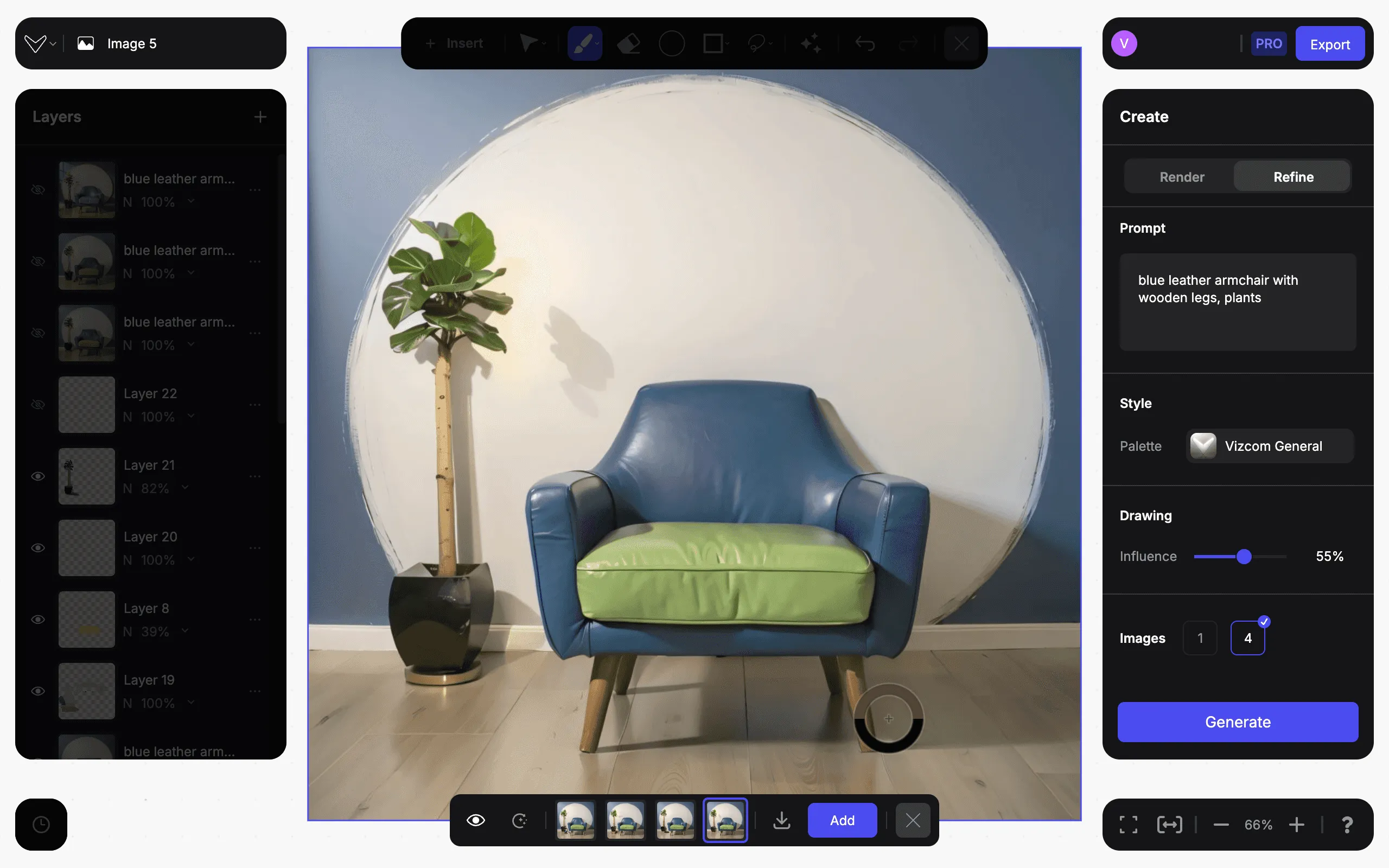
- Change the Style
- You can also select a style for the Refinement process. Try selecting a different style and see how it's interpreting it towards a different aesthetic. For example, Refining in the 'Auto Exterior' style, you will push the visual towards more details with clean, futuristic surfaces, rather than overly wrinkled materials.
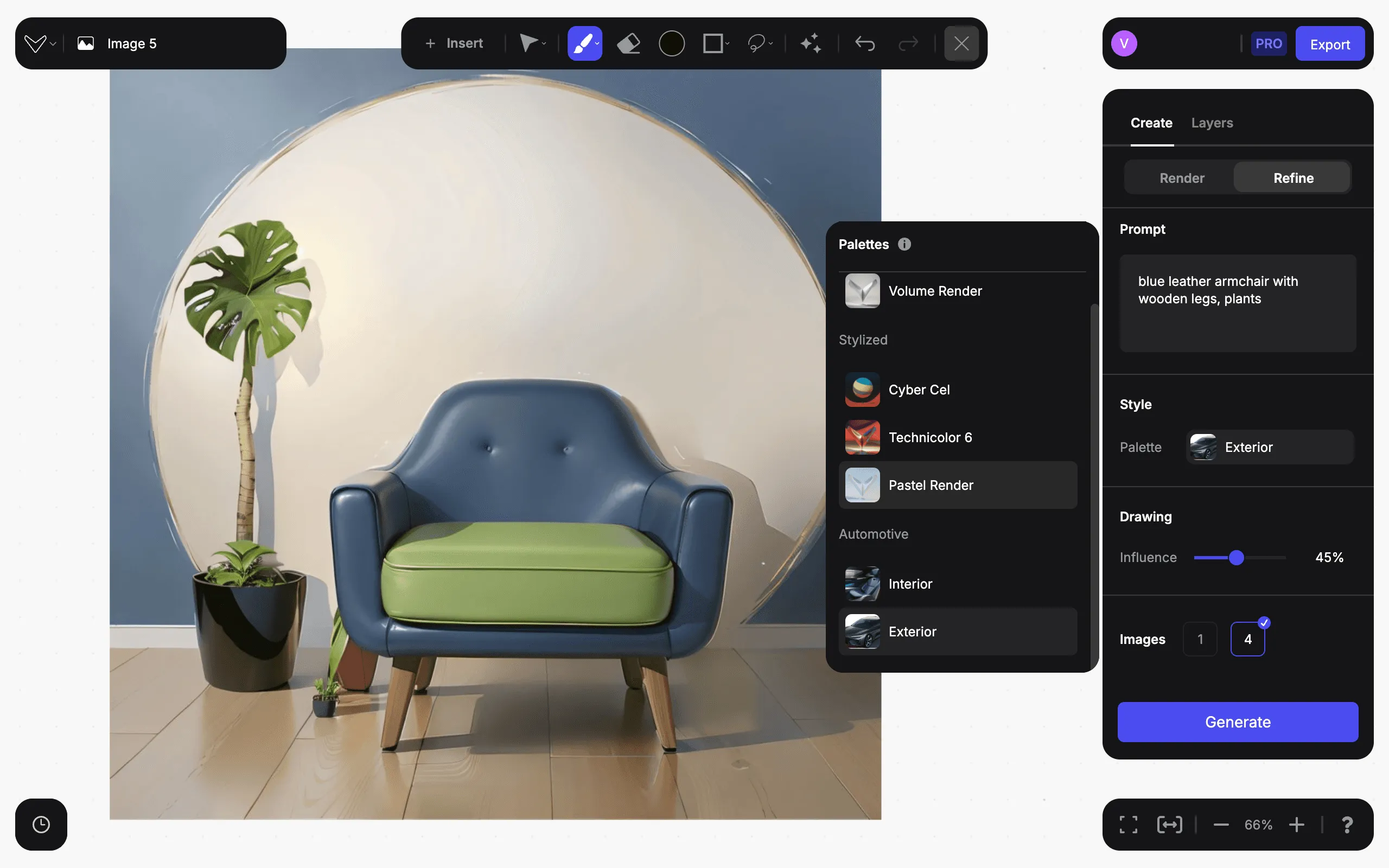
This way, you can quickly explore details and alternatives while still relying on your drawings:
Tip:
Start from a color-blocked shape!
Refine mode allows you to keep the painted colors on the canvas, while boosting the detail level of the rendering.
Paint a variety of colors on the canvas to help influence your text descriptions. Since refine will only work with current pixels on the canvas, you can keep the process with a clean background.
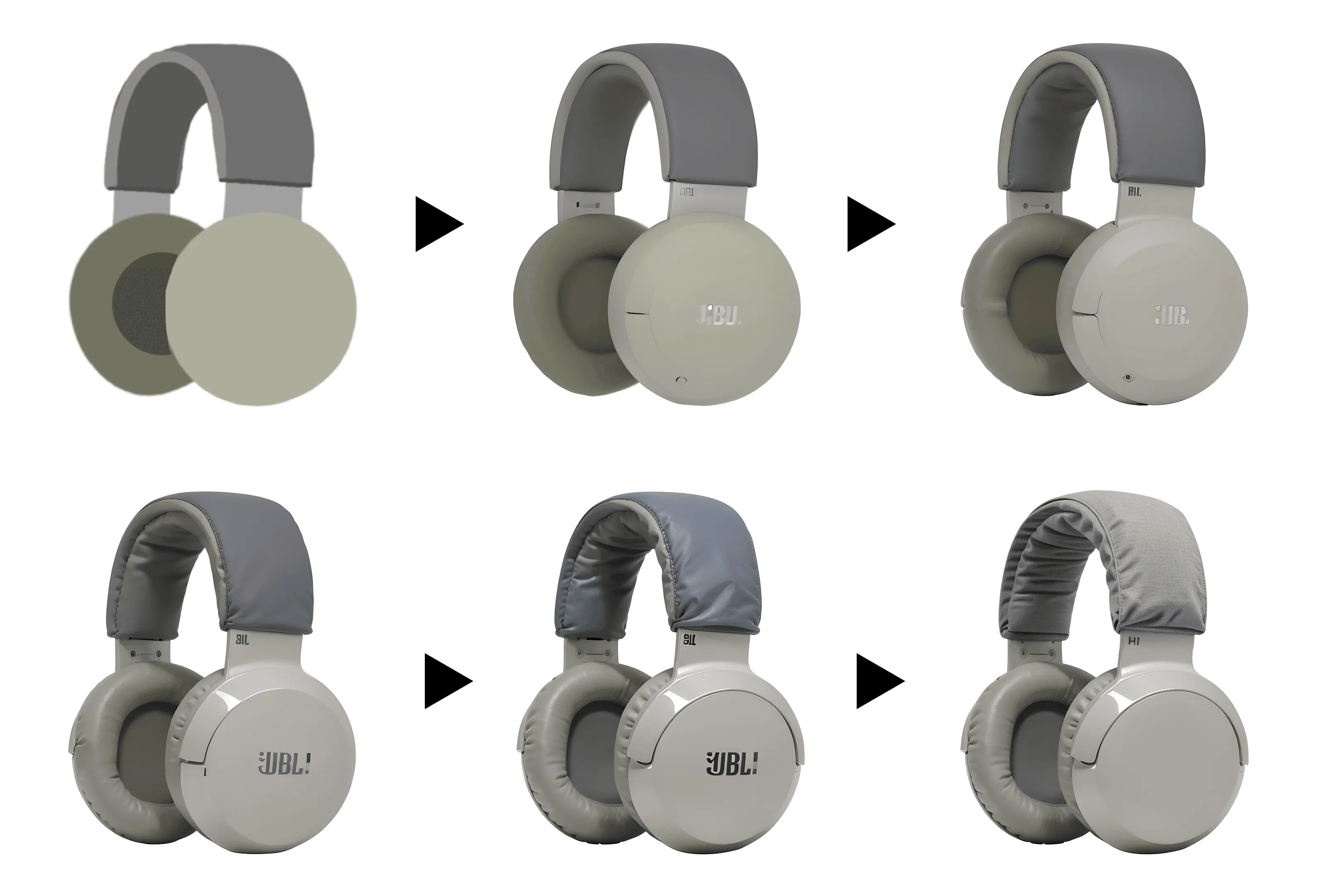
Here is how to focus only on different areas of you rendering : Inpainting
Have a question for our team?
Frequently asked questions
Explore all features in Vizcom or book a tailored demo for you and your
Yes of course! Our starter plan is completely free, no credit card required. This is a great plan to explore vizcom with.
We accept all major credit and debit cards.
Admins (paid) – can edit files, manage workspace settings, billing, teams, and invite members. Editors (paid) – can edit files but not manage settings, billing, or teams. Viewers (free) – can only view files in read-only mode.
Team billing is handled centrally by the Admin. All paid seats, whether Admins or Editors, are included in a single invoice under the same billing cycle, while Viewers remain free and do not affect the cost.
Yes, you can. An Admin can update the plan in the billing settings, and the switch will take effect on the next billing cycle at the annual rate.
Yes, you own everything you create in Vizcom. For free users, while Vizcom may use generated images to improve its services, it does not claim ownership of your designs, concepts, or original ideas—you keep full rights to them. For paid users, your images and designs remain entirely private and are only used to deliver the service. Every design, concept, and image you create or upload is fully yours and kept confidential.
Vizcom does not use your data to train AI models if you’re on a paid plan. Everything you create stays private and is only used to provide the service. Free users may have their generated images included to help improve Vizcom’s services, but even then, Vizcom does not claim ownership of your designs, concepts, or original ideas—you retain full rights.