How to make renderings
In this tutorial, you will learn how to go from sketch to render in just a few seconds with a simple sketch and a text description.
👉 Find the example sketch here
Step 1
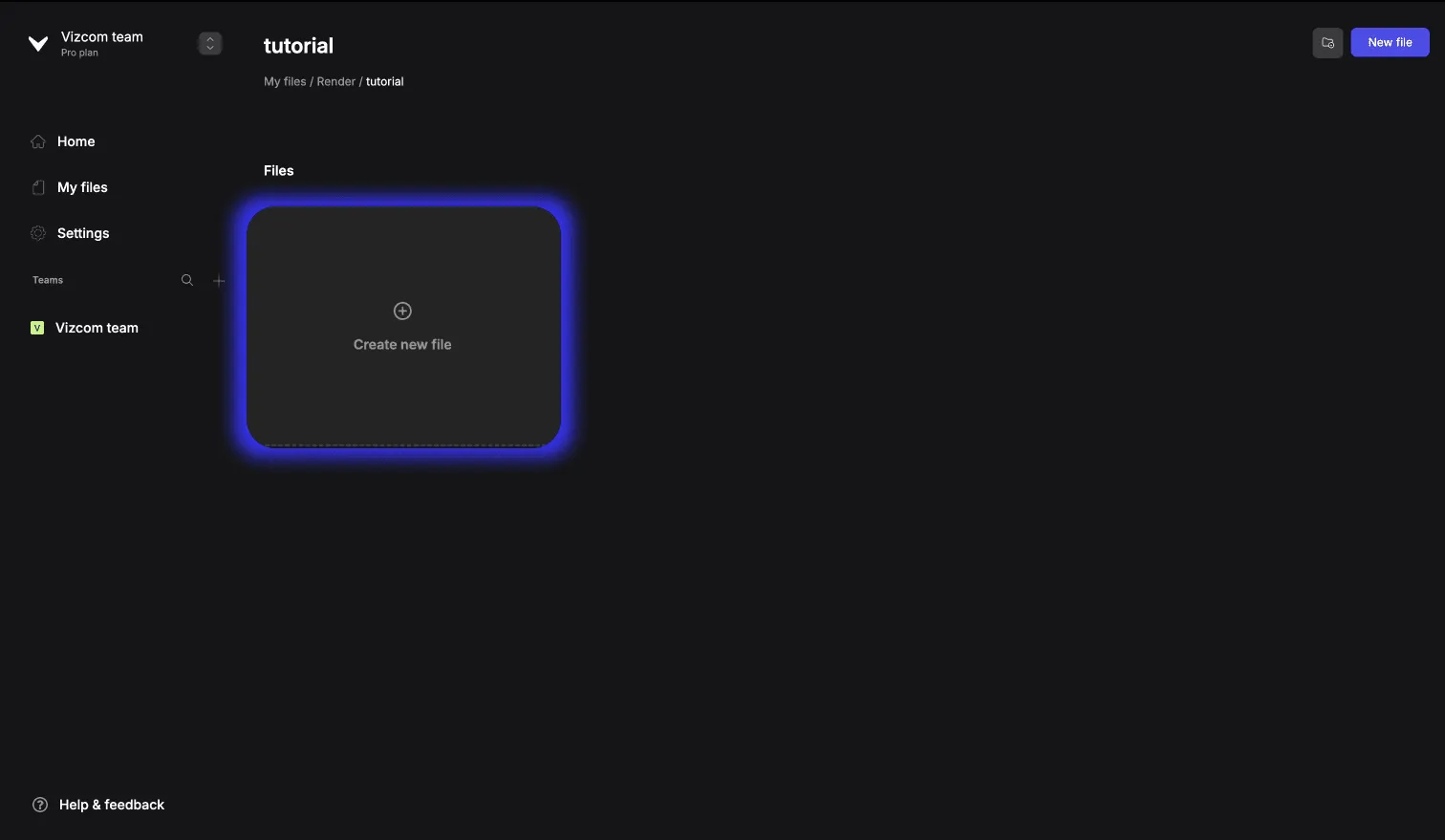
Create a new file!
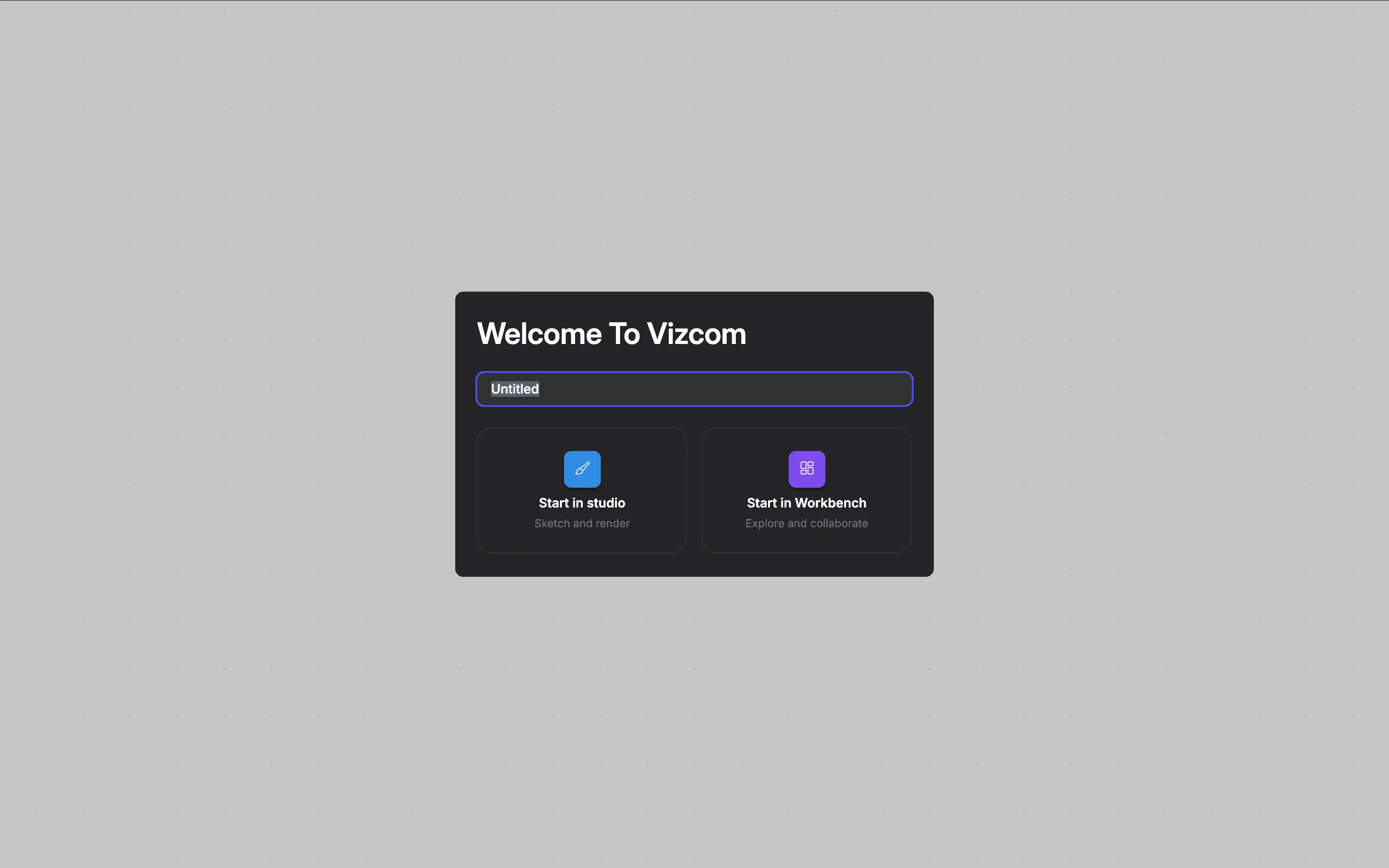
And choose which layout you want to start your project with.
(Starting in the drawing studio, you can instantly start sketching on the canvas, but if you already have a sketch that you want to explore on the infinite canvas, choose that option.)
Step 2
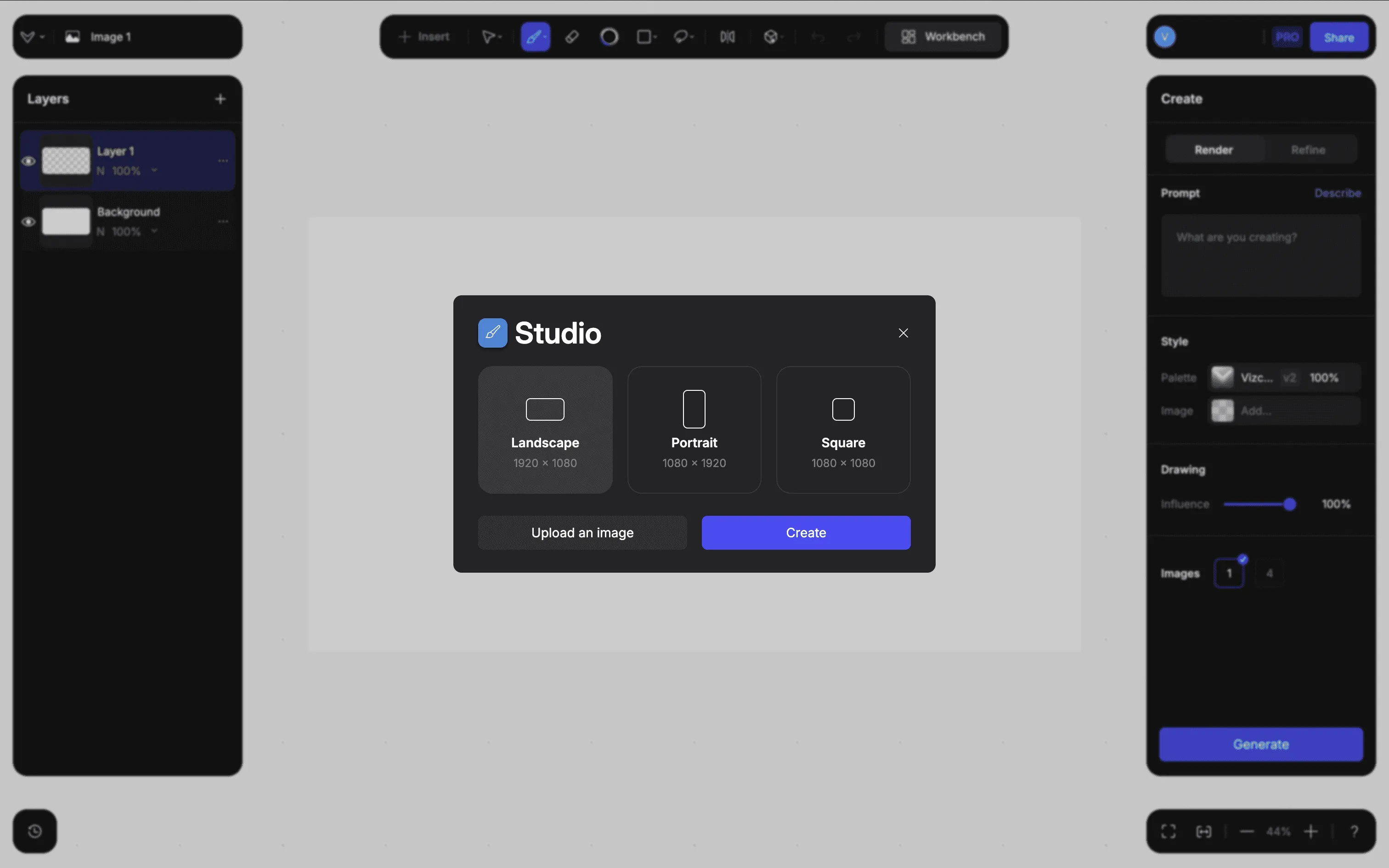
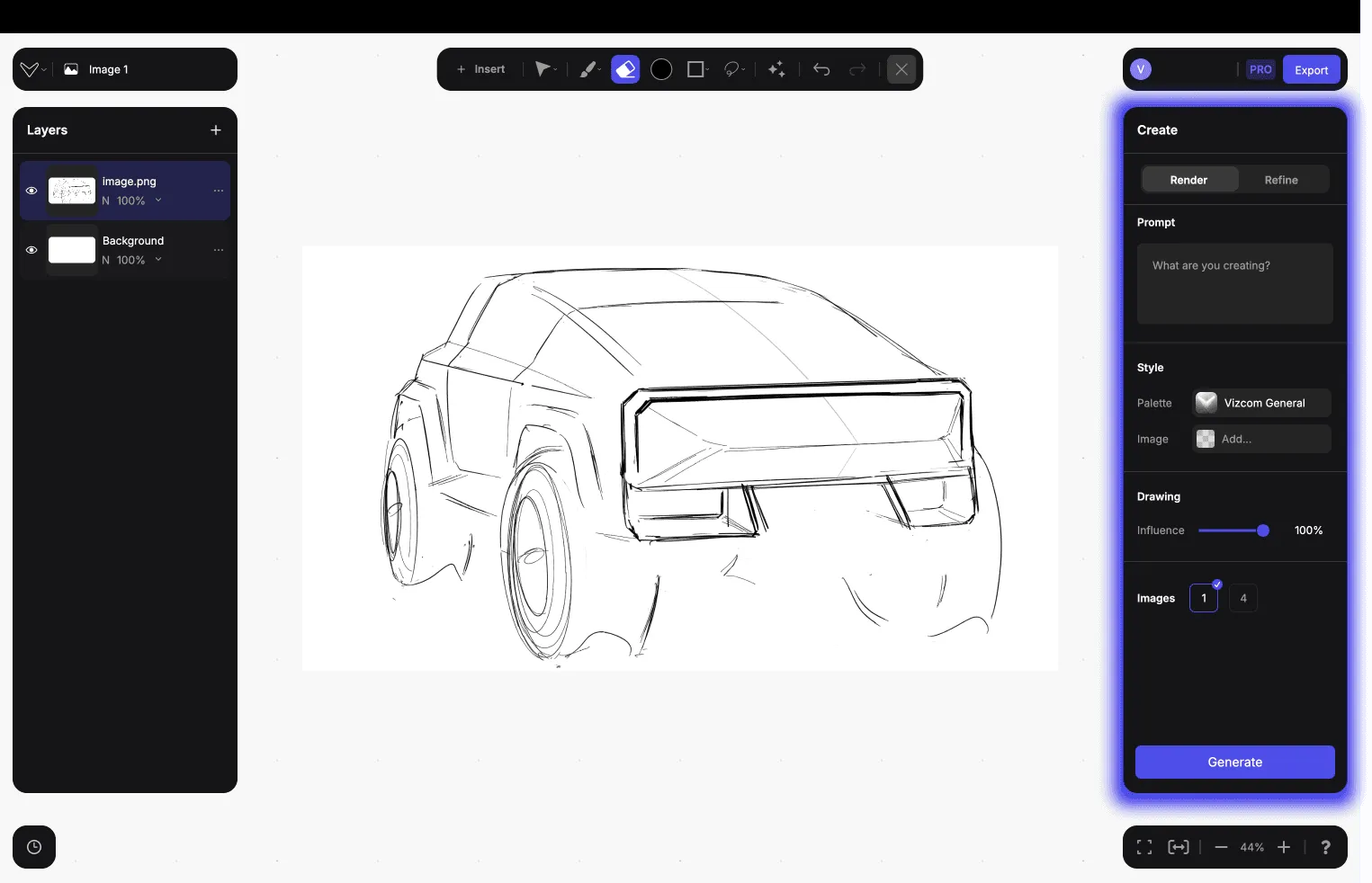
Create the canvas and start sketching or Upload a previous sketch on the canvas!
- You can learn more about how to import your sketches - here
- You can learn about how to draw inside Vizcom - here
Step 3
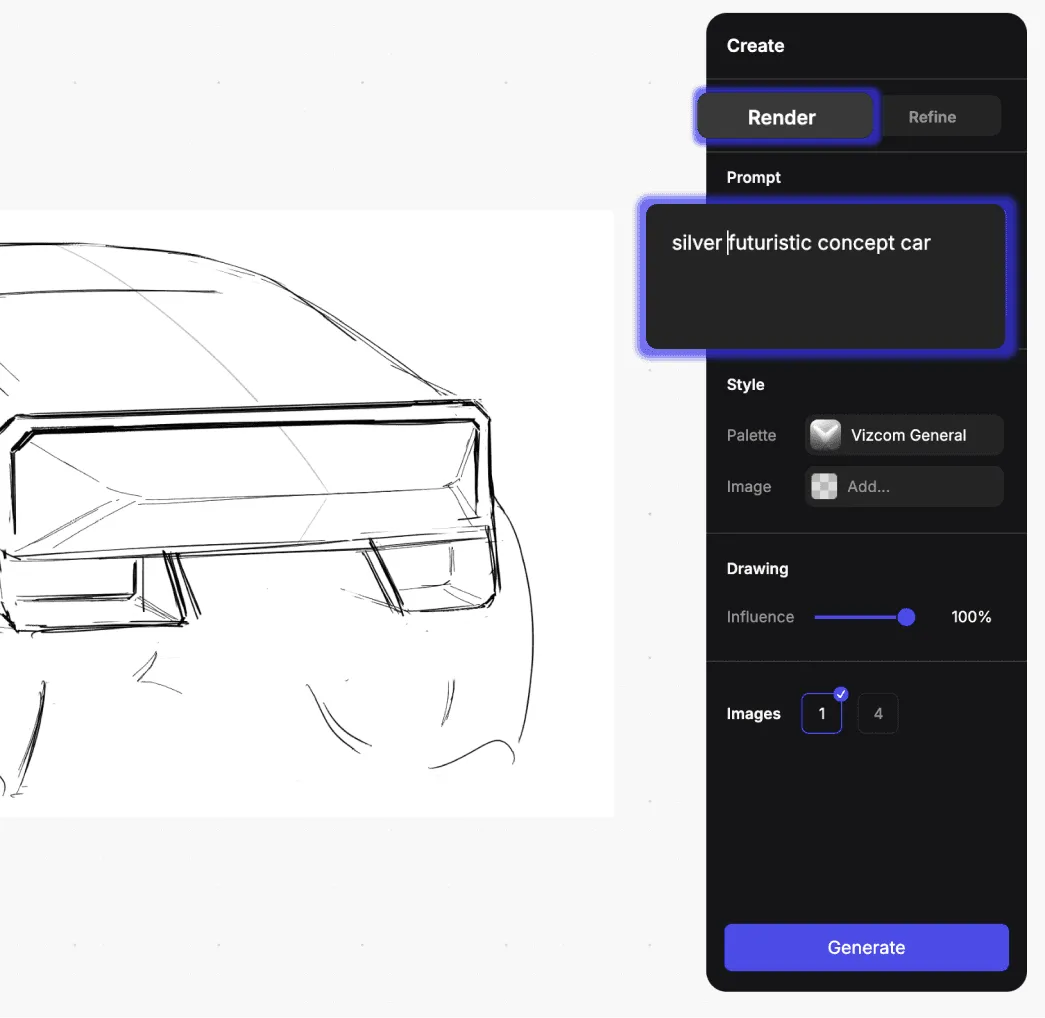
Write a simple text description (prompt)
Go to the right toolbar dropdown (Create tab) and make sure that you’re in Render mode. This is the standard mode of the application if you open a new file.
- Anytime you have a line drawing or sketch that you plan on rendering with a prompt, you must first be in Render mode.
- You can learn more about how to write prompts here
- You can learn more about what kind of sketches would make the best results here
Step 4
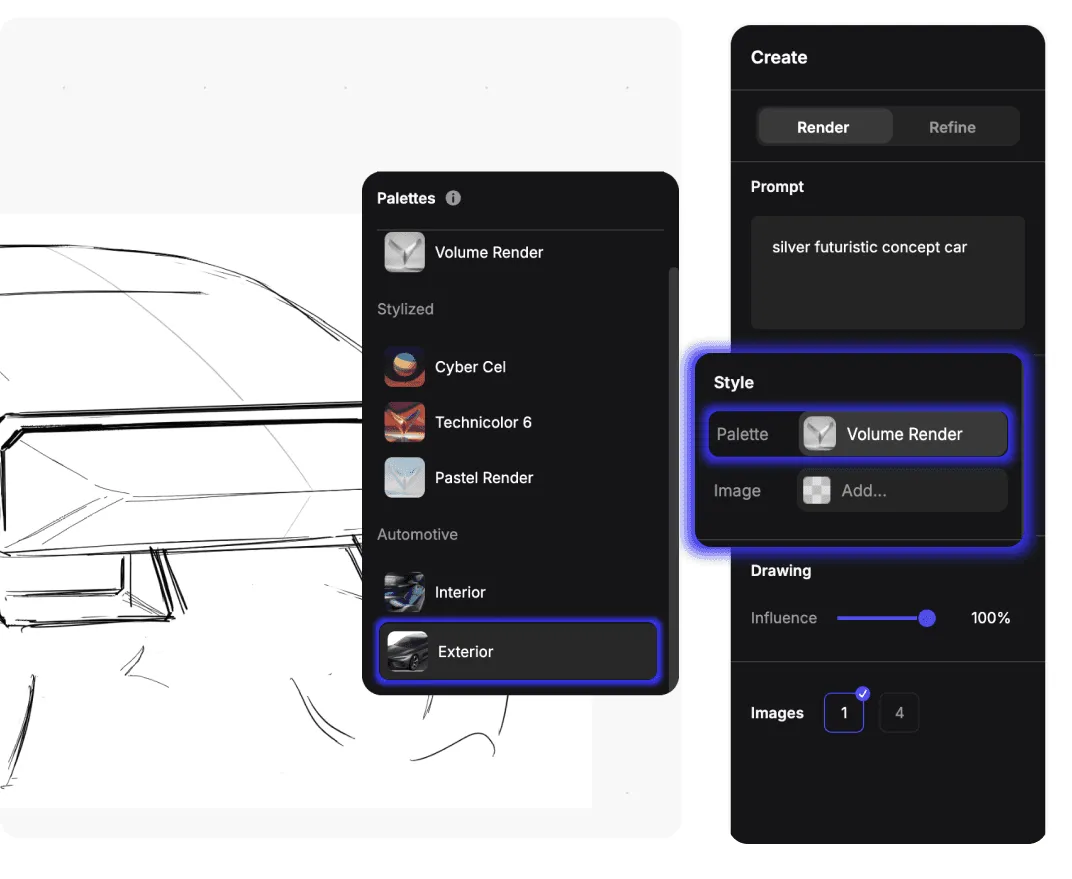
Set the Palette, under Style.
You can learn more about Palettes
This will the overall aesthetic of the generated rendering, like a render engine.
Step 5
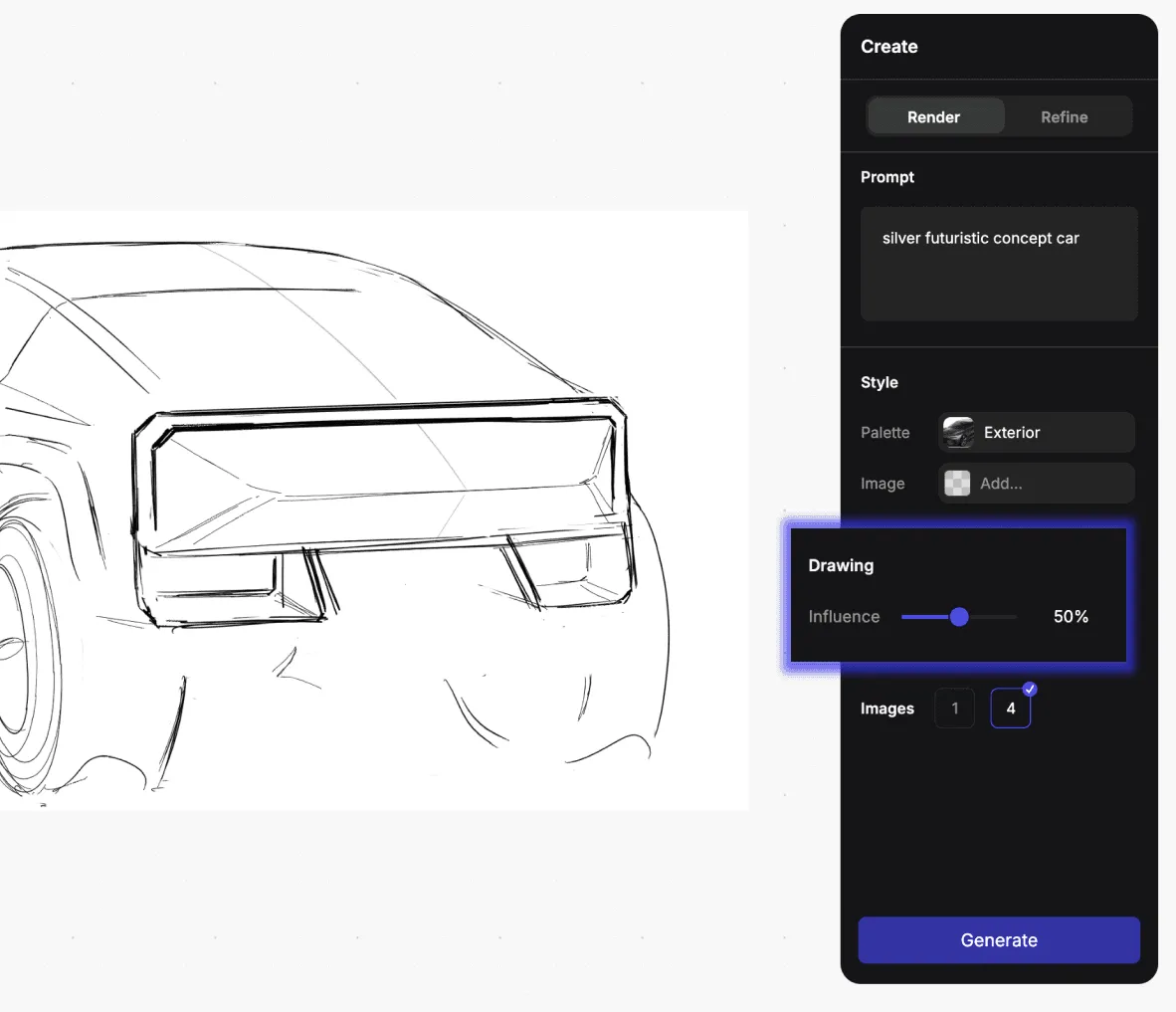
Set the Drawing influence slider
- Learn more about what Drawing influence is for - here
Step 6
Generate the rendering
After setting the render up, click on the Generate button and wait a few seconds.
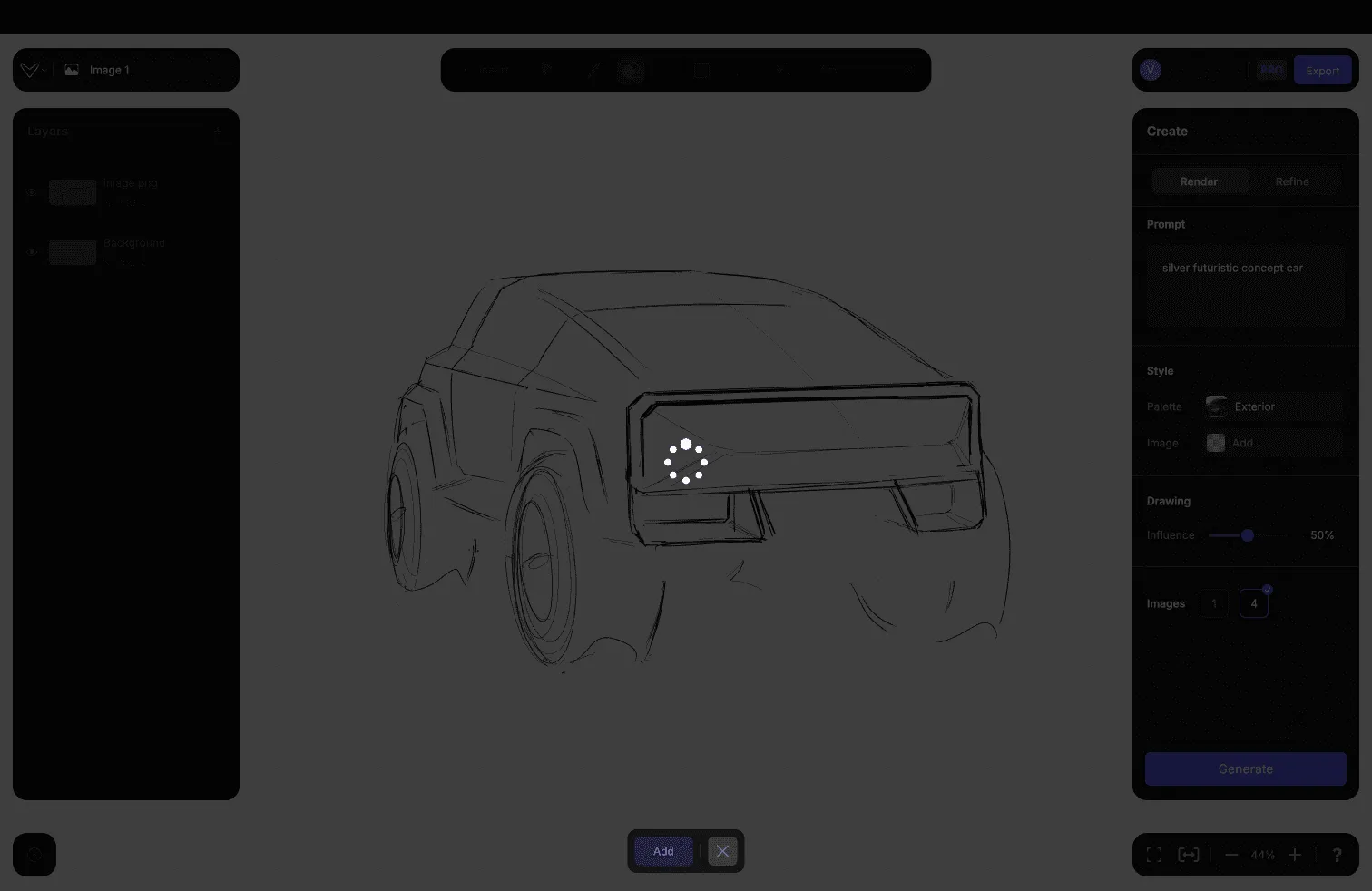
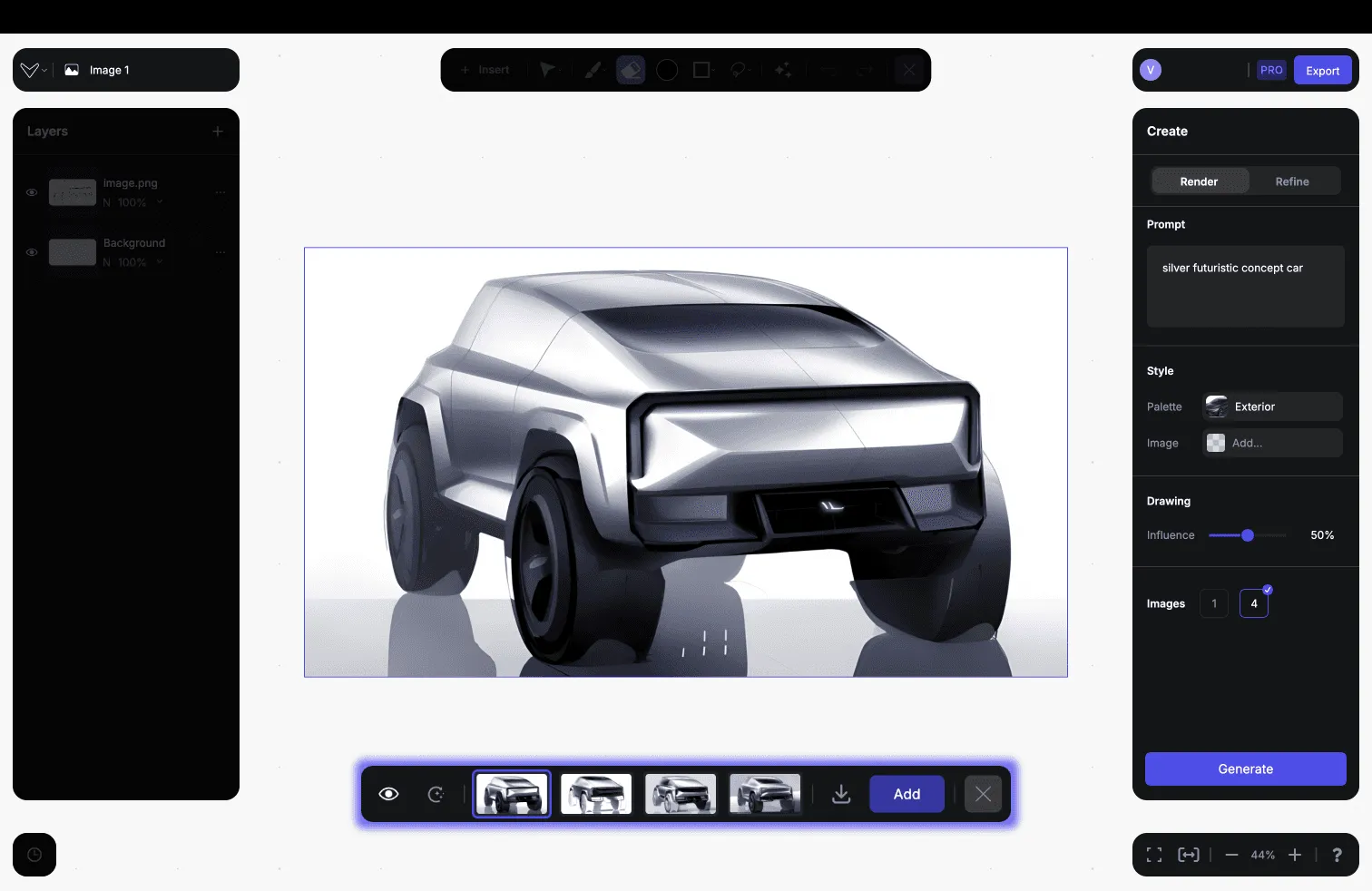
- A full size preview appeared, with a selector tab.
Step 7
Select your favourite result and click "Add" to save it as a layer or click on the Regenerate button again, if you’re not satisfied yet.
- The results, which you’re not saving as layers, will not be lost, they’ll be part of the history tab, where you can restore results anytime, you can learn about that - here
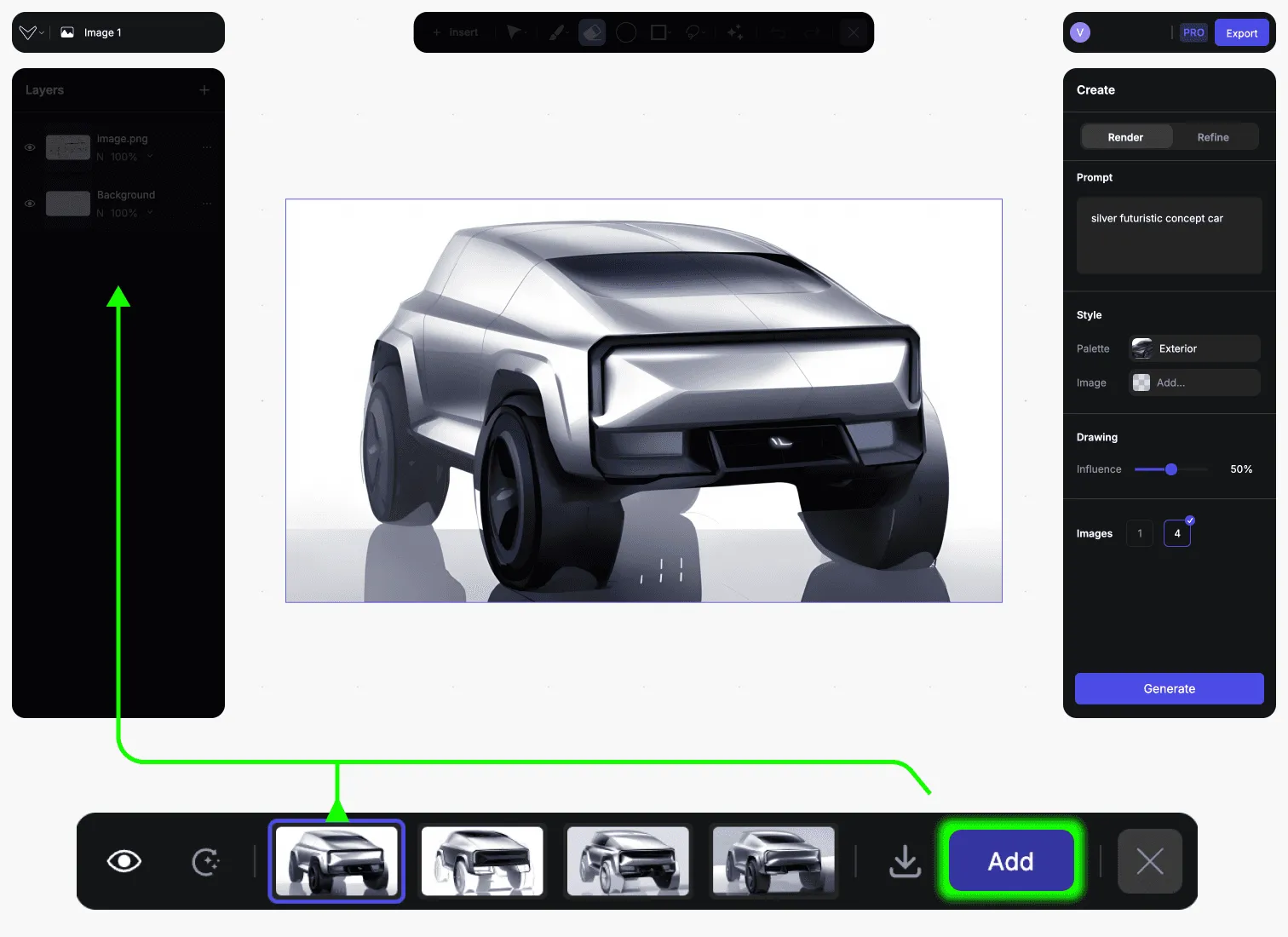
- Click on the "X" icon after you added the desired rendering
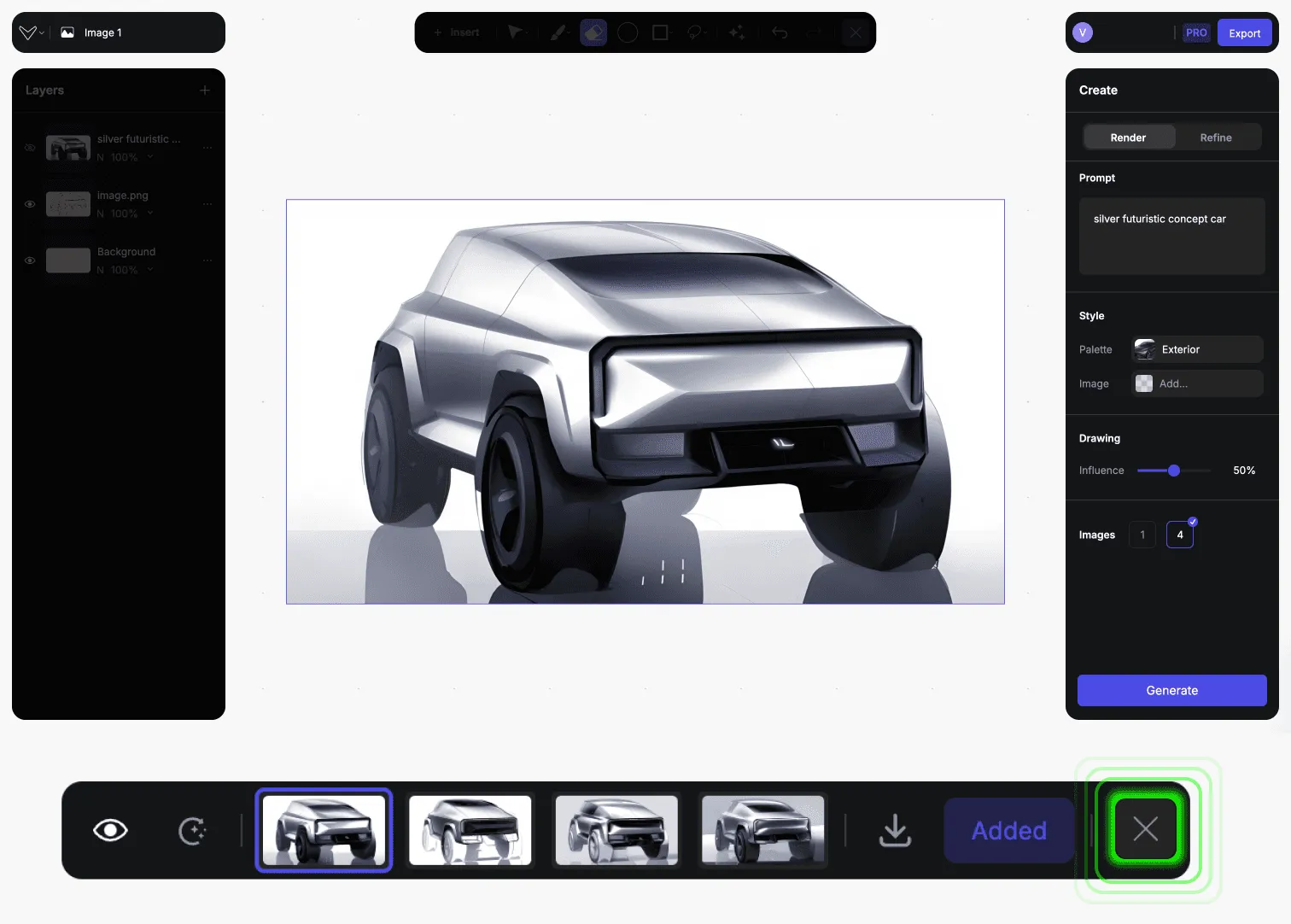
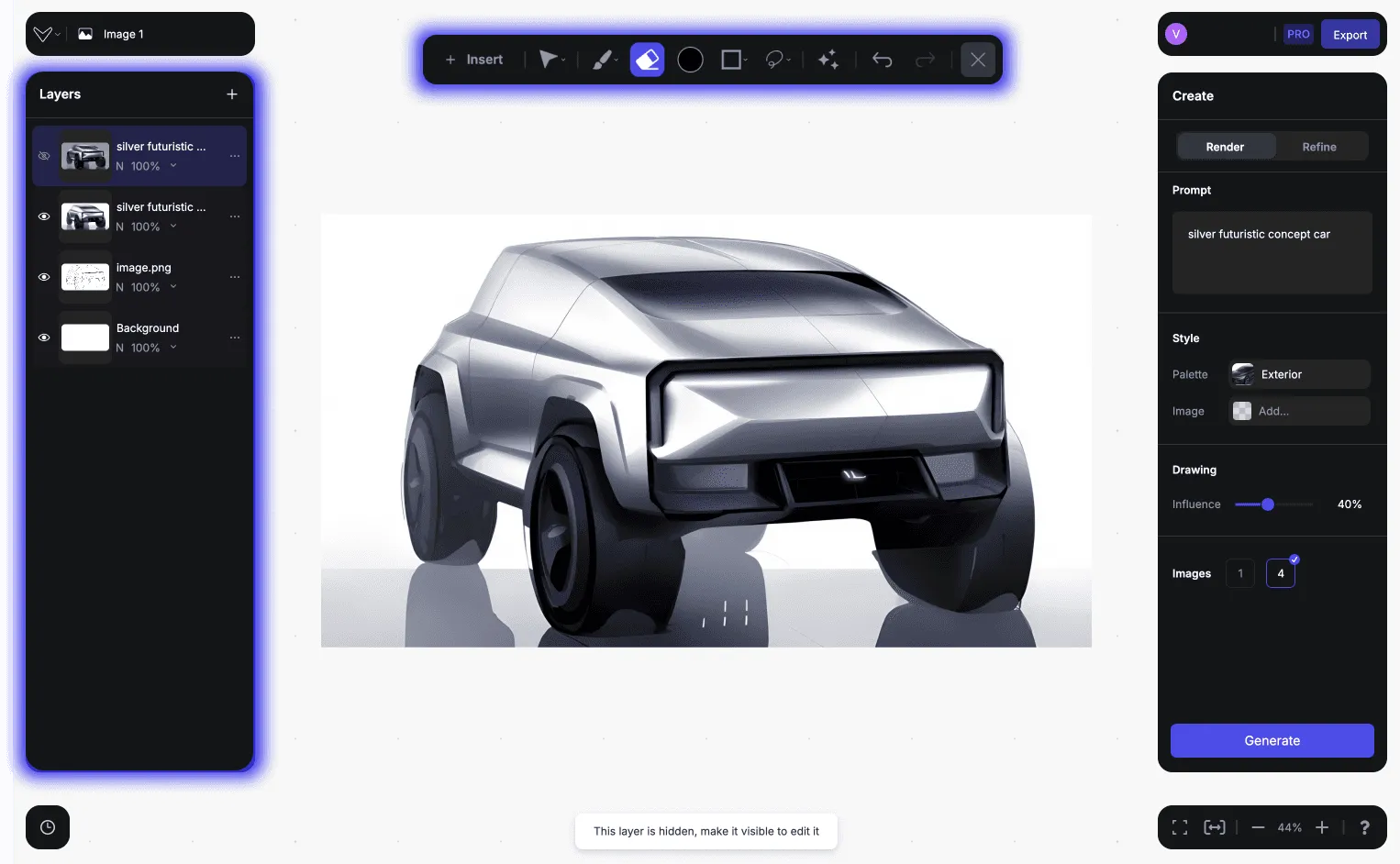
- After closing the image preview tray. The Layers tab and the Drawing toolbar is active again and you can start using them.
Step 8
Export your best results! (top right corner)
You will export what's displayed on the canvas with the PNG options.
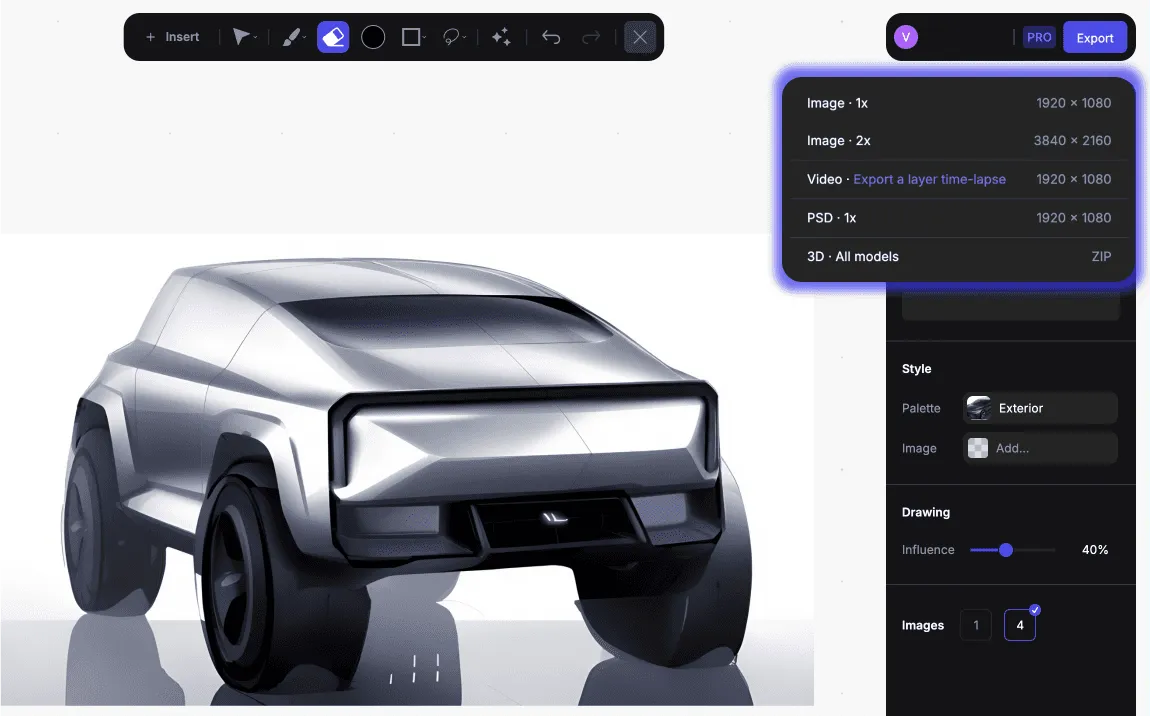
Creating renderings is an iterative process, feel free to generate as many as you want.
(Vizcom will generate according to what's displayed on the canvas - so If you want to keep generating on the original sketch, you can hide the previously added layers.
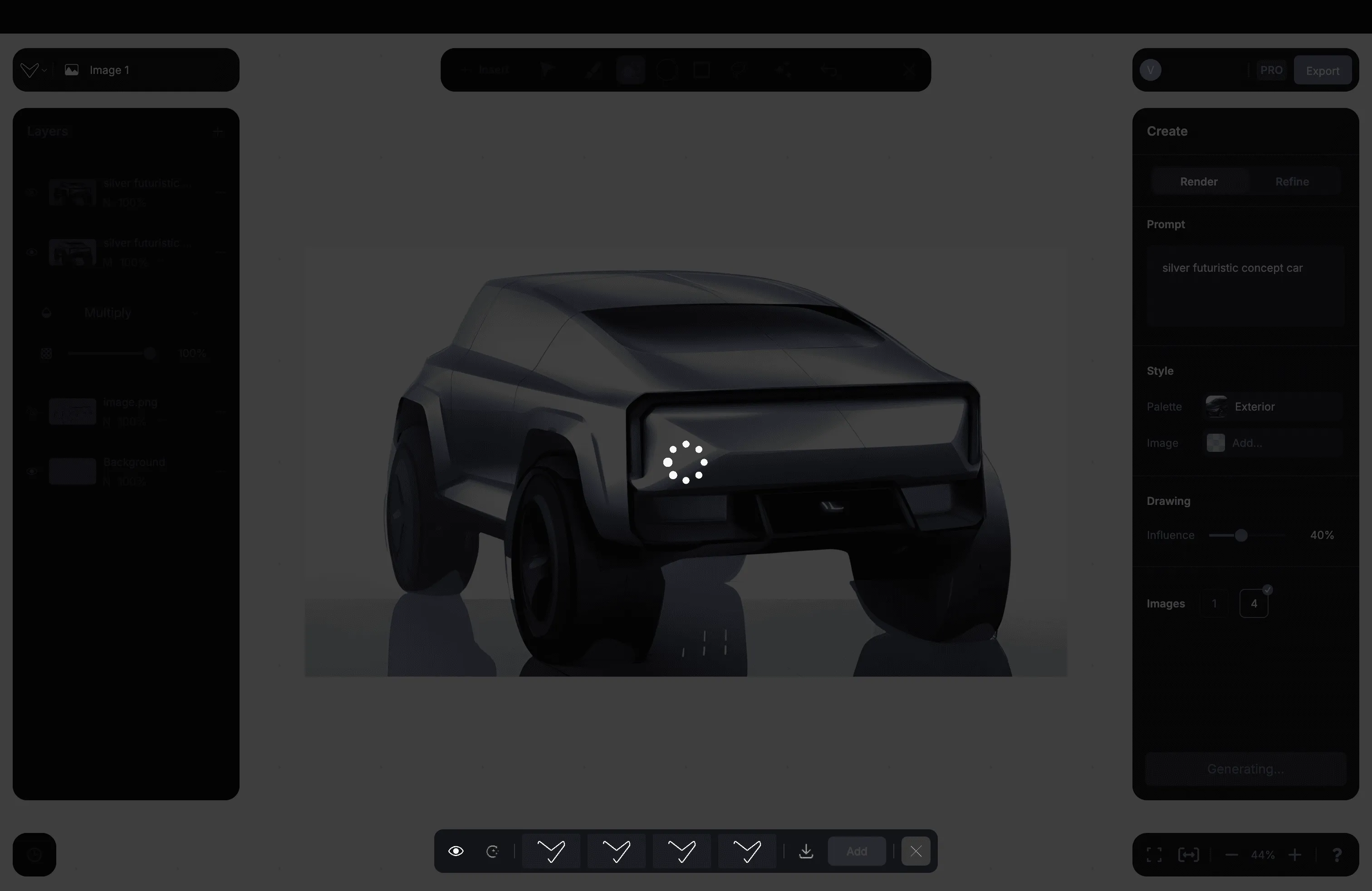
Here is how you can Refine on a rendering
Have a question for our team?
Frequently asked questions
Explore all features in Vizcom or book a tailored demo for you and your
Yes of course! Our starter plan is completely free, no credit card required. This is a great plan to explore vizcom with.
We accept all major credit and debit cards.
Admins (paid) – can edit files, manage workspace settings, billing, teams, and invite members. Editors (paid) – can edit files but not manage settings, billing, or teams. Viewers (free) – can only view files in read-only mode.
Team billing is handled centrally by the Admin. All paid seats, whether Admins or Editors, are included in a single invoice under the same billing cycle, while Viewers remain free and do not affect the cost.
Yes, you can. An Admin can update the plan in the billing settings, and the switch will take effect on the next billing cycle at the annual rate.
Yes, you own everything you create in Vizcom. For free users, while Vizcom may use generated images to improve its services, it does not claim ownership of your designs, concepts, or original ideas—you keep full rights to them. For paid users, your images and designs remain entirely private and are only used to deliver the service. Every design, concept, and image you create or upload is fully yours and kept confidential.
Vizcom does not use your data to train AI models if you’re on a paid plan. Everything you create stays private and is only used to provide the service. Free users may have their generated images included to help improve Vizcom’s services, but even then, Vizcom does not claim ownership of your designs, concepts, or original ideas—you retain full rights.