Learn Vizcom, accelerate your design process.
Transform the way you work with our tools to design faster, iterate smarter, and bring concepts to life with clarity.
Courses

Webinars

In this webinar, Connor McManus, Industrial Designer at Kohler Co., walks through how one of the world's most recognized design teams uses Vizcom in their day-to-day creative process. Viewers will see real examples of category-specific visualization across Kohler's product lines, learn how the team uses prompting and iteration to generate hundreds of concepts quickly, and get an inside look at how motion clips and CAD workflows come together to present ideas before a single product is built.

Explore the latest automotive exterior and interior design workflows in Vizcom and see how designers move from early concepts to refined designs faster, without losing intent or quality. This on-demand webinar covers real-world automotive use cases, live exterior and interior design demos, and best practices for using Vizcom to support fast, iterative design workflows.

Explore the latest updates to Vizcom Studio and learn how to use Modify with confidence in real design workflows. This on-demand webinar covers what’s new in the Studio Refresh, why the changes matter, and how to apply Modify effectively for faster, more precise design iteration.
Lessons
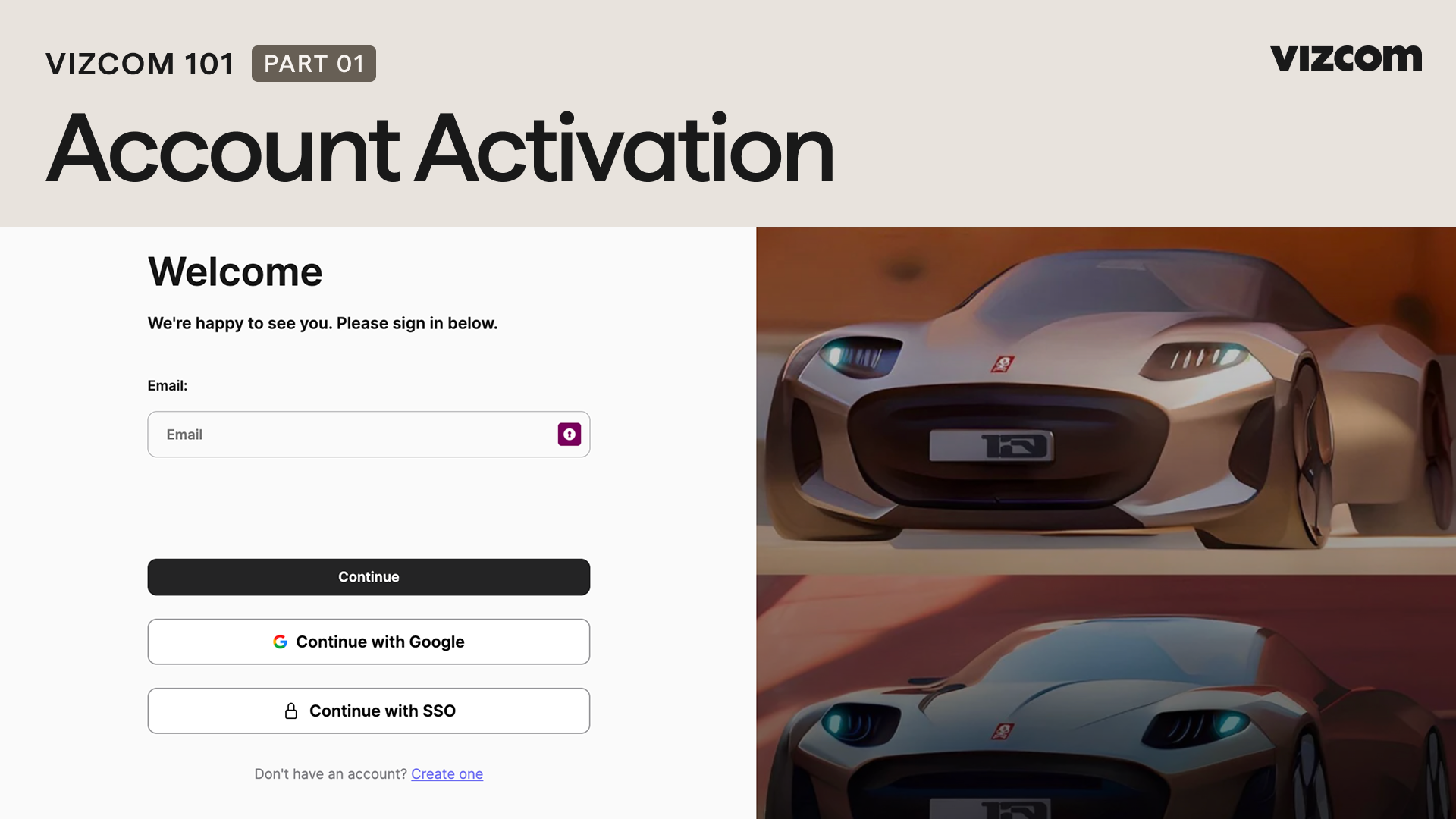
Before you can unlock all of Vizcom’s creative tools, the first step is signing up and accessing your workspace. This ensures your sketches, renders, and iterations have a home base where you can explore freely, stay organized, and collaborate with others.
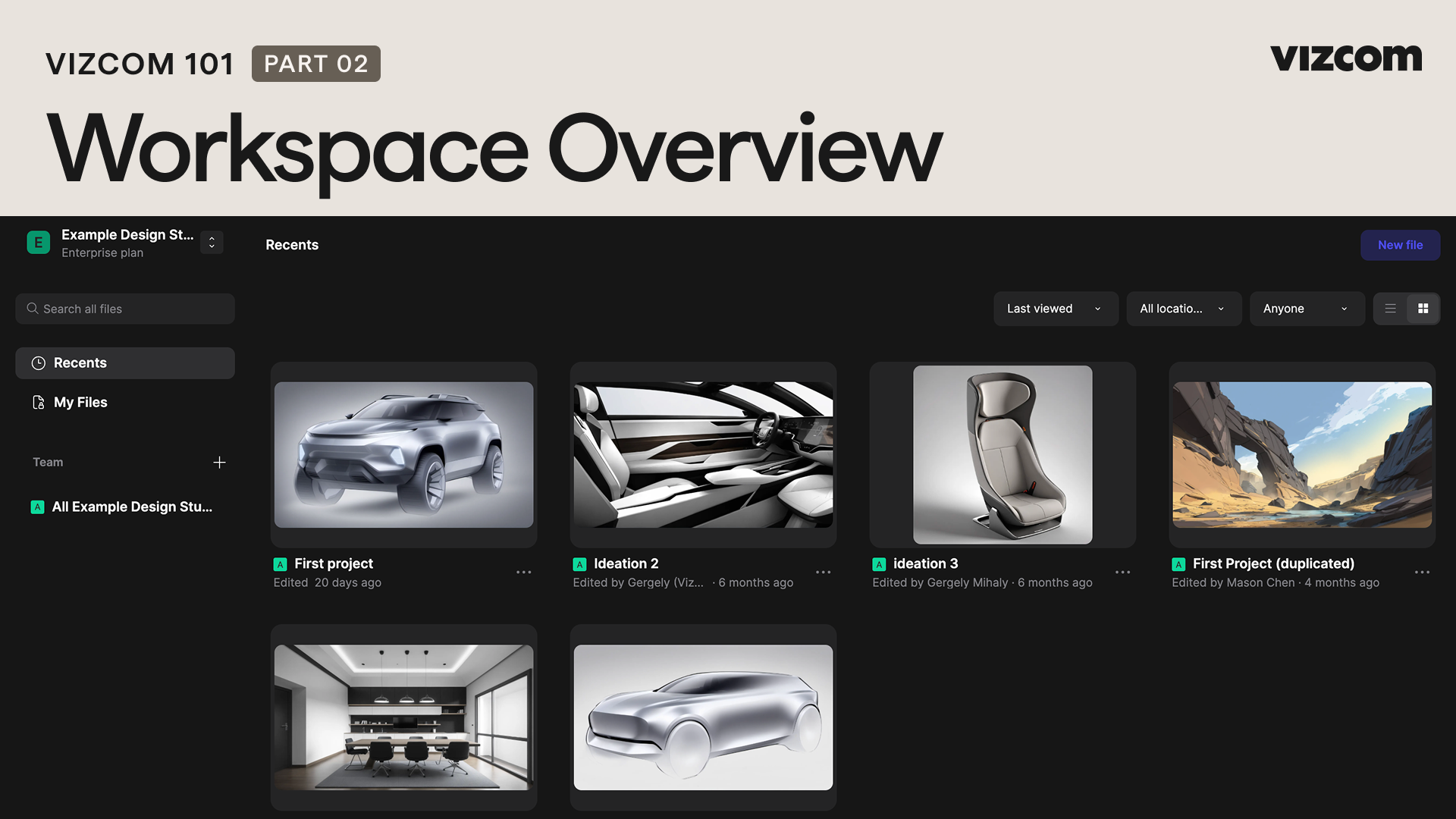
Now that you’re signed in, it’s time to get oriented. Your workspace is where all your creative work happens — from sketching and prompting to organizing and sharing. Understanding the layout and structure of your Vizcom workspace ensures you’re set up to collaborate or work solo efficiently.
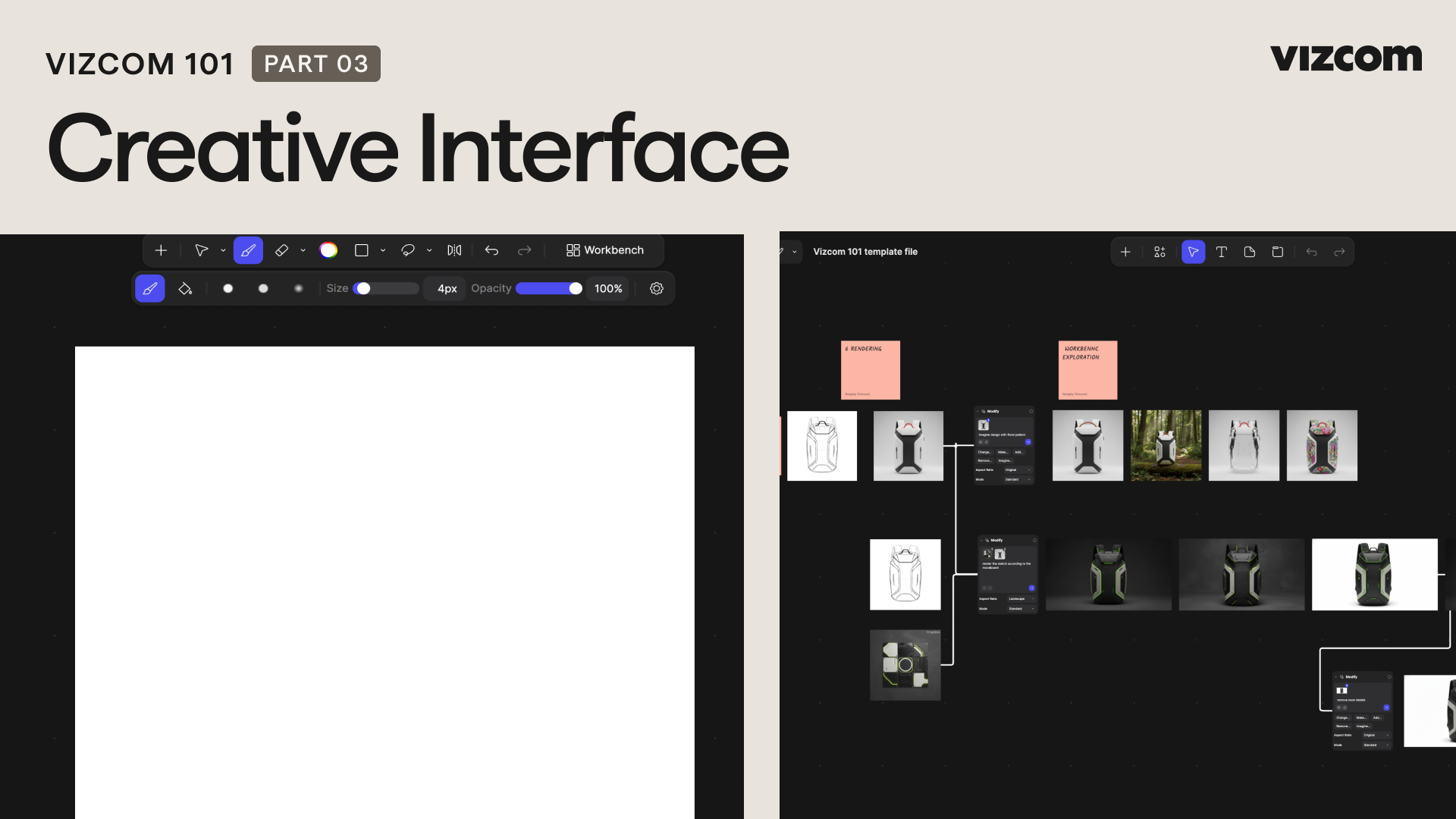
Get familiar with the two creative workspaces in Vizcom platform: Studio and Workbench. Whether you're sketching, rendering, or building out complex variations, this video walks through the full creative layout and how to get started creating.
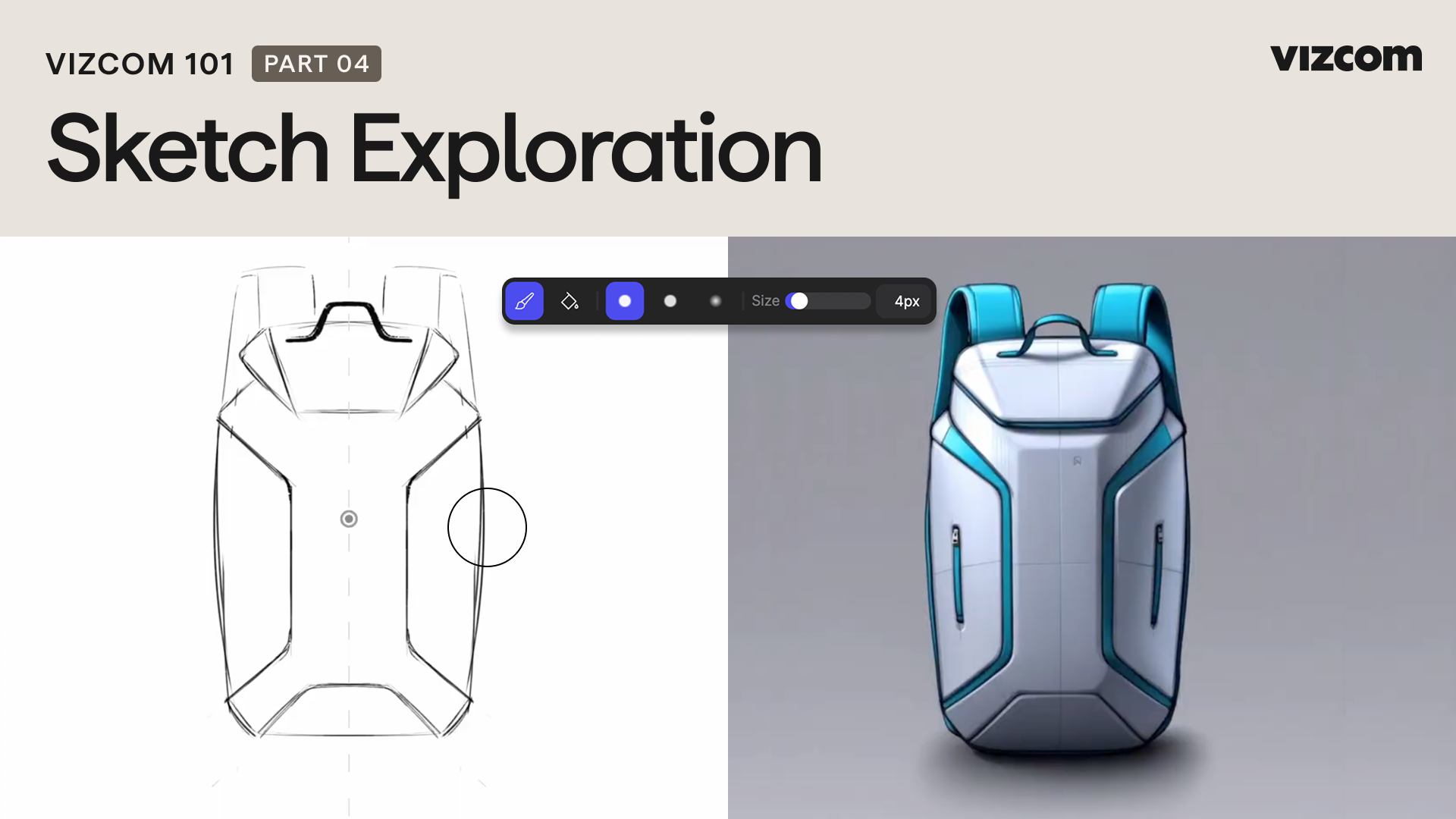
Learn how to work in Studio, where sketching and real-time rendering come together. This video shows how to use the Create panel, transition between Live Render, Render, and Refine modes, and apply focused edits using selection tools.
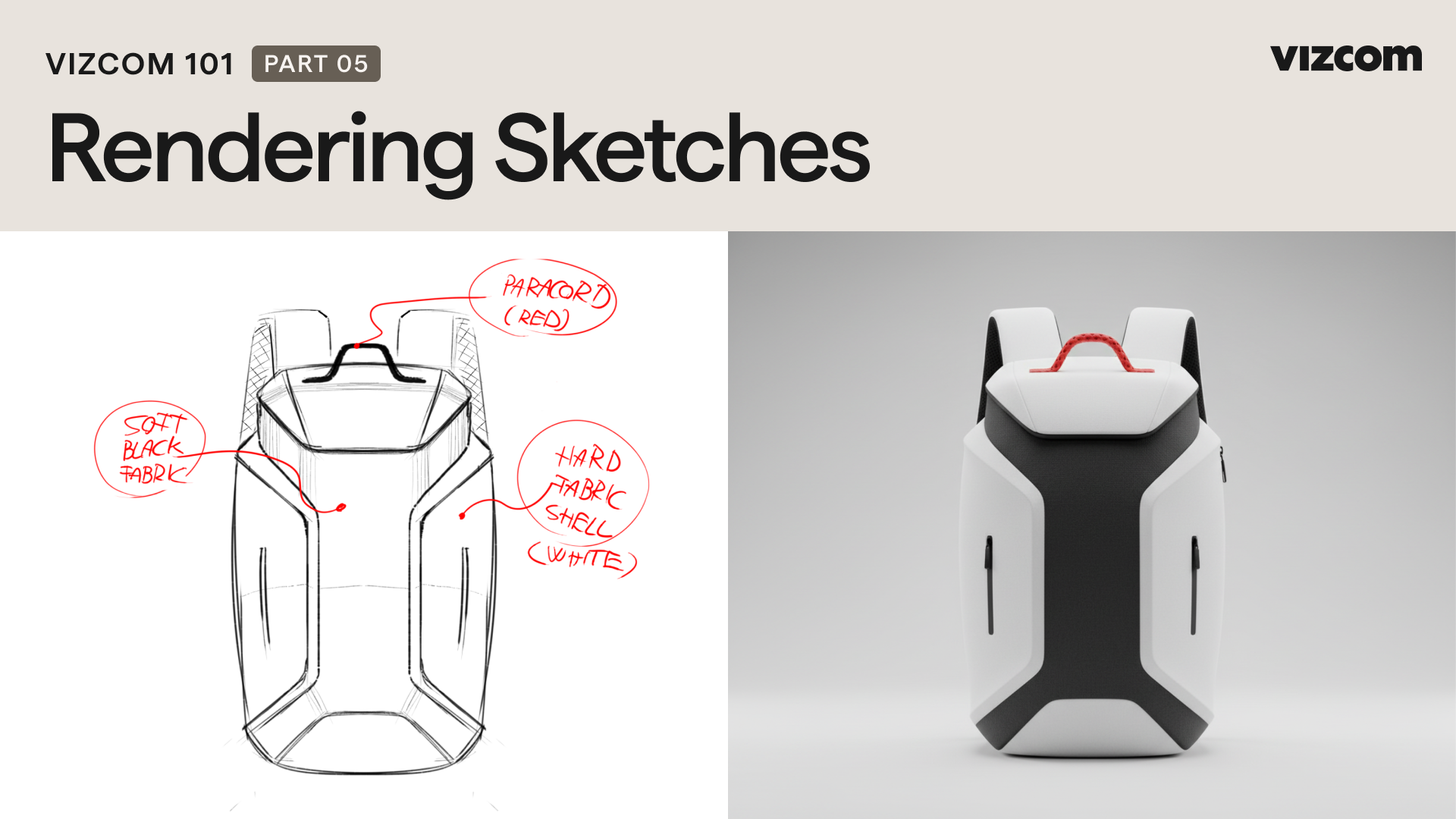
Explore how to achieve accurate renders in Studio by uploading or sketching directly, using Modify to shade and render, prompting with natural language, and adding annotations for greater control over results.
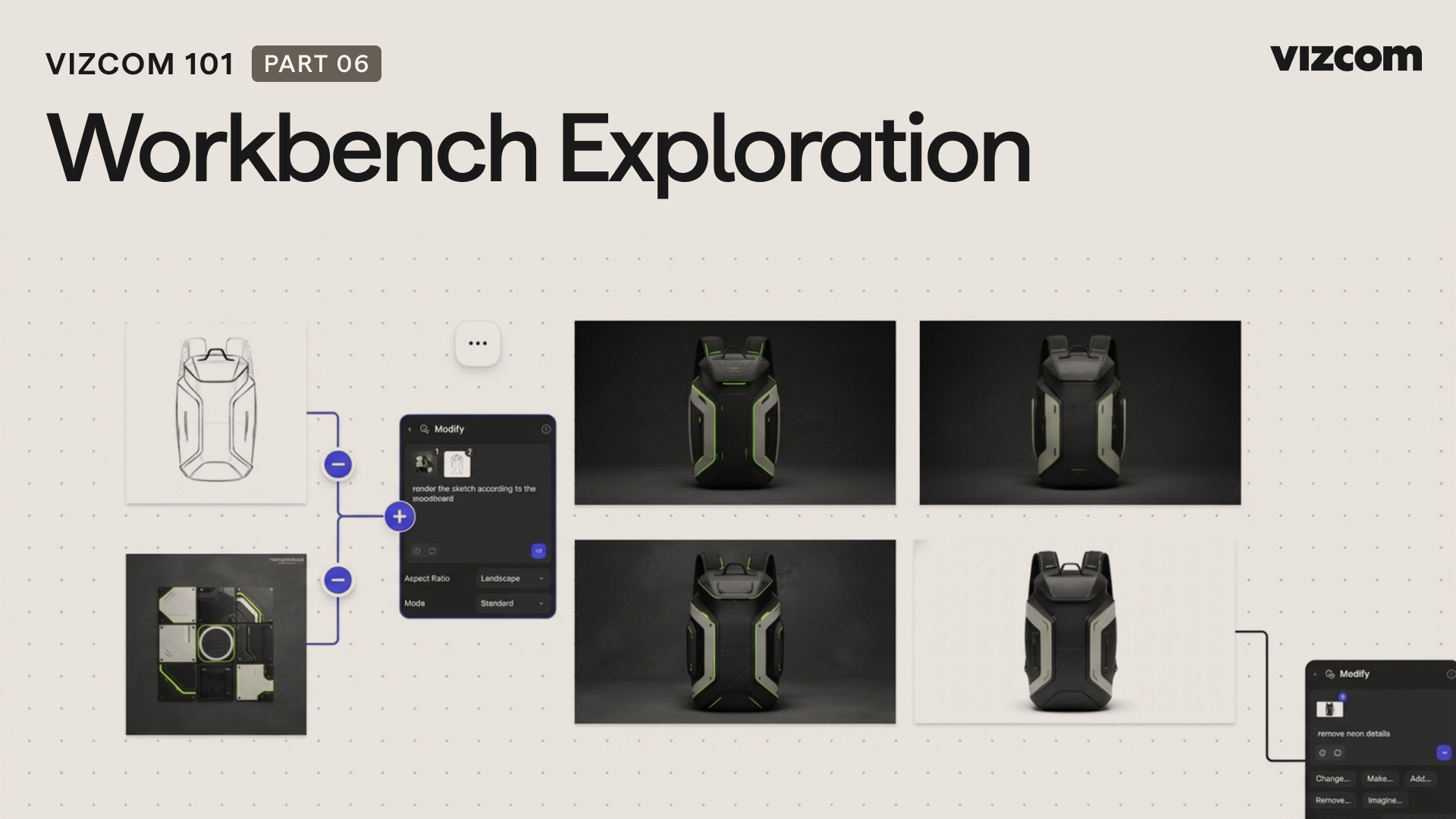
Get familiar with Workbench, where ideas expand through iteration. This video shows how to navigate the infinite canvas, generate variations with Modify, and connect multiple images to influence creative outcomes.
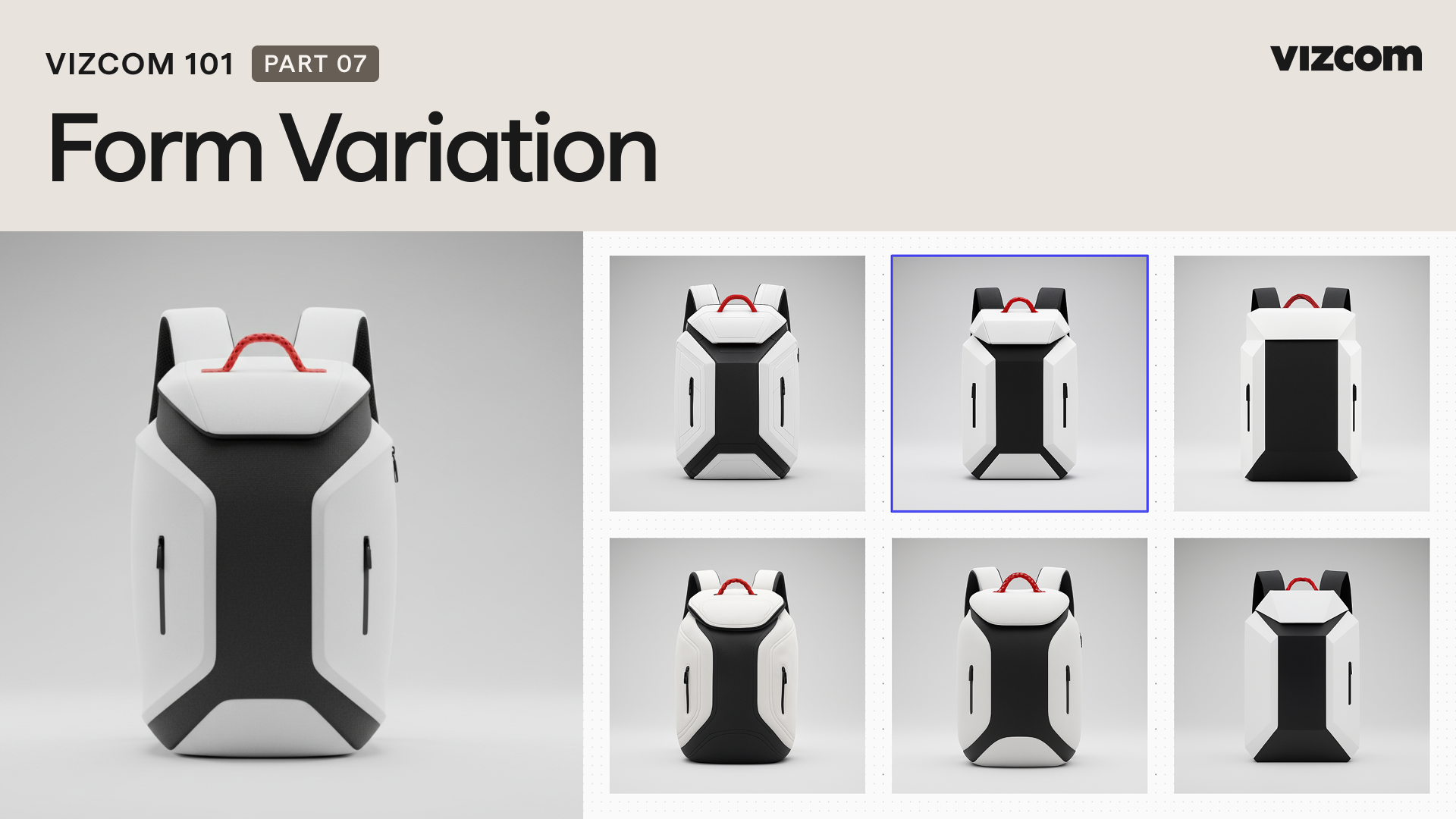
Take a deeper look at Vizcom’s Form Variation tool and how it supports creative exploration. This video shows how to adjust sliders and presets to generate distinct shape outcomes, and how creative descriptors can dramatically shift a product’s form and expression.
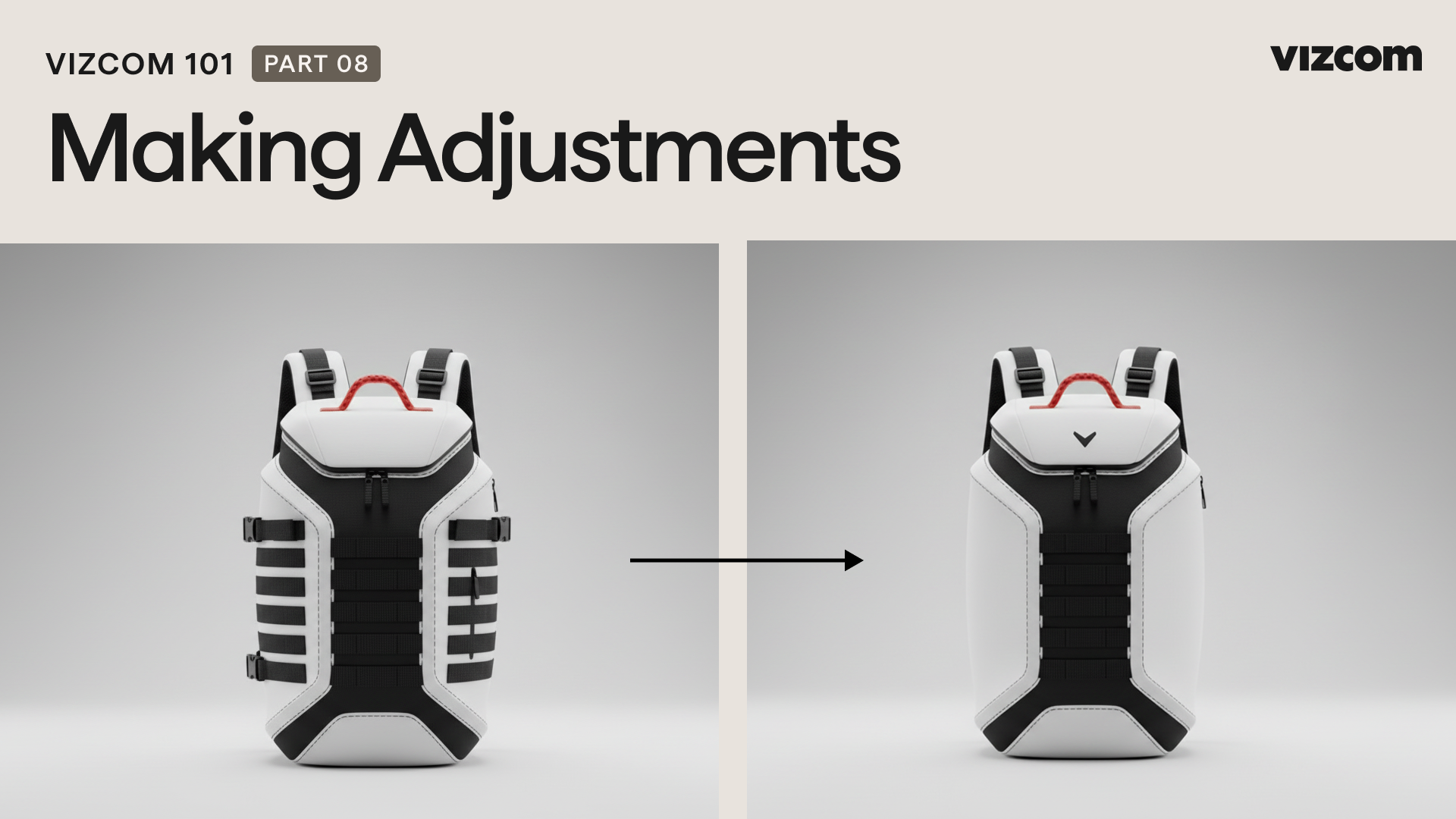
Learn how to make targeted changes to your design in Studio using Modify.
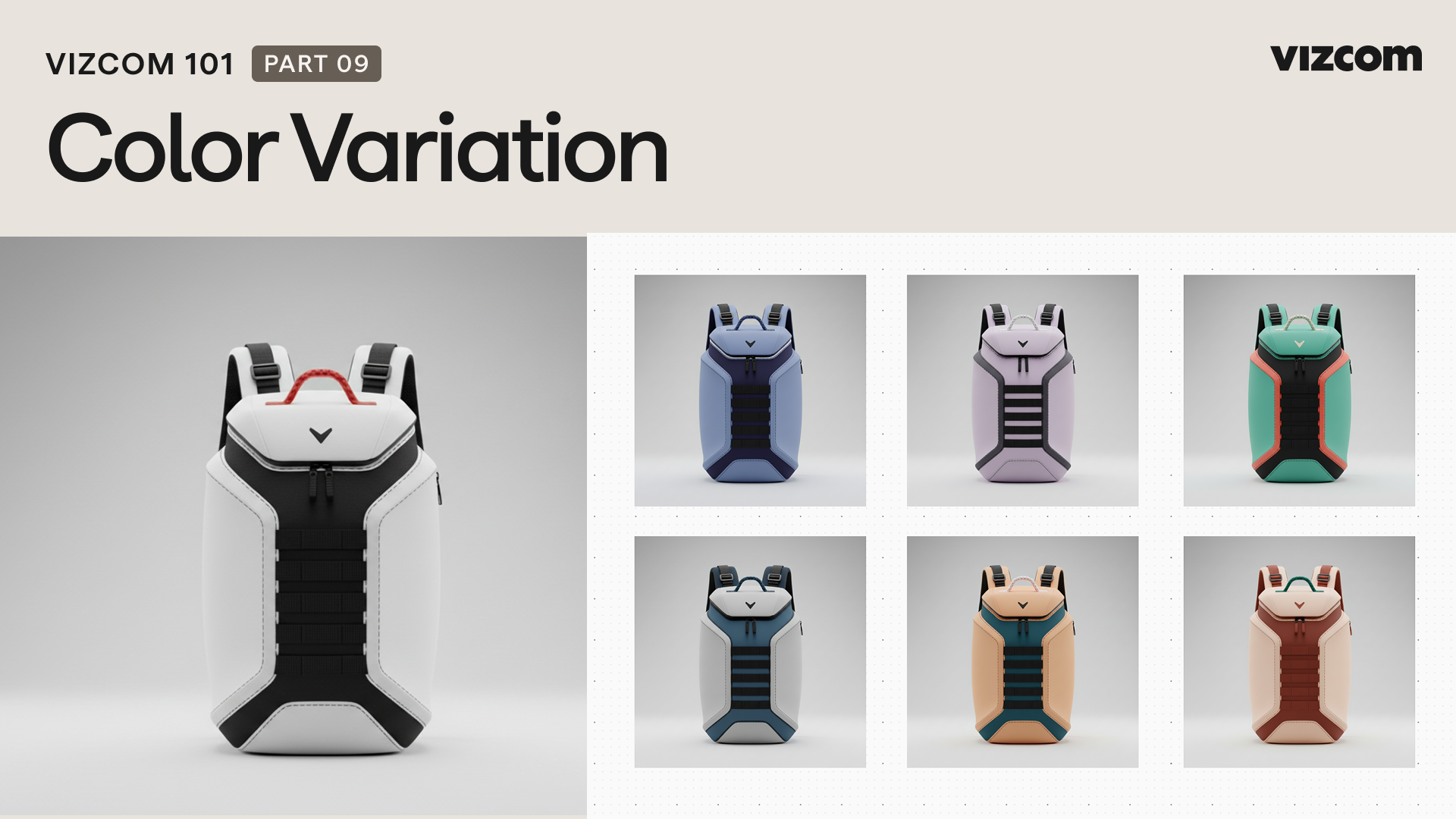
Learn how to use Vizcom’s Color Variation tools for color exploration. This video shows how to generate new palette directions, browse and apply preset palettes, and build a reusable color library to maintain consistency across projects.
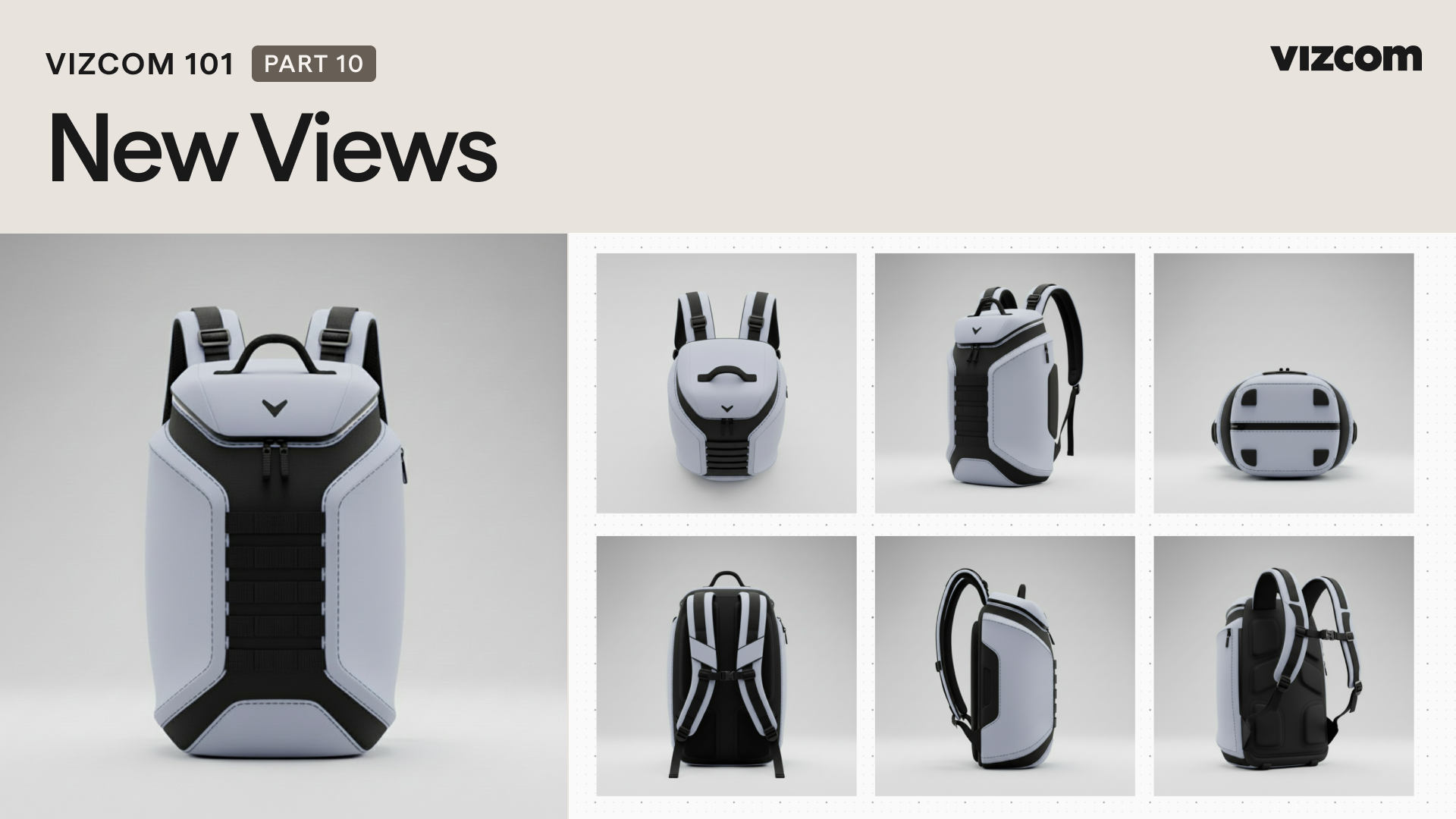
Learn how to use Vizcom’s New View feature to generate multiple angles of a design, helping you better communicate intent, refine proportions, and maintain visual consistency without redrawing.
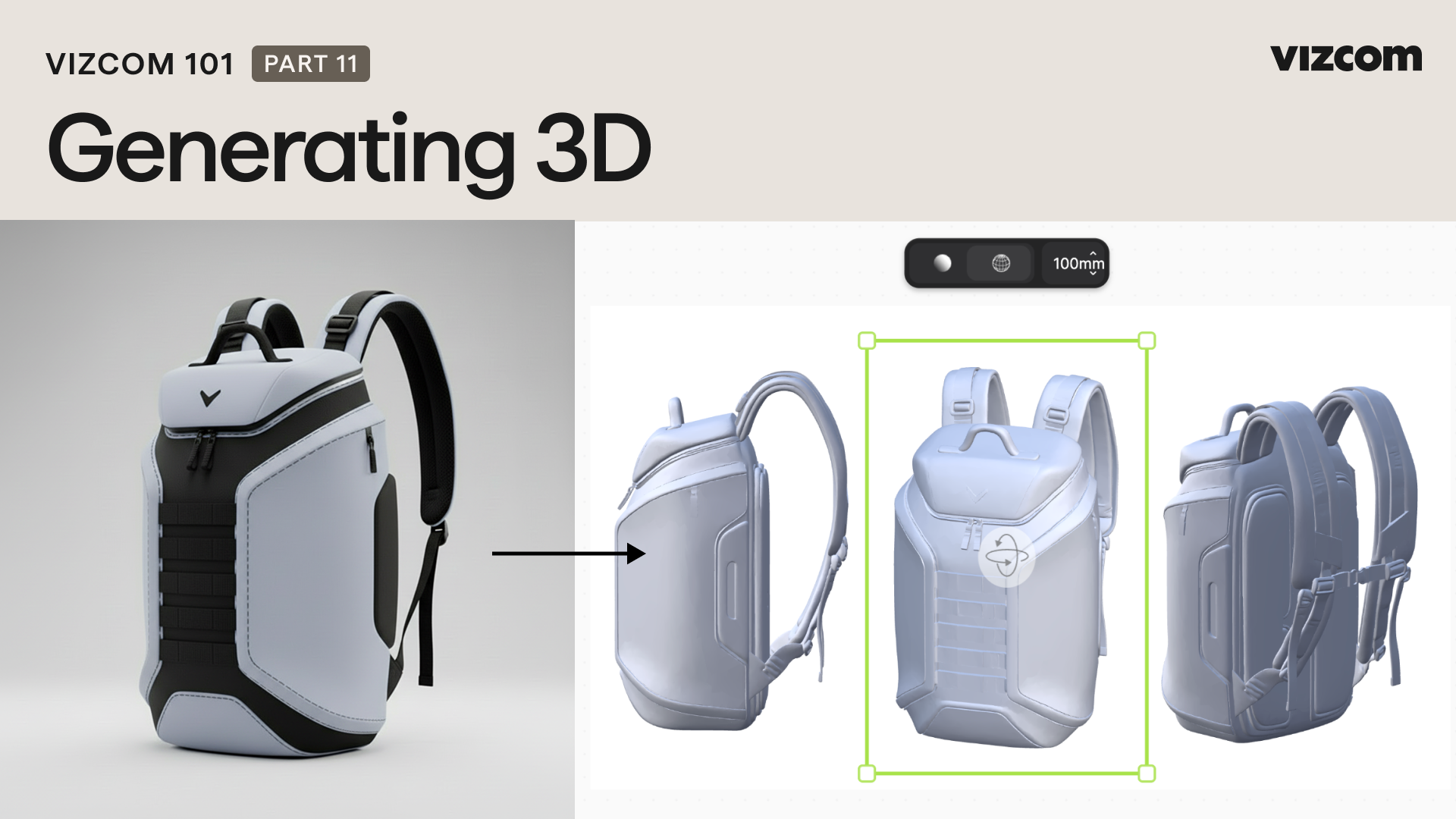
Learn how to generate a 3D model in Vizcom, starting from a single sketch or render and combining multiple views for greater accuracy. This video also walks through exporting your 3D model in various formats for review, collaboration, or prototyping.

Learn how to place your designs into realistic or stylized scenes in Vizcom. This video walks through creating close-up and dramatic product shots, and building scenes with human interaction to add context, storytelling, and scale.

Learn how to bring your designs to life with animation in Vizcom. This video walks through animating a single image using natural language prompts, applying camera movement presets for cinematic storytelling, and building frame-to-frame animations using multiple images.
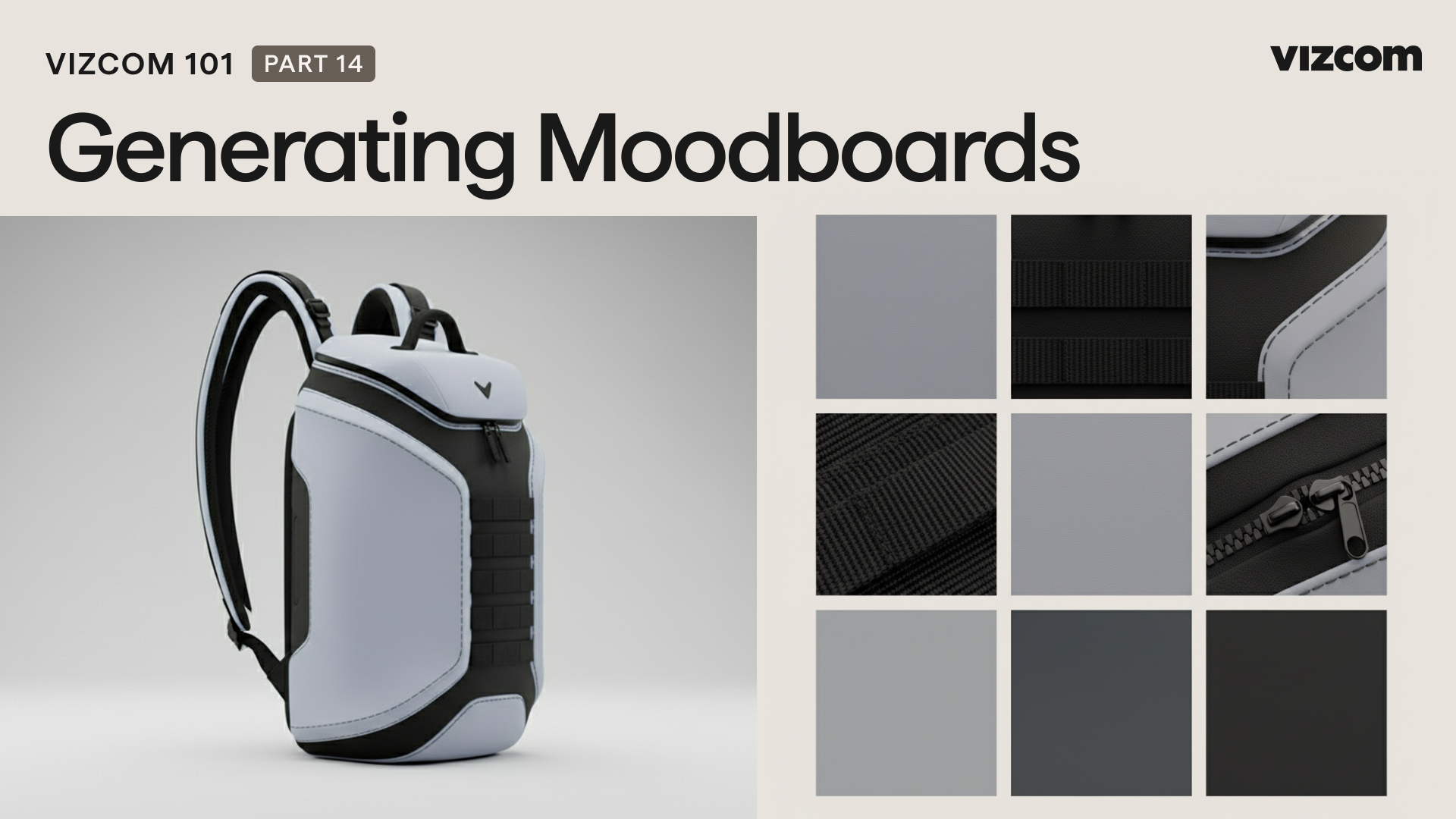
Learn how to turn your renders into visual narratives using moodboards and storyboards in Vizcom. This video walks through automatically generating moodboards from product renders, manually extracting material and color elements for presentations, and building storyboards to communicate narrative and context.
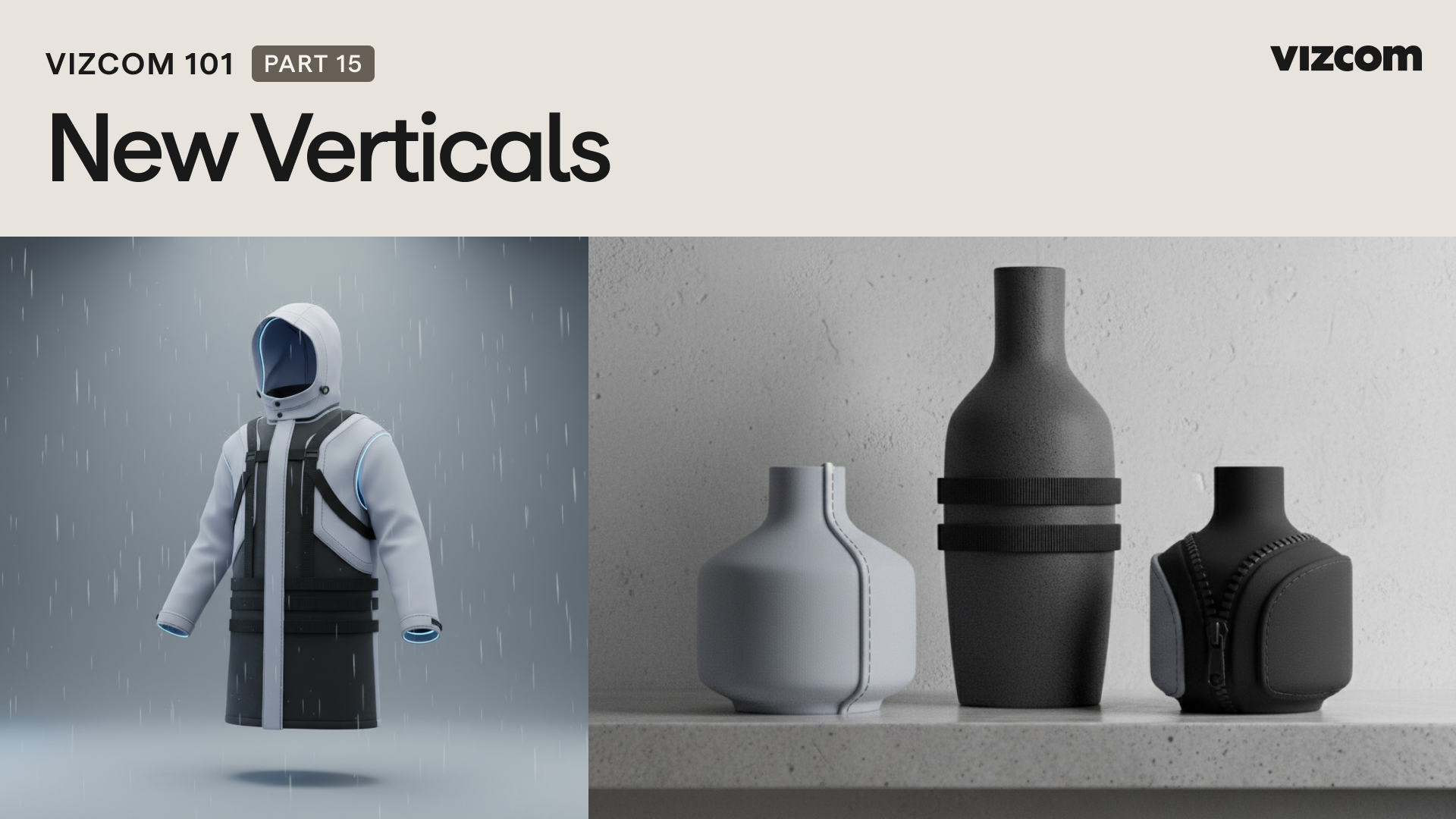
Learn how to use moodboards as creative input to inspire new product ideas in Vizcom. This video shows how to render new sketches guided by existing moodboards and repurpose design language to explore new categories or product ranges.
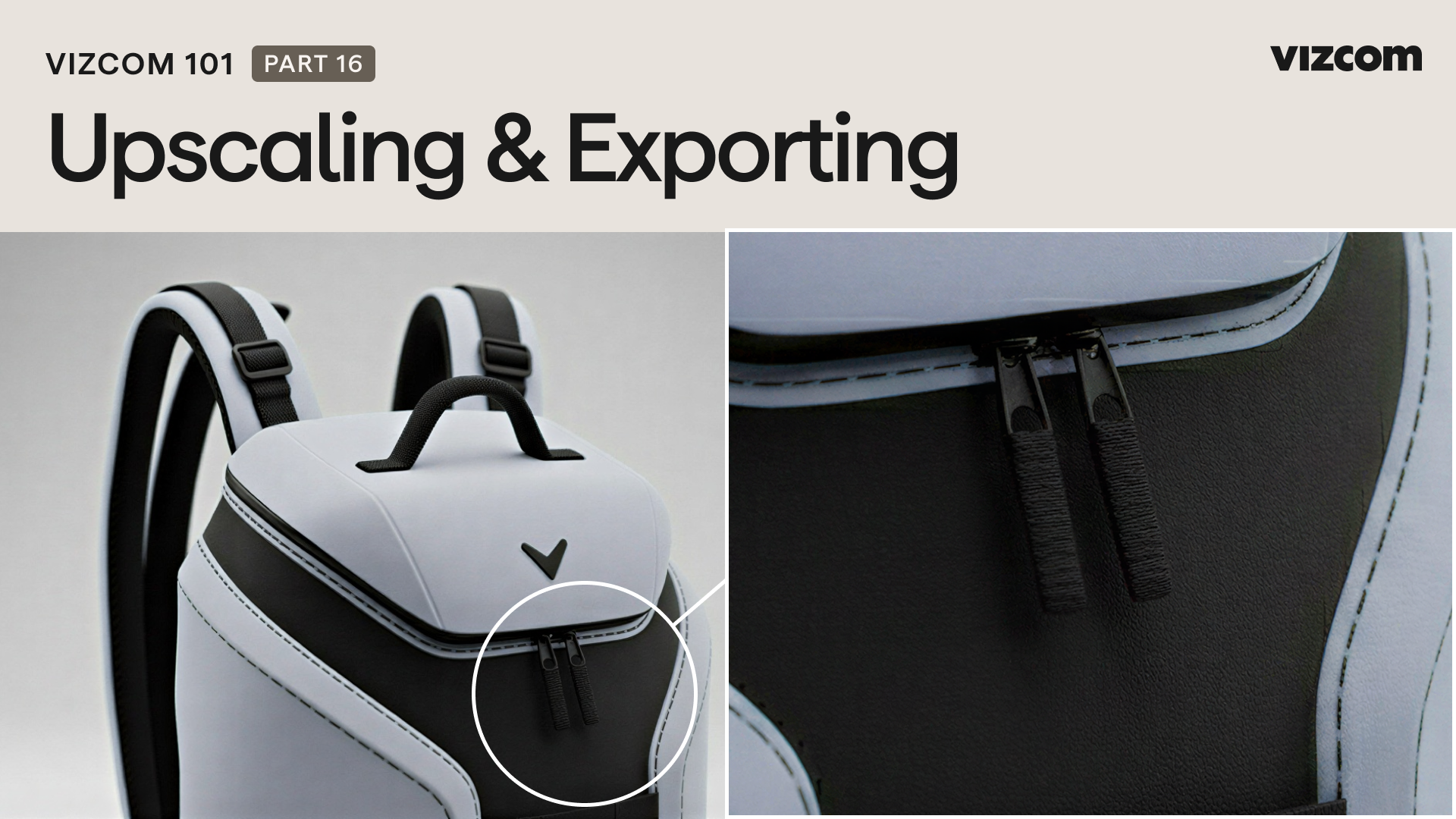
Learn how to polish and export your designs in Vizcom using the Adjust and Enhance tools. This video walks through fine-tuning light and color before export, adding clarity and definition with Enhance, and exporting upscaled images for high-resolution use.
Stay up to date with Vizcom University.
Get notified when new courses, videos, tool tips and more go live