Create a dedicated area for collaboration with specific workspace members.
Teams are a way to neatly organize and find files related to different things, such as projects, teams, or specific topics. For example, you can have a team for your next product launch, another for training content, and yet another for product demonstrations (limits apply depending on subscription plan). Admins in the Workspace can create teams, change the team name, invite others to join, share work, and make folders to keep things organized inside that space. It's a handy way to keep things tidy and find what you need!
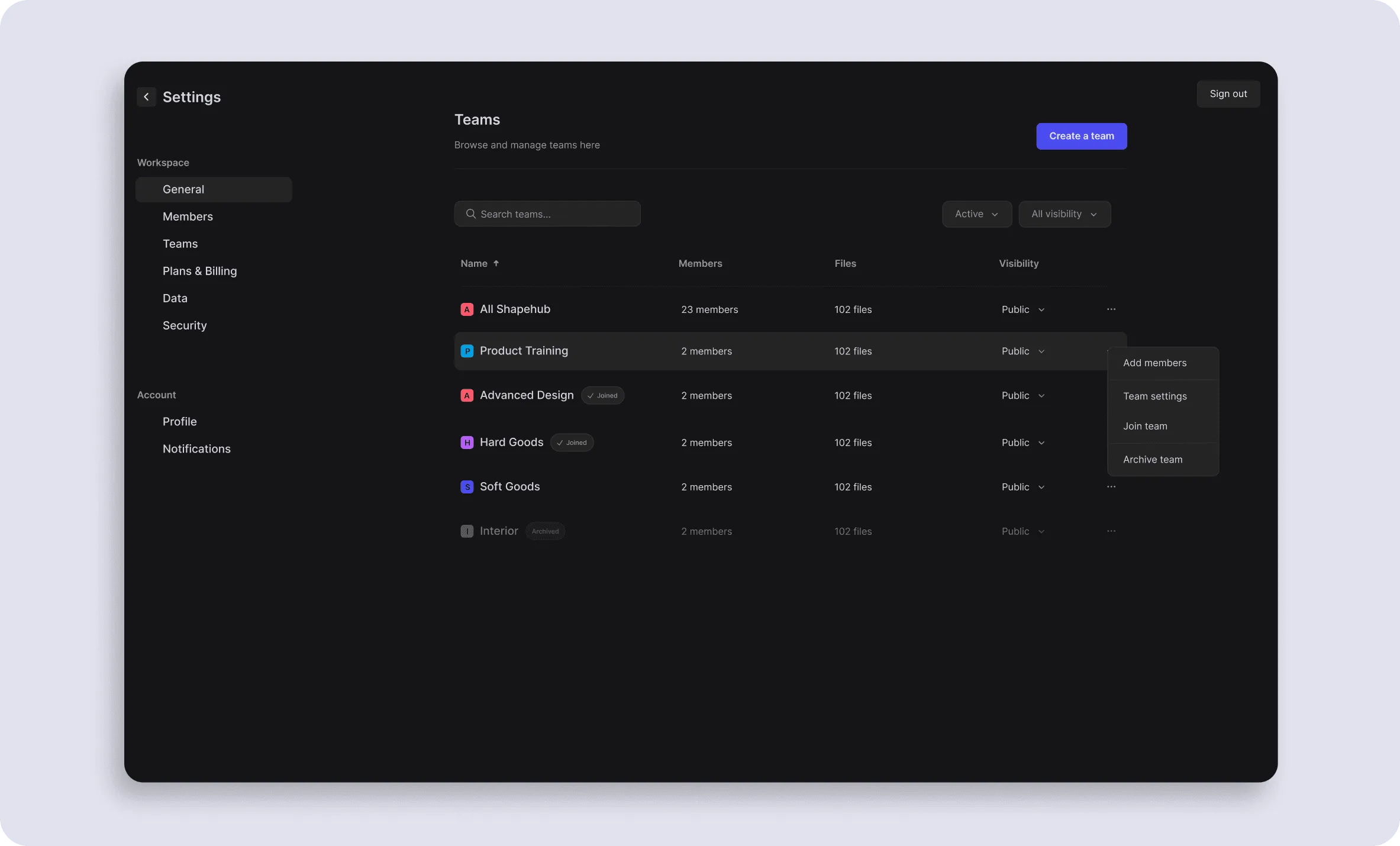
The availability to create Teams will depend on your Workspace subscription plan.
- Starter: One all-workspace team
- Professional: One all-workspace team
- Organization: Unlimited teams (per Workspace)
- For more information on how to set up teams with an Organization subscription, go here
👋 An All-Workspace team is provided in every workspace
All workspaces (no matter the plan) will have one automatically created team called All [Workspace Name]. Everyone in the Workspace is a member of this team, and members cannot be added or removed. This team is a great place to store files that everybody needs access to.
Who can manage a Team?
Only workspace Admin can create new teams, invite members to the team, and manage visibility settings.
Team access and visibility
When you create a new team, you will need to give it a name and set the visibility. There are two visibility types to choose from: Public and Private. This visibility setting will define who can view and join a team in your workspace.
Public teams
Visibility: Everyone within your organization can see the "public" team listed, join it, and see all of the files and folders inside.
Permissions: Members who choose to join a public team will be granted the same user roles as defined by their role in the workspace. For example, if someone is an Editor in the workspace, they will also be an Editor in a team.
Good for: Companies that aim for high collaboration. Designers benefit from having visibility of other teams' work because it can promote cross-functional collaboration and design consistency across projects.
Private teams
Visibility: No one can see that a "private" team exists in the workspace, unless they are the Admin or have been invited to join.
Permissions: Members who are invited to join a private team will be granted the same user roles as defined by their role in the workspace. For example, if someone is an Editor in the workspace, they will also be an Editor in a team.
Good for: Situations where work needs to remain top secret and inaccessible to the rest of the workspace. A private team is good to create for work that is not yet ready to be org-wide knowledge.
Join / leave / invite
Admins can add users to teams under Settings > Teams > Team Settings. Members can join and leave teams on their own, by navigating to Settings > Teams, selecting the team name, clicking the ··· and selecting to join or leave the team. To join a private team, members must be invited by an Admin.
Have a question for our team?
Frequently asked questions
Explore all features in Vizcom or book a tailored demo for you and your
Yes of course! Our starter plan is completely free, no credit card required. This is a great plan to explore vizcom with.
We accept all major credit and debit cards.
Admins (paid) – can edit files, manage workspace settings, billing, teams, and invite members. Editors (paid) – can edit files but not manage settings, billing, or teams. Viewers (free) – can only view files in read-only mode.
Team billing is handled centrally by the Admin. All paid seats, whether Admins or Editors, are included in a single invoice under the same billing cycle, while Viewers remain free and do not affect the cost.
Yes, you can. An Admin can update the plan in the billing settings, and the switch will take effect on the next billing cycle at the annual rate.
Yes, you own everything you create in Vizcom. For free users, while Vizcom may use generated images to improve its services, it does not claim ownership of your designs, concepts, or original ideas—you keep full rights to them. For paid users, your images and designs remain entirely private and are only used to deliver the service. Every design, concept, and image you create or upload is fully yours and kept confidential.
Vizcom does not use your data to train AI models if you’re on a paid plan. Everything you create stays private and is only used to provide the service. Free users may have their generated images included to help improve Vizcom’s services, but even then, Vizcom does not claim ownership of your designs, concepts, or original ideas—you retain full rights.