Styles
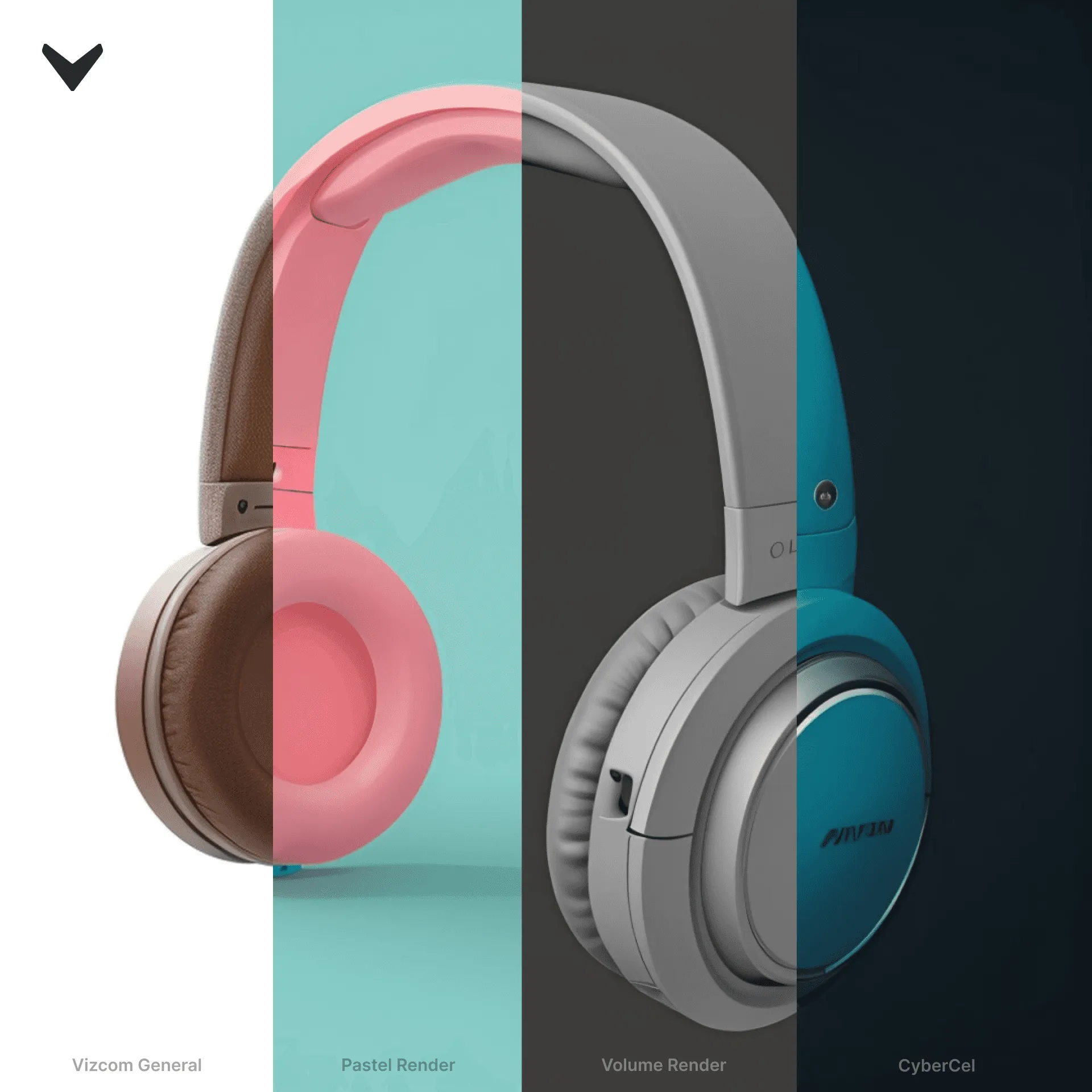
You can create renderings with different Styles, according to your preference.
How to switch Styles
- In the Brush Studio drawing app, go to the "Create" tab (right side of the screen)
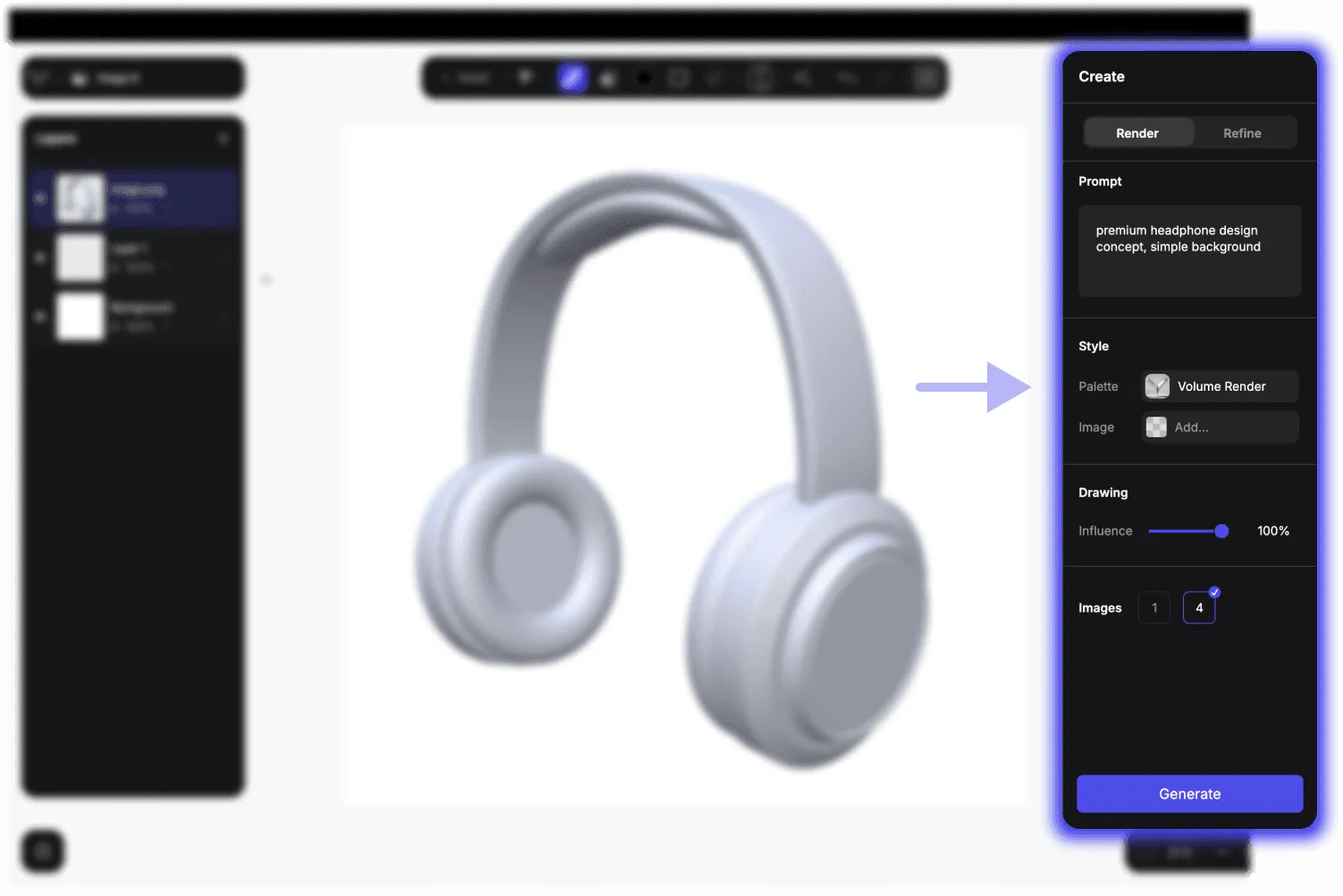
- You can see the "Palette" dropdown menu under Style, where you can choose the preferred one from the list.

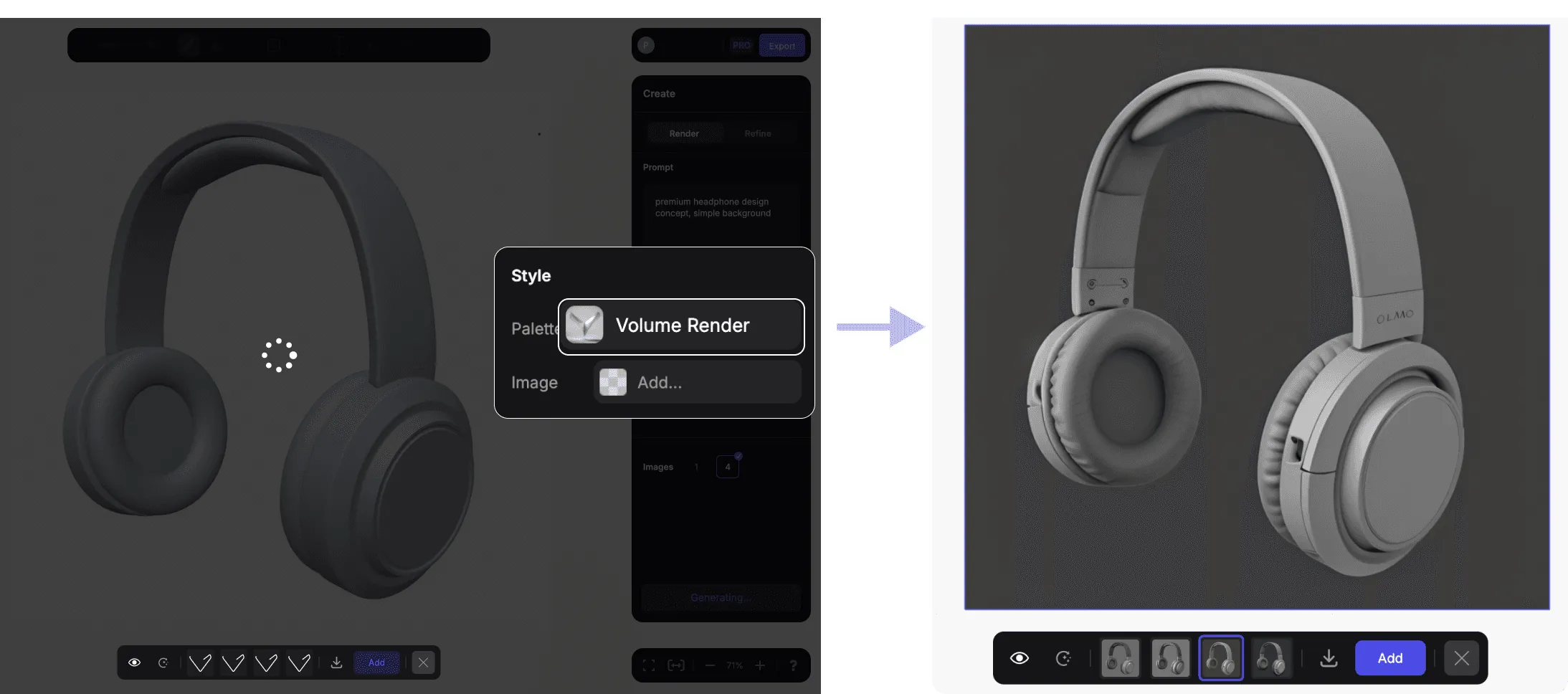
- If you click on "Generate", the renderings will be created according to the selected Palette
What Palettes do we offer?
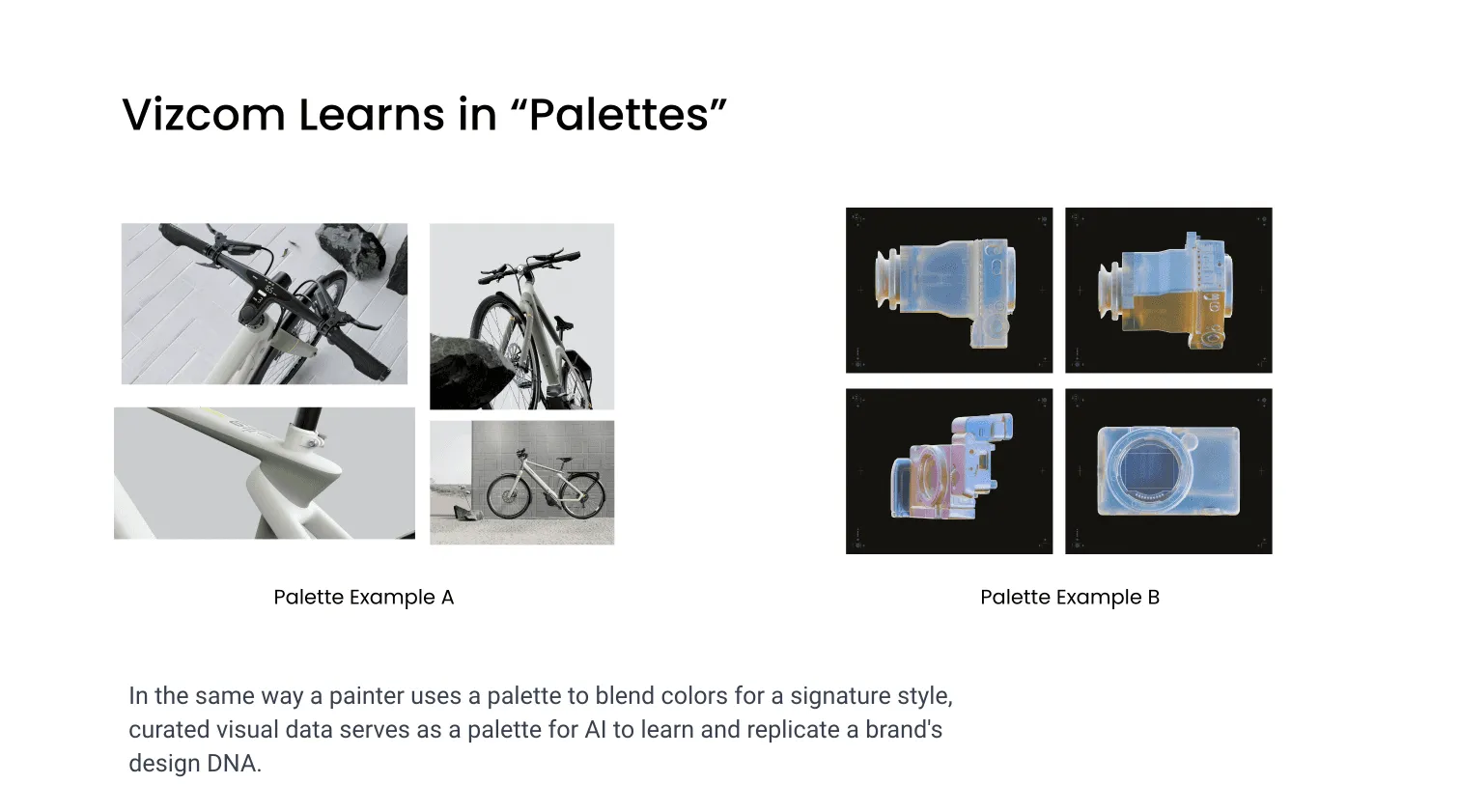
There are different categories of Palettes. We are offering a list of publicly available palettes, that we will keep adding more and more, according to the general industry needs. There is also an option for enterprise clients to custom train models. This service will be self-serviced and available very soon for any user.

Essentials
Essential palettes are the most universally useful styles that you can utilise as base aesthetics that can be relevant in any design discipline or topic
Vizcom General
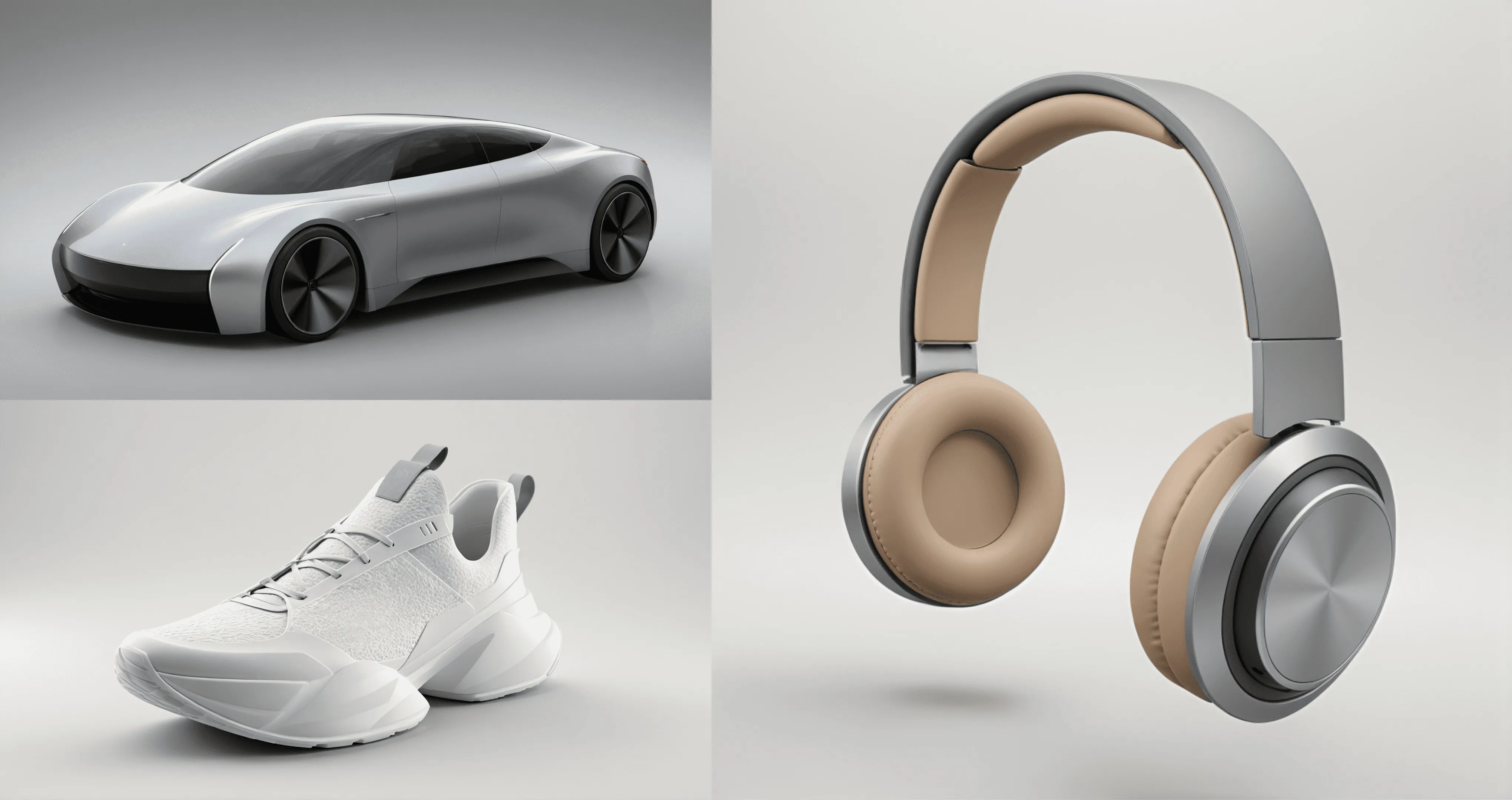
Stunning, photorealistic imagery that puts the focus on your product.
Model version: V2 (New!)
Model version: V1
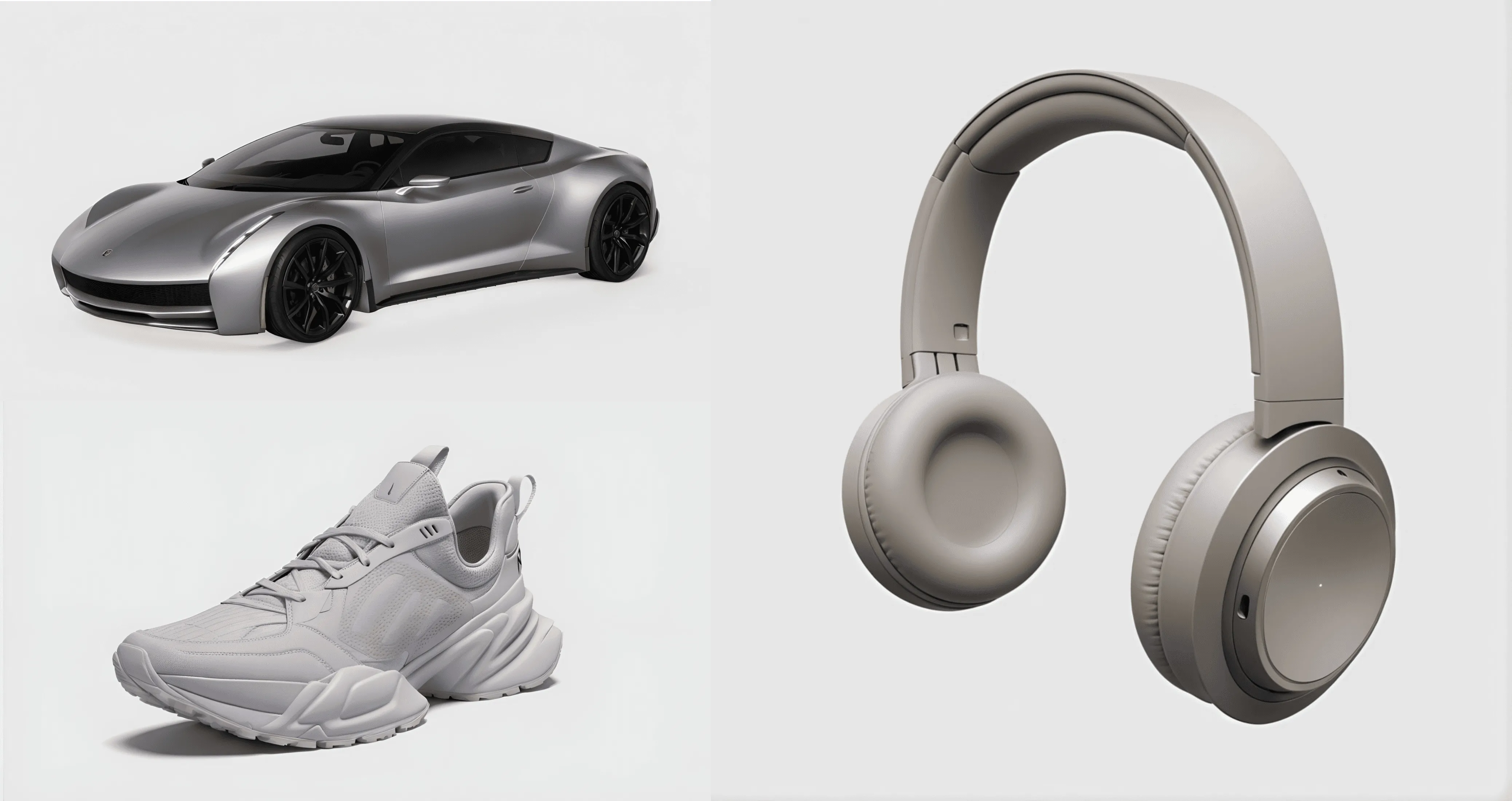
This palette allows the most creative freedom when it comes to promting. You are free to describe materials, colors, objects, scenes, backgrounds. As a base aesthetic, it is set to provide a simplistic studio rendering of a product, unless you specify different conditions.
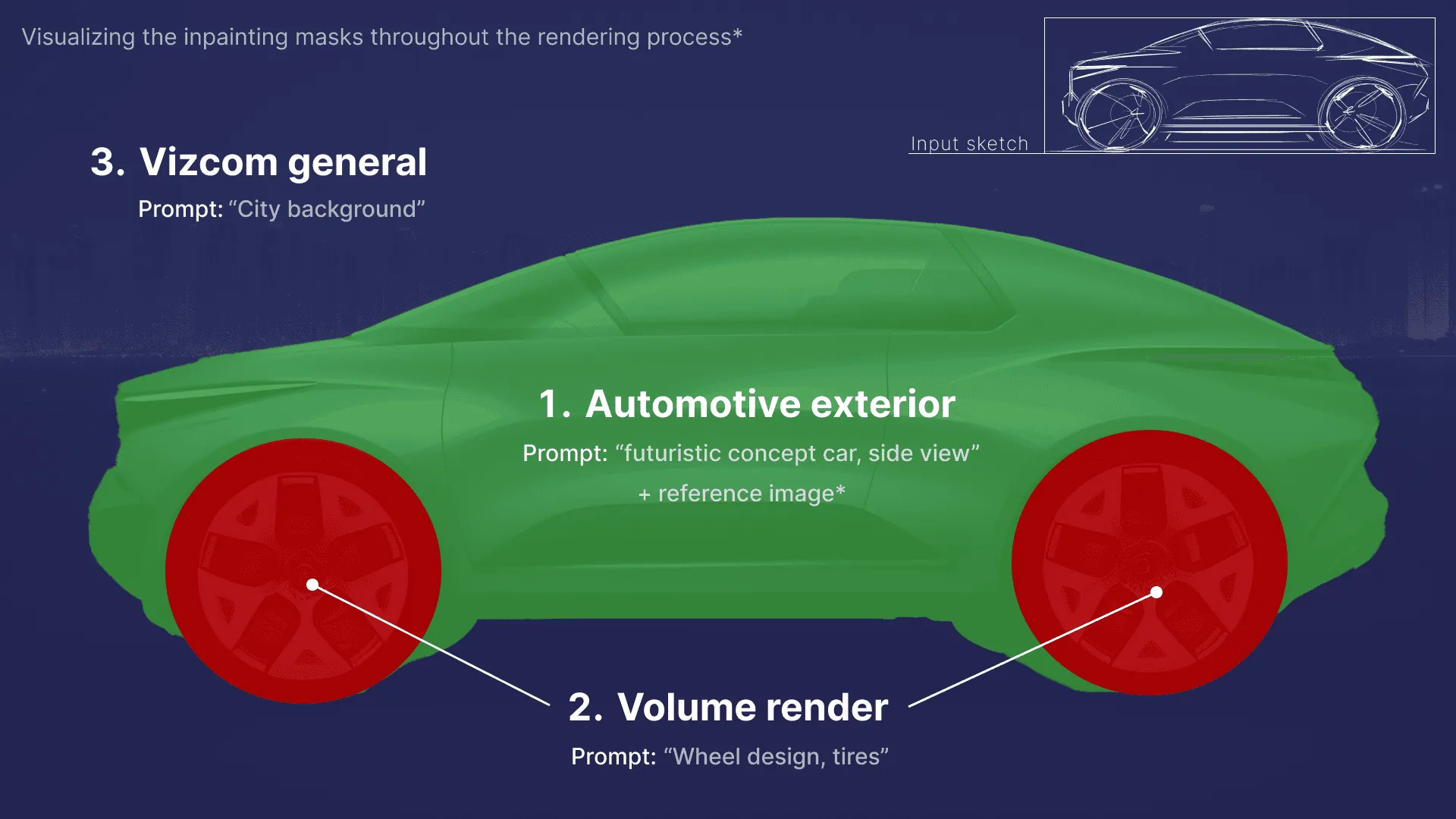
This palette is suitable for inpainting and modifying on different parts of the rendering in a photorealistic manner.
If you add a reference image with this palette, the translation will be the closest, to the original image compared to other styles. It will be a realistic interpretation of the inspiration image.
Surface Sculpt
Clean dynamic surfaces.
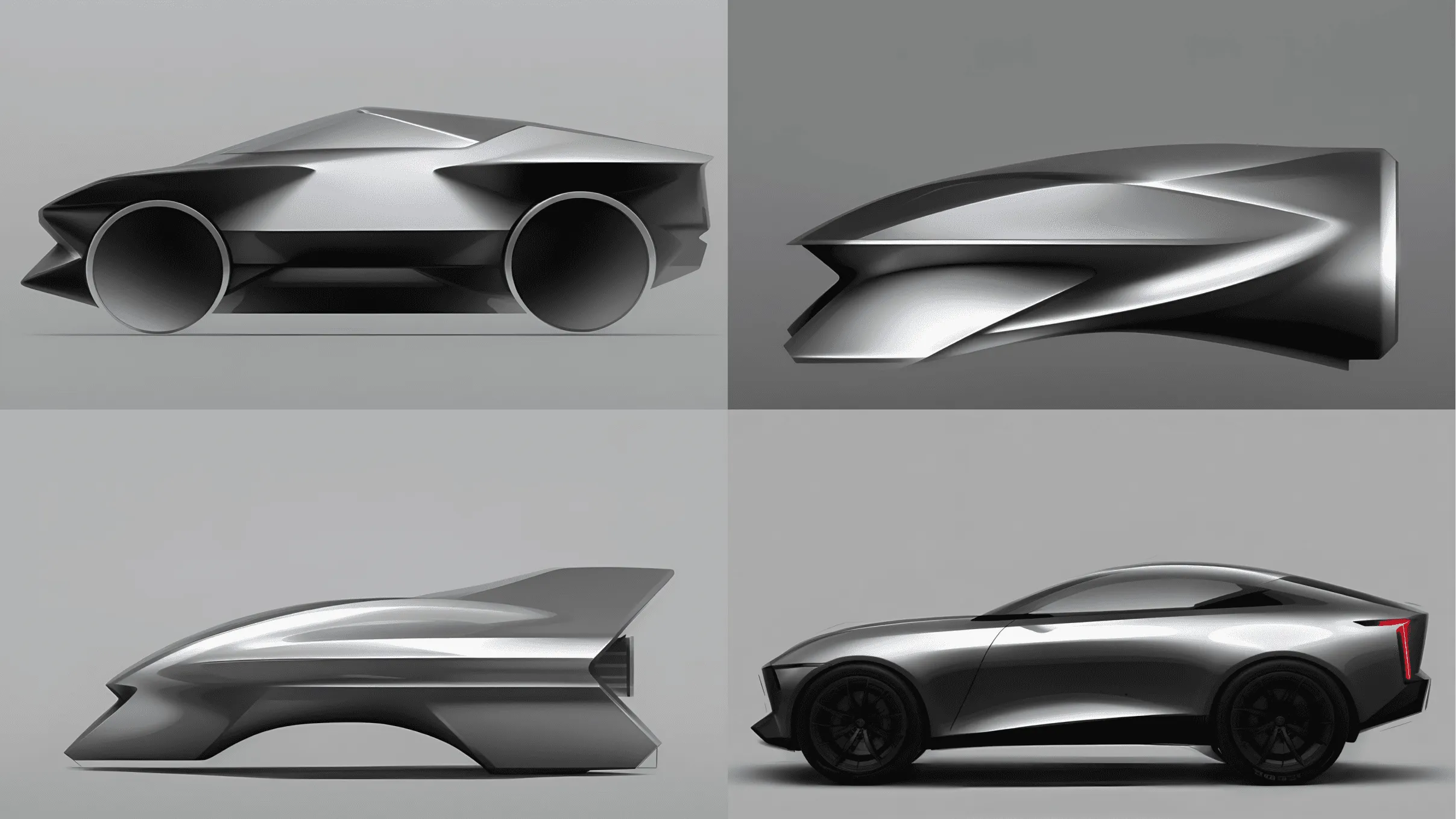
This palette offers creative and clean surfacing solutions, suitable for fluid form studies and speed form explorations. The primary focus is vehicle design studies.
Volume Render
Three-dimensional look with a emphasis on depth and form.
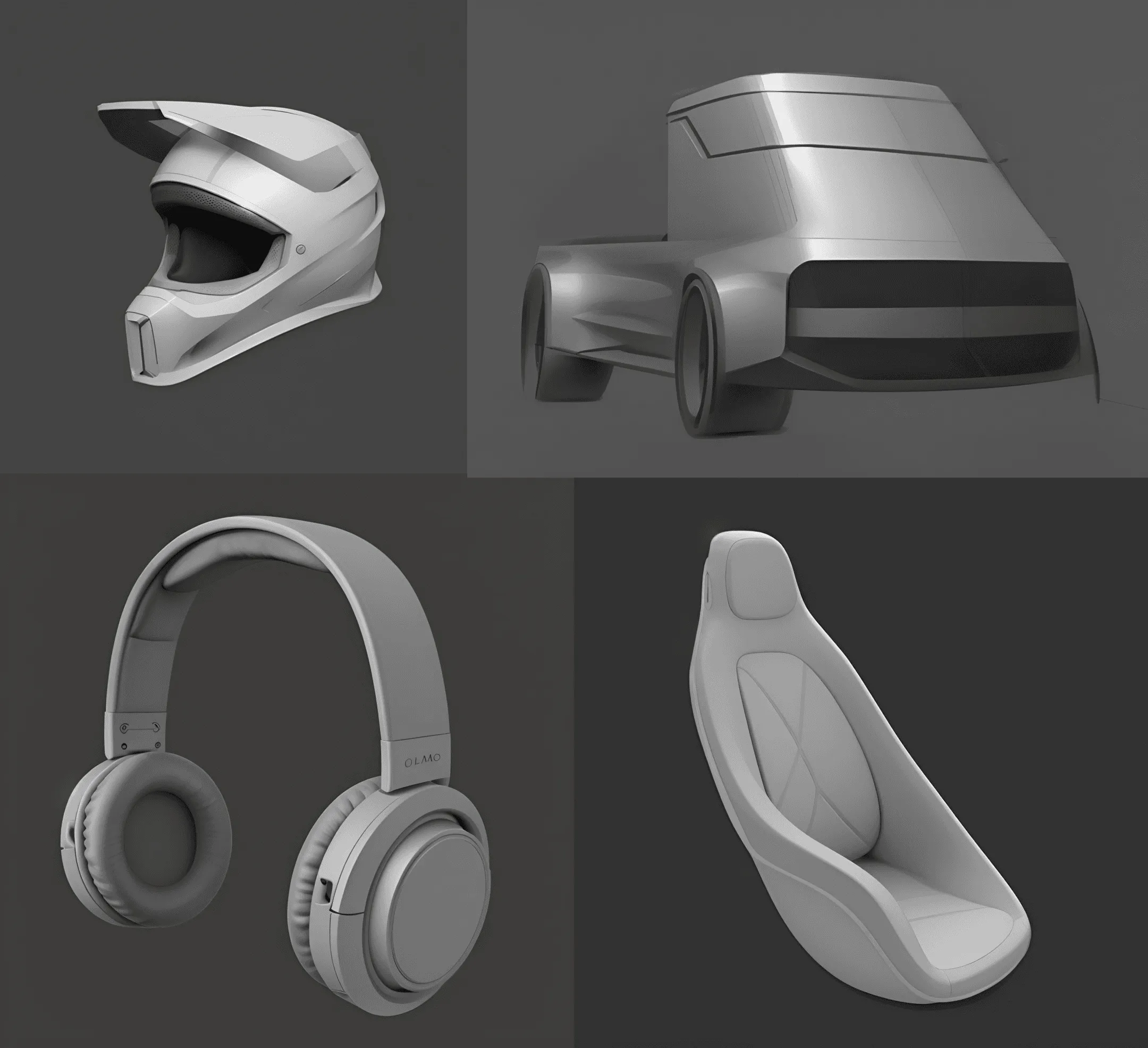
This palette can be handy when it comes to form development, without any distracting colors and elements on the rendering. It's like a base ambient occlusion type of visual, that you can build onto.
Stylized
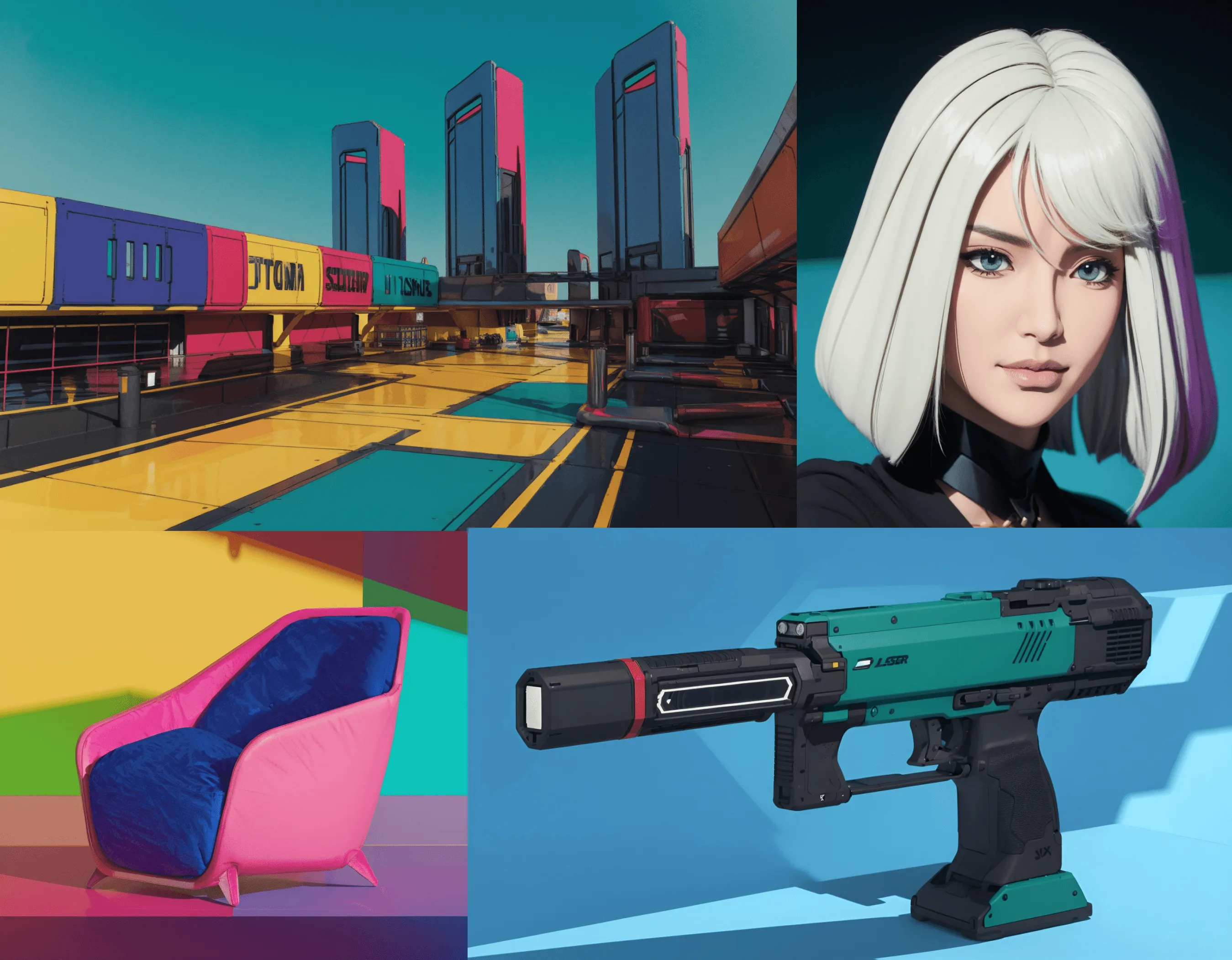
Stylized palettes have a very specific color palette and aesthetic to them. If you are looking for a striking visual in a coherent style, these can be good choices to make renderings with.
This also means, that these palettes will not follow color prompts accurately, the level of control is lower when it comes to exactly describing a desired rendering, compared to more general styles.
CyberCel
Vibrant flat colors with strong outlines and high contrast.
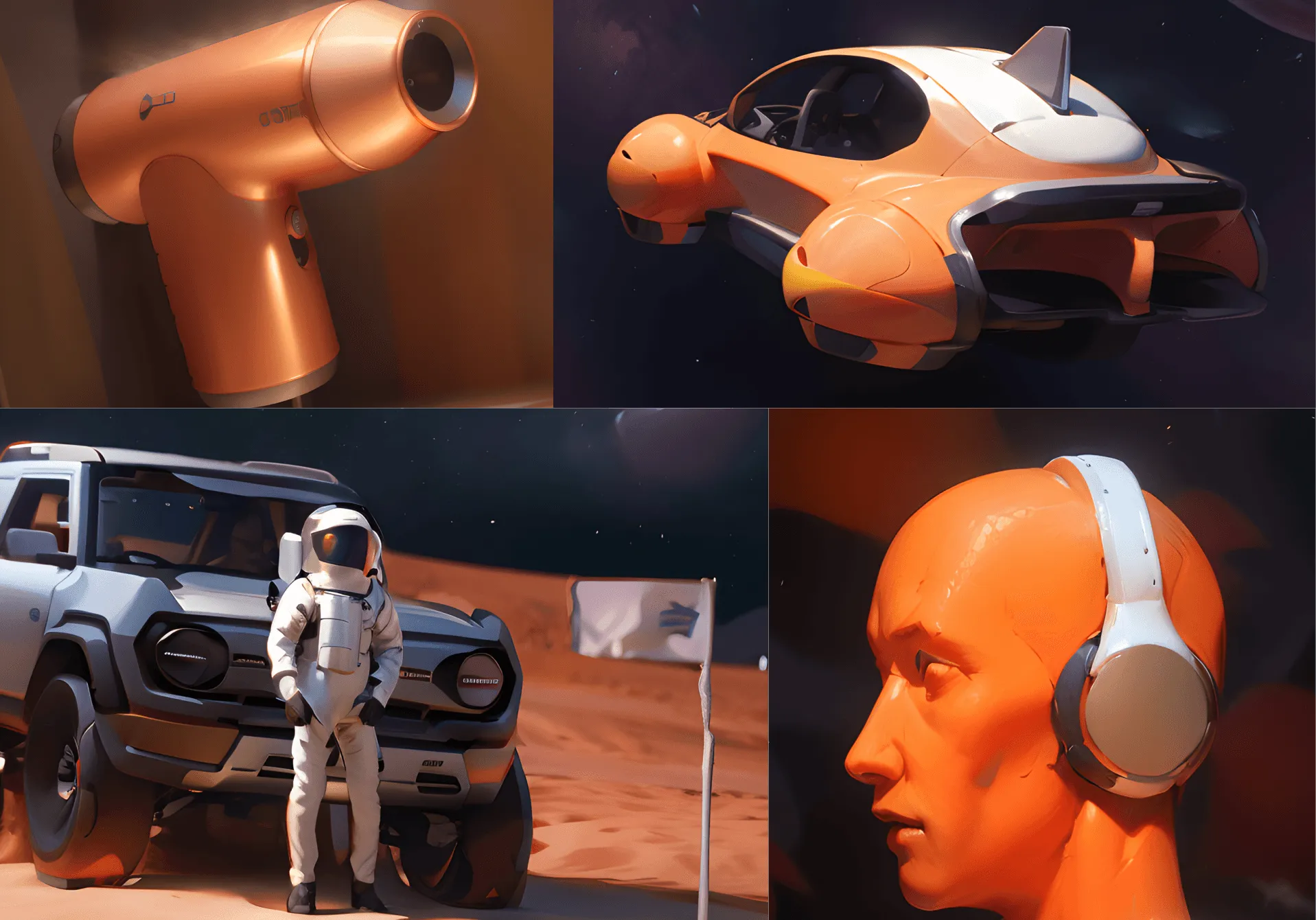
Technicolor 6
Futuristic, concept Art inspired style with emphasis on the vibe and envinronment of the whole composition.
Model version: V2 (New!)
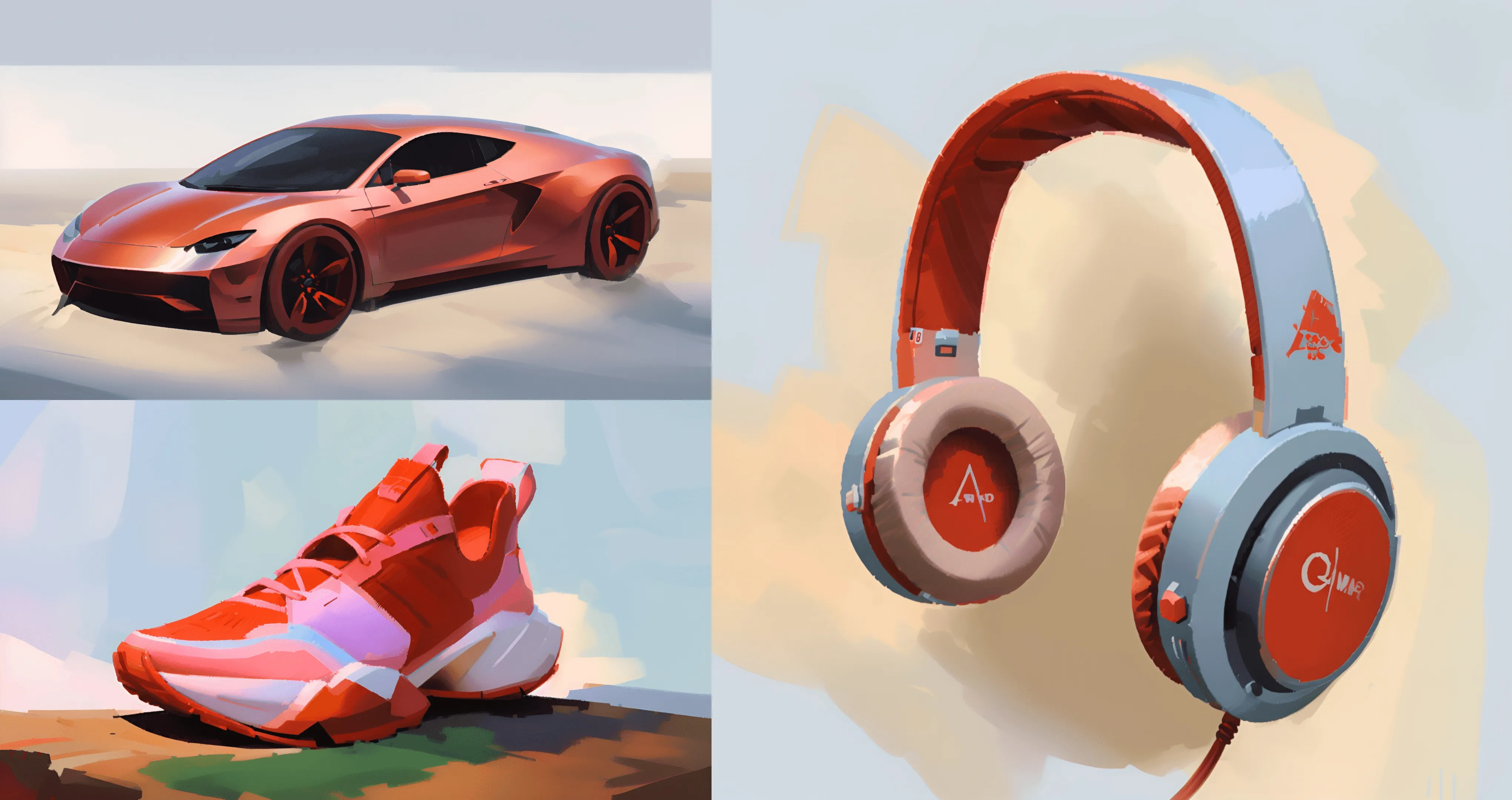
Model version: V1
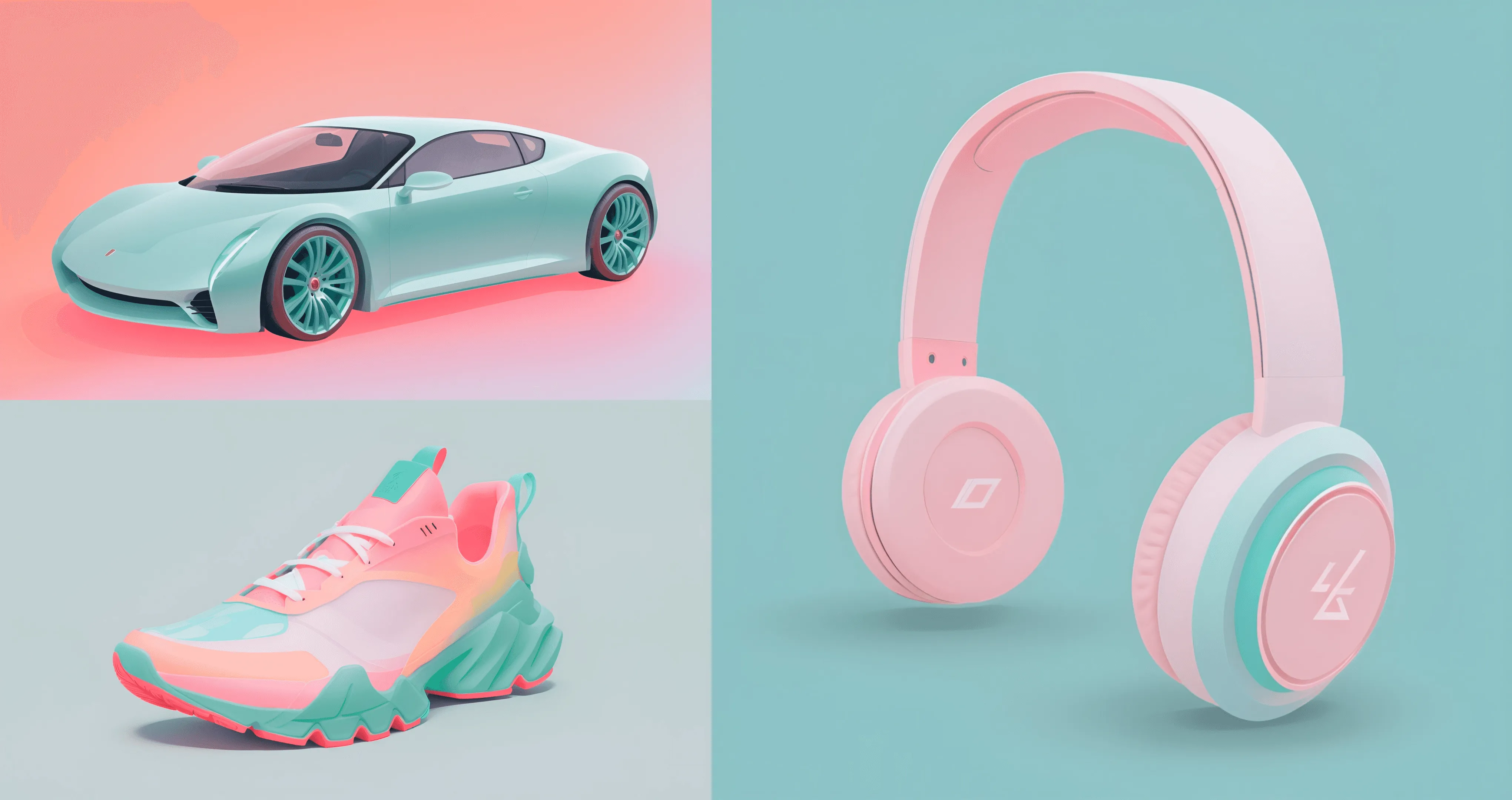
Pastel Render
Gentle and soothing color palette, inspired by the soft hues of pastel colors
Automotive
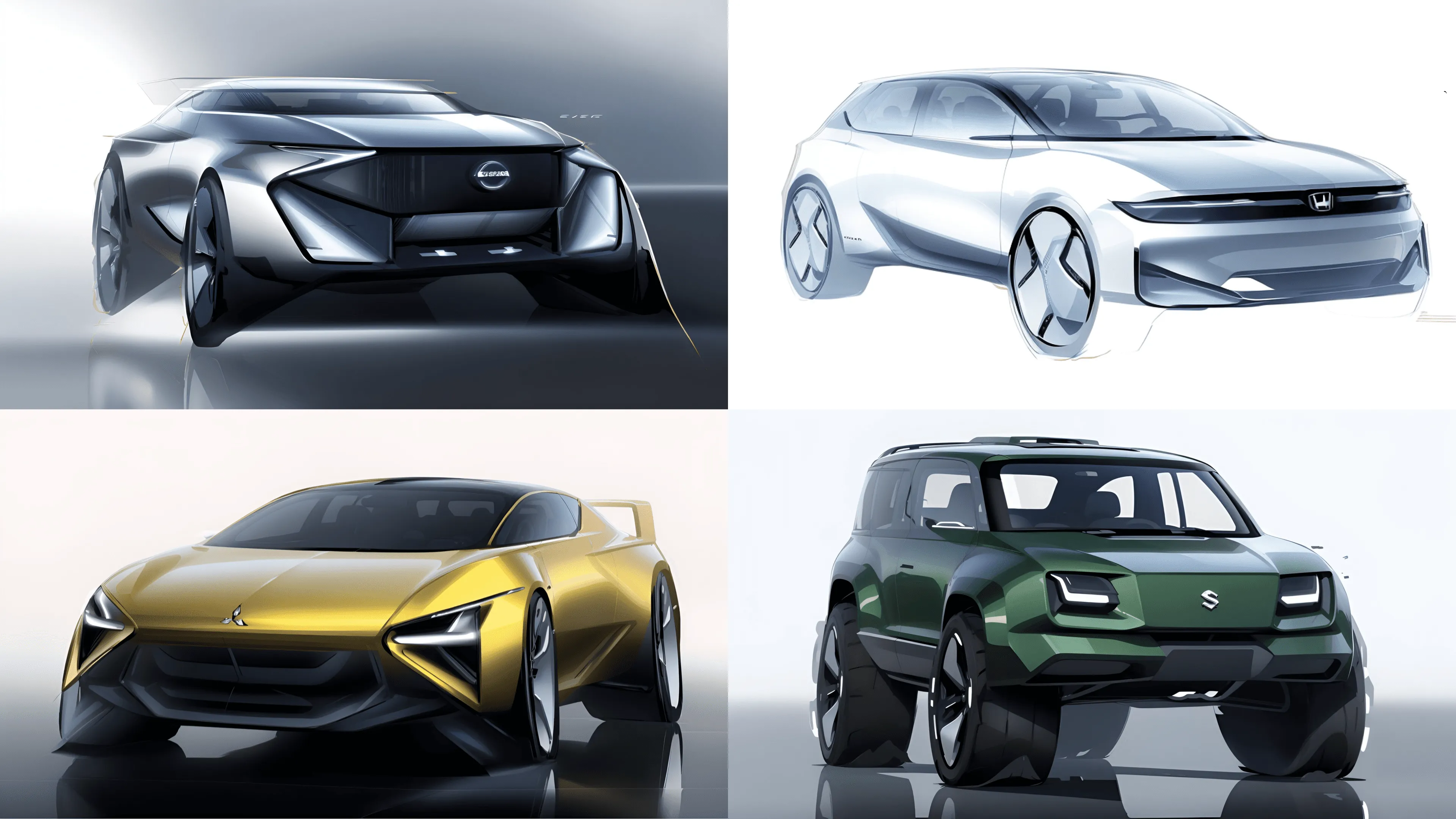
There are very specific rendering styles and aesthetics when it comes to automotive design. We wanted to create palettes that can capture the fluid, artistic, automotive industry specific design sketches. These palettes are also more up to date with design trends, compared to the general ones.
Automotive Exterior
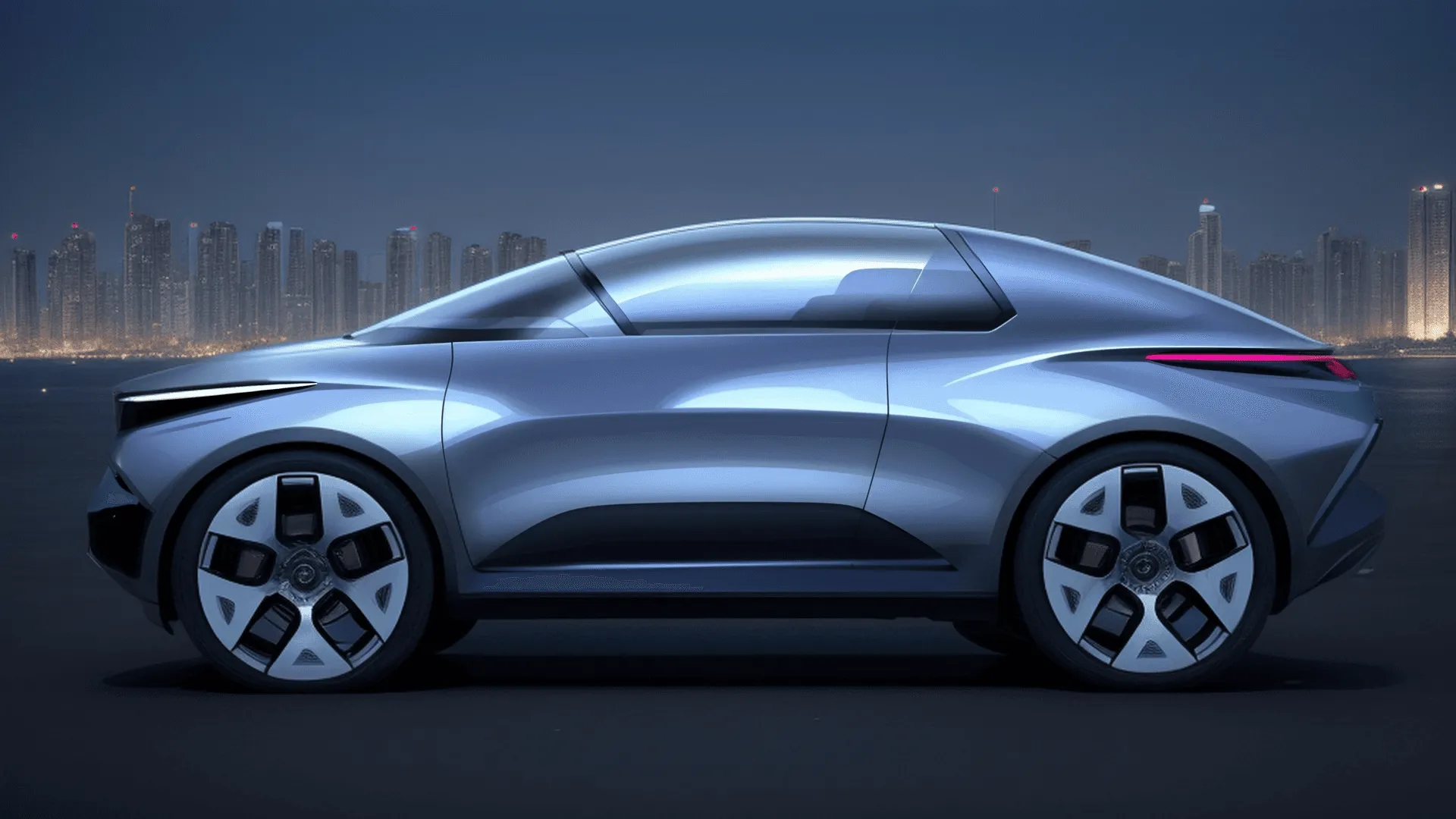
Vivid car design renders with emphasis on shadows and reflections.
Selecting the sketch with inpainting can result in beautiful, lightly shaded sketches.
Model version: V2 (New!)
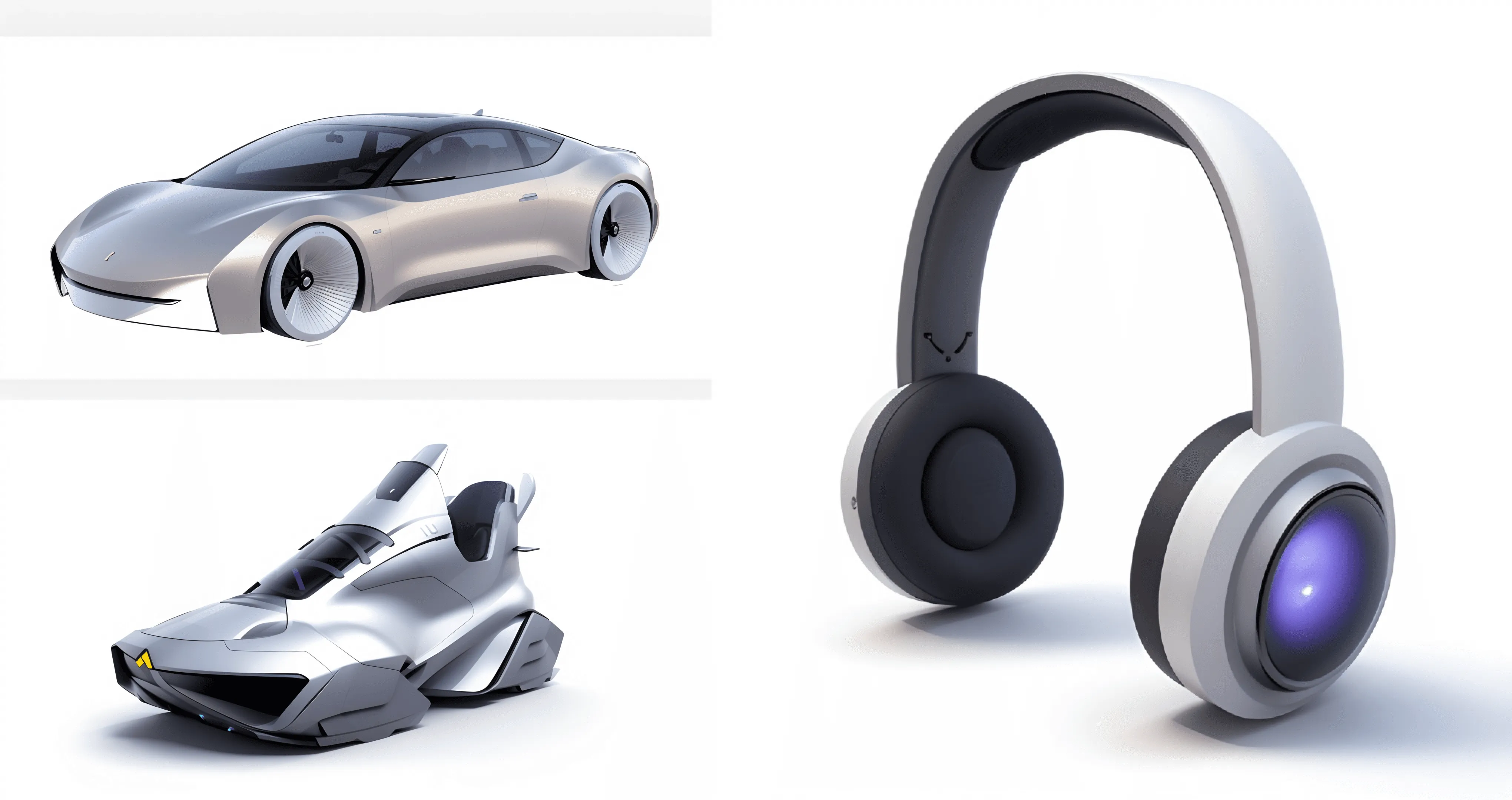
Model version: V1
Automotive Interior
Detailed renderings emphasising texture, lighting and space in automotive interiors

Palette influence
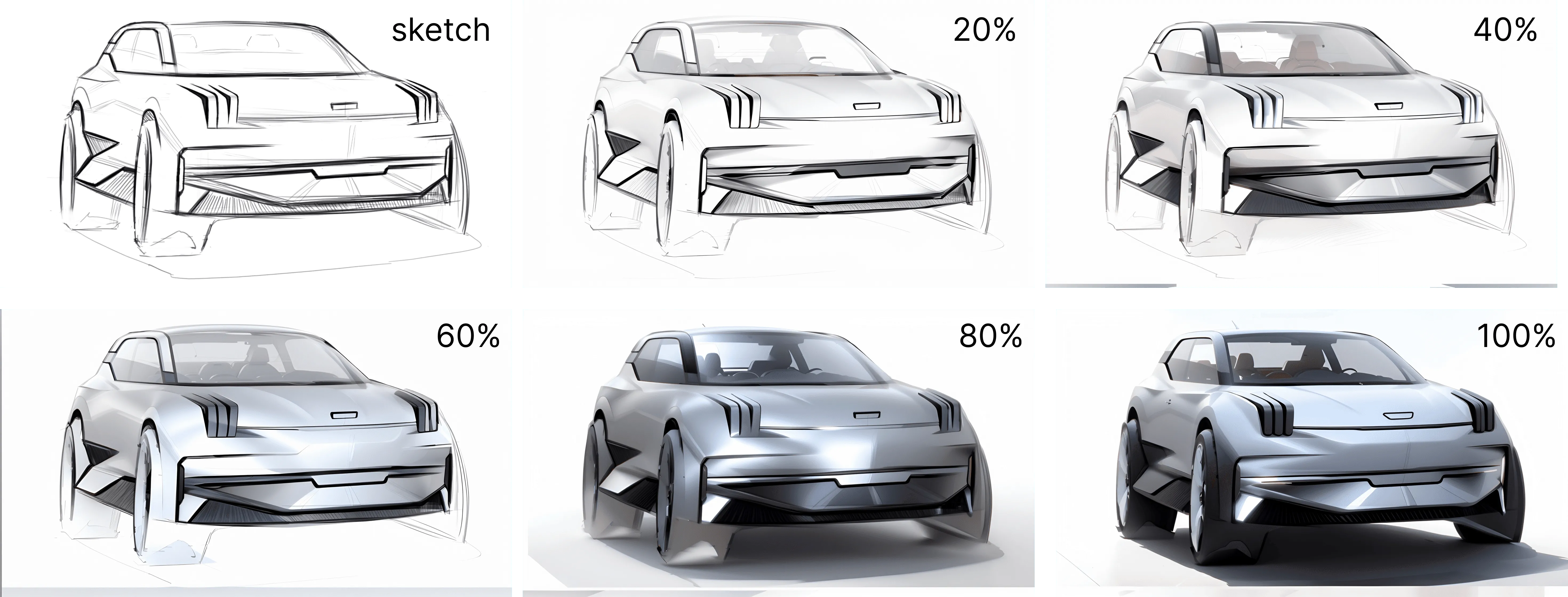
Palette influence enables to have control over the strength of the rendered image. In other words, you can control, how much the selected style should influence your original sketch.
You can set the palette influence at the Create panel - Style section - Palette option - percentage
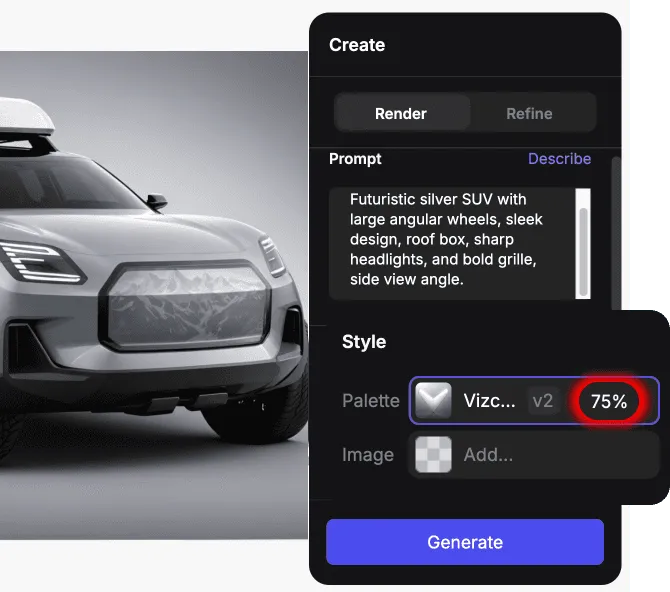
Examples on modifying palette influence on the same sketch:
(Palette: Auto Exterior V2)
(Palette :TechnocolorV2)
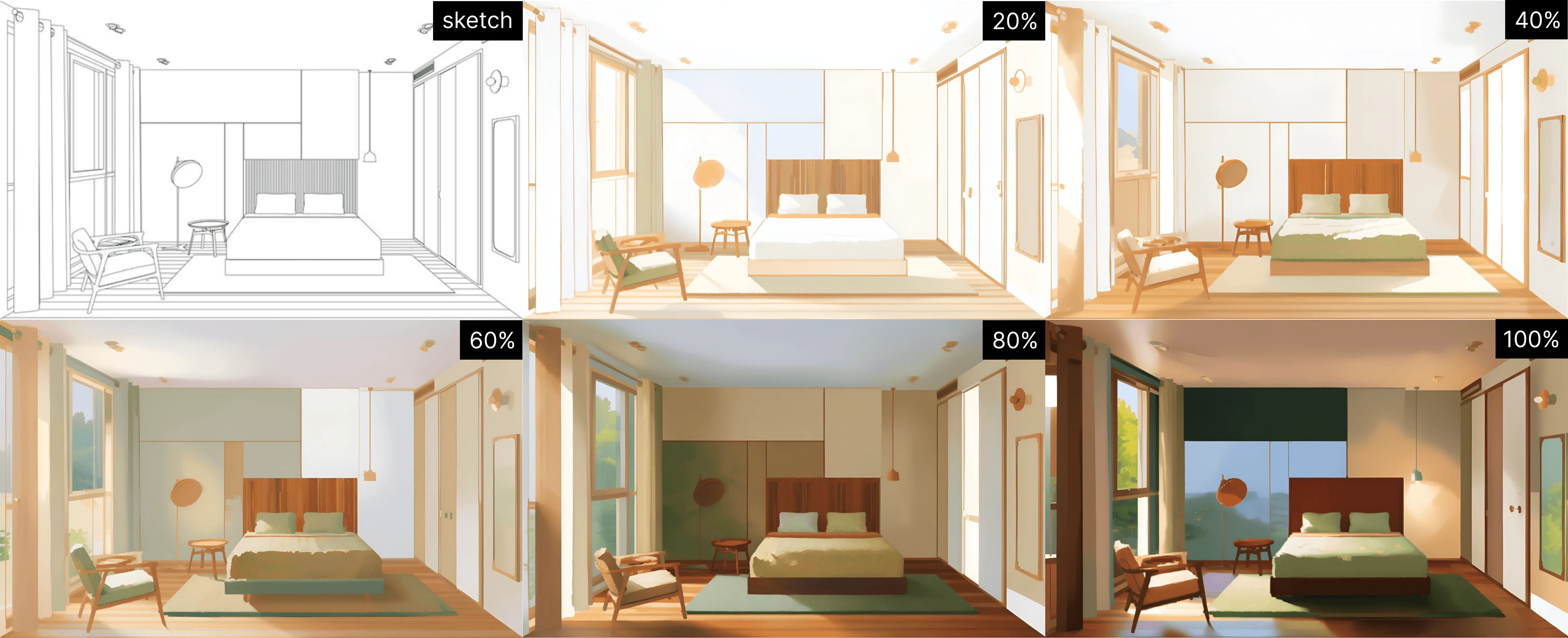
With the help of palette influence, you can go from a lightly shaded sketch, to a fully colored prominent rendering.
Combining palettes
With the inpainting selection tool you can render different parts, in different palettes, taking advantage of each ones strengths.
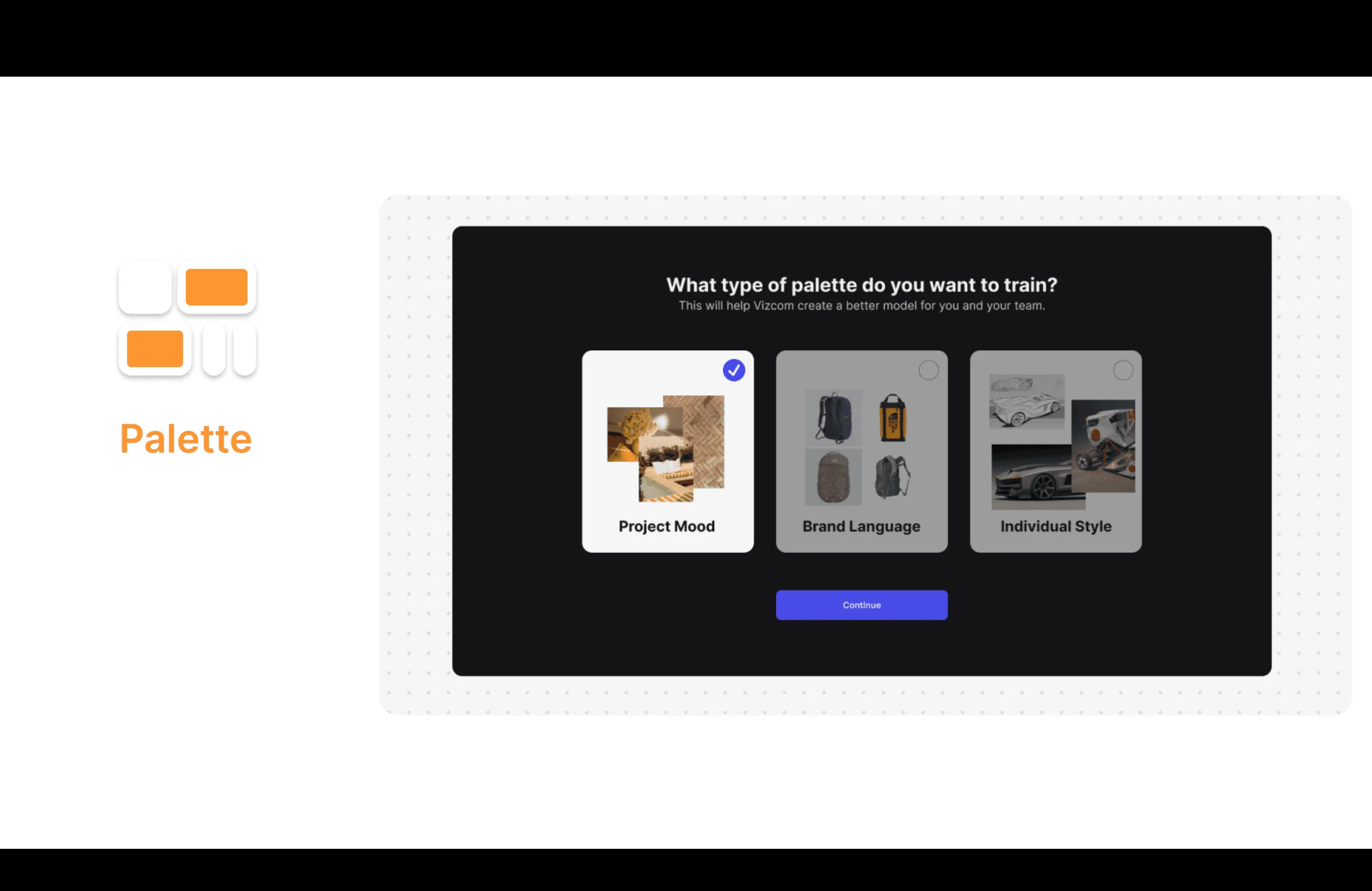
Soon you'll be able to create your own Palettes!
Have a question for our team?
Frequently asked questions
Explore all features in Vizcom or book a tailored demo for you and your
Yes of course! Our starter plan is completely free, no credit card required. This is a great plan to explore vizcom with.
We accept all major credit and debit cards.
Admins (paid) – can edit files, manage workspace settings, billing, teams, and invite members. Editors (paid) – can edit files but not manage settings, billing, or teams. Viewers (free) – can only view files in read-only mode.
Team billing is handled centrally by the Admin. All paid seats, whether Admins or Editors, are included in a single invoice under the same billing cycle, while Viewers remain free and do not affect the cost.
Yes, you can. An Admin can update the plan in the billing settings, and the switch will take effect on the next billing cycle at the annual rate.
Yes, you own everything you create in Vizcom. For free users, while Vizcom may use generated images to improve its services, it does not claim ownership of your designs, concepts, or original ideas—you keep full rights to them. For paid users, your images and designs remain entirely private and are only used to deliver the service. Every design, concept, and image you create or upload is fully yours and kept confidential.
Vizcom does not use your data to train AI models if you’re on a paid plan. Everything you create stays private and is only used to provide the service. Free users may have their generated images included to help improve Vizcom’s services, but even then, Vizcom does not claim ownership of your designs, concepts, or original ideas—you retain full rights.