Publishing a palette
Palettes can be worked with locally in their source file, but the magic comes from publishing your creations for use in other files.
👋 Note that publishing a palette to a personal library will use your workspace’s allotted palette storage amount. Learn more about storage
Publishing to My Library
Publishing is a barrier in place to help you organize your workflow. Making palettes can be an experimental and explorative process, but using production ready palettes in a professional workflow requires some structure.
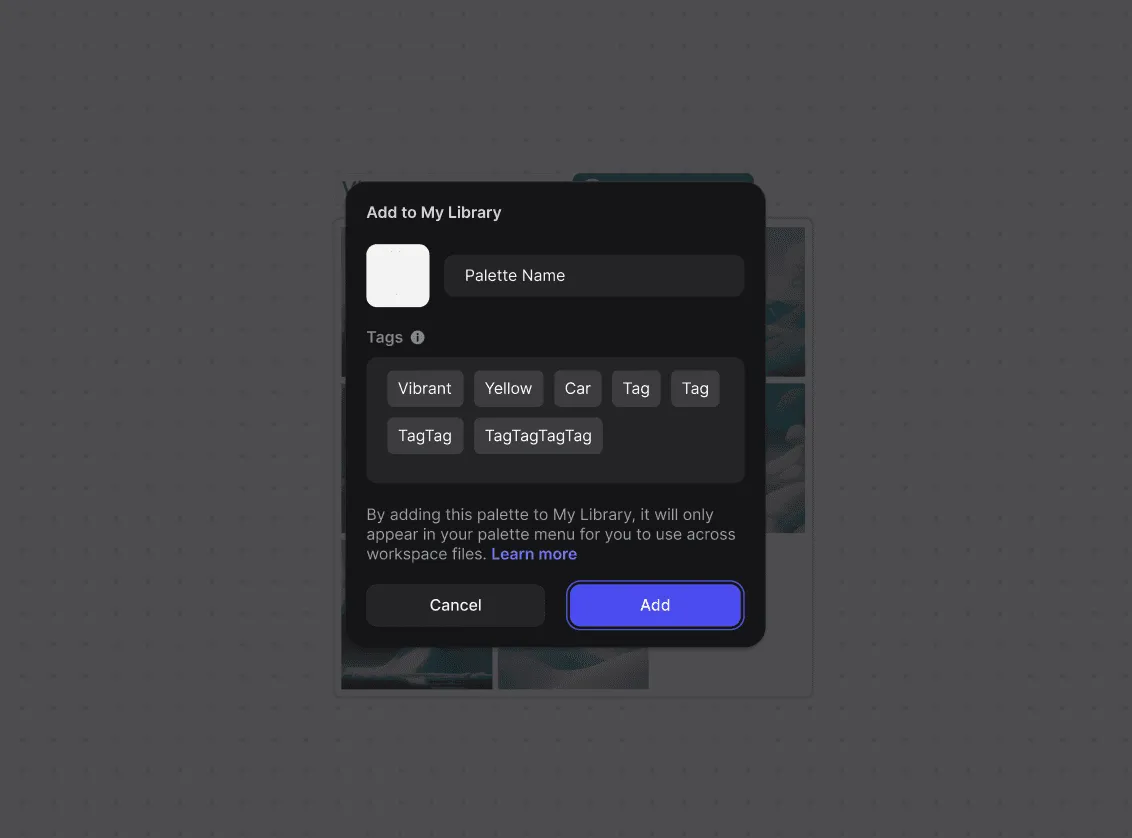
This is why it’s important to establish steps for yourself to ensure an organized (and fun) palette creation journey.
- To publish a palette for use outside of the source file, locate a trained palette that has a 'publish' status
- Click Publish…
- Edit the details of your palette. You can change the title of the palette, the thumbnail, and the associated palette tags
- Click 'Add' when you’re done. The palette is saved to your My Library.
- To use your palette, open the palette selector in Studio and Workbench
When to publish a palette
Generally, a palette can be published whenever you’re ready to use it outside of the source file. Publishing can be as rigorous or relaxed as you want it to be, depending on your personal work style or the requirements set in place by your specific organization.
Think of publishing as the final step in the process. Once the palette has been trained and tested, publishing is the final step to deploy it for team use.
Who can I publish to?
Palettes can only be published for your own personal use. The ability to publish to specific teams, people, or an entire workspace is coming soon!
Removing from My Library
If at any point you would like to remove a palette from My Library, you can choose to remove the palette from the palette selector in Studio or Workbench. This removes access from all files.
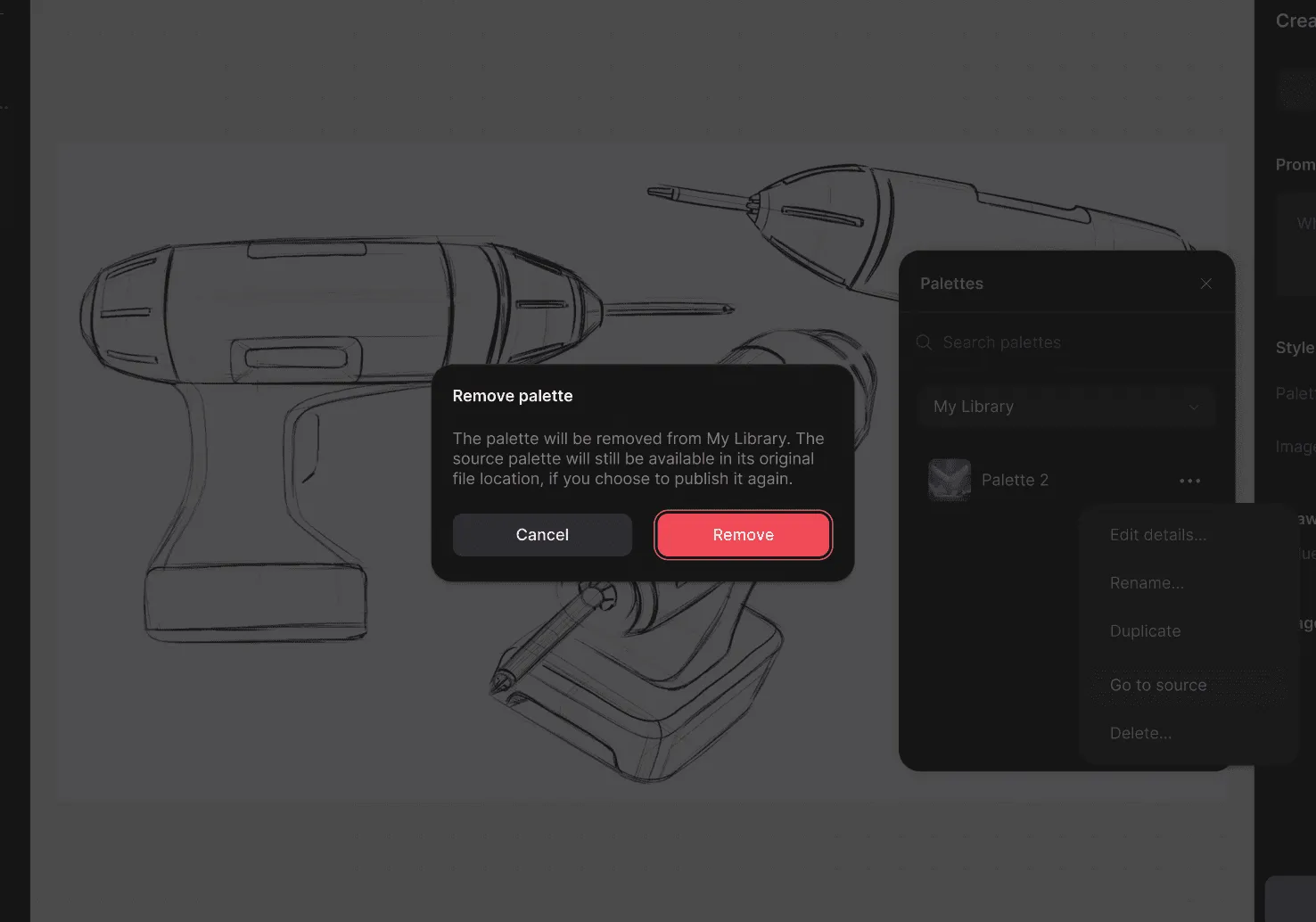
To do this, navigate to the palette selector in any file, click the details menu, and choose remove palette
👋 Note that removing the palette from My Library will not delete the source palette. The source palette will still be available in its original file location, if you choose to publish it again.
Have a question for our team?
Frequently asked questions
Explore all features in Vizcom or book a tailored demo for you and your
Yes of course! Our starter plan is completely free, no credit card required. This is a great plan to explore vizcom with.
We accept all major credit and debit cards.
Admins (paid) – can edit files, manage workspace settings, billing, teams, and invite members. Editors (paid) – can edit files but not manage settings, billing, or teams. Viewers (free) – can only view files in read-only mode.
Team billing is handled centrally by the Admin. All paid seats, whether Admins or Editors, are included in a single invoice under the same billing cycle, while Viewers remain free and do not affect the cost.
Yes, you can. An Admin can update the plan in the billing settings, and the switch will take effect on the next billing cycle at the annual rate.
Yes, you own everything you create in Vizcom. For free users, while Vizcom may use generated images to improve its services, it does not claim ownership of your designs, concepts, or original ideas—you keep full rights to them. For paid users, your images and designs remain entirely private and are only used to deliver the service. Every design, concept, and image you create or upload is fully yours and kept confidential.
Vizcom does not use your data to train AI models if you’re on a paid plan. Everything you create stays private and is only used to provide the service. Free users may have their generated images included to help improve Vizcom’s services, but even then, Vizcom does not claim ownership of your designs, concepts, or original ideas—you retain full rights.