How to write prompts
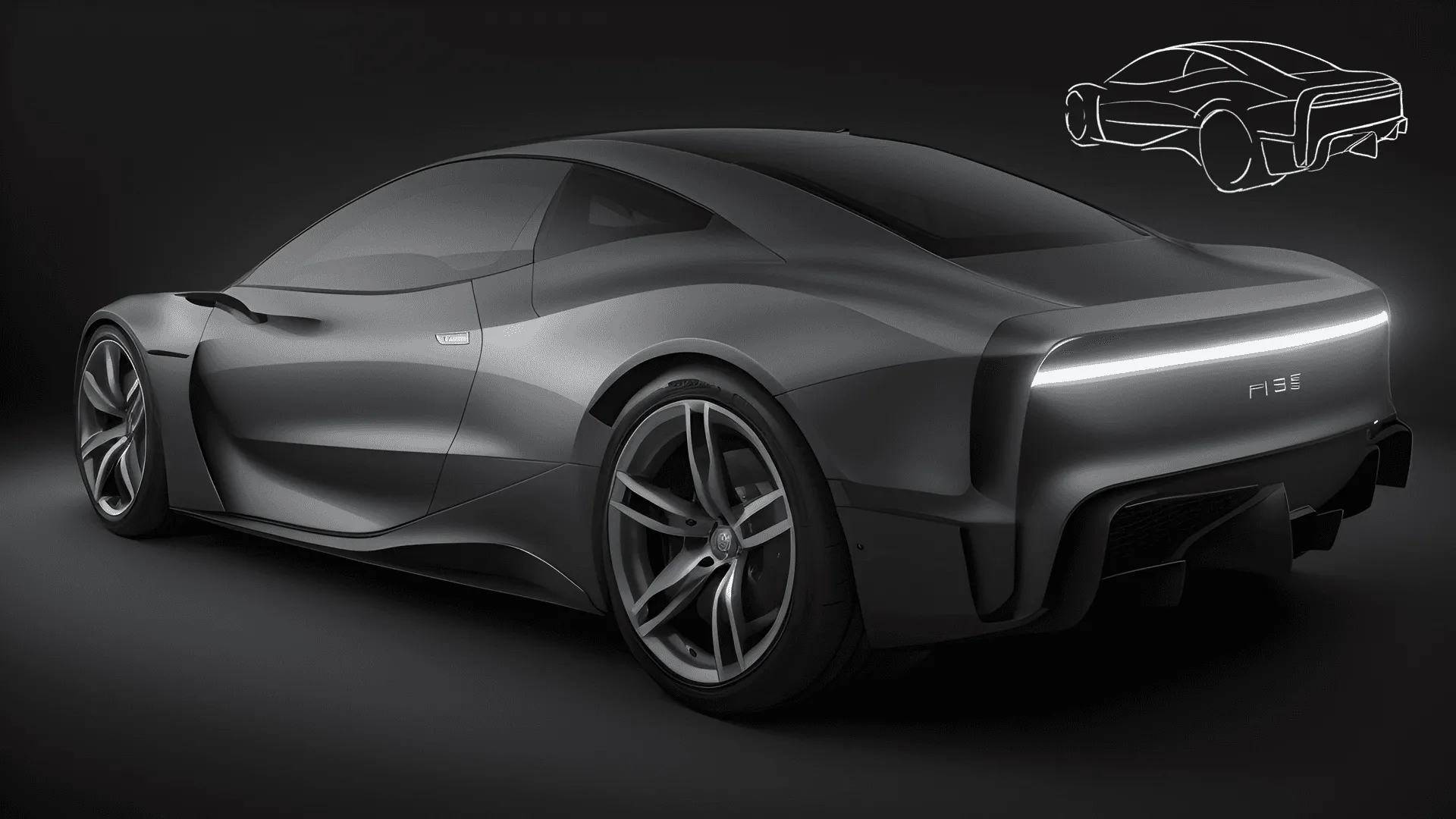
What even is a Prompt?
A prompt is a phrase, sentence, or string of words and phrases that describes what the image should look like. The words will be analyzed by the AI and will guide the process toward the image(s) you describe. These can include commas and weights to adjust the relative importance of each element.
The image above was created with the prompt:
“(hyperrealistic:1.5), silver, modern, electric supercar, Car design concept, (depth of field:1.5), blurred background (dark studio scene:1.8), glowing light blue taillight, monochrome scene, glossy, reflective surfaces, colorful particles flying around, DSLR ”
Notice that this prompt loosely follows a structure: **[subject], [prepositional details], [setting], [meta modifiers];**
Tip: worth to include a fitting brand name for your design, in order to pair a significant design language to your creation.
Keep it simple!
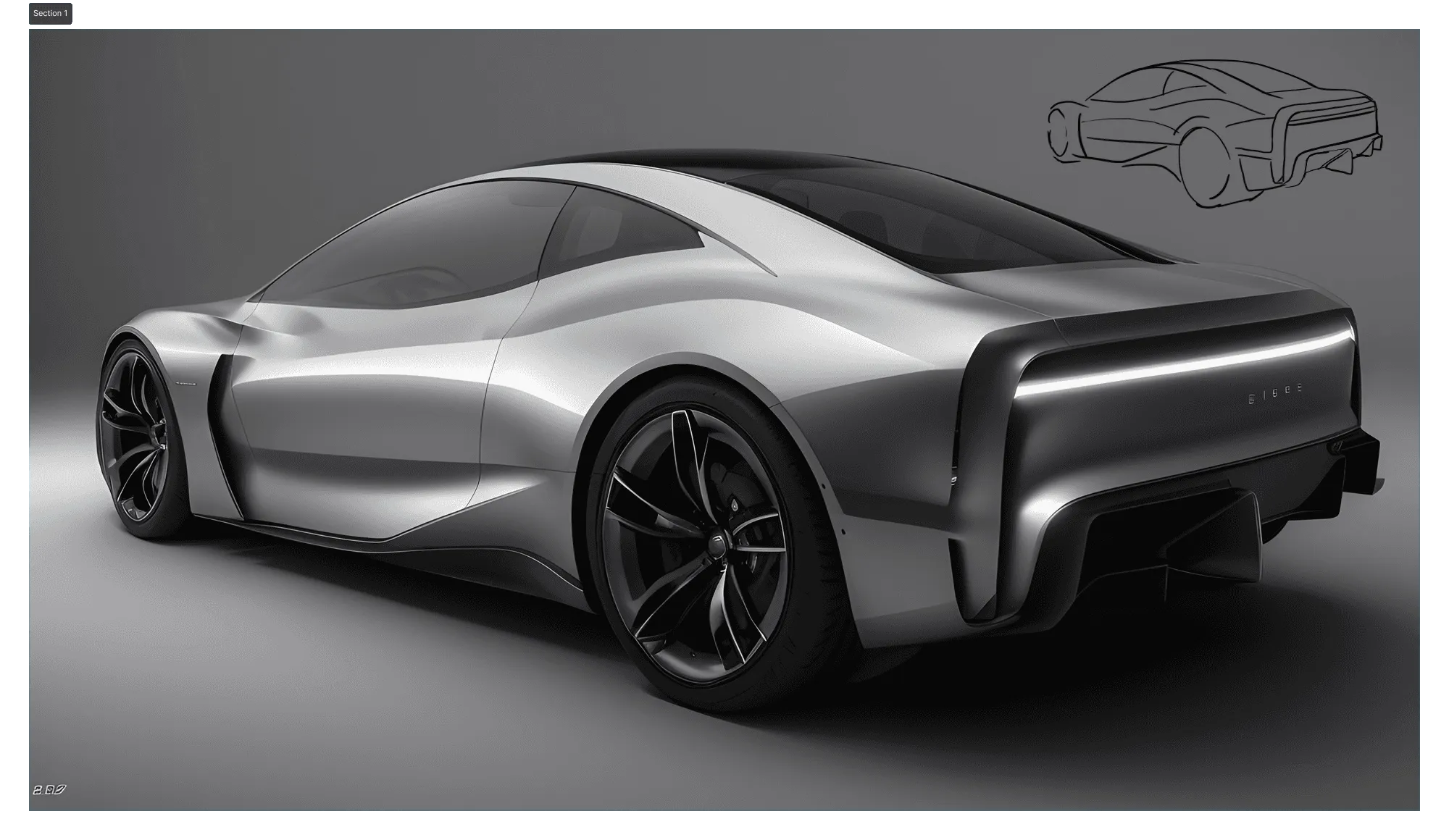
We optimized the model to make the best out of your sketch, without a long and complicated prompt! So you don’t have to write a poem for a spectacular outcome.
Notice, how this render has similar quality compared the upper one, but with a simpler prompt:
“Silver concept car, dark studio”
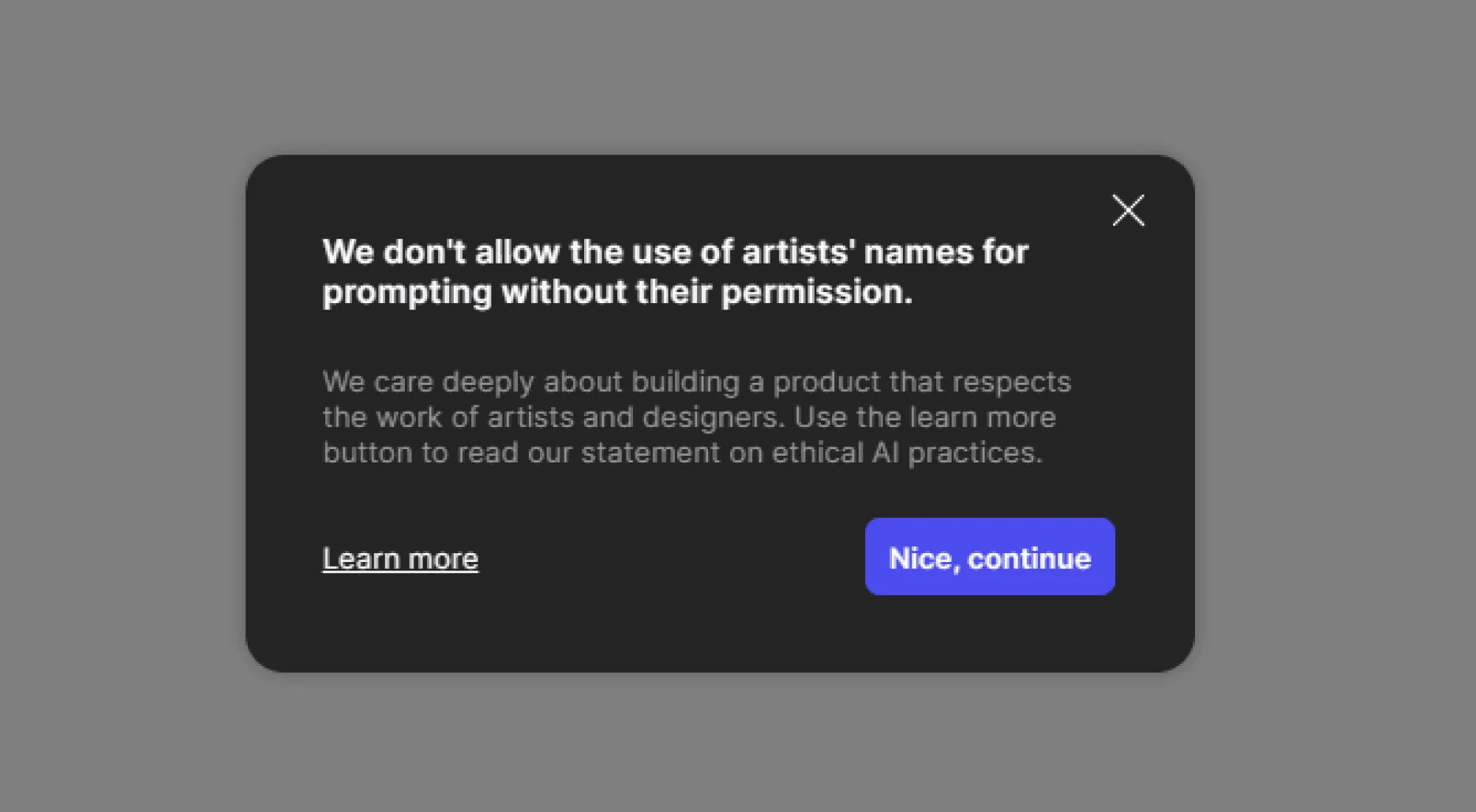
Ethical prompting
Examples
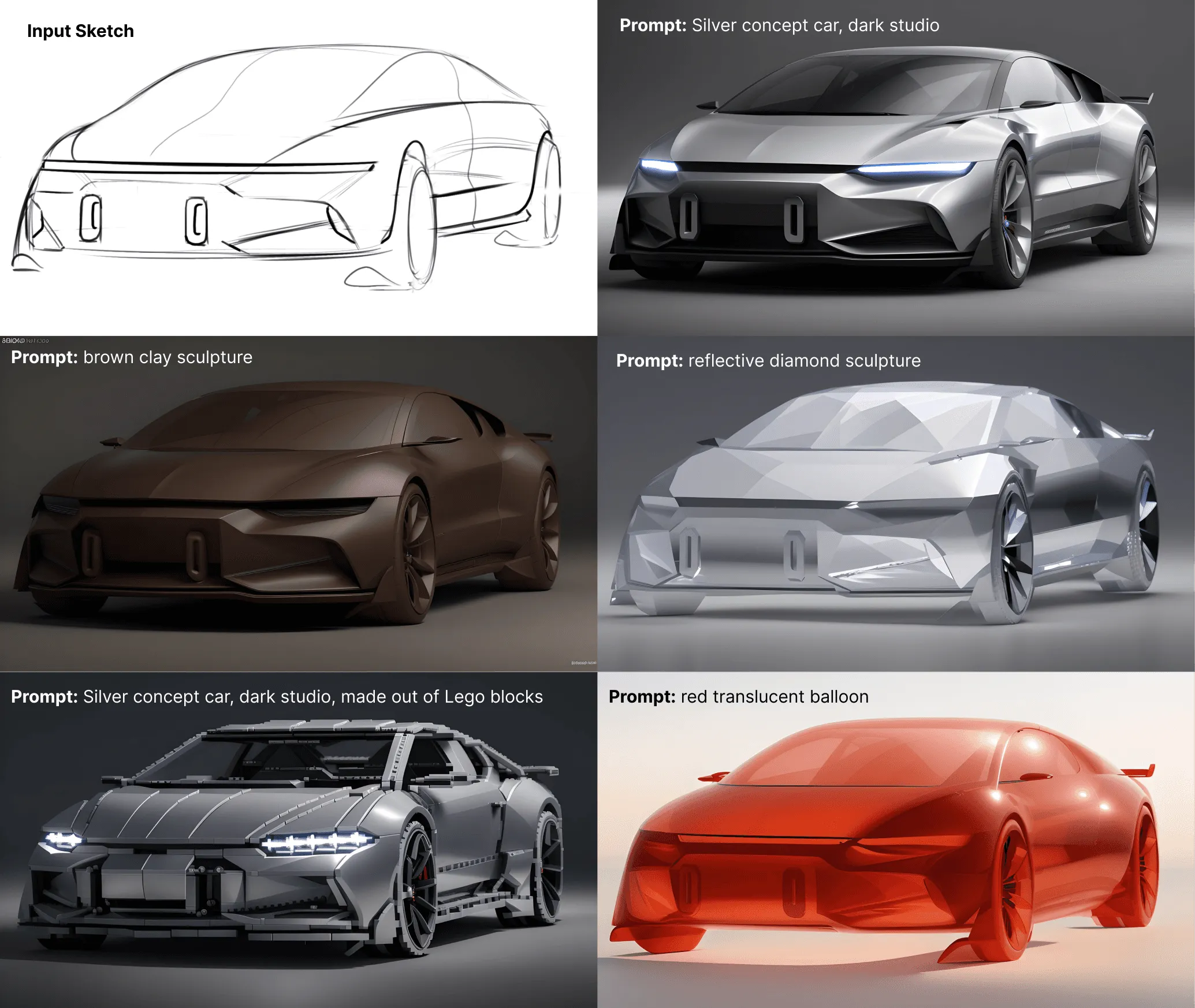
Your sketch can be anything!
Take advantage of prompting and explore your shapes in different ways
Best Practices
- Control your visualsThe general visuals are determined by the render styles, but you still have a lot of room to play with via prompting, when it comes to controlling the main visuals of your rendering.Main areas worth to control:
- Color / material
- The object itself
- View
- Setting / background / scene
- Brand DNA
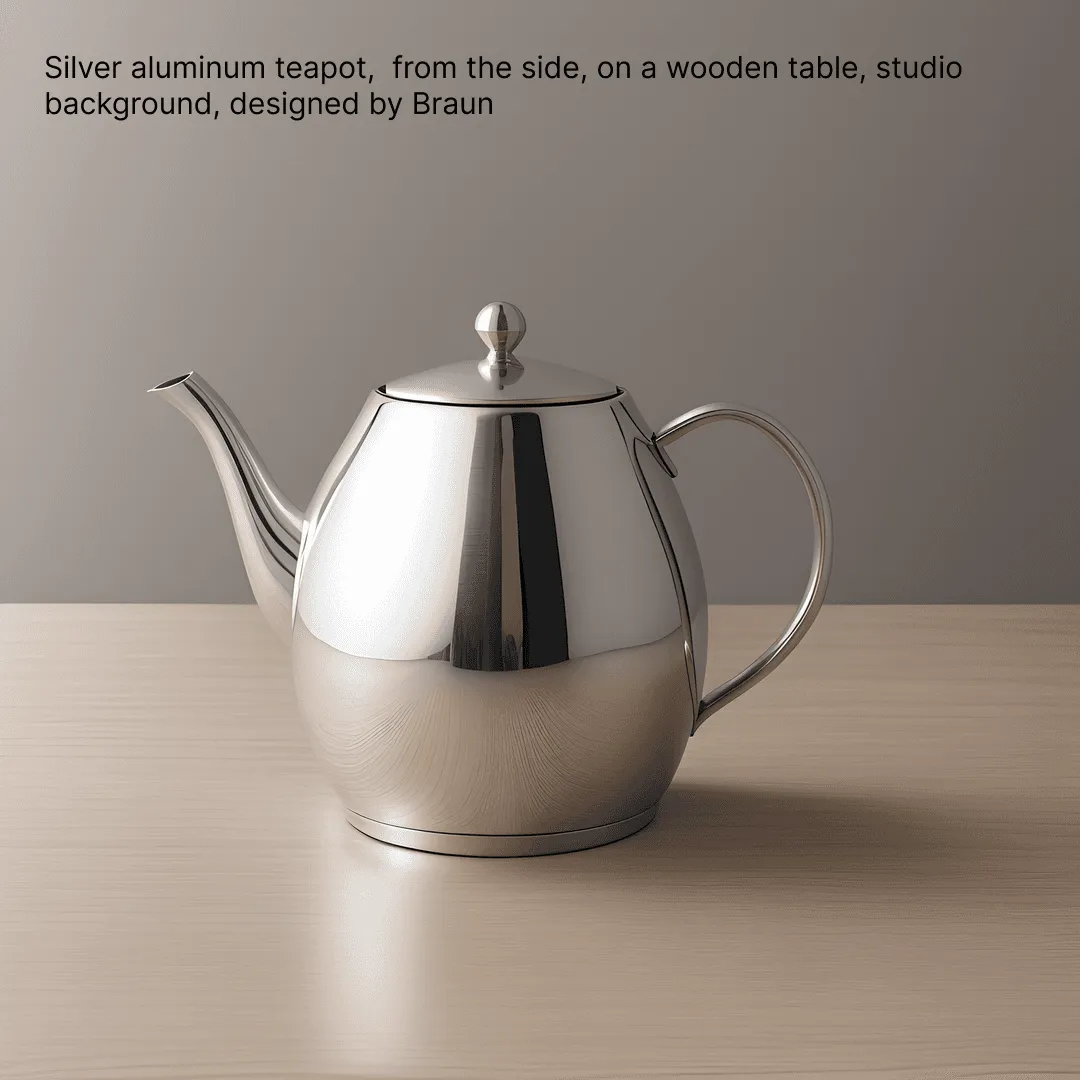
- Example Prompt: "Silver aluminum teapot, from the side, on a wooden table, studio background, designed by Braun"
- Order of importance
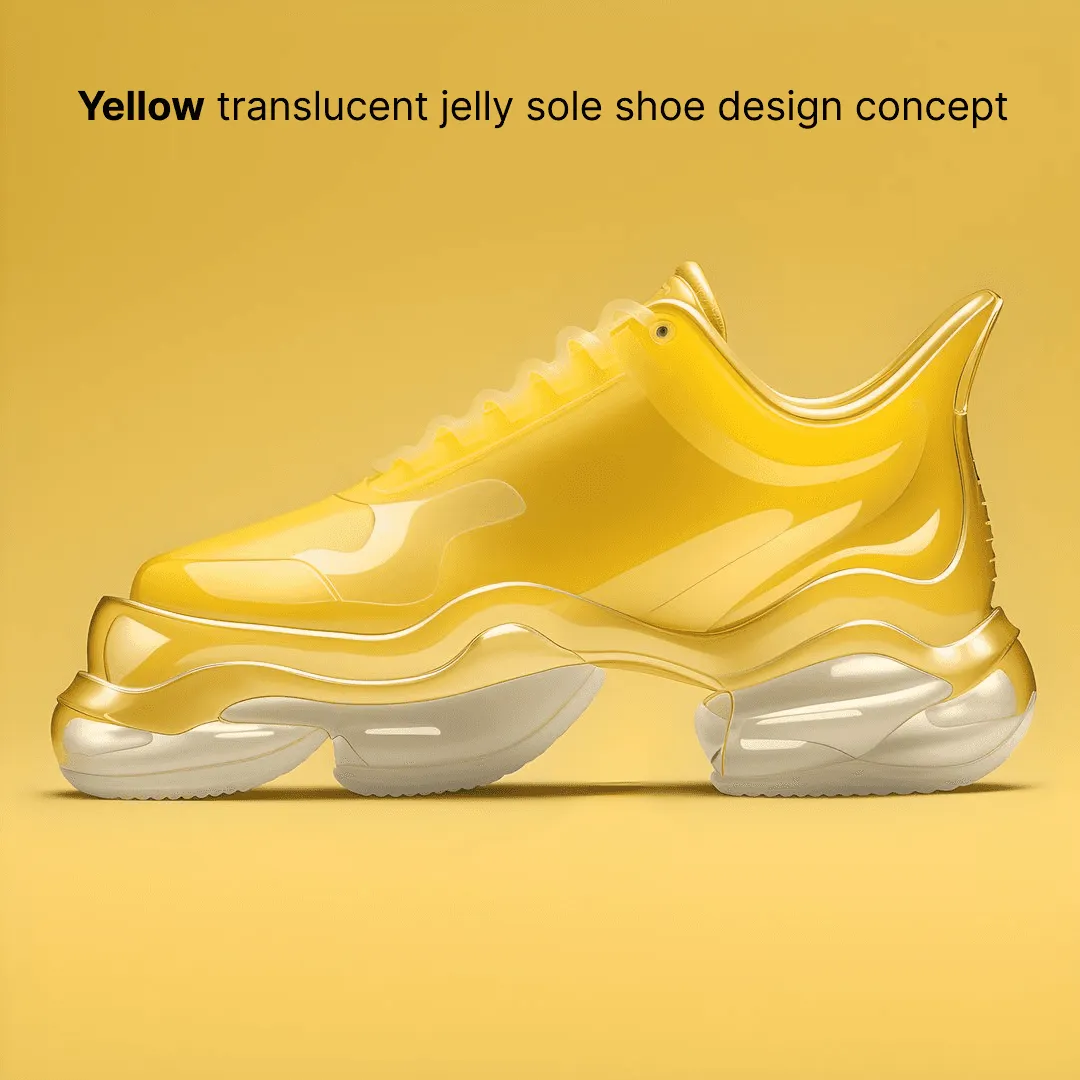
When you're constructing your prompt, keep in mind that the first word will be the most, and the last word will be the least influential, so keep in mind this order of importance. The first word is actually so strong that it can take over most of the visuals.
- Use commas
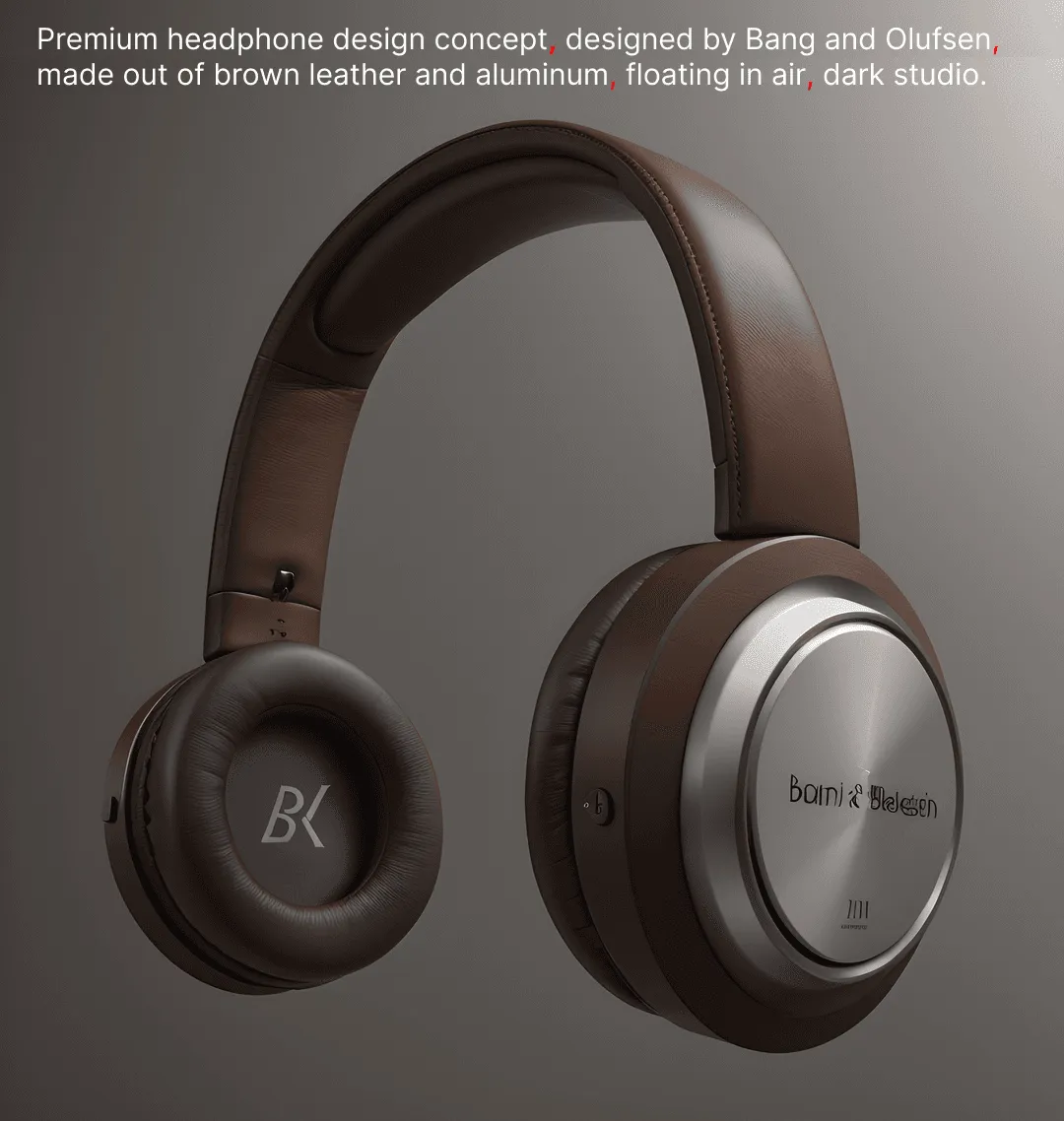
To help Vizcom understand your intentions better, separate each visually separate property in your prompt by comma ",".
Template example: (color/material object), (view), (setting/background), (Brand DNA), (other properties)
Example prompt: "Premium headphone design concept, designed by Bang and Olufsen, made out of brown leather and aluminum, floating in air, dark studio"
- Use prompt weights
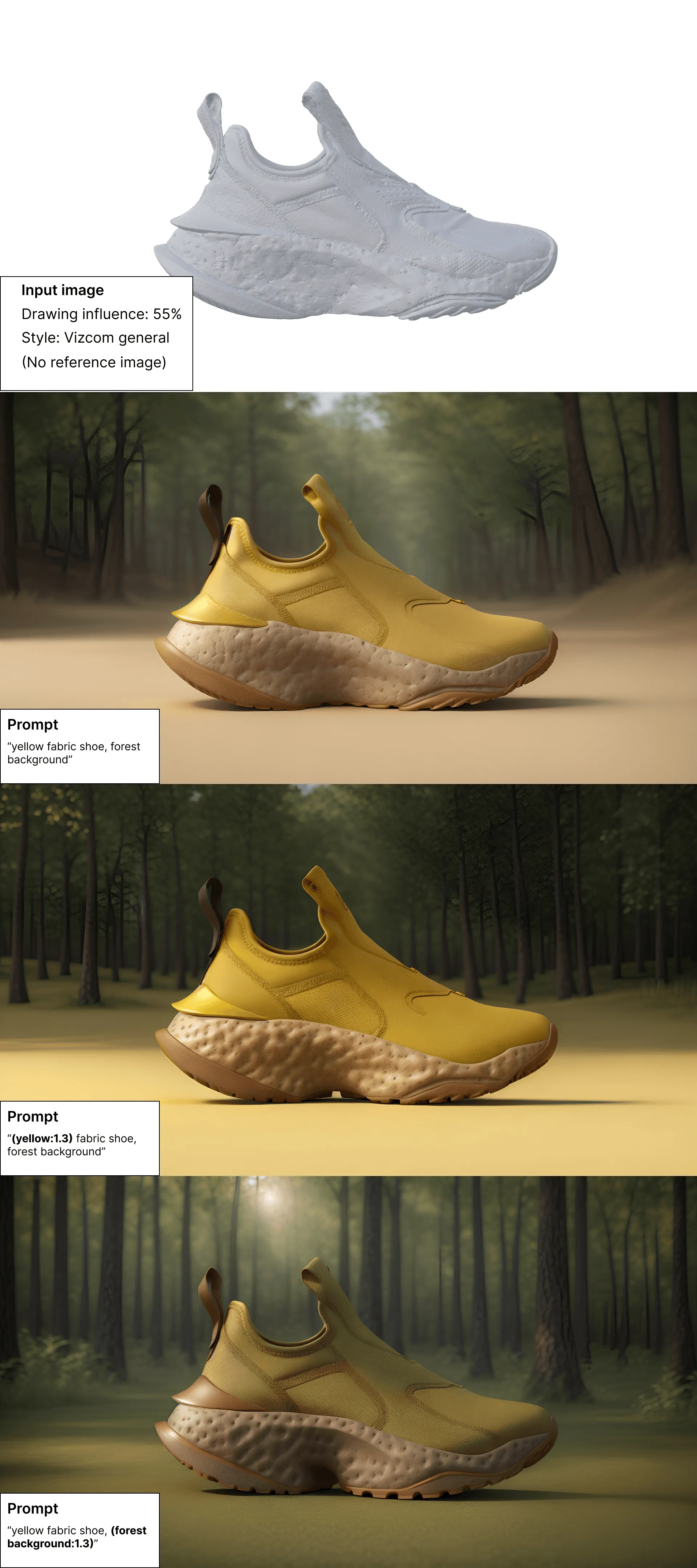
Apply prompt weighting to have more control over sections/words in your prompts! This section provides guidance on adjusting the emphasis of words or phrases in prompts using weights.
Formatting Weights
- Increase Emphasis: Add a
+or number between 1.1 and 2 to emphasize a word or phrase. - Decrease Emphasis: Add a
-or number between 0 and 0.9 to de-emphasize. - Default Weight: 1 (Neutral emphasis)
Increasing Emphasis
- To emphasize a design element, add a
+or a number between 1.1 and 2 at the end of a word or phrase. - Usage: The higher the number or more
+symbols, the stronger the emphasis on the design feature. - Example:
"ergonomic chair, detailed texture, (with adjustable arms:1.5)"
Reducing Emphasis
- To de-emphasize a design feature, add a
-or a number between 0 and 0.9 at the end. - Example:
"modern lamp, (minimalist design)-"
Recognized Syntax
- Single Design Elements:
sleek faucet+ - Elements with Parentheses:
sleek faucet (with spray feature)+modern lamp (minimalist design)-
- Multiple Symbols for Stronger Effect:
ergonomic chair (with lumbar support)+++
- Nesting for Cumulative Effect:
office desk (with (integrated cable management)1.2)1.1
Weighting with Numbers
- Positive Weights:
+equals 1.1;++equals 1.1²;+++equals 1.1³
- Negative Weights:
-equals 0.9;--equals 0.9²;---equals 0.9³
Guidelines for Use in Design
- Effective Range: Weights are most effective between 0.5 and 1.5.
- Caution: Excessive weighting may detract from the intended design aesthetics.
- Start abstract!
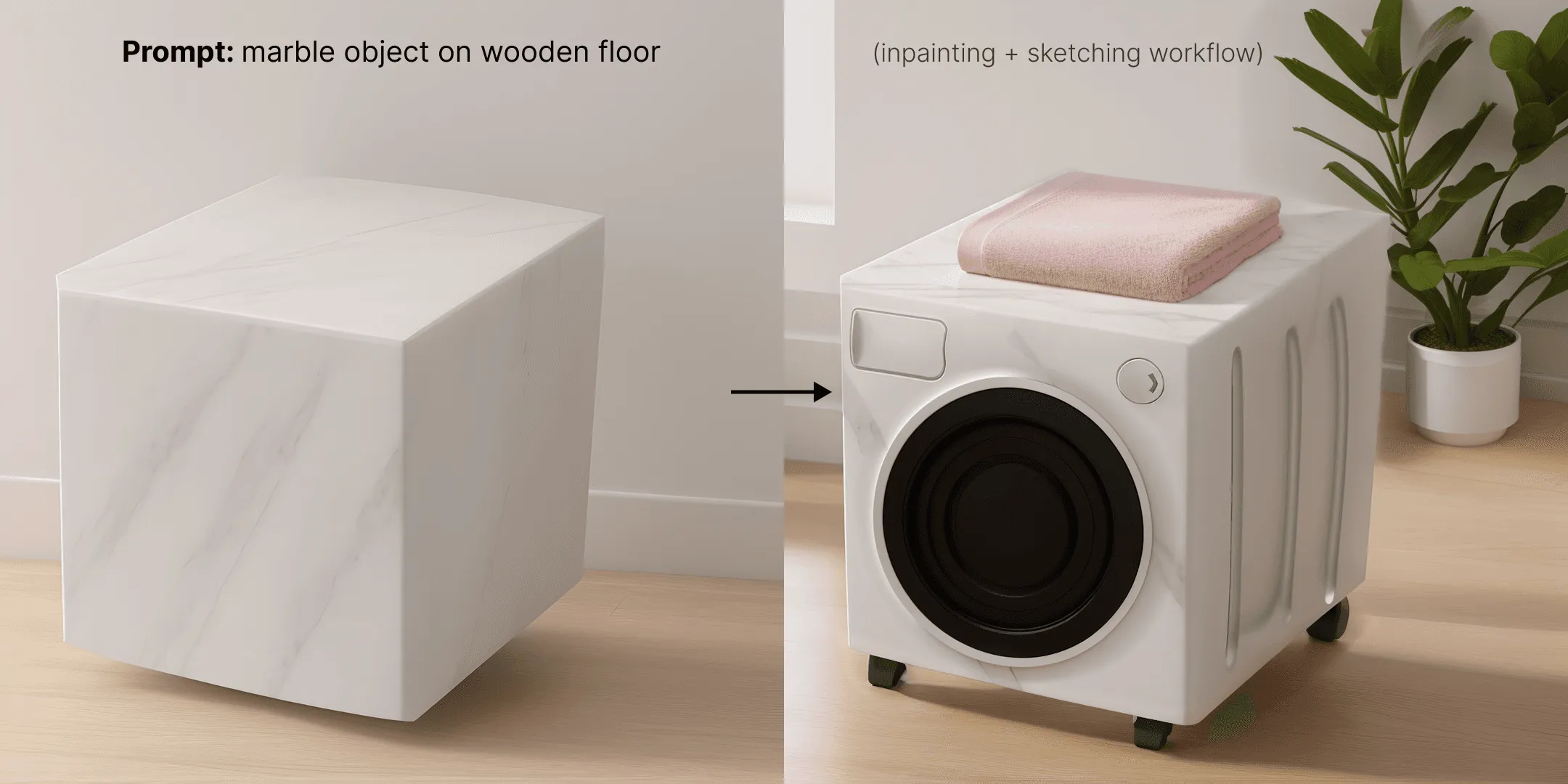
Sometimes it can be hard to make Vizcom understand what you want to create. In this case you can start building from the bottom up, by using abstract prompts like "aluminum object" - and building the other features on top of an abstract shape.
You can find all previously used prompts and settings on the Generation History
Watch the video about the basic prompting techniques when creating a render - here
Have a question for our team?
Frequently asked questions
Explore all features in Vizcom or book a tailored demo for you and your
Yes of course! Our starter plan is completely free, no credit card required. This is a great plan to explore vizcom with.
We accept all major credit and debit cards.
Admins (paid) – can edit files, manage workspace settings, billing, teams, and invite members. Editors (paid) – can edit files but not manage settings, billing, or teams. Viewers (free) – can only view files in read-only mode.
Team billing is handled centrally by the Admin. All paid seats, whether Admins or Editors, are included in a single invoice under the same billing cycle, while Viewers remain free and do not affect the cost.
Yes, you can. An Admin can update the plan in the billing settings, and the switch will take effect on the next billing cycle at the annual rate.
Yes, you own everything you create in Vizcom. For free users, while Vizcom may use generated images to improve its services, it does not claim ownership of your designs, concepts, or original ideas—you keep full rights to them. For paid users, your images and designs remain entirely private and are only used to deliver the service. Every design, concept, and image you create or upload is fully yours and kept confidential.
Vizcom does not use your data to train AI models if you’re on a paid plan. Everything you create stays private and is only used to provide the service. Free users may have their generated images included to help improve Vizcom’s services, but even then, Vizcom does not claim ownership of your designs, concepts, or original ideas—you retain full rights.