Animating in Vizcom
Bring your designs to life with motion. Vizcom’s Animate Block allows you to turn sketches, renders, and generated model outputs into dynamic videos using camera presets, start/end frames, and natural prompts.
Animation helps you explore form, communicate more clearly, and present ideas with depth, mood, and movement.
Getting Started:
Accessing the Animate Block
You can access the animate block from two places:
- Insert Menu
- Open your Workbench
- Click the + in the top toolbar
- Select Animate
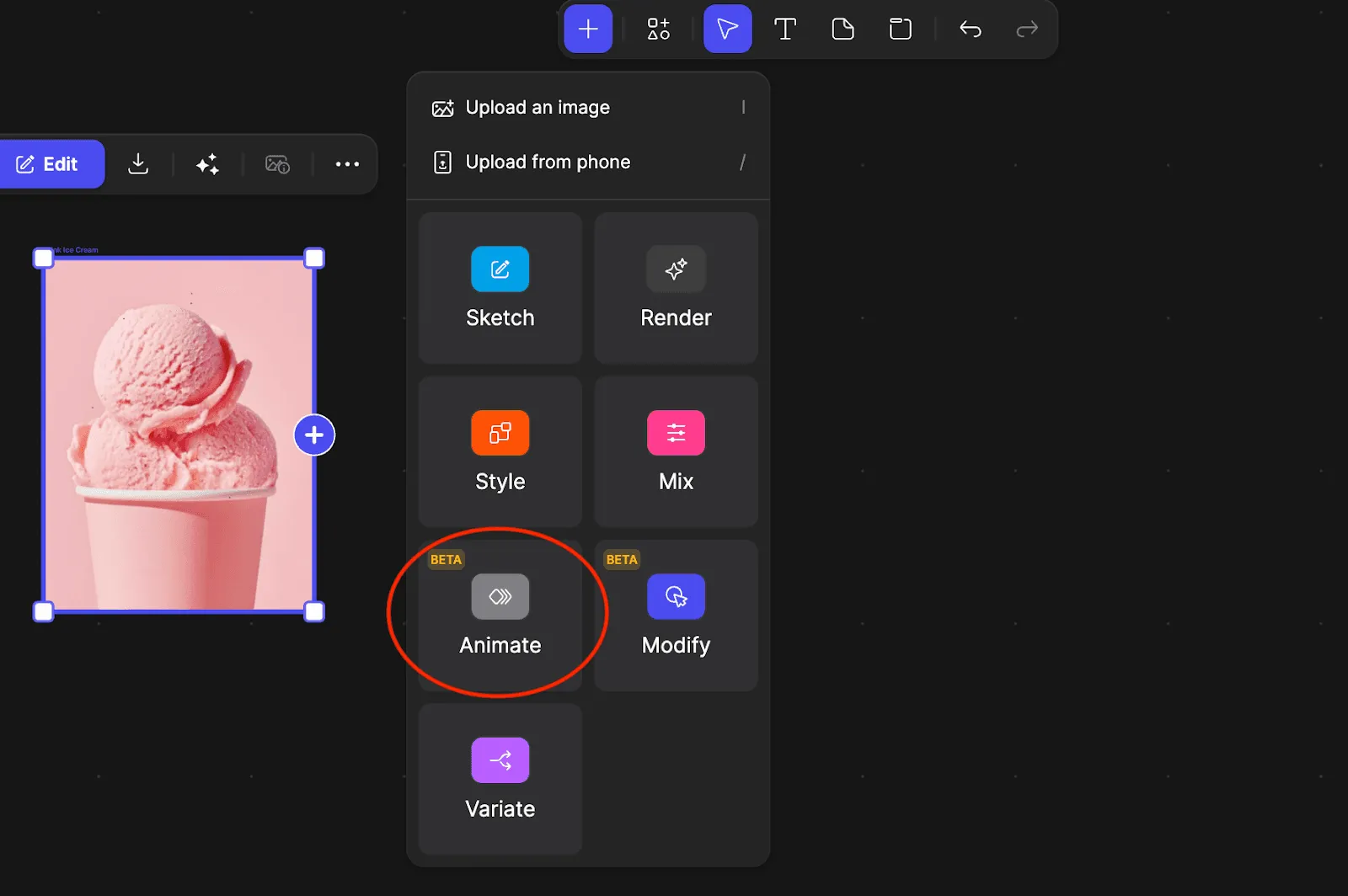
This creates a group setting containing:
- A place for you to connect your animate block to your desired image
- The Animate Block

- Quick AI Action
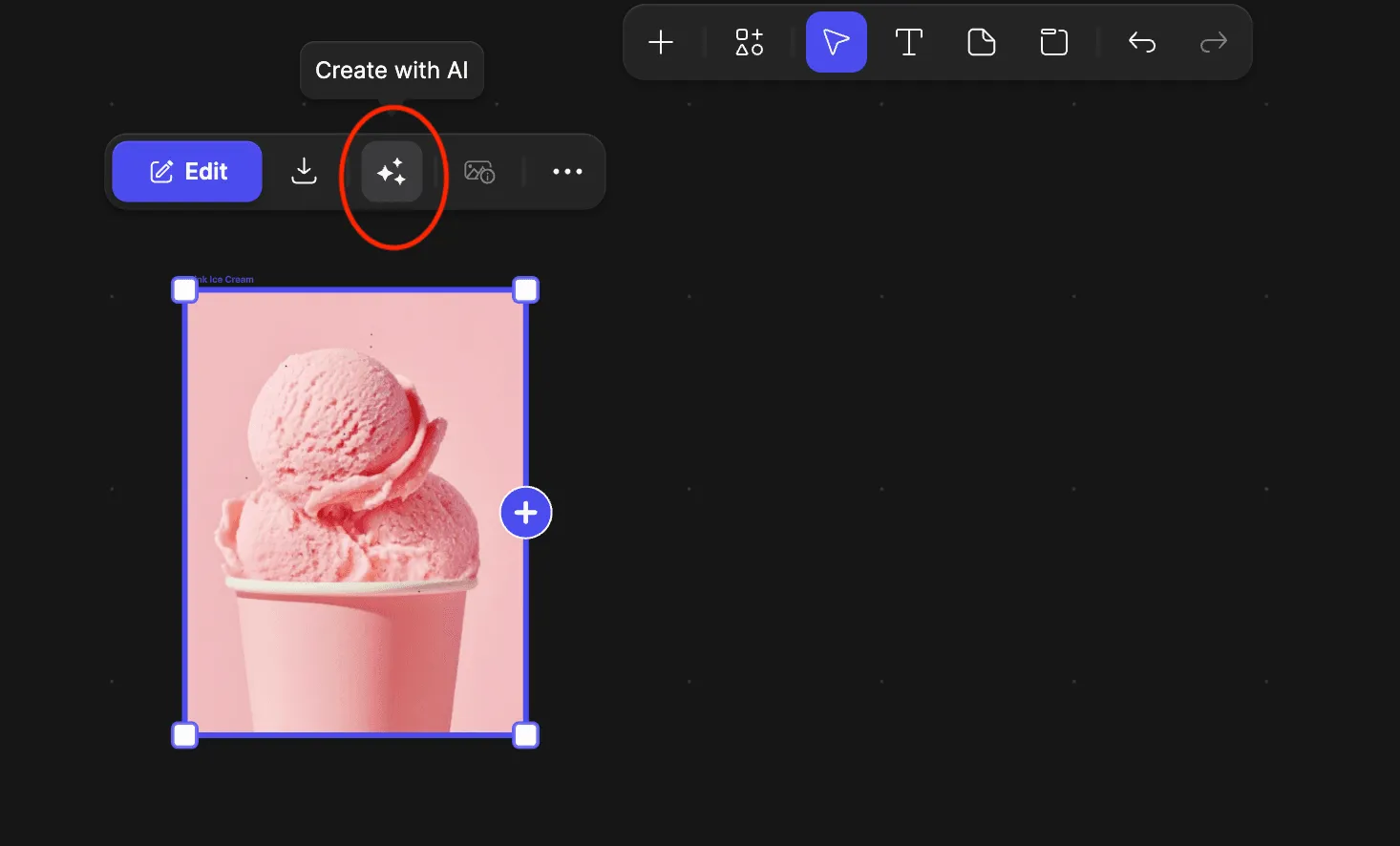
- Select an existing image in your Workbench
- Open the Quick AI menu
- Choose Animate to instantly link your image to a new Animate Block
- Pathfinder
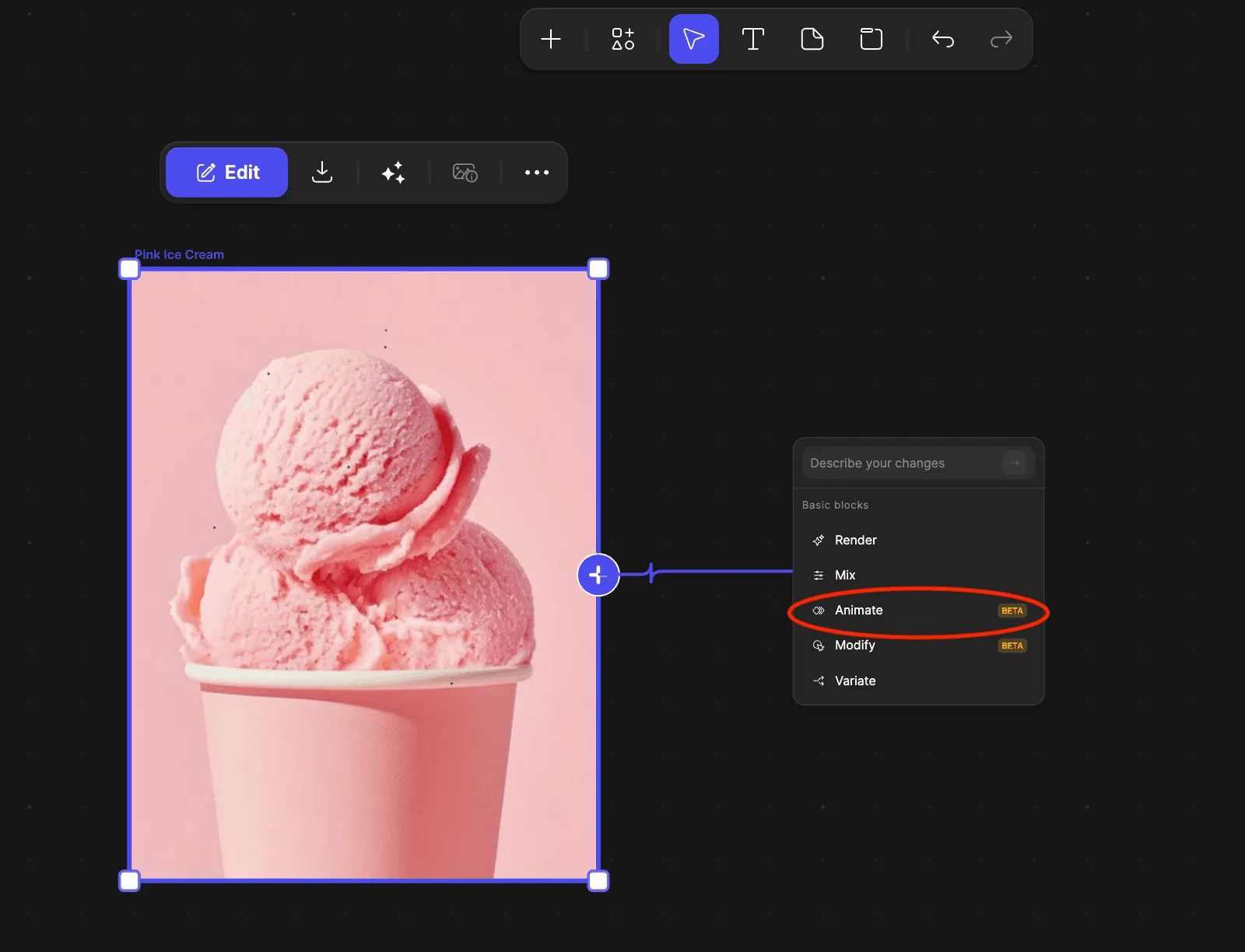
- Select an existing image in your Workbench
- Click “+” icon on the right side of image and drag out the pathfinder
- Choose Animate to instantly link your image to a new Animate Block
Block Overview
The Animate Block adapts based on what you connect. Here are the core block states:

No Frames Attached
The block prompts you to attach a Start or End frame
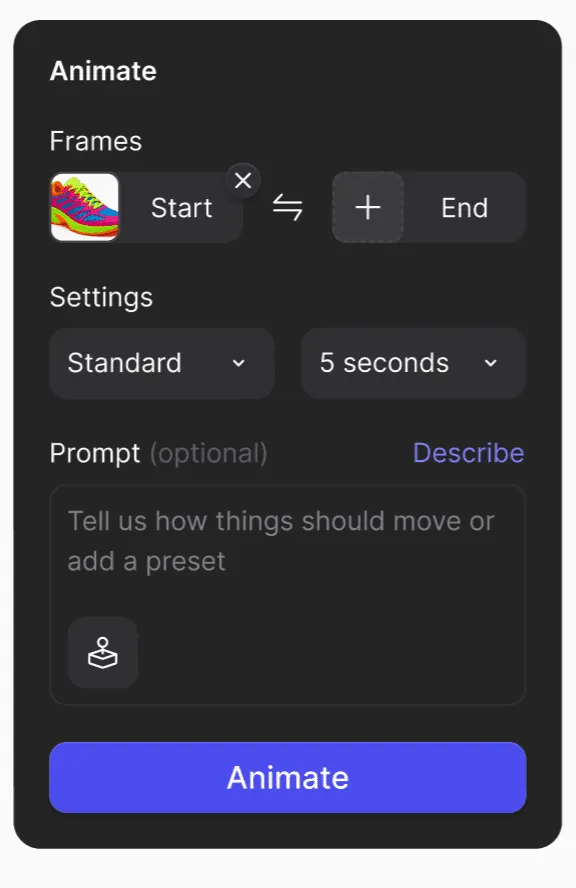
One Frame Attached
Animate a single frame using prompts or camera presets.
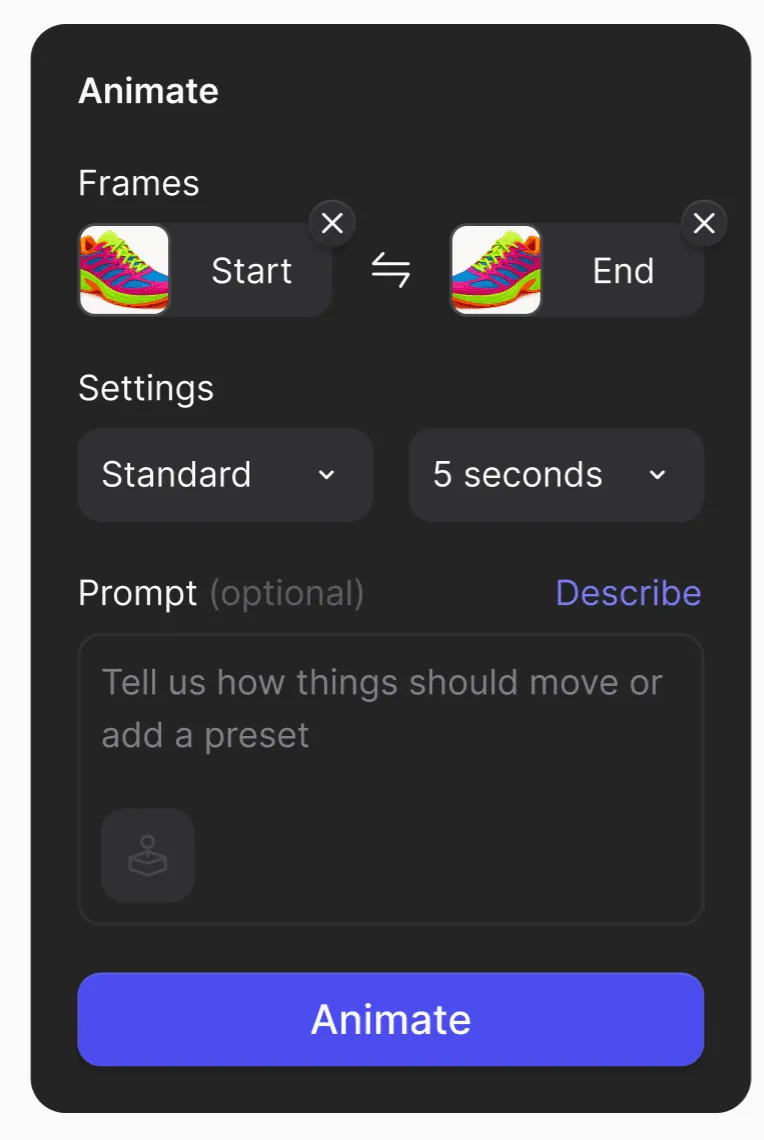
Two Frames Attached
Animate transitions between a Start Frame -> End Frame.
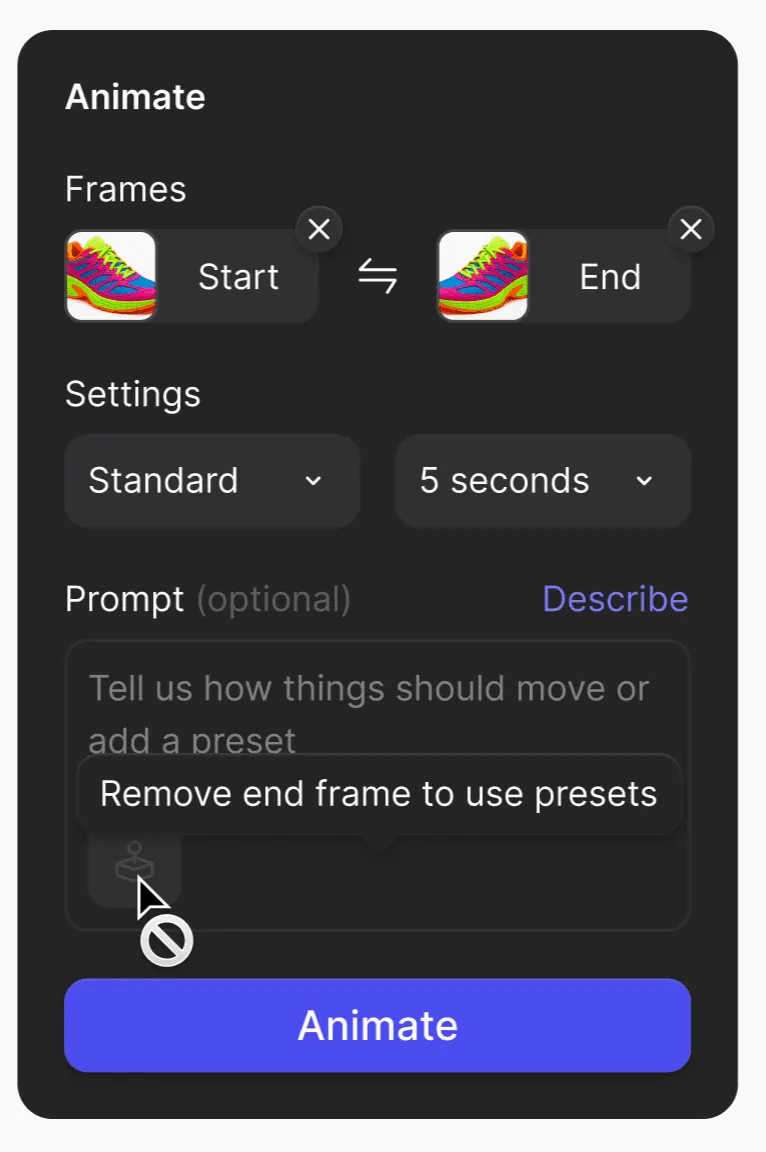
NOTE: To use presets, you must remove the end frame
When the end frame has been removed - camera presets, transition presets and prompt options are expanded automatically.
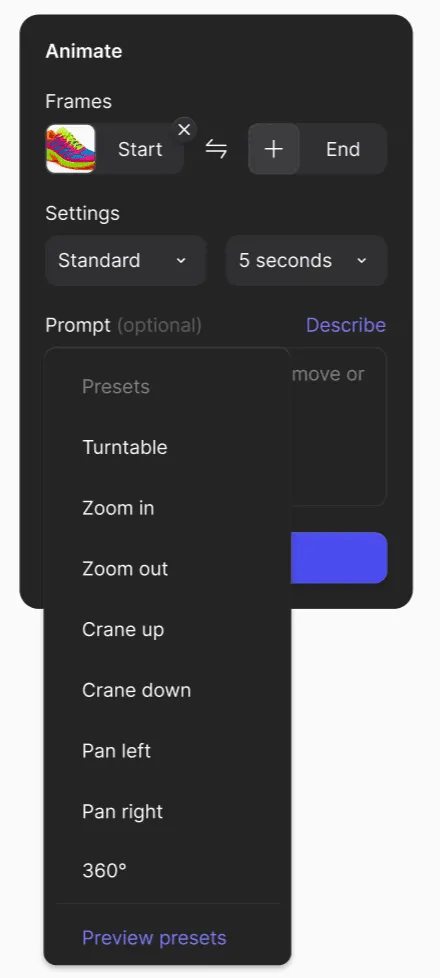
Preset Behavior
To apply a preset:
- Open the preset dropdown
- Apply a preset
- Preview the preset
- Optional - add a custom prompt along with the preset
NOTE: Presets only work with the Standard models
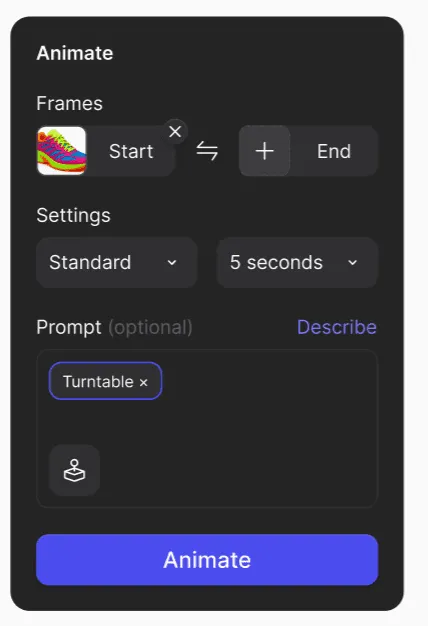
Turbo and Standard Mode States
Switching between animation models updates:
- Camera presets
- Prompt behavior
- Duration limits
- Available features
Vizcom offers two modes: Turbo (for paid users only) and Standard.
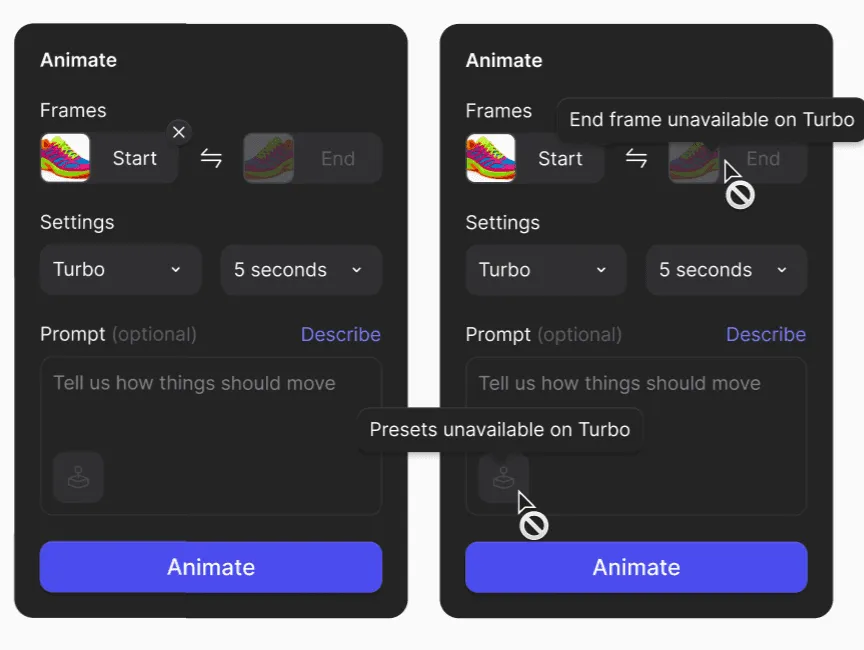
Turbo - Simple motion for faster exploration, end frame and presets are disabled.
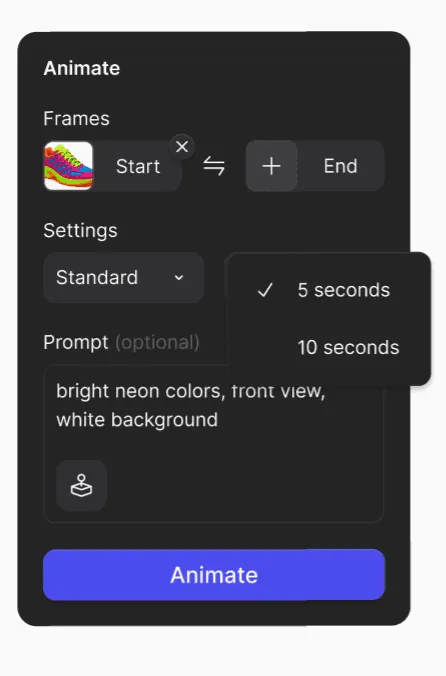
Standard - Stronger prompt adherence. Broad selection of presets and a start frame is required.
How to Animate
1. Attach your frames
You can animate using:
- Only a Start Frame
- Both Start and End frames
To attach, drag the connector node from the frame to the Animate Block.
2. Choose a Camera Preset
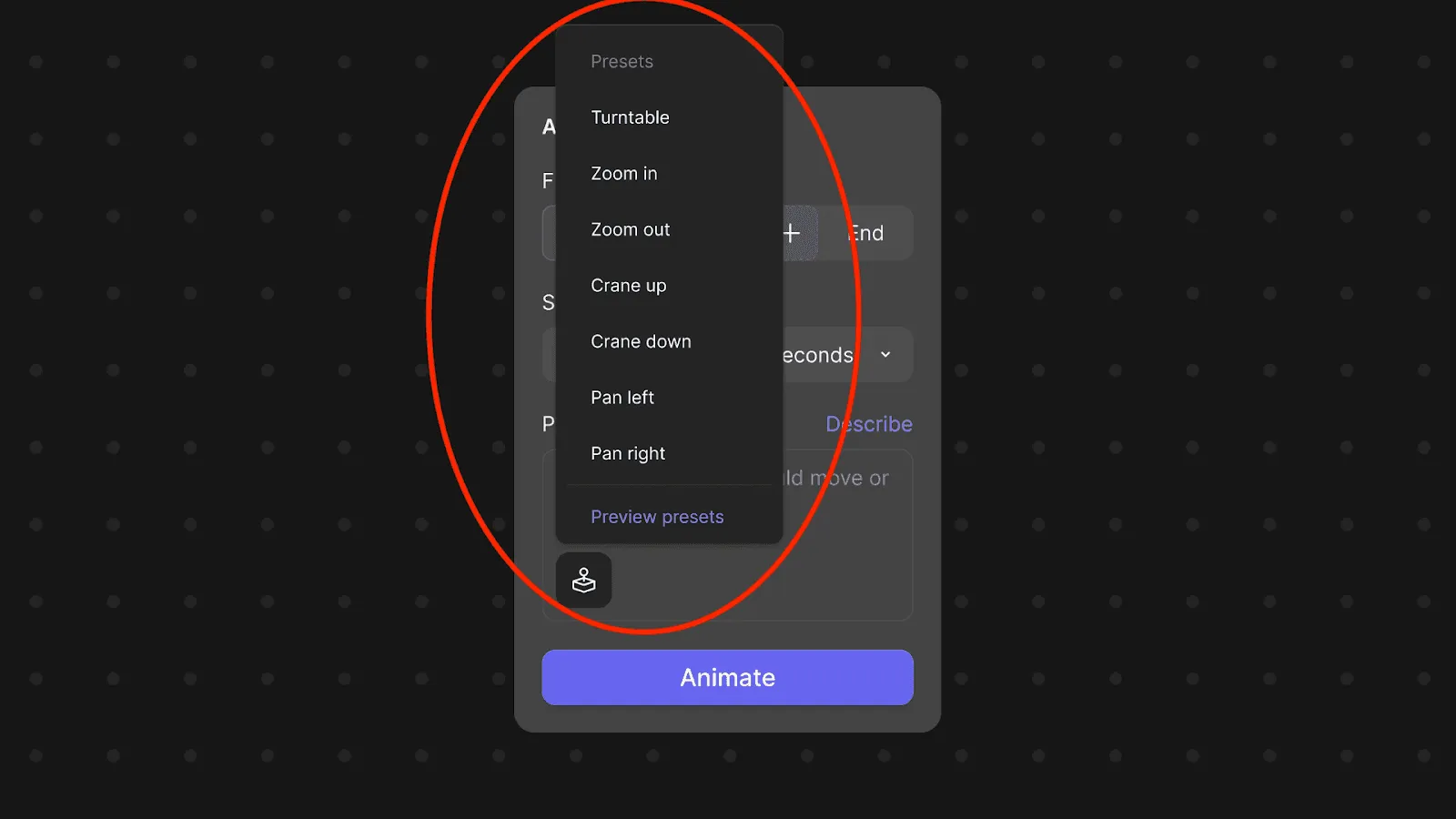
Vizcom includes built-in motion presets for smooth camera movement:
Camera Presets include:
- Turntable - 360 rotation
- Zoom - Push in / out
- Pan - Horizontal movement
- Tilt - Vertical camera movement
Presets can be previewed directly inside the block.
3. Add a Custom Prompt
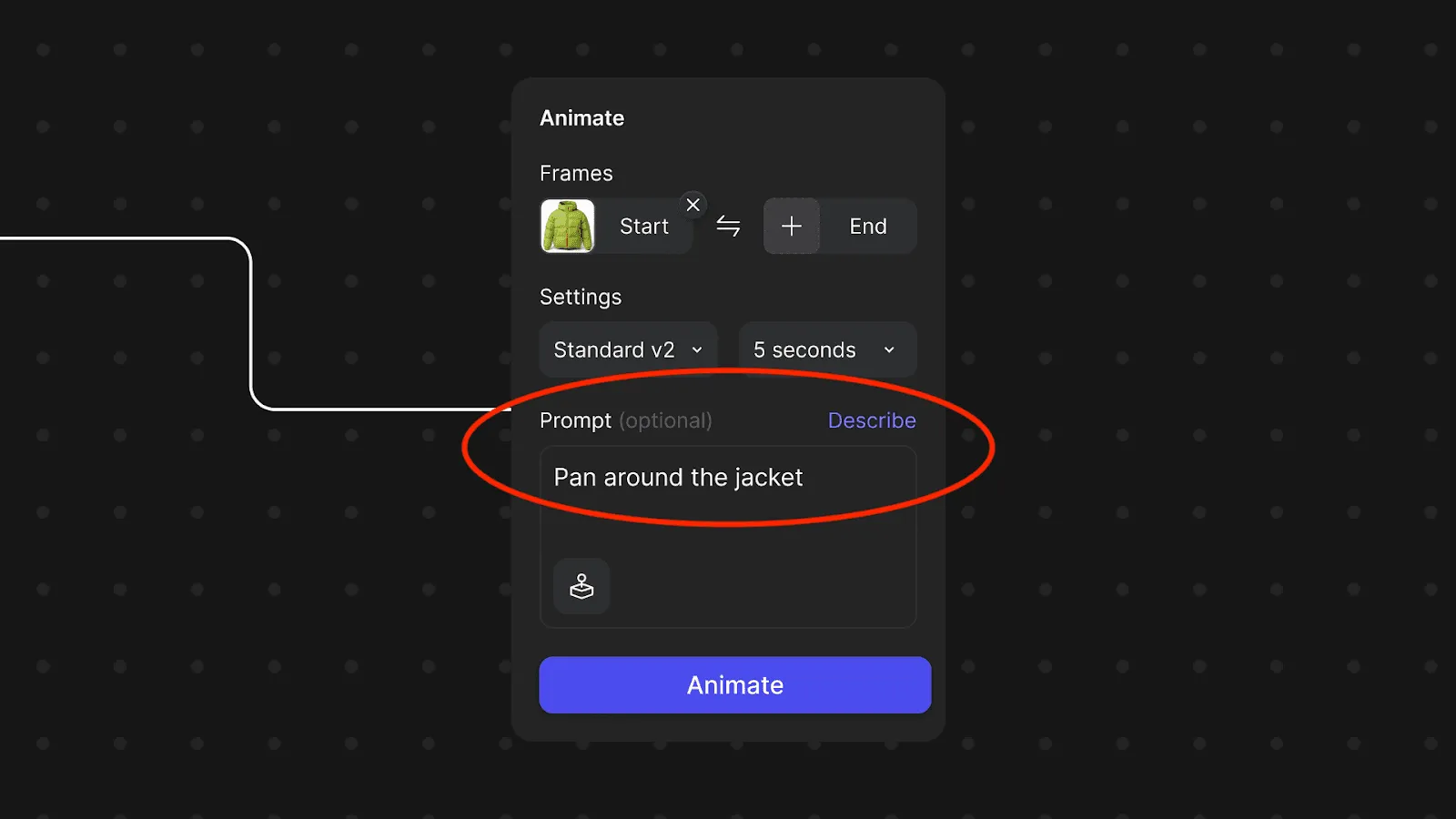
Prompts help guide movement, lighting, or environment. They can also be used with presets or start & end frames to add more detail.
Examples:
- "Camera tracking shot of a woman skiing down a steep slope"
- "SUV driving along the coast"
- "Man picks up the kettle and pours water into his glass"
You can describe:
- Type of motion
- Lighting changes
- Environment shifts
- Mood or cinematic tone
4. Select your Animation Type & Choose Duration
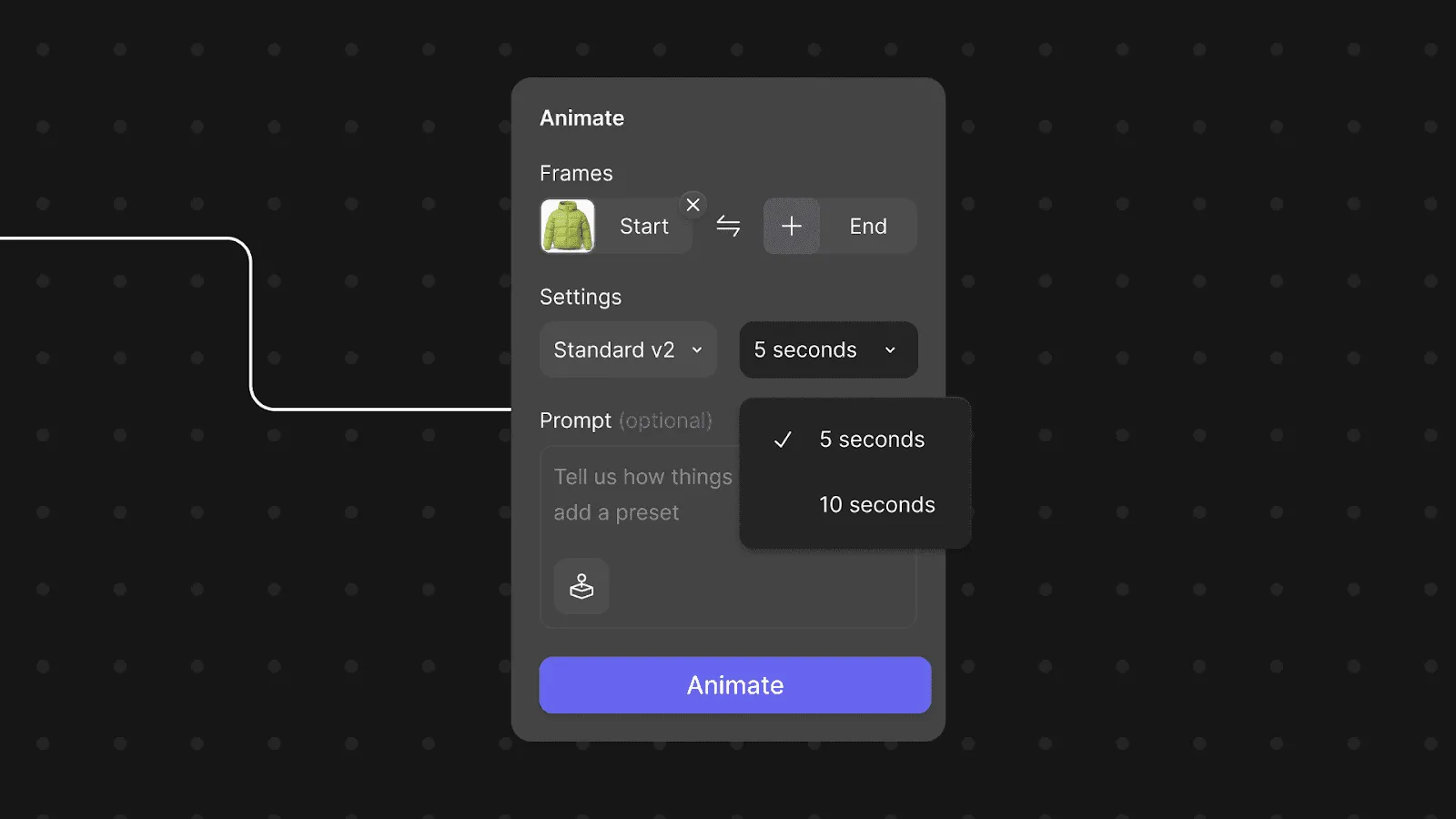
Standard
- Higher prompt adherence
- More cohesive, clean motion
- Longer generation time (~5 minutes)
Turbo
- Faster output (~ 1 minute) )
- Great for quick exploration
- More expressive motion
Choose Duration
Vizcom now supports longer clips:
- 5 seconds (default)
- 8 seconds ➡️ only available when using Turbo models
- 10 seconds ➡️ Pro & Enterprise accounts only
Plan Behavior
- Free users see a ⚡icon next to restricted durations
- Selecting restricted options opens the upgrade modal
Model Constraints
- Some animation models limit maximum length (e.g. 8 seconds)
- The duration menu automatically adapts.
5. Generate your animation
Click Animate.
The animation:
- Loads directly in your Workbench
- Auto-plays
- Loops by default (toggle available)
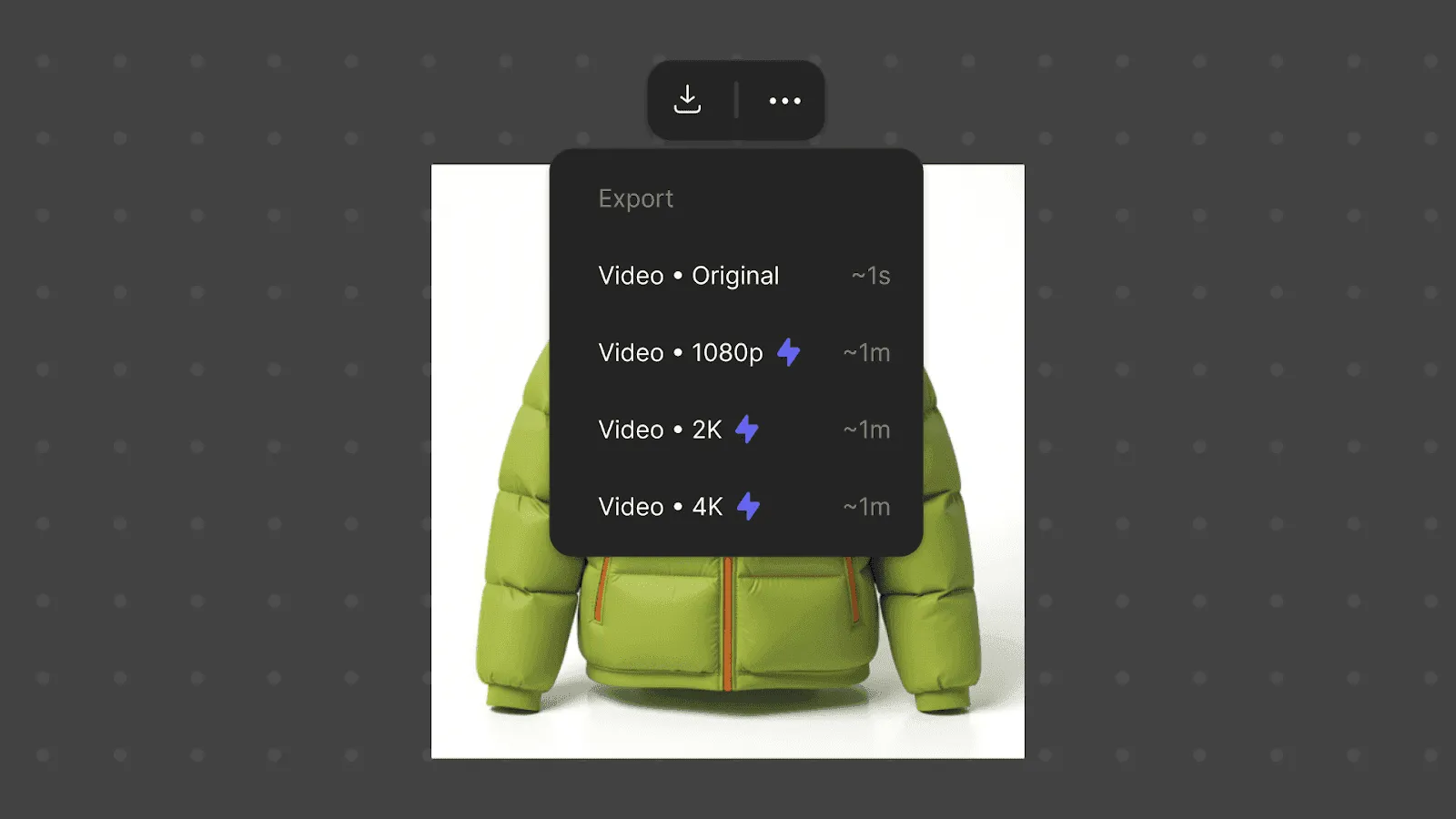
Exporting & Upscaling
After generation, you can export your video and if upscaling is available for paid users.
Upscale your animation to 2K or 4K for:
- High resolution presentations
- Client deliverables
- Full-screen playback
- Pitch decks & marketing materials
FAQ
Do I need both a start and end frame?
No, but you need a start frame.
- Start → End
- Start only
Why can’t I select 10 seconds?
10-second animations are available for Pro/Enterprise plans and for models that support that duration.
Why are some presets hidden?
Presets update based on:
- Selected animation type
- Number of attached frames
- Model constraints
Why did my duration options change?
Certain models cap animation length. Vizcom automatically adapts the menu to valid settings.
Have a question for our team?
Frequently asked questions
Explore all features in Vizcom or book a tailored demo for you and your
Yes of course! Our starter plan is completely free, no credit card required. This is a great plan to explore vizcom with.
We accept all major credit and debit cards.
Admins (paid) – can edit files, manage workspace settings, billing, teams, and invite members. Editors (paid) – can edit files but not manage settings, billing, or teams. Viewers (free) – can only view files in read-only mode.
Team billing is handled centrally by the Admin. All paid seats, whether Admins or Editors, are included in a single invoice under the same billing cycle, while Viewers remain free and do not affect the cost.
Yes, you can. An Admin can update the plan in the billing settings, and the switch will take effect on the next billing cycle at the annual rate.
Yes, you own everything you create in Vizcom. For free users, while Vizcom may use generated images to improve its services, it does not claim ownership of your designs, concepts, or original ideas—you keep full rights to them. For paid users, your images and designs remain entirely private and are only used to deliver the service. Every design, concept, and image you create or upload is fully yours and kept confidential.
Vizcom does not use your data to train AI models if you’re on a paid plan. Everything you create stays private and is only used to provide the service. Free users may have their generated images included to help improve Vizcom’s services, but even then, Vizcom does not claim ownership of your designs, concepts, or original ideas—you retain full rights.