Your design, moving the way you pictured it
New animation capabilities in Vizcom: more references, four modes, and up to 15 seconds of motion.

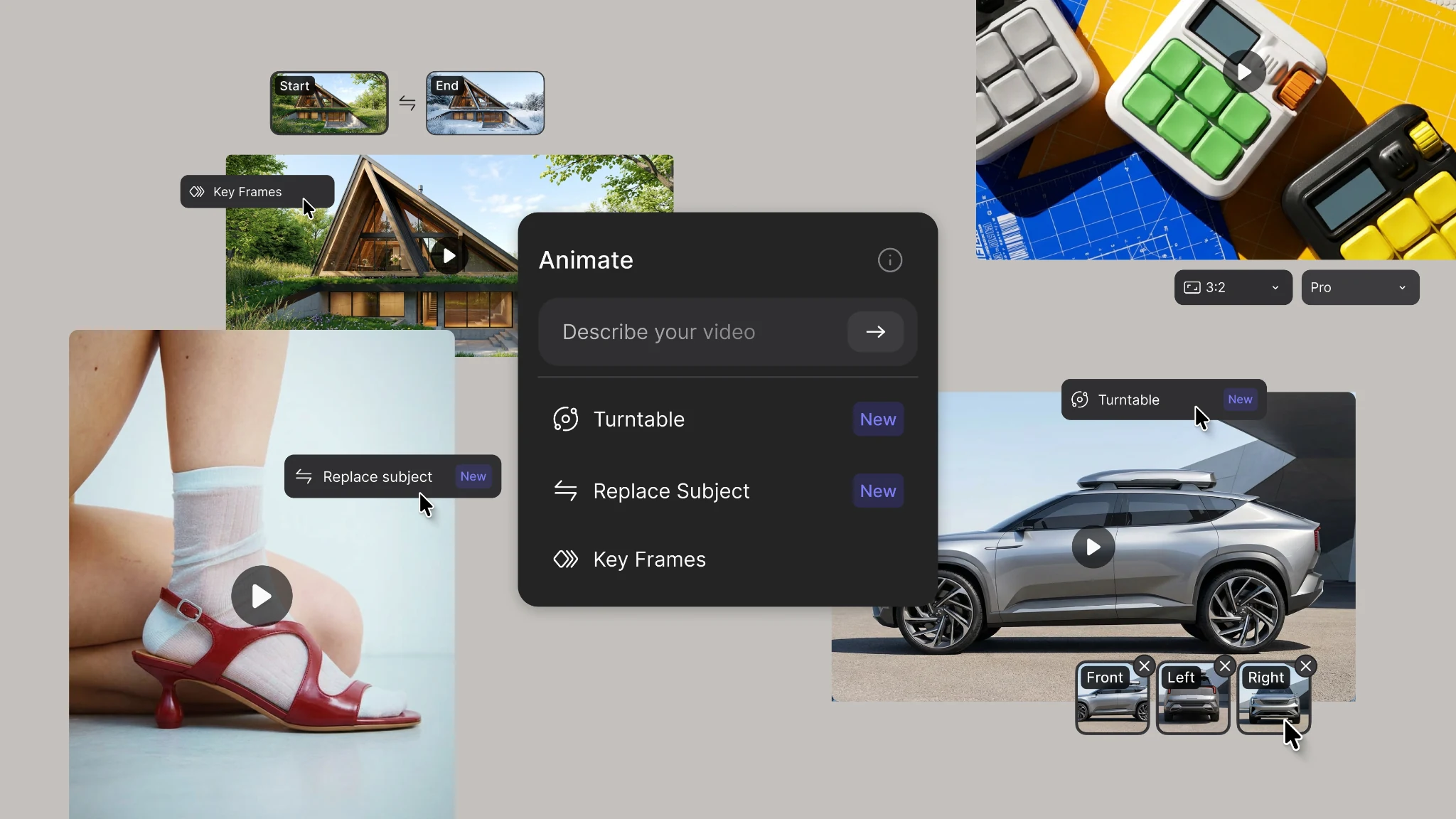
Animate now gives you far more control over how your designs move. The Animate block you already know is now called Key Frames, and it works the way it always has, with more frames to play with. Three brand new modes join it: Turntable, Replace Subject, and Custom.
Animate used to fill in the blanks
Our original version of Animate worked from frames: a start frame, maybe an end frame, and a prompt. Anything you didn’t show, Animate had to guess. Now Animate works from references. Give it every view of your design, a reference clip, the environment, and the motion you have in mind. The more references you add, the closer the result lands to what you pictured.
Pick the shot, then the mode
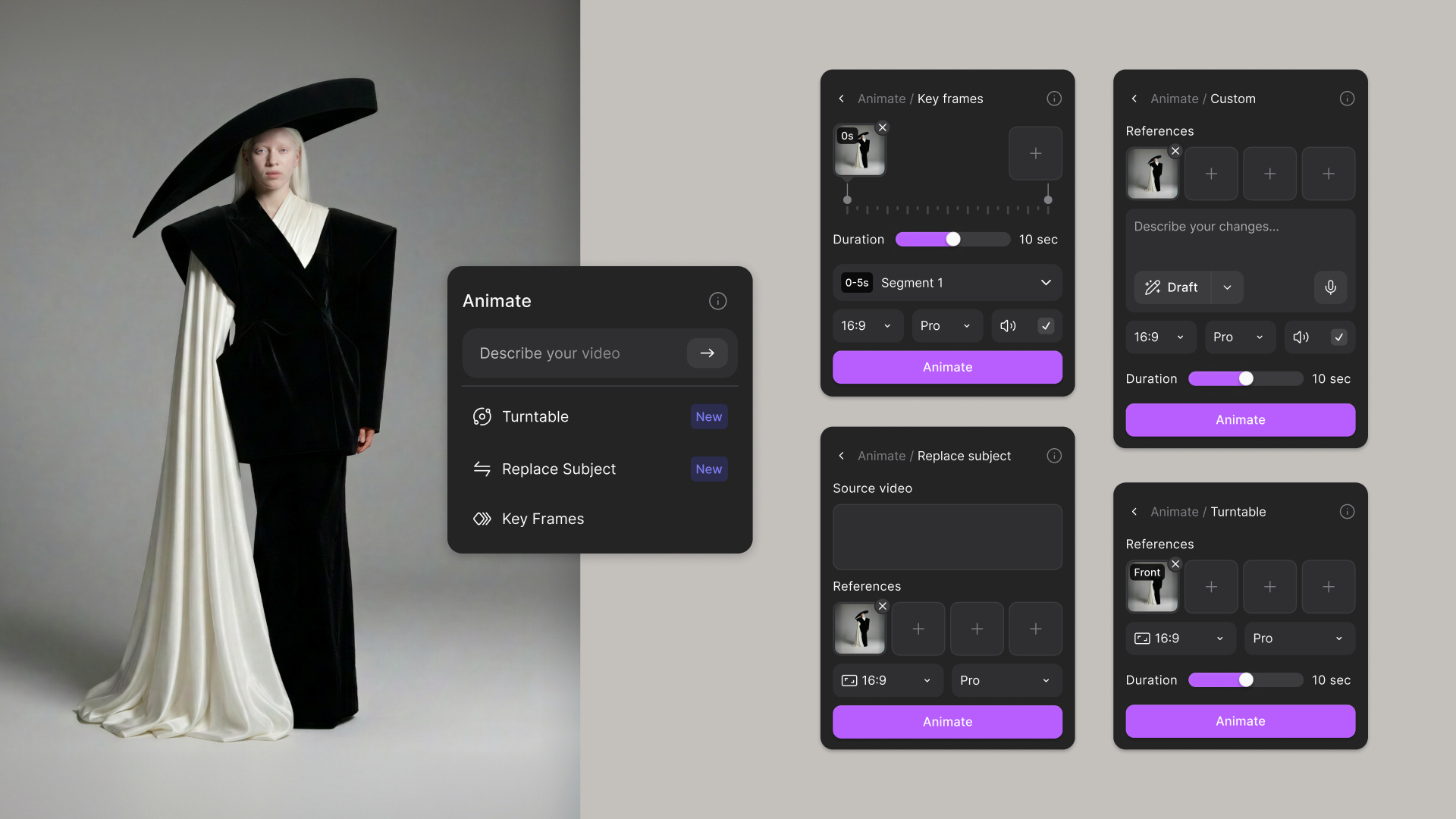
Each mode is built around a different starting point, and each one comes down to a single move. Switching modes doesn't disconnect your references, so you can run the same set through a few modes and compare. Connect a video and the picker narrows to the two modes that use one: Replace Subject and Custom.
Key Frames
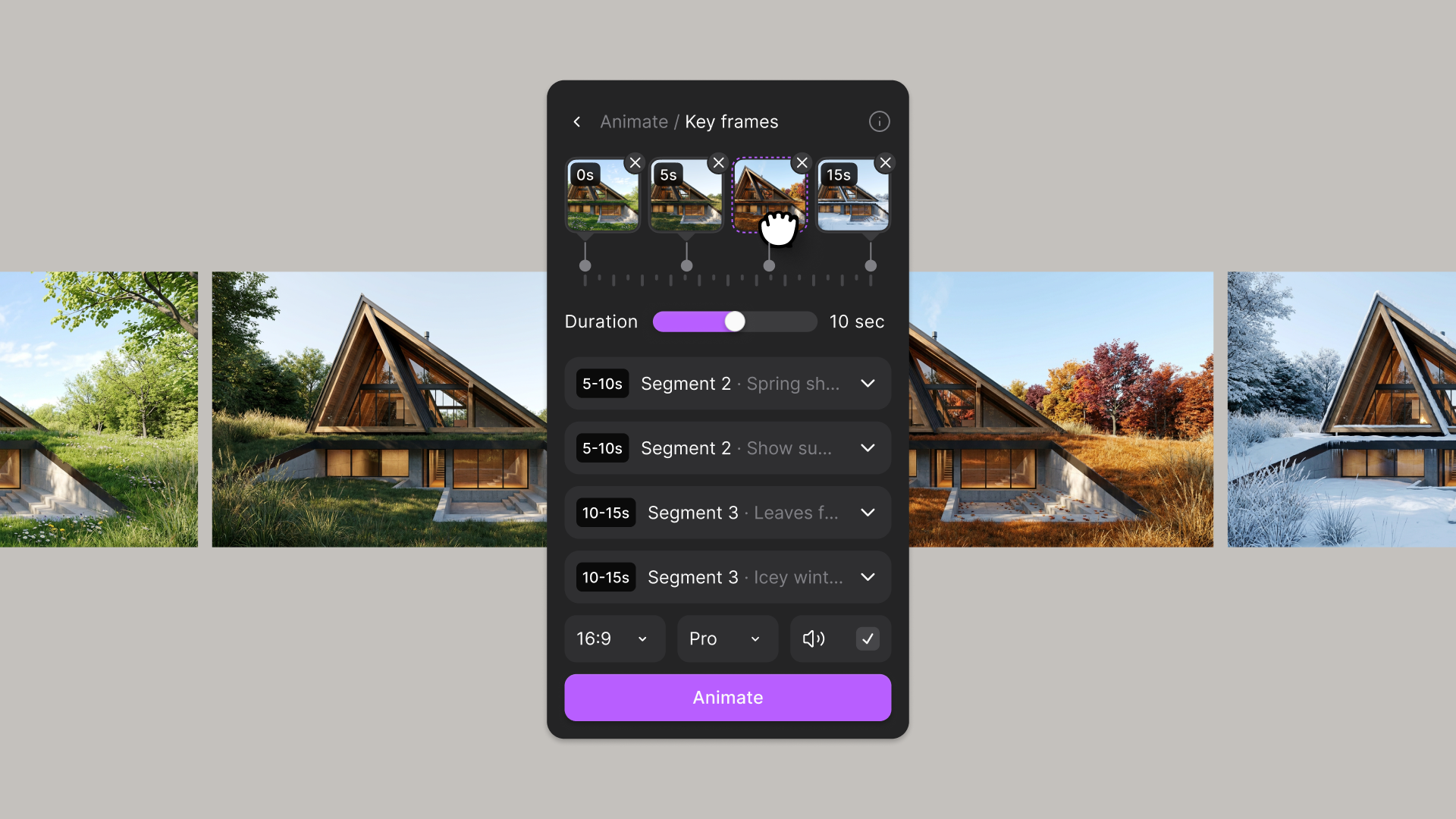
This is the closest thing to a storyboard on the canvas, and it's where animating in Vizcom has always started. Standard V2 and Turbo V2 now live here too, so the options you already know are still right where you’d expect. The difference now is how many beats you can plan. Connect up to four frames, drag them into the order you want, and prompt the whole shot or each segment between them.
Turntable
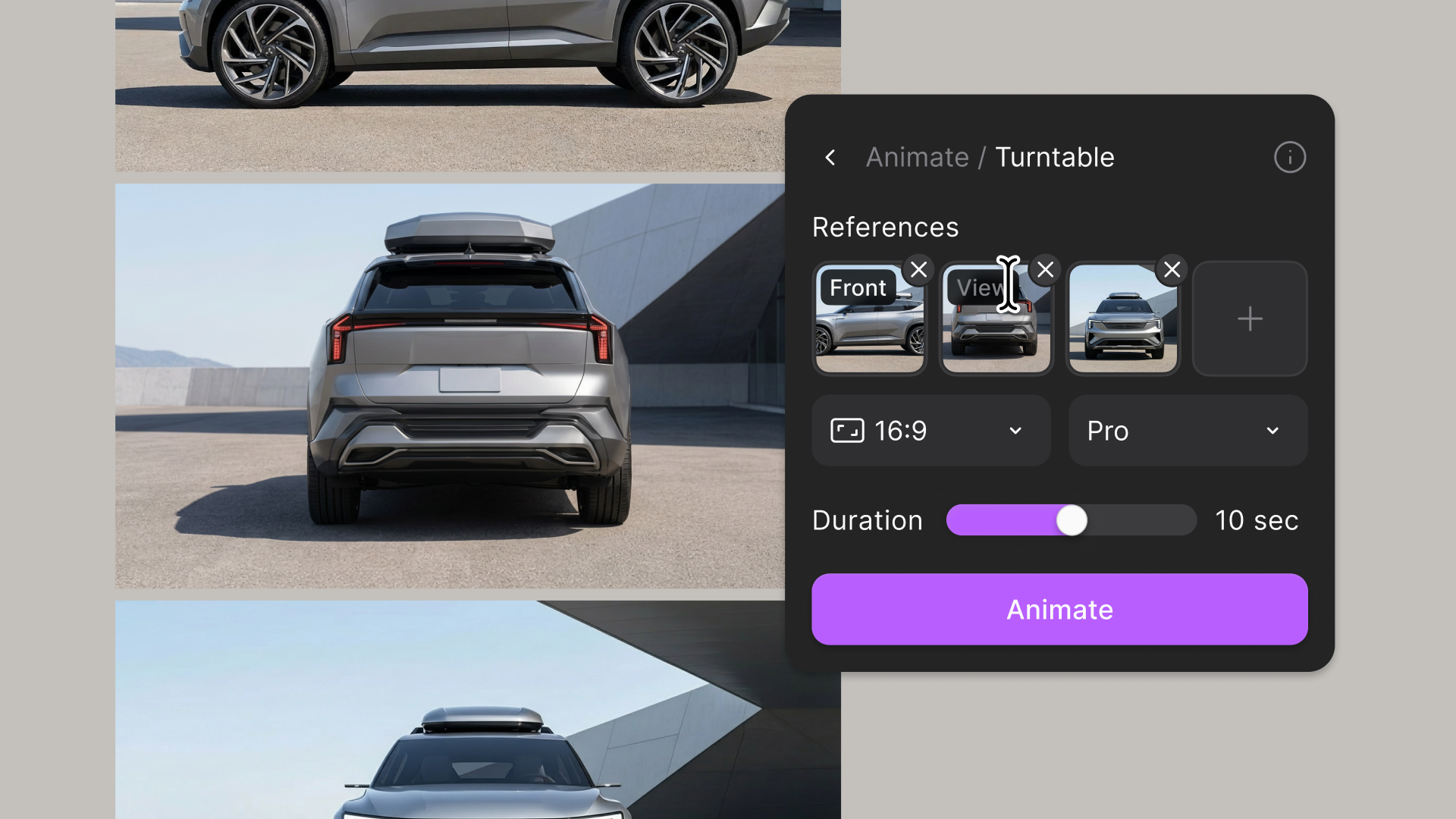
Connect every view you have, right-click each one to label its angle with Set view, and generate without having to prompt. Labeling each view makes sure every side of your design shows up the way you intended, including the angles you'd usually have to leave to chance.
Replace Subject
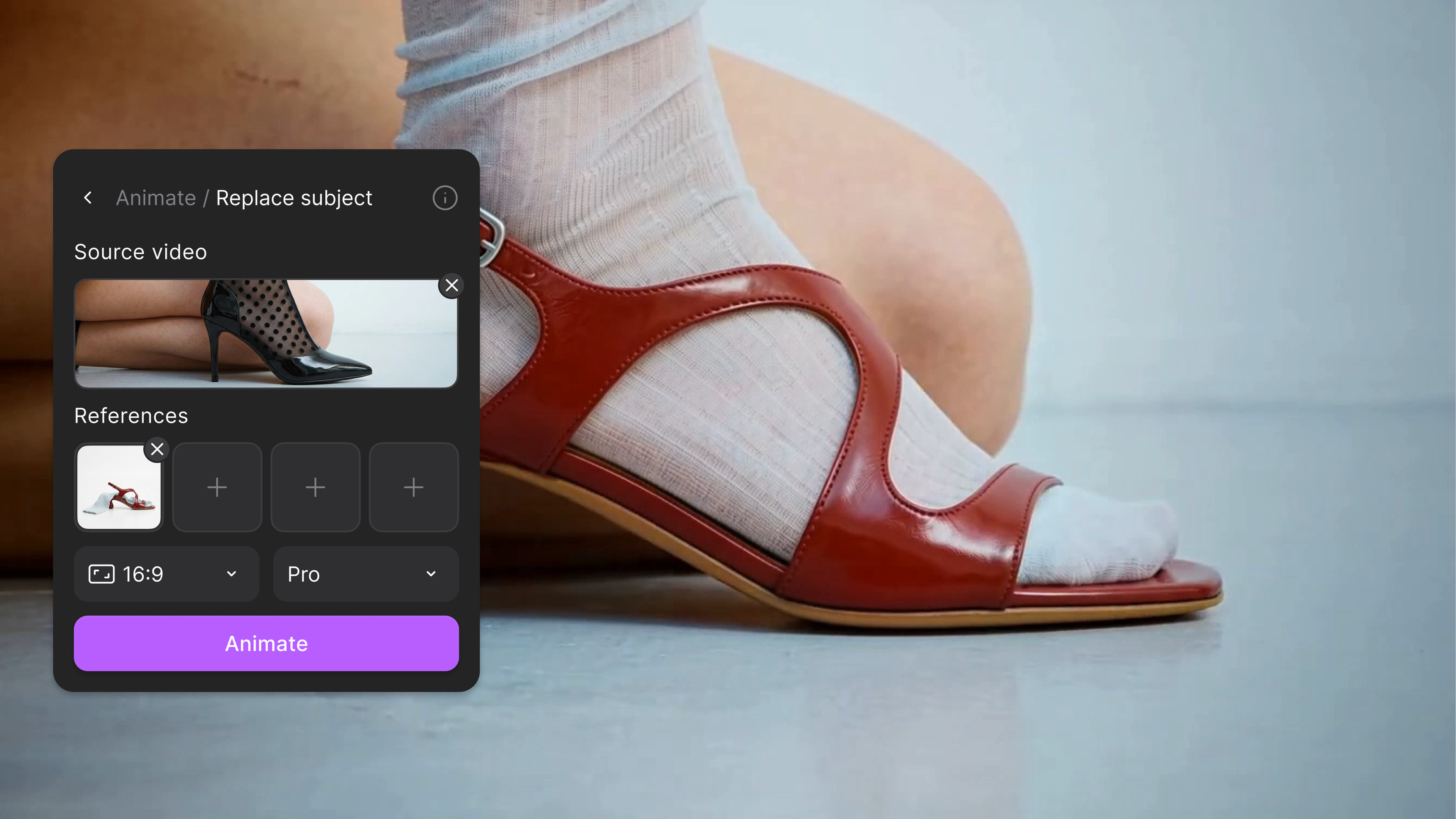
Upload a clip (Vizcom will help you trim anything longer than 15 seconds), connect labeled views of your design, and generate.
Start with a video you already love, like a sprinter’s stride, a model walking a runway, or a car taking a corner. Replace Subject swaps your design into that video, and keeps the original motion, environment, and audio.
You can also use the same video to compare options. Swap in different colorways, materials, or design concepts, and see how each one looks in the exact same motion.
Custom
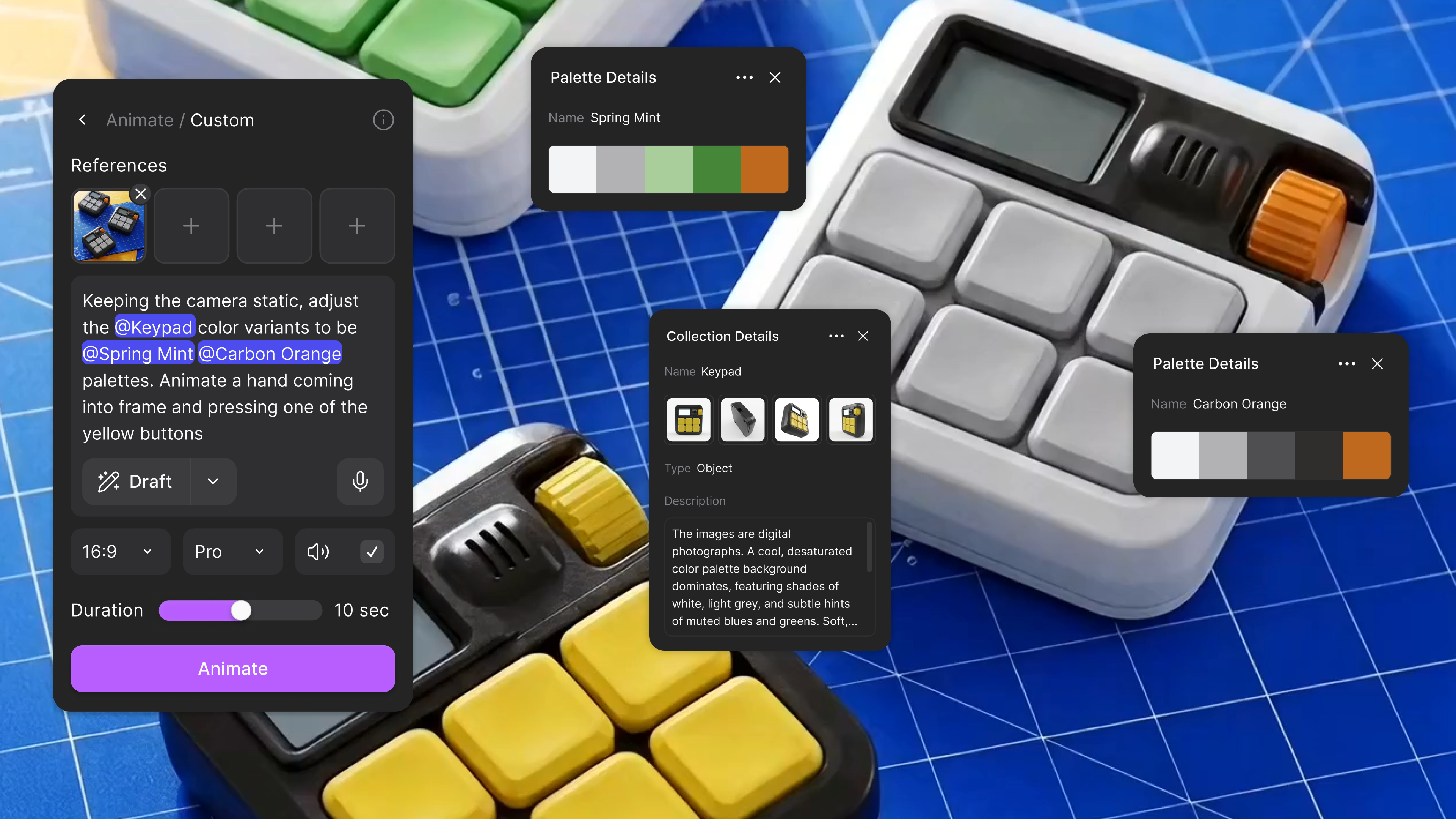
Connect up to eight assets, including one video, type @ to point your prompt at a specific one, and turn on audio if the shot needs it.
This is the most open-ended mode, and the one that designers will reach for when a shot has to carry mood, like a product launch film or an atmospheric scene from a game world. Not sure how to write the prompt? Draft writes a prompt from your connected references, and Enhance expands a one-line idea into a fuller one.
Start from what you already have
Open a Workbench, add an Animate block, and connect what you've got: a few frames, a full set of views, a clip you love, or a shot list in your head. Pick the mode that matches, and generate.
Available now for all users
Animate is available now on every plan, with both Fast and Pro modes. Check Plans & Billing in app to see what your plan includes.
Have a concept that deserves to move? Put it in motion in Vizcom.
Learn more on our User Docs.
See these updates in action:
Available now for all users
Animate is available now on every plan, with both Fast and Pro modes. Check Plans & Billing in app to see what your plan includes.
Explore
Explore more blog posts & resources to get inspired
New animation capabilities in Vizcom: more references, four modes, and up to 15 seconds of motion.
.webp)
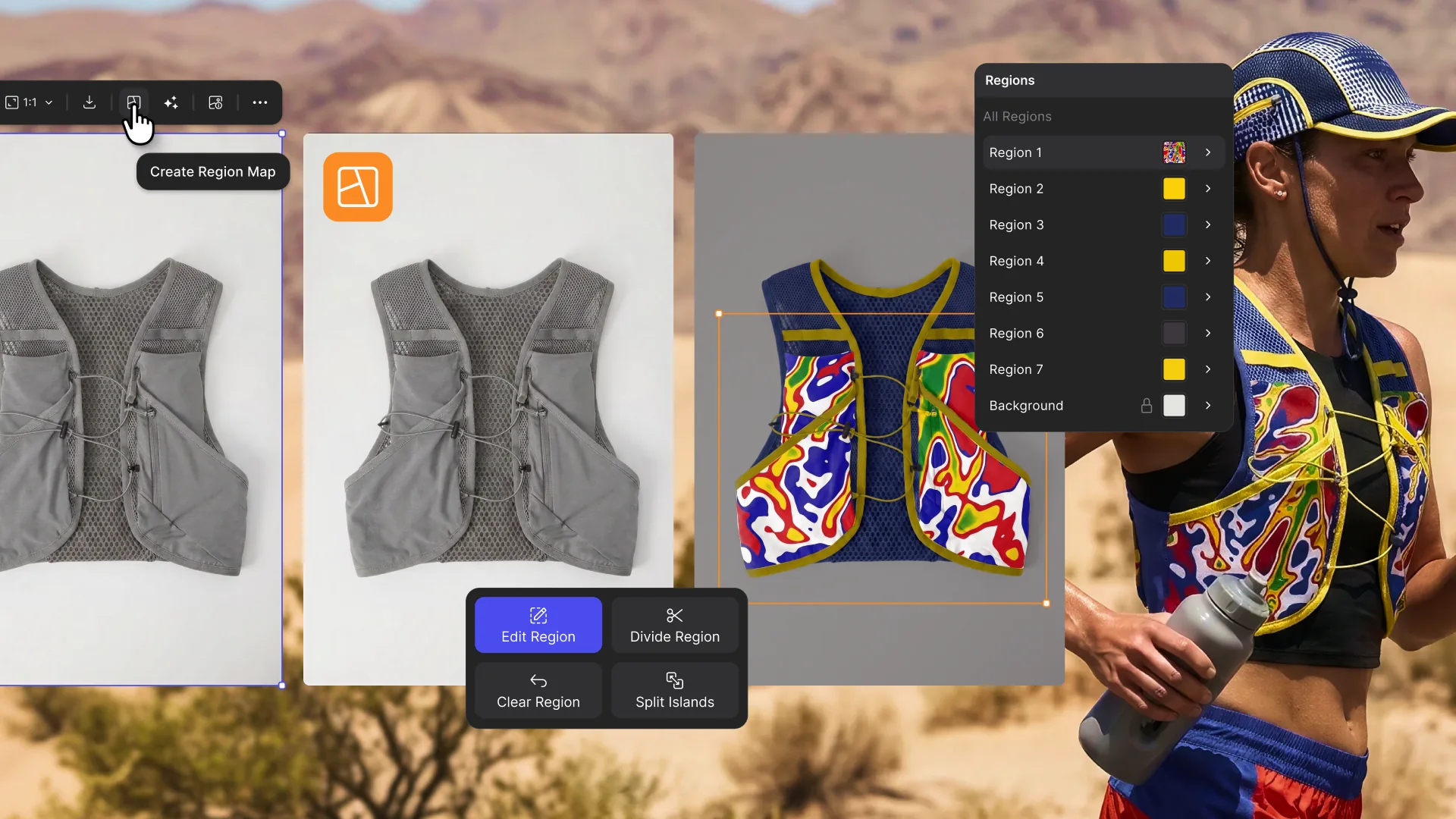
Hatch Duo is a design studio based in San Jose built around a simple premise: great products hatch when two forces meet, your insight and their execution. Hatch's focus sits squarely in consumer packaged goods. For their latest collaboration with Vizcom, industrial designer Alec Comido wanted to see what he could design in one hour.

Frequently asked questions
Yes of course! Our starter plan is completely free, no credit card required. This is a great plan to explore vizcom with.
We accept all major credit and debit cards.
Admins (paid) – can edit files, manage workspace settings, billing, teams, and invite members. Editors (paid) – can edit files but not manage settings, billing, or teams. Viewers (free) – can only view files in read-only mode.
Team billing is handled centrally by the Admin. All paid seats, whether Admins or Editors, are included in a single invoice under the same billing cycle, while Viewers remain free and do not affect the cost.
Yes, you can. An Admin can update the plan in the billing settings, and the switch will take effect on the next billing cycle at the annual rate.
Yes, you own everything you create in Vizcom. For free users, while Vizcom may use generated images to improve its services, it does not claim ownership of your designs, concepts, or original ideas—you keep full rights to them. For paid users, your images and designs remain entirely private and are only used to deliver the service. Every design, concept, and image you create or upload is fully yours and kept confidential.
Vizcom does not use your data to train AI models if you’re on a paid plan. Everything you create stays private and is only used to provide the service. Free users may have their generated images included to help improve Vizcom’s services, but even then, Vizcom does not claim ownership of your designs, concepts, or original ideas—you retain full rights.