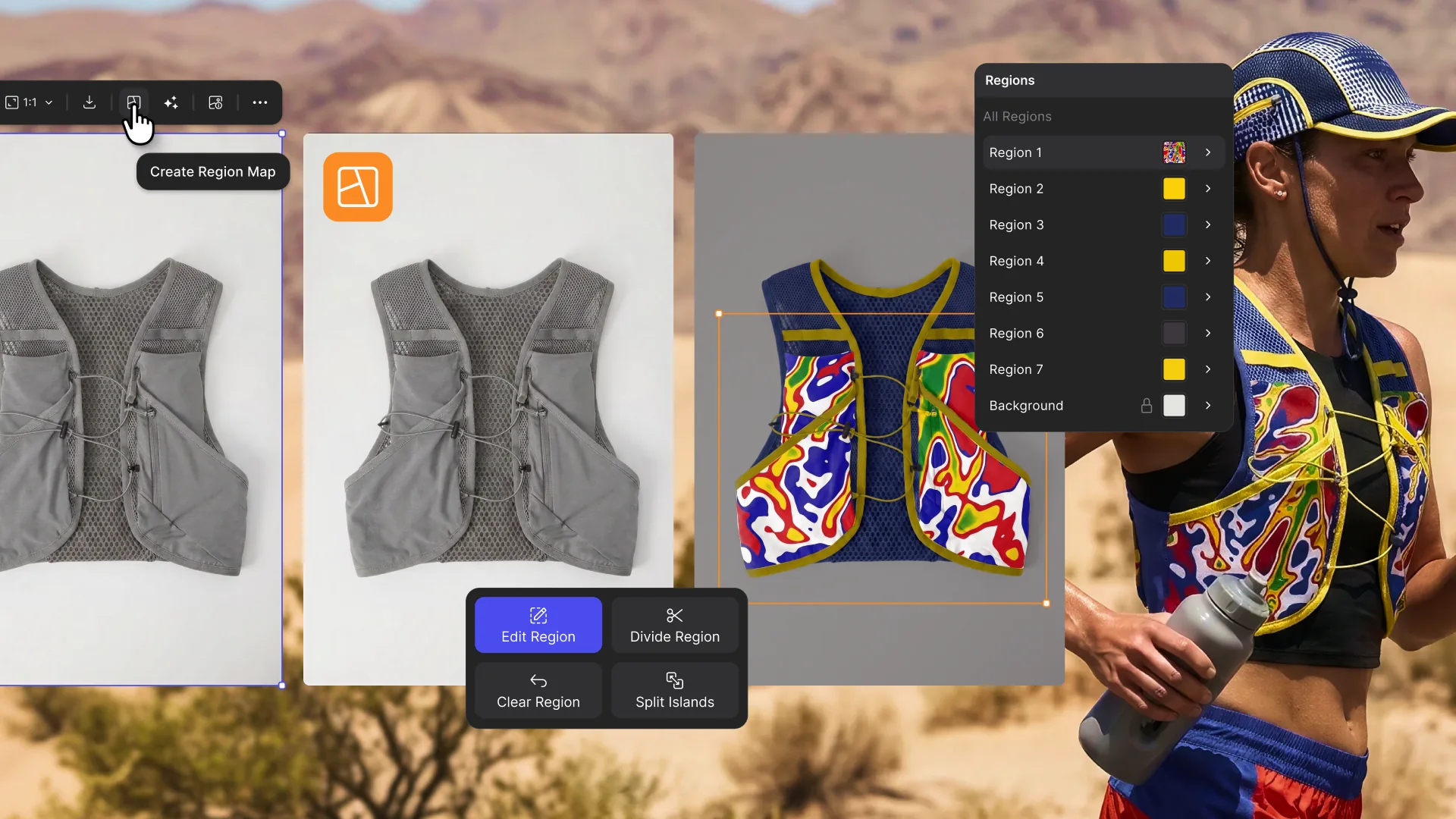
From single render to complete colorway with Region Maps
Explore color and material variations part-by-part without leaving Vizcom.

The problem with iterating color
Right now, iterating on color and materials after the render means either manually editing in Photoshop (slow, repetitive) or re-rendering with AI (faster, but you lose control). Neither is precise or fast enough for teams exploring multiple colorways across multiple SKUs.
Introducing Region Maps
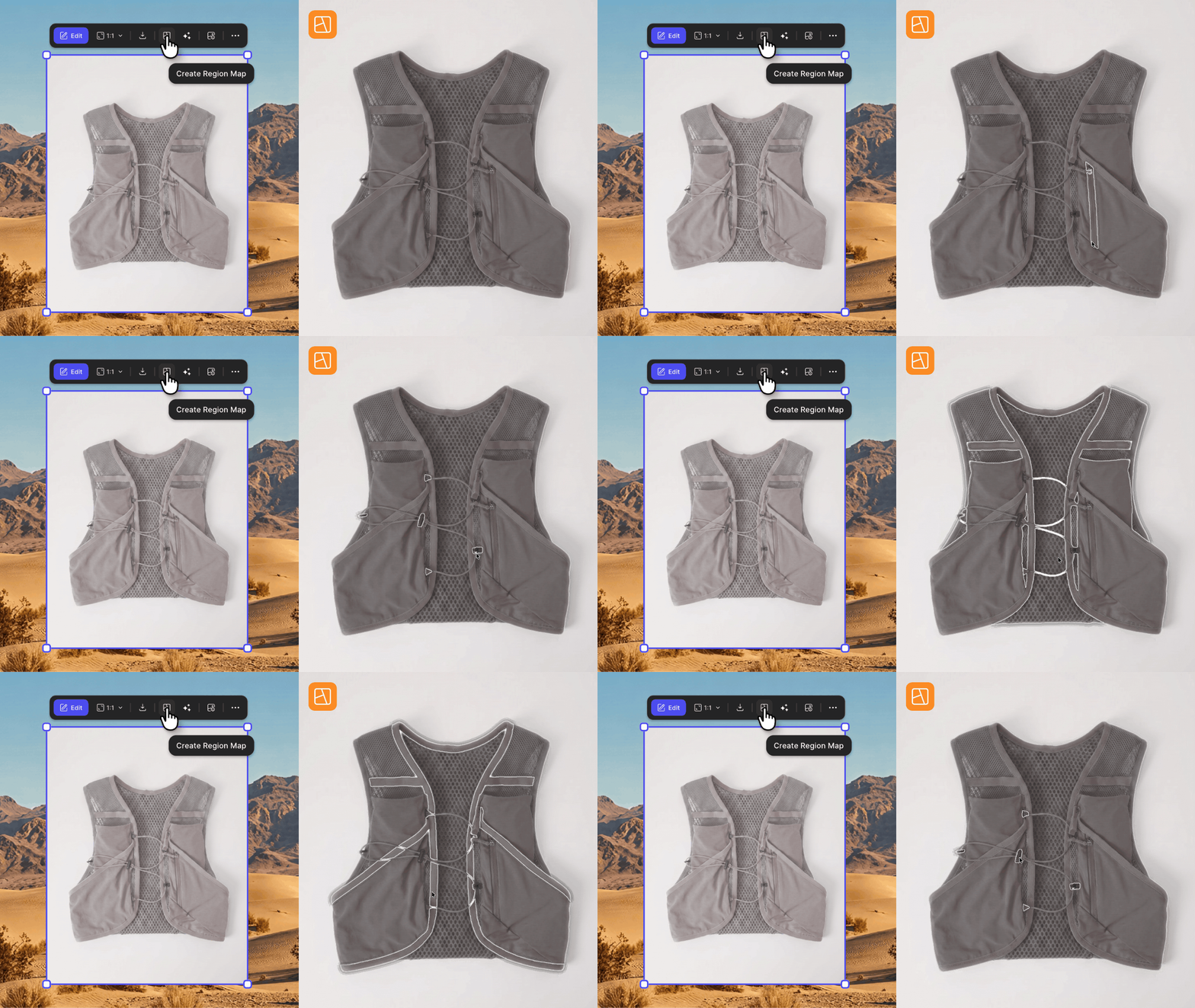
Region Maps automatically segments a product image into individual, editable regions. You apply colors, patterns, and materials part-by-part, without re-rendering. If the segmentation is not perfect, manually add, edit, or divide regions yourself.
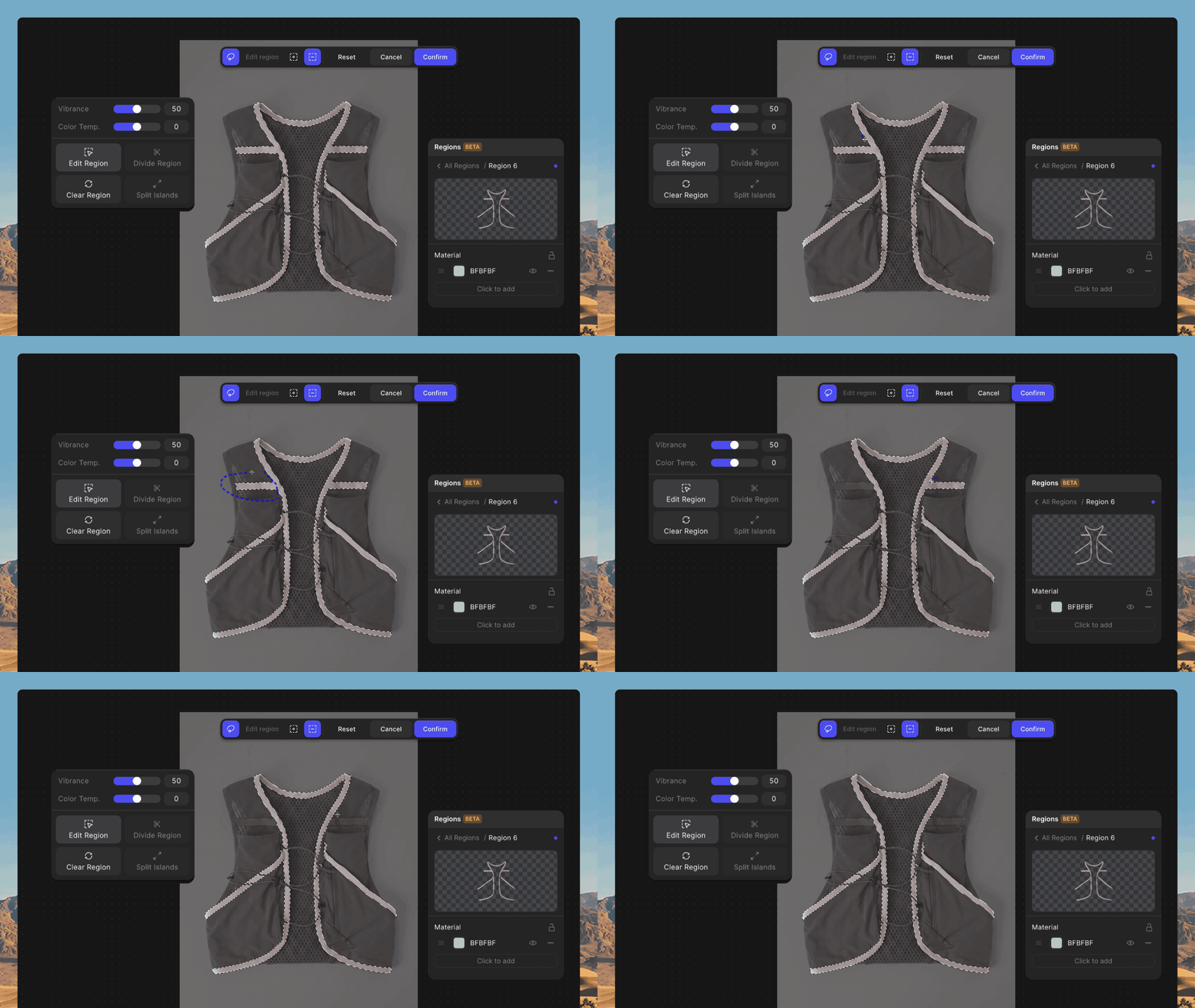
Edit Regions part by part
Use the new region panel tocontrol the color, material or pattern on a regioned image. When those regions are tied to PLM palette data, edited versions carry real production specs, not just pixels. Design decisions flow downstream to sourcing, supply chain, and manufacturing.
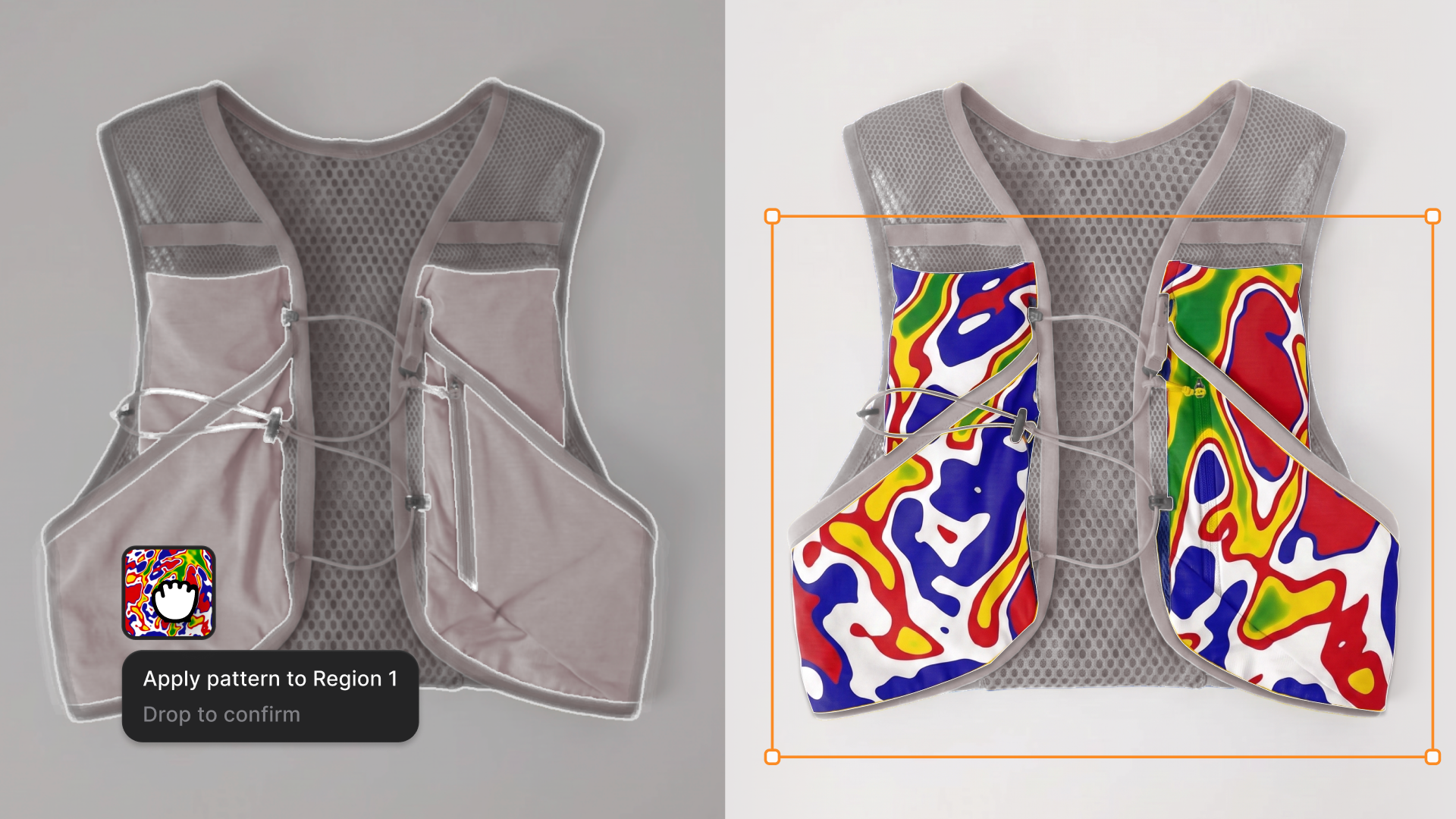
Assets to regions, instantly
Drag colors, palettes, or materials straight from the asset panel and drop them onto a single region, a selection of regions, or the entire image. The same drag works on the region list or material stack, so batch changes take seconds. It's the quickest way to test palette and material combinations across a full product.
From solo designers to full teams
Early stage exploration: Region Maps lets you rapidly test multiple colorways on a single product without leaving Vizcom. Each edited version saves as a baked image so iteration compounds with more experiments and faster decisions.
Production-ready workflows: Standardize colorway processes across designers, tie every decision to PLM data, and build a reusable library of segmented templates and palettes that scale across the organization.
Working at every scale
Region Maps is how Vizcom works across every level of detail from a single material on a single part to entire collections and teams. Each step closes the gap between a sketch and something you can hold.
See Region Maps in action
Available now for all users.
Learn more ➡️ User Docs
Explore
Explore more blog posts & resources to get inspired
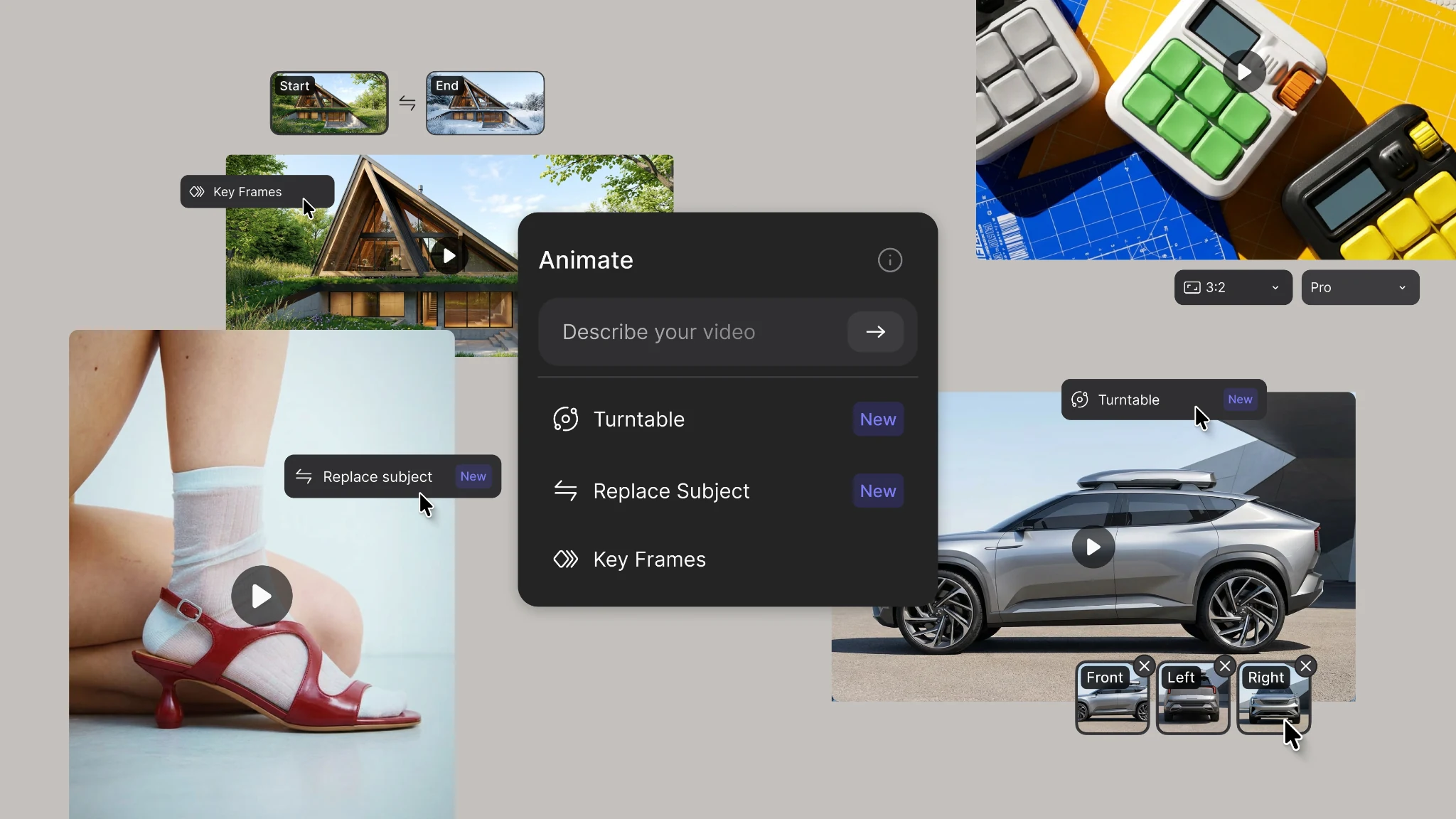
New animation capabilities in Vizcom: more references, four modes, and up to 15 seconds of motion.
.webp)
Hatch Duo is a design studio based in San Jose built around a simple premise: great products hatch when two forces meet, your insight and their execution. Hatch's focus sits squarely in consumer packaged goods. For their latest collaboration with Vizcom, industrial designer Alec Comido wanted to see what he could design in one hour.

Frequently asked questions
Yes of course! Our starter plan is completely free, no credit card required. This is a great plan to explore vizcom with.
We accept all major credit and debit cards.
Admins (paid) – can edit files, manage workspace settings, billing, teams, and invite members. Editors (paid) – can edit files but not manage settings, billing, or teams. Viewers (free) – can only view files in read-only mode.
Team billing is handled centrally by the Admin. All paid seats, whether Admins or Editors, are included in a single invoice under the same billing cycle, while Viewers remain free and do not affect the cost.
Yes, you can. An Admin can update the plan in the billing settings, and the switch will take effect on the next billing cycle at the annual rate.
Yes, you own everything you create in Vizcom. For free users, while Vizcom may use generated images to improve its services, it does not claim ownership of your designs, concepts, or original ideas—you keep full rights to them. For paid users, your images and designs remain entirely private and are only used to deliver the service. Every design, concept, and image you create or upload is fully yours and kept confidential.
Vizcom does not use your data to train AI models if you’re on a paid plan. Everything you create stays private and is only used to provide the service. Free users may have their generated images included to help improve Vizcom’s services, but even then, Vizcom does not claim ownership of your designs, concepts, or original ideas—you retain full rights.