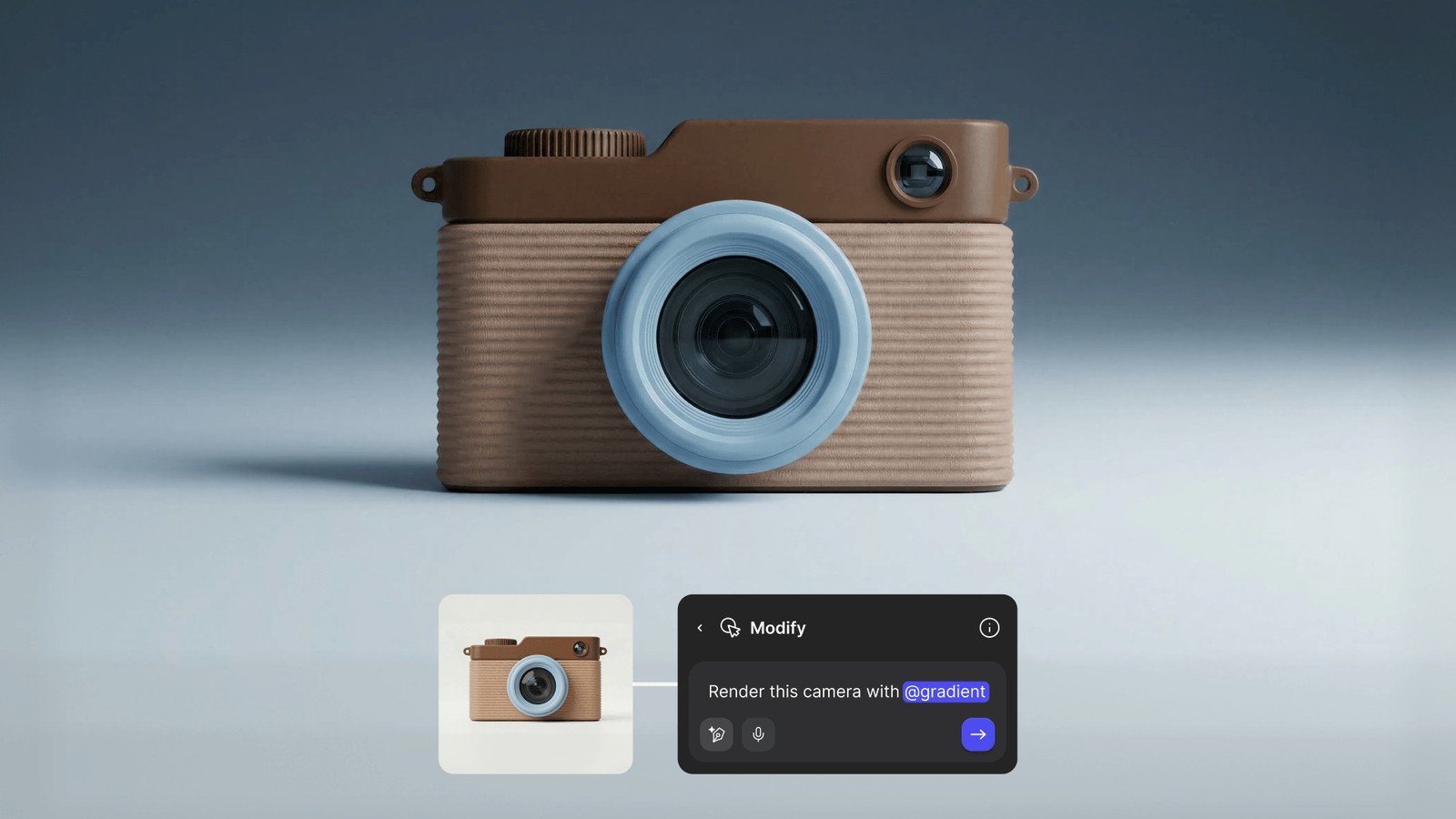
Your Asset Library just became a part of every generation
The things you've saved from colors to references to prompts, have always lived one panel over from where you actually work. Today that gap closes.

Curate, Save, Reference
Your library has always been one panel over from where you actually work. Today it's in the prompt.We’ve shipped two new asset types: Prompts and Collections that live in your asset library alongside your existing colors, palettes, and images.
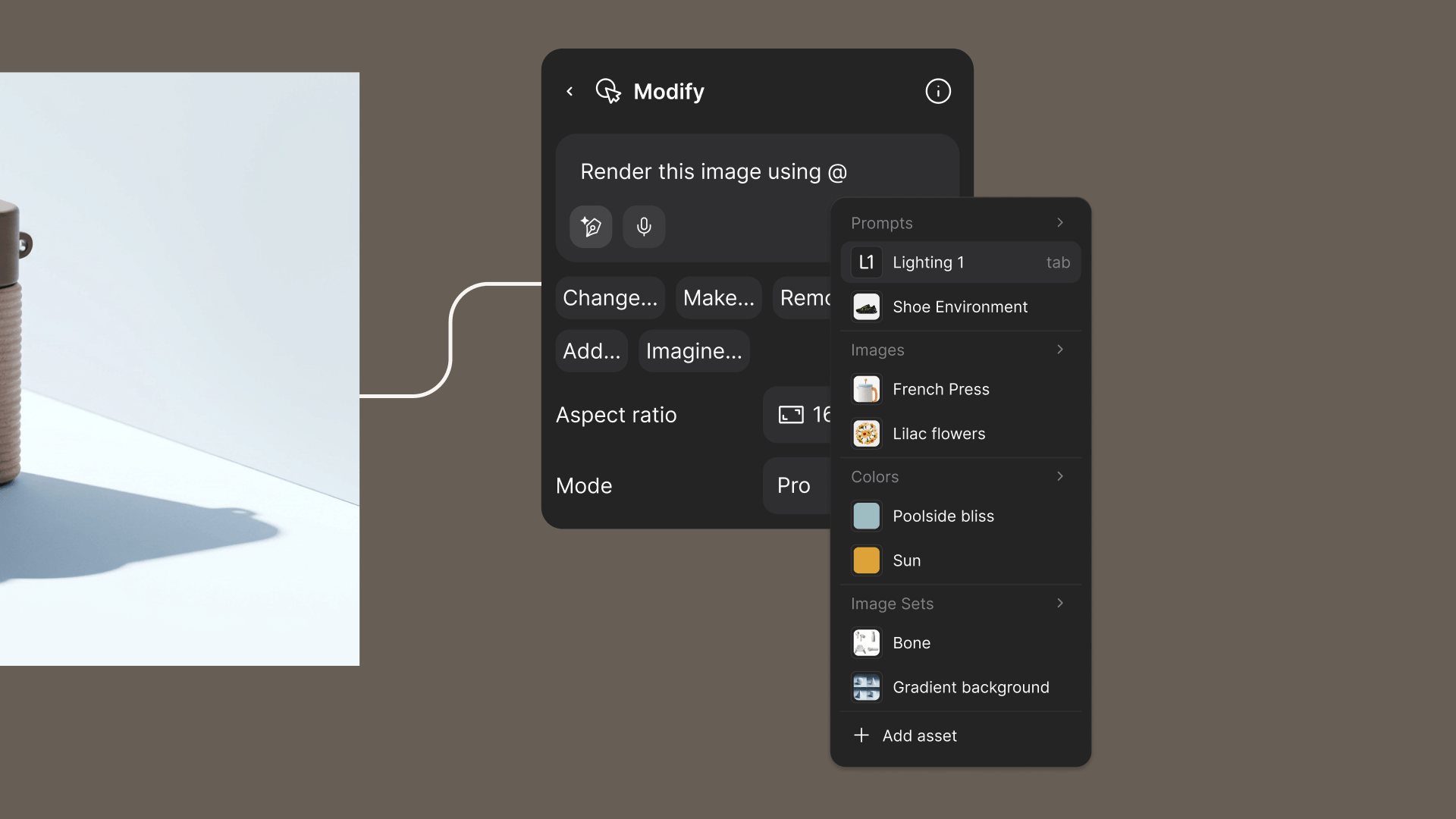
And across all of them, a new way to bring any asset directly into Modify: type @ followed by an asset name to reference it in your generation.
Three things, working together.
- Prompts - Save prompt language once, reference it by name in any Modify generation.
- Collections - Bundle up to nine images into a single referenceble unit — a product from every angle, a brand moodboard, a recurring style.
- @ referencing in Modify - Type @ in any Modify prompt to browse and reference colors, palettes, images, prompts, and collections from your asset library , without leaving the prompt field.
Your asset library, inside Modify
In any Modify prompt field, type @ and your asset library opens as a live, searchable menu. Browse or keep typing to filter to a specific asset. Select it and it lands in your prompt as a reference. Every asset type is referenceable this way: colors, palettes, images, prompts, and collections. Reference an asset and Vizcom treats it as a definition, so you can use a term in your prompt without re-explaining it every time.

Give Vizcom a coherent set of references for a Collection
Bundle up to nine images into a single referenceable unit, then @ it by name in any Modify prompt. The more focused and curated the images, the more coherent the output. A tightly edited set of product angles or a single consistent visual style will outperform a broad moodboard every time.
Collections work beyond products too. Use them to anchor a visual identity, define a brand aesthetic, or carry a recurring style from project to project.
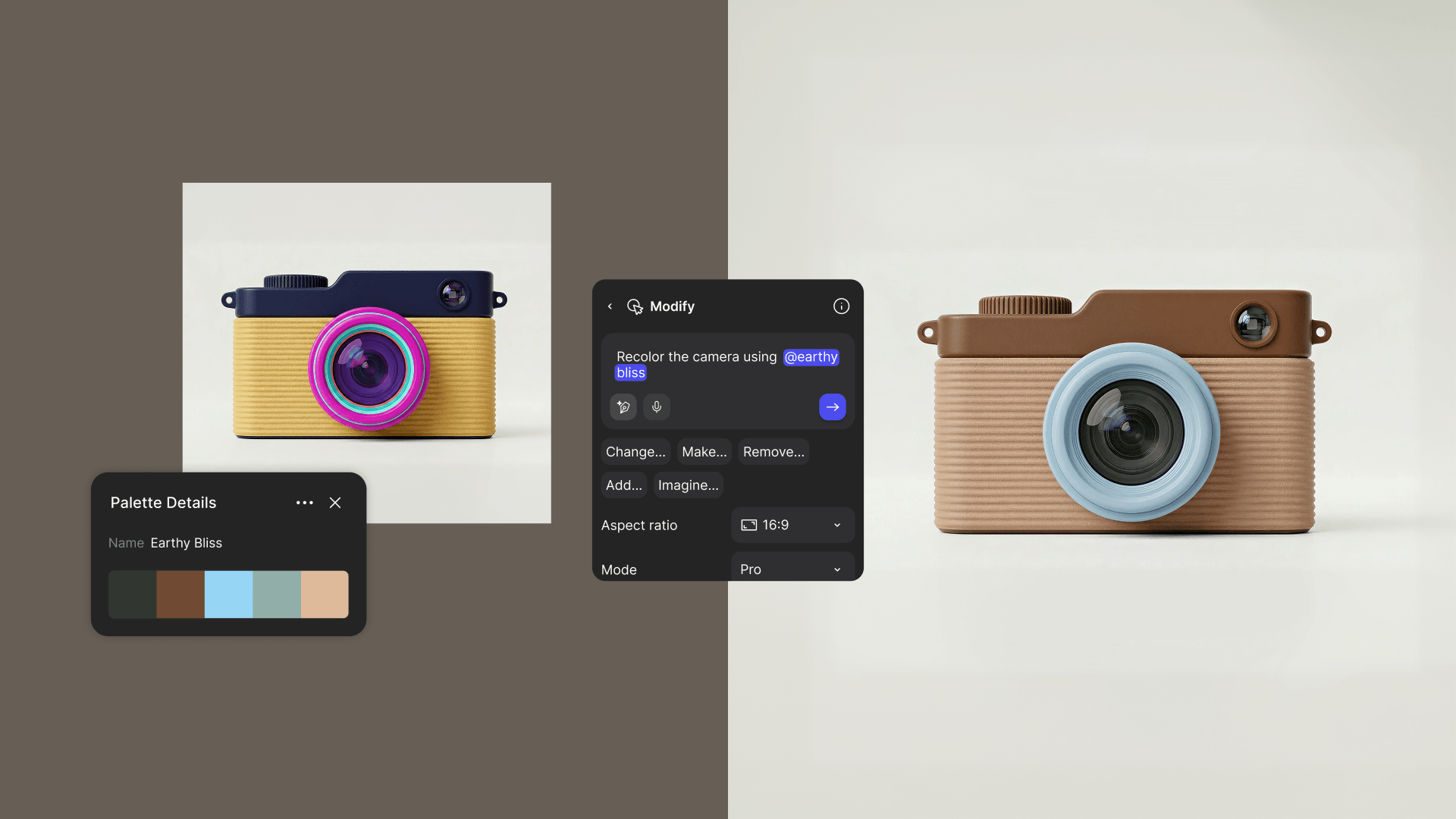
Name a color palette and use it exactly every time
Save a palette, give it a name, and reference it by that name in any Modify prompt and Vizcom applies the exact values to your generation.
For CMF designers, this is the missing link. A seasonal palette lives in the library once and travels into every generation that needs it. Colorway explorations stay anchored to the real values and brand color stays consistent.
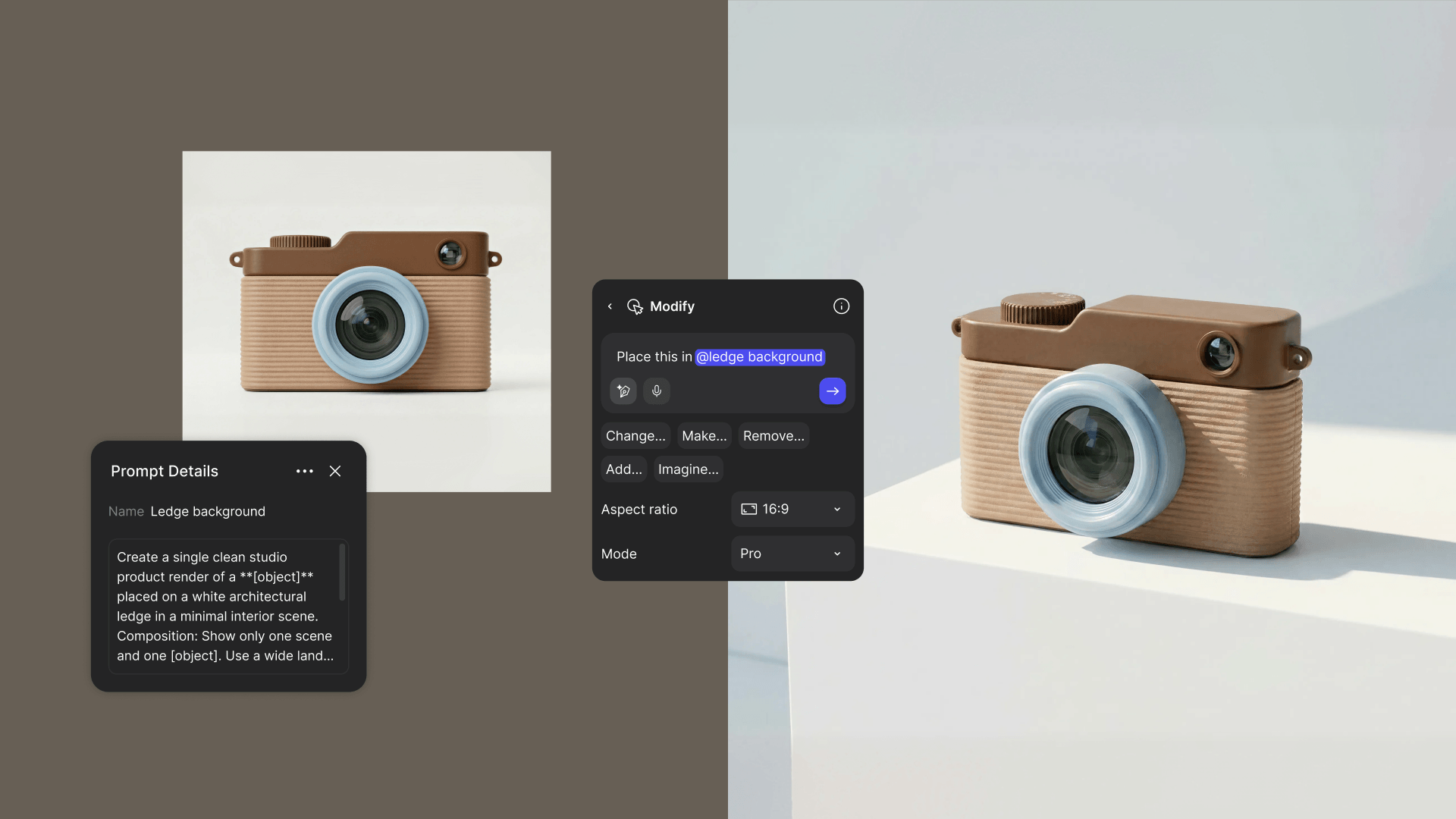
Save the language that works and use it everywhere
Paste a prompt once, whether you wrote it in Vizcom or developed it elsewhere and save it to your library. Mention it by name any time you need it.
Available now — for all users, including free
This is what a connected asset library unlocks: design teams working from the same references, studios with a house style that's always one @ away, individual designers who never retype the same prompt twice.
The asset library has always been where you store what matters. Now Prompts and Collections join it so the things you refine inside Vizcom, have a place to live too. Create it, save it, reference it in any generation going forward.
See these updates in action:
➡️ Learn more on our User Docs
➡️ Get started
Explore
Explore more blog posts & resources to get inspired
.webp)
Hatch Duo is a design studio based in San Jose built around a simple premise: great products hatch when two forces meet, your insight and their execution. Hatch's focus sits squarely in consumer packaged goods. For their latest collaboration with Vizcom, industrial designer Alec Comido wanted to see what he could design in one hour.
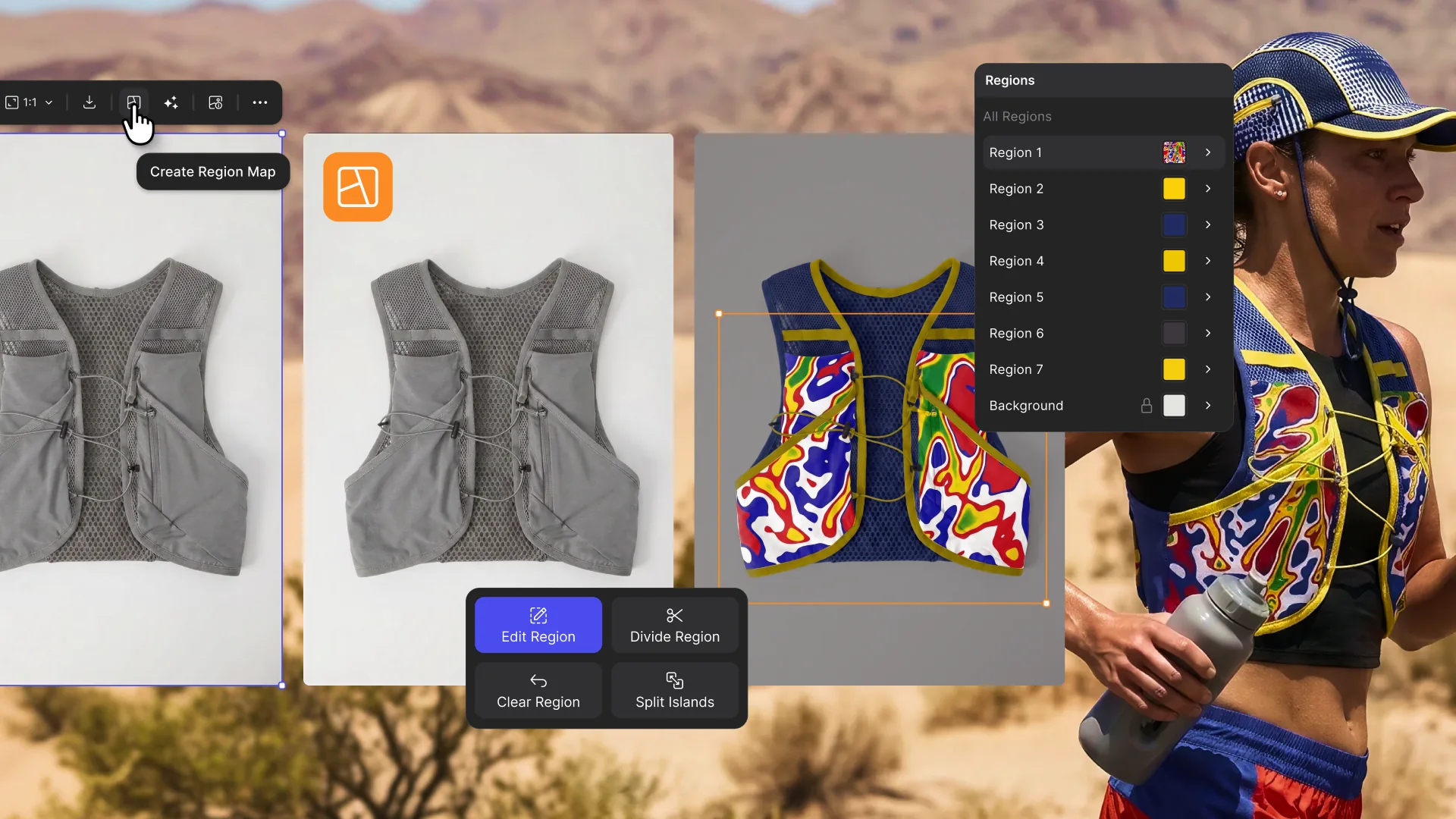
Explore color and material variations part-by-part without leaving Vizcom.

Frequently asked questions
Yes of course! Our starter plan is completely free, no credit card required. This is a great plan to explore vizcom with.
We accept all major credit and debit cards.
Admins (paid) – can edit files, manage workspace settings, billing, teams, and invite members. Editors (paid) – can edit files but not manage settings, billing, or teams. Viewers (free) – can only view files in read-only mode.
Team billing is handled centrally by the Admin. All paid seats, whether Admins or Editors, are included in a single invoice under the same billing cycle, while Viewers remain free and do not affect the cost.
Yes, you can. An Admin can update the plan in the billing settings, and the switch will take effect on the next billing cycle at the annual rate.
Yes, you own everything you create in Vizcom. For free users, while Vizcom may use generated images to improve its services, it does not claim ownership of your designs, concepts, or original ideas—you keep full rights to them. For paid users, your images and designs remain entirely private and are only used to deliver the service. Every design, concept, and image you create or upload is fully yours and kept confidential.
Vizcom does not use your data to train AI models if you’re on a paid plan. Everything you create stays private and is only used to provide the service. Free users may have their generated images included to help improve Vizcom’s services, but even then, Vizcom does not claim ownership of your designs, concepts, or original ideas—you retain full rights.