
Introducing Unify: One-Click Compositing for Faster, More Precise Concepts
Unify lets designers explore ideas the way they naturally think—by visually layering products into real environments with matched lighting and shadows, no prompting required. Built for precision and layout control, it helps you validate space, scale, and story earlier and iterate faster.

Designers don’t think in prompts, rather in pictures, layers, and space. Exploring an idea, seeing it in context is the fastest way to accelerate iteration.
That’s why we built Unify. Unify blends your subject into a background with matched lighting and shadows, so your concept looks instantly grounded and review-ready with no prompting, just precision where you already design.
What you can do with Unify:
Unify helps you:
- Layer multiple images and objects into one cohesive visual story.
- Maintain layout control so scale, hierarchy, and placement stay editable.
- Validate space faster by seeing your concept where it belongs, early enough to iterate.
When to use Modify or Unify
Modify is more directive and exploratory, letting you push new directions through prompting, while Unify is visually controlled and intentional, helping you precisely layer the images you’re working with and build your scenes visually.
Here’s what you can achieve with Unify:
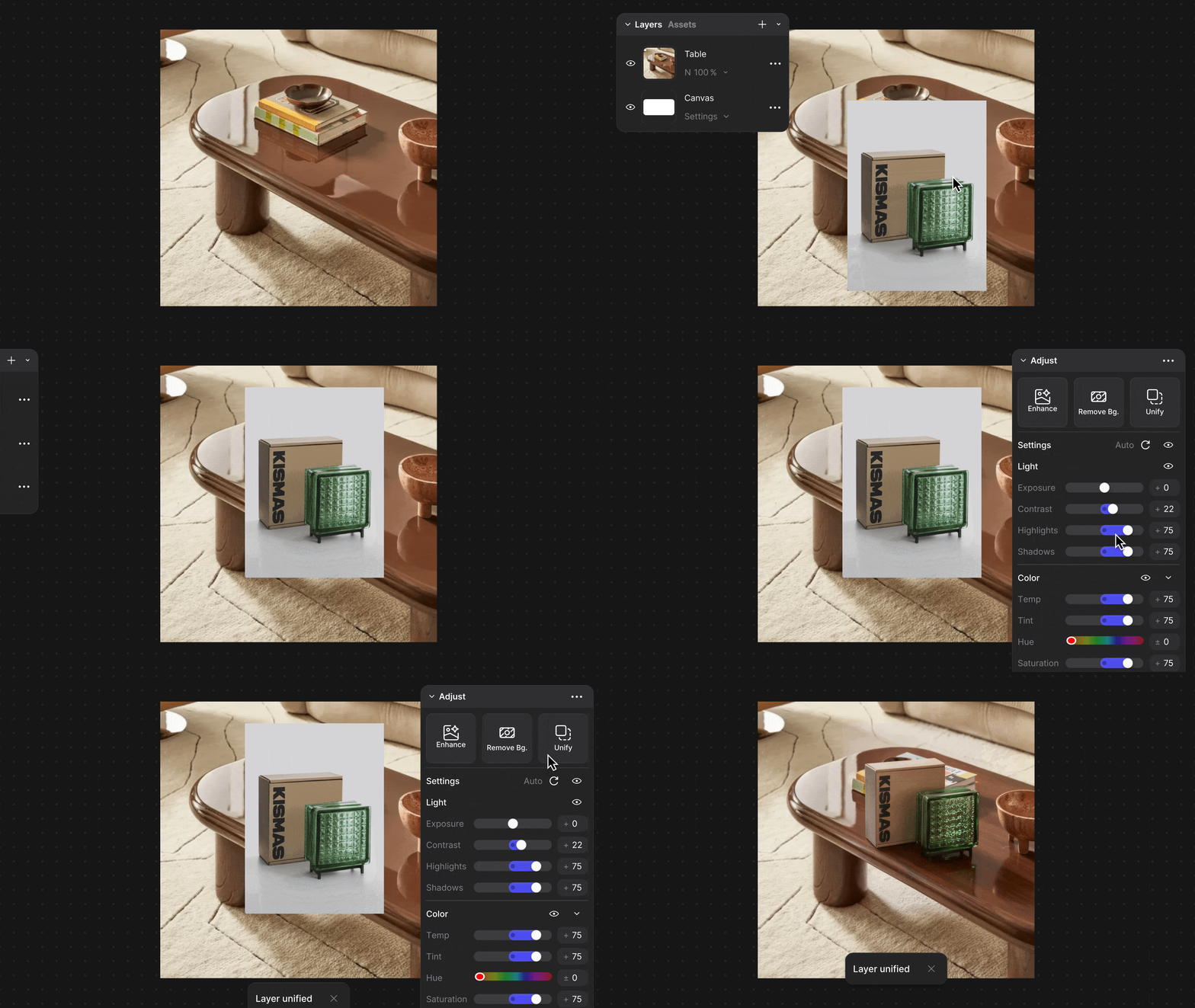
Product into environment
Drop a concept into a real-world scene to check scale, proportion, and use-case clarity.

Multi-object compositing
Combine multiple concepts into one shared world: kits, families, ecosystems, or CMF directions.
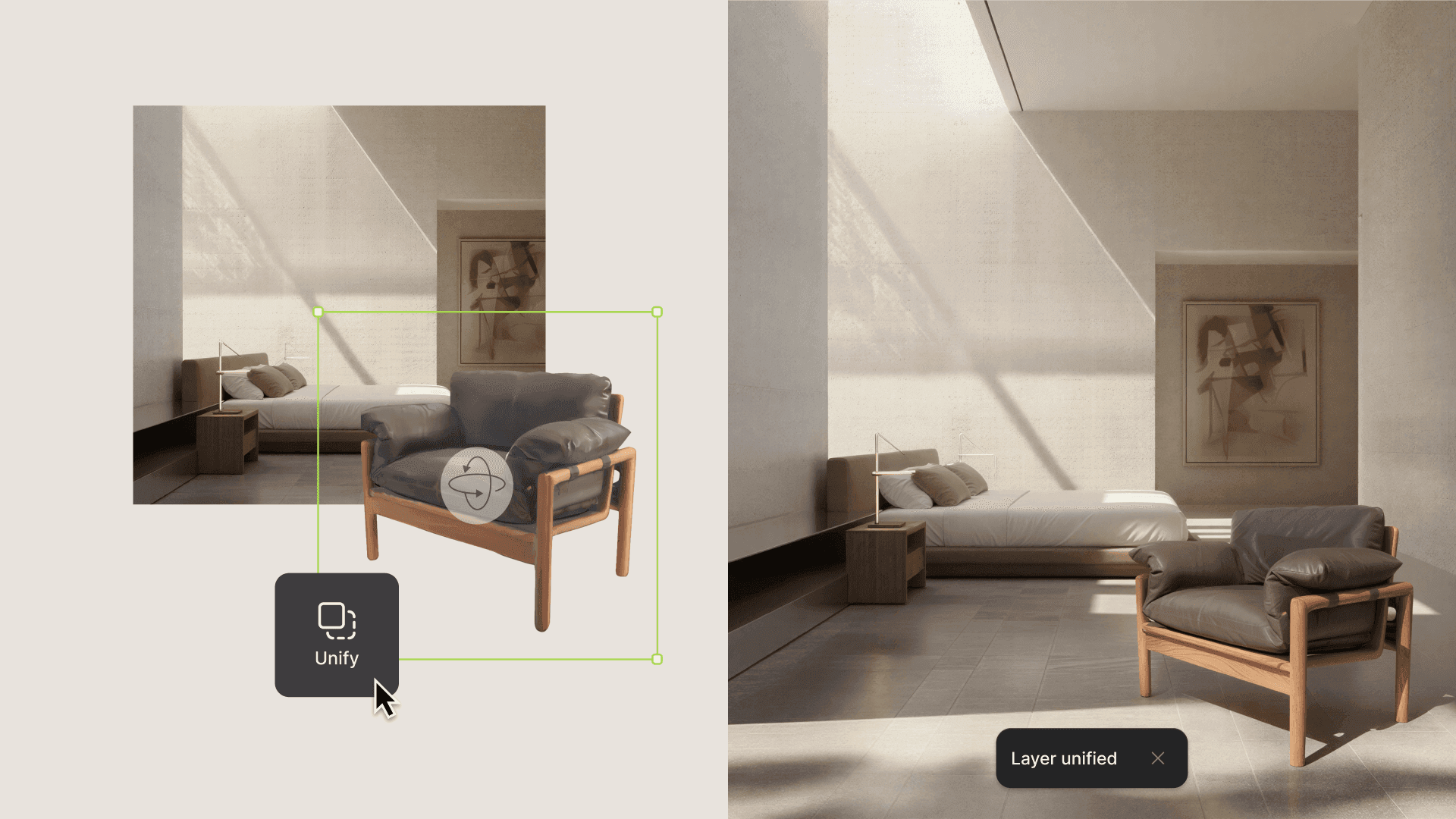
Rapid layout exploration
Try different placements, sizes, and arrangements without re-blending manually.
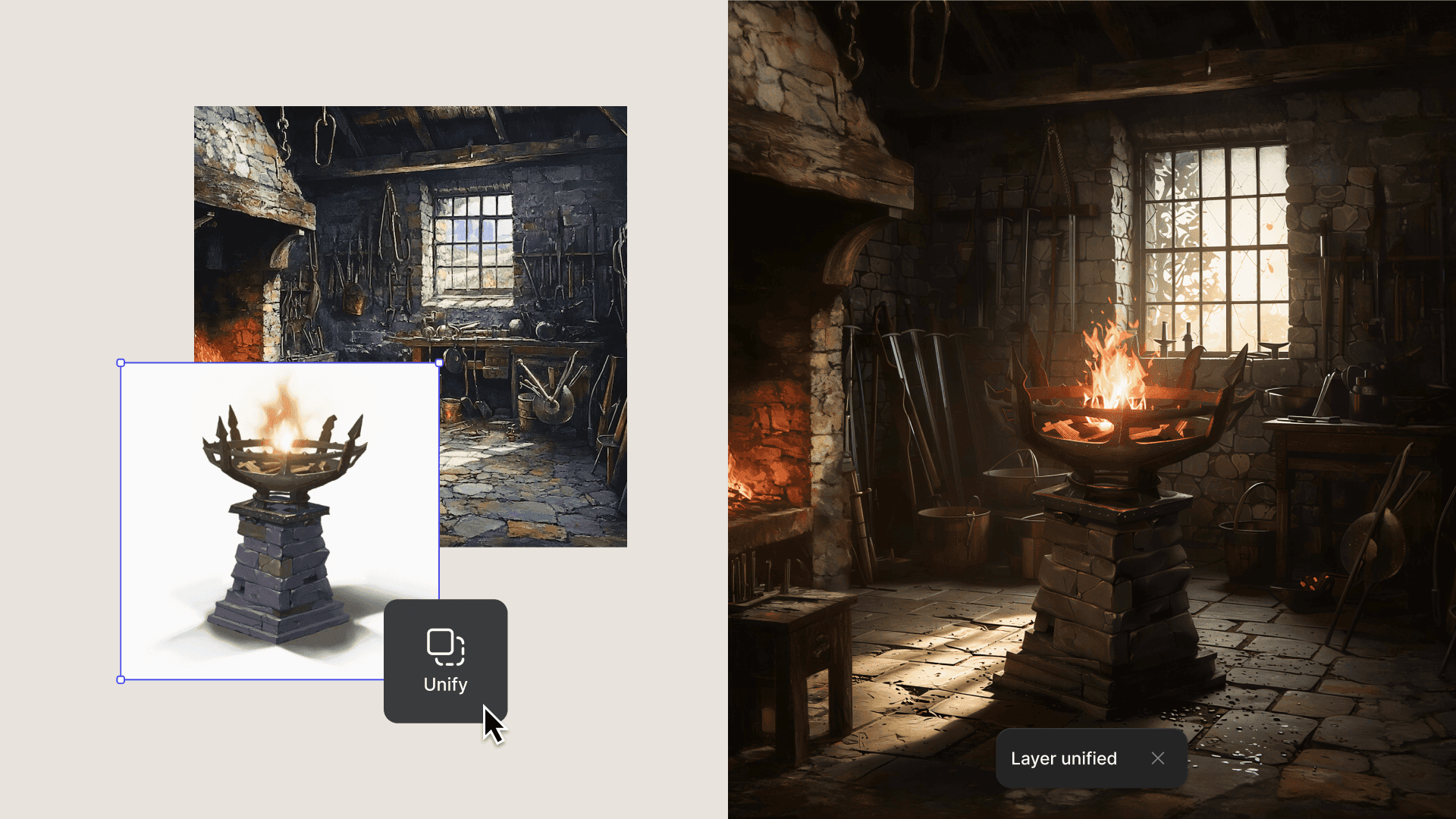
Faster spatial validation
Answer the big early questions sooner: does it fit, does it feel right in space, does the story read?
Available now — for all users
Unify is now available inside Studio for all users.
Want to see Unify in action?
Follow us on Instagram, X, and LinkedIn for tips and inspiration.
Have feedback? DM us or drop a note in our Discord— we’re listening.
Explore
Explore more blog posts & resources to get inspired
.webp)
Hatch Duo is a design studio based in San Jose built around a simple premise: great products hatch when two forces meet, your insight and their execution. Hatch's focus sits squarely in consumer packaged goods. For their latest collaboration with Vizcom, industrial designer Alec Comido wanted to see what he could design in one hour.
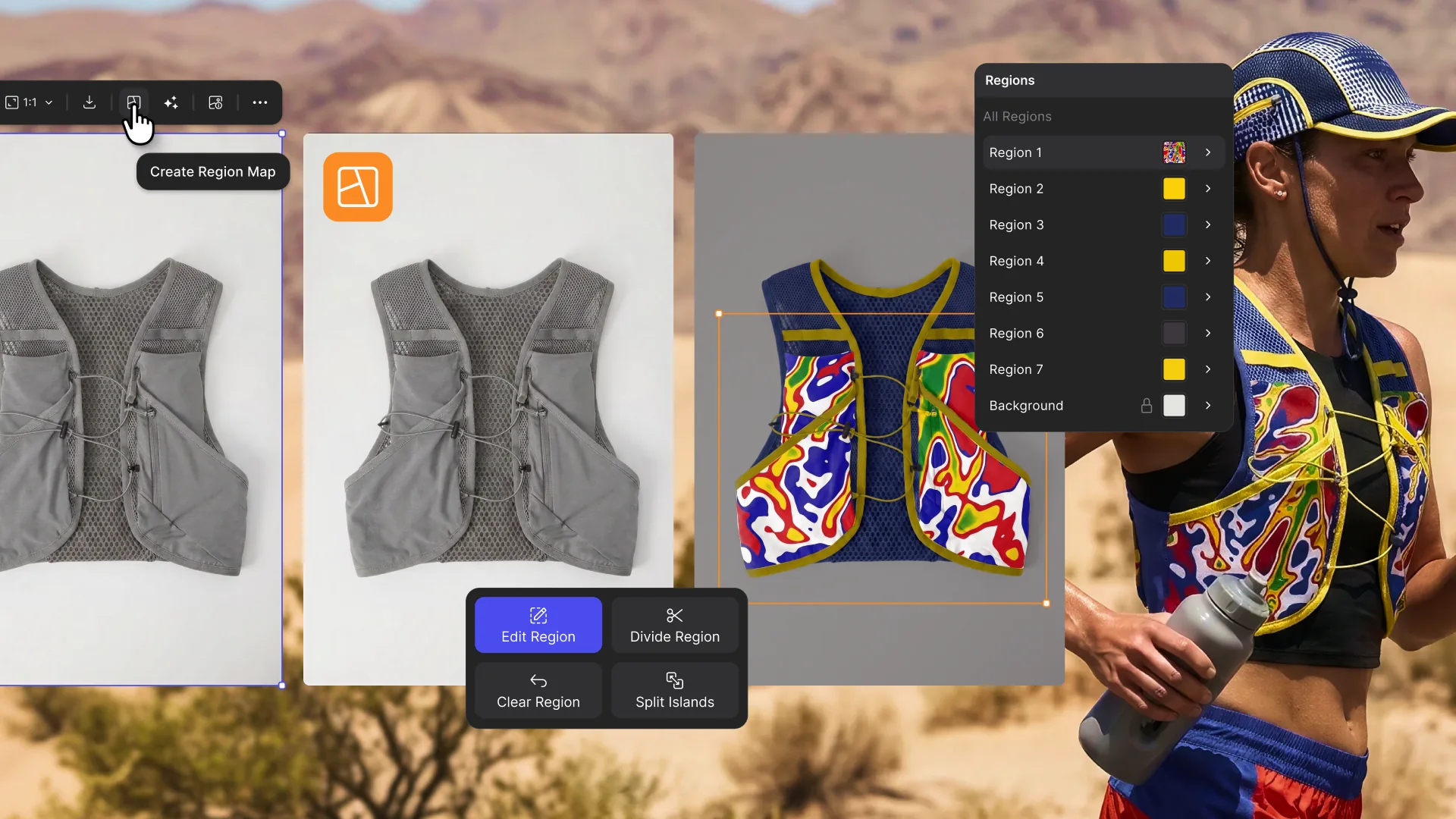
Explore color and material variations part-by-part without leaving Vizcom.

Frequently asked questions
Yes of course! Our starter plan is completely free, no credit card required. This is a great plan to explore vizcom with.
We accept all major credit and debit cards.
Admins (paid) – can edit files, manage workspace settings, billing, teams, and invite members. Editors (paid) – can edit files but not manage settings, billing, or teams. Viewers (free) – can only view files in read-only mode.
Team billing is handled centrally by the Admin. All paid seats, whether Admins or Editors, are included in a single invoice under the same billing cycle, while Viewers remain free and do not affect the cost.
Yes, you can. An Admin can update the plan in the billing settings, and the switch will take effect on the next billing cycle at the annual rate.
Yes, you own everything you create in Vizcom. For free users, while Vizcom may use generated images to improve its services, it does not claim ownership of your designs, concepts, or original ideas—you keep full rights to them. For paid users, your images and designs remain entirely private and are only used to deliver the service. Every design, concept, and image you create or upload is fully yours and kept confidential.
Vizcom does not use your data to train AI models if you’re on a paid plan. Everything you create stays private and is only used to provide the service. Free users may have their generated images included to help improve Vizcom’s services, but even then, Vizcom does not claim ownership of your designs, concepts, or original ideas—you retain full rights.